How to Scrape Data Behind a Login with BrowserAct

To scrape data behind a login, your Bot needs a session the website accepts. BrowserAct’s new Website login settings give you three ways to establish access: account credentials, imported cookies, or manual login. You can set them up without writing a login script.
For example, your weekly order report might need dates, totals, and statuses from a customer portal. Before the Bot can collect those records, it needs access to your account’s order page. Website login lets you prepare that access and reuse saved login updates in future runs.
Use an account you own or are authorized to access.
- 1Choose credentials for a reusable sign-in, cookies for an existing session, or manual login for checks you need to complete yourself.
- 2Use Standard Browser to save login updates for future runs; Rotating Browser supports authorized credentials only.
- 3A saved login can expire. Refresh access when the website asks you to sign in again.
- 4Saving login updates affects future runs. It does not change a running task or resume a failed one.
What Website login adds to your Bot
Website login is available to all users for their own Bots built with Agent or Workflow. Both can use stored credentials from Account Credentials, alongside cookie import and manual login in Standard Browser.
A BrowserAct Bot is reusable. You describe the data you need, build the Bot, and run it again when you need updated results. Login setup belongs to that Bot, so you do not need to choose a method again for every run. You can configure more than one method.
Authorizing account credentials gives the Bot permission to use those details. The website still needs to accept the sign-in. Imported cookies likewise need to represent a session the website still recognizes.
Choose the right login method
To scrape a website that requires login, start with its verification requirements and the access you are comfortable providing.
Your situation | Start with | What to prepare |
The site uses a supported authenticator-app code | Account credentials | Your account details and an Authenticator App Key for time-based codes |
The site has no two-factor authentication | Account credentials or imported cookies | Account details for sign-in, or cookies from an existing signed-in session |
You prefer not to save your password in the Bot | Import cookies | A current session exported as JSON or Netscape cookies |
The login page changes often, or you complete email verification yourself | Import cookies | Finish login and verification locally, then export the session cookies |
You need to complete the website’s login checks yourself | Log in manually | Access to the account and its required verification method |
The site is sensitive to IP changes | Static Proxy + Standard Browser + account credentials | A consistent IP and an authorized credential for the Bot |
For the order-report example, suppose the portal sends you an email code at sign-in. Complete that check locally and import the resulting cookies, or use manual login in the Bot’s browser. Choose credentials with an Authenticator App Key when the site uses supported authenticator-app codes instead.
For account sign-ins, we recommend a Static Proxy to keep a consistent IP and help reduce security checks caused by IP changes. See how to purchase and use a Static Proxy.
Standard Browser supports all three methods and saves successful login updates for future runs. Rotating Browser, previously named Private Browser, supports authorized credentials only. Its temporary session is not saved as a persistent Standard Browser profile.
After setup, check that the Bot can reach the signed-in page containing the data you need.
Set up Website login in BrowserAct
You can prepare login while creating a Bot or update it later.
- Agent: Below the prompt box, select This website needs login. This opens Login settings and uses Standard Browser. Use the gear icon to reopen the panel.
- Workflow: Open the build canvas and select Start. Under Default Browser, turn on This website needs login and open Login settings with the gear icon.
- Existing Bot: Open Browser settings and find Website login.
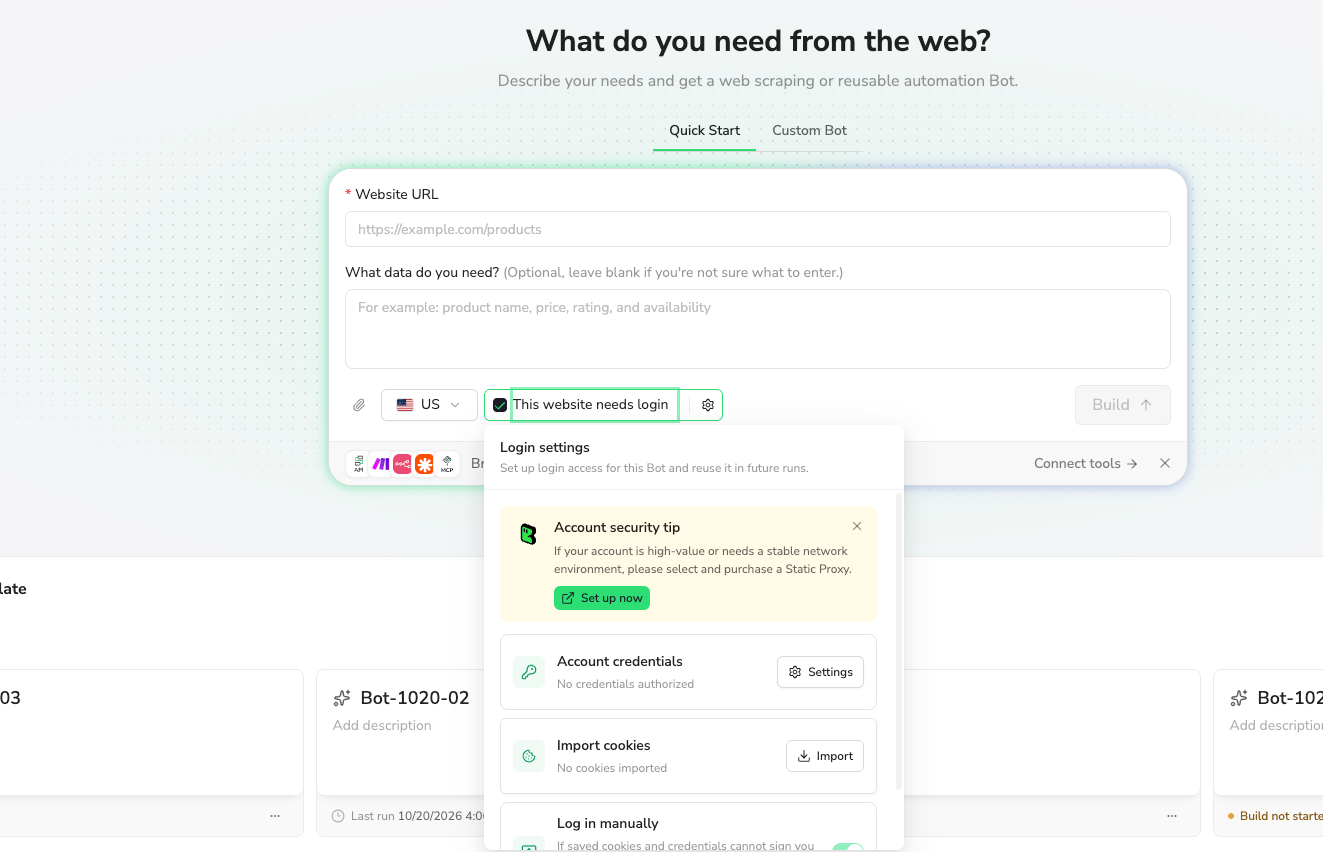
Open Login settings below the Agent prompt.
Wait for all tasks in the Bot’s browser to finish before changing Login settings. Cookie import and manual login also require Standard Browser.
Use account credentials
In Login settings, open Account credentials → Settings. Authorize an existing entry from Account Credentials, or select Add New Credential to save an account for this Bot.
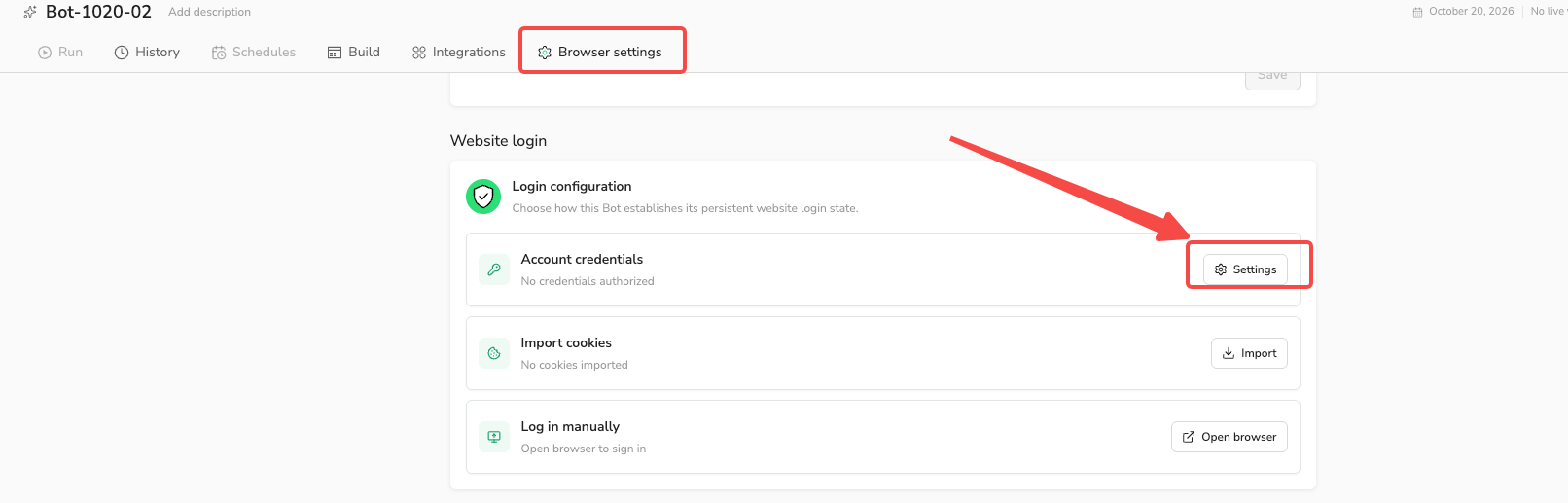
Manage account access for the current Bot.
A credential created from the current Bot’s settings is automatically authorized for that Bot. If you add a credential directly in Account Credentials, authorize the Bot afterward. Use Account Credentials to manage stored accounts and their permissions across Bots.
For supported authenticator-app two-factor authentication, include the Authenticator App Key. Email and SMS codes still require you to complete the website’s verification.
Import cookies
Cookies let your Bot reuse an existing signed-in session. Web scraping with cookies can be useful when you prefer to complete login and verification yourself before starting the Bot.
- Open the target website in your local browser and finish signing in.
- Use a tool such as Cookie Editor to export the cookies as JSON or Netscape.
- In BrowserAct, select Import on the Import cookies card.
- Paste the cookie data, or select Upload cookie file for a
.json,.txt, or.cookiesfile. - Select Import cookies to submit the import.
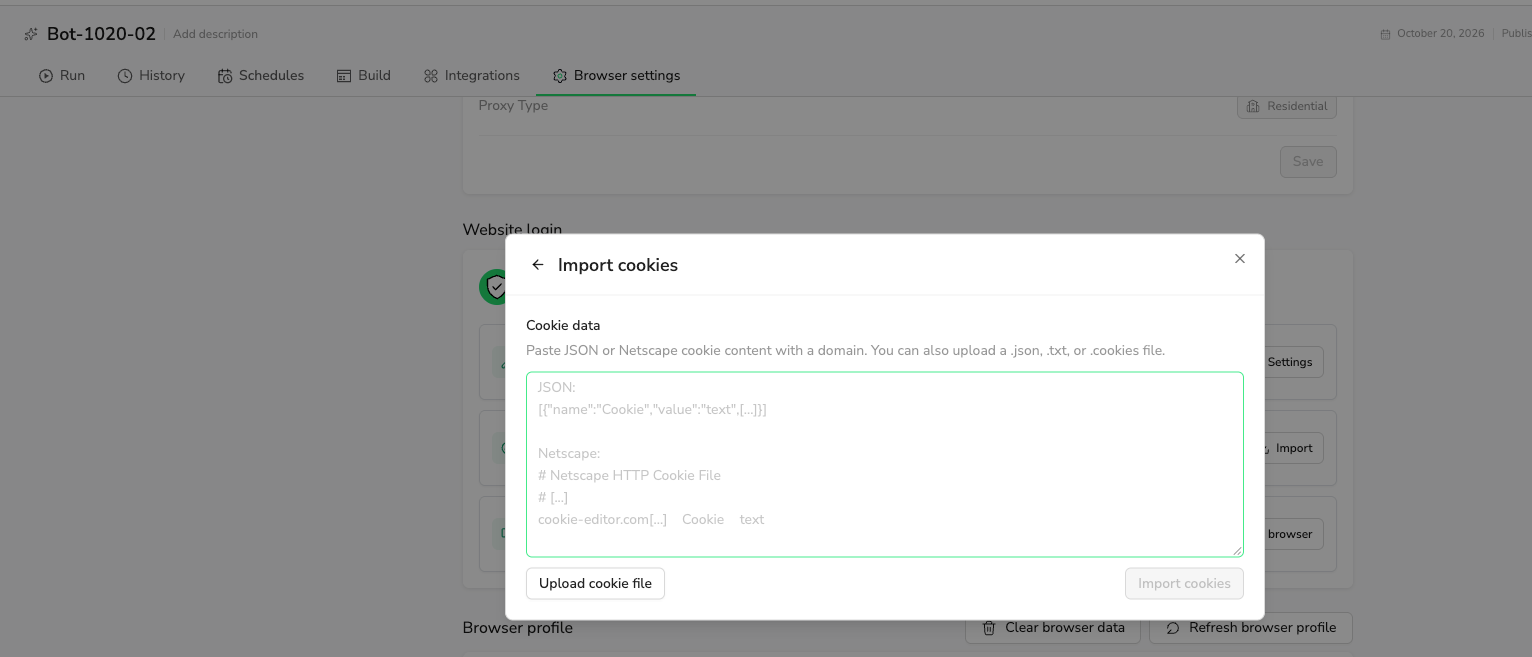
Paste cookie data or upload a JSON or Netscape cookie file.
BrowserAct requires cookie data with domain information. A plain Cookie Header String is not supported. Importing valid data does not guarantee that the website will accept the session, especially if it has expired or the site requires another verification step.
Log in manually
Select Open browser on the Log in manually card. Visit the target website, sign in, and complete its verification. Select Complete login to save the session and return to BrowserAct. The settings browser gives you 15 minutes to complete this step.
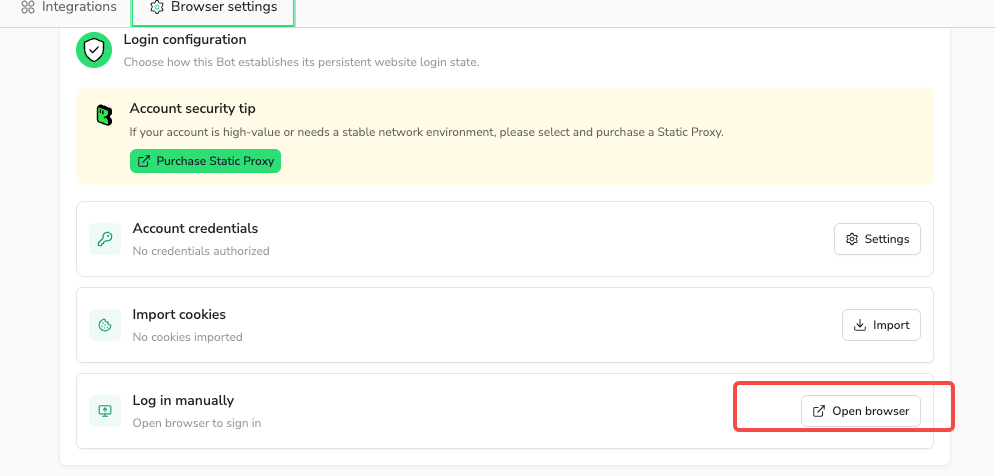
Open the Bot’s browser to complete login yourself.
During an Agent Build, a login request can instead offer Take over browser. Finish signing in, then select Return to Agent to continue the Build.
The Website Login guide includes the full credential management steps, Cookie Editor export instructions, and screenshots.
Reuse saved login in future runs
Successful login updates in Standard Browser are saved for the Bot. These can come from login completed during Build, cookie imports, manual login, or successful credential-based sign-in.
Each new task starts with the latest saved state available when it launches. Wait for tasks in that browser to finish before updating login. Your next run uses the saved update.
Saving a login update does not switch the website session in a task that is already running. It also does not resume a failed task.
Older task state cannot overwrite a newer saved state. An update that fails, is canceled, or times out leaves the previous saved state in place.
Saved access can still expire. A website may ask you to sign in again after a password change, a logout, or an additional account check.
Restore access when a session expires
If a Bot can no longer access the data because of login, update its access before running it again:
- Open the Bot’s Browser settings → Website login.
- Update its authorized credentials, import fresh cookies, or complete manual login.
- Save the update and start a new run.
A failed run stays failed after you update login. Start a new run to use the updated access.
For the order-report example, check that the new run returns order dates, totals, and statuses from the portal’s order page. Use that first result to check the fields before reusing the Bot for your next report.
FAQ
Do I have to store my website password?
No. Import cookies or use manual login in Standard Browser. Cookies can grant account access too, so keep exported session data private.
Can BrowserAct handle two-factor authentication?
Credentials support time-based codes with a supported Authenticator App Key. Complete email, SMS, or other interactive checks yourself through manual login, or import cookies after verification.
Does my Bot automatically use my local Chrome login?
No. A cloud Bot does not automatically inherit your local Chrome session. Import its cookies or establish login in the Bot’s browser.
How long does a saved login last?
The website controls session validity. Saved login has no guaranteed lifetime; update it when the site requires you to sign in again.
Does removing credential authorization sign the Bot out?
No. It removes permission to use the credential. It does not clear an existing website session or delete the saved credential.
Set up access for your next run
To scrape data behind a login, choose a method that fits the website and prepare access in your Bot’s Website login settings. Use Standard Browser when you want to reuse saved login updates, and refresh access when the website asks you to sign in again.

Choose account credentials, imported cookies, or manual login. Follow the Website Login guide to set up access for your Bot.
Set up website login →


