ChatGPT Images 2.5: Turn the Image Editor into an API and MCP Tool

An ecommerce creative team has one approved product photo and twenty campaign requests. Each request starts the same way: open the ChatGPT image editor, upload the SKU image, paste a prompt, wait, download the result, and repeat. ChatGPT Images 2.5 can improve the output, but it does not remove that operational loop by itself.
The practical next step is to turn the browser process into one reusable Bot. With BrowserAct, you can copy a ready-made Bot Template, connect your own ChatGPT login, validate the image modes your team plans to use, and publish the Bot for API or MCP access. Internal teammates can then invoke the capability without receiving the ChatGPT account password.
- 1ChatGPT Images 2.5 is most useful for repeatable work when reference fidelity, precise edits, and multi-turn consistency matter—not only for one-off generation.
- 2For recurring image tasks, the operational bottleneck is reproducing the same steps and controlling team access, not finding one more prompt list.
- 3One validated BrowserAct Bot can accept a prompt and optional reference images, then be reused through the BrowserAct API or a compatible MCP client.
- 4Internal teams can share controlled invocation credentials without distributing the ChatGPT account password.
- 5Before scaling, test dynamic limits, success rate, waiting time, and credit use; a cost estimate does not prove production capacity.
What Changed in ChatGPT Images 2.5?
The useful change is not simply that ChatGPT can generate another image. OpenAI positions ChatGPT Images 2.5 around stronger instruction following, sharper detail, more precise editing, better reference-image fidelity, and improved consistency across repeated edits. Those gains matter most when an image is part of a repeatable production process.
Model-level improvement | Workflow impact for a creative team |
Better reference-image fidelity | A product, character, or visual identity has a better chance of remaining recognizable across variants. |
More precise editing | Prompts can describe a specific change instead of regenerating the whole composition. |
Stronger multi-turn consistency | Teams can refine a result through several edits without restarting from the original brief each time. |
Faster generation | Review cycles can move more quickly, although actual waiting time still depends on the product and account state. |
This makes the model more useful for product photography, campaign variants, social assets, packaging concepts, and other tasks where the subject should stay stable while the surrounding scene changes. It also raises a new question: how do you make the same process available from the tools where the team already works?
Why Image Editing Becomes a Workflow Problem
A good prompt is only one part of a reliable image task. The operator still has to choose the correct account, open the right browser state, upload the intended references, preserve the prompt, wait for completion, download the final file, and return enough metadata for the next system to use it.
That is why a long list of ChatGPT image prompts does not solve the team problem. Repetition introduces three kinds of drift:
- Input drift: people change or shorten the approved prompt, upload the wrong reference, or omit a constraint.
- Process drift: one person edits the existing image while another starts a new generation, producing inconsistent results.
- Access drift: the workflow depends on whoever currently has the ChatGPT login, so collaboration turns into password sharing or manual handoffs.
BrowserAct addresses the operational layer. The reusable object is a Bot: a saved browser task with defined inputs, steps, and outputs. Once the Bot works, it can be published and invoked from another system through the BrowserAct integration options. The image model still runs in ChatGPT; BrowserAct makes the browser process callable and repeatable.
Make the ChatGPT Images 2.5 BrowserAct Template Your Own
The public BrowserAct Template is a starting point, not a shared execution account. It cannot be run directly. You first create an editable duplicate in your own workspace, then reconnect your own ChatGPT session without rebuilding the Bot.
1. Create an editable duplicate
Open the official ChatGPT Image 2.5 API (Copy Before Use) template and click Create Editable Duplicate in the upper-right corner. The copied Bot becomes your editable version. Open it, choose Build, and then enter Improve.

Before reconnecting ChatGPT, keep the account environment consistent. If the account is normally accessed through a proxy, prefer one static proxy and keep it bound to the same Browser Profile instead of rotating proxy endpoints between runs. This reduces avoidable changes to the browser and network environment. It does not guarantee uninterrupted access or remove ChatGPT login checks, verification, usage limits, or other platform controls.
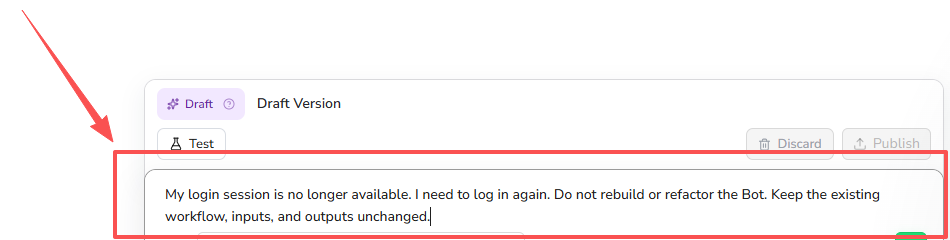
2. Ask Improve to restore login only
Enter this instruction exactly:
My login session is no longer available. I need to log in again. Do not rebuild or refactor the Bot. Keep the existing workflow, inputs, and outputs unchanged.
Complete the ChatGPT login yourself when the browser asks for it. Do not put a password, verification code, cookie, or recovery code into the Bot instruction. After login, return control to Improve so it can continue with the existing workflow.
Publish the Bot and Turn It into an MCP Tool
After restoring your ChatGPT login, publish the personal Bot. Publication gives you two ways to reuse the same capability: the BrowserAct API and MCP.
Use the published Bot through API
The BrowserAct API route calls the published Bot rather than exposing an official OpenAI image endpoint. A typical integration submits a Bot run, receives a task ID, polls for completion, and reads the structured result. That pattern works for internal systems, scheduled jobs, or automation platforms that already handle asynchronous tasks.
This distinction is important. The official OpenAI image generation API provides model-level controls. The BrowserAct route operates the ChatGPT web workflow through the Browser Profile connected to your Bot. It does not turn a ChatGPT subscription into an official OpenAI API endpoint, and the web product does not expose the same selectable API model, quality tier, or explicit pixel-dimension controls.
Use the published Bot through MCP
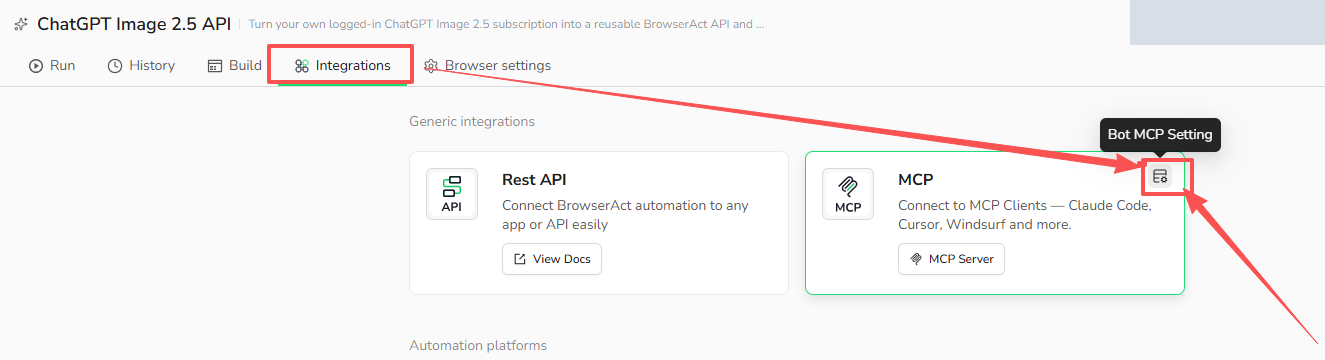
Open the published Bot and go to Integrations. On the MCP card, click the Bot MCP Setting icon in the upper-right corner.
In MCP Tool Configuration, enter a unique Tool Call Name and use the descriptions below. Set all five tool inputs to AI-inferred so the Agent supplies their values when calling the tool.
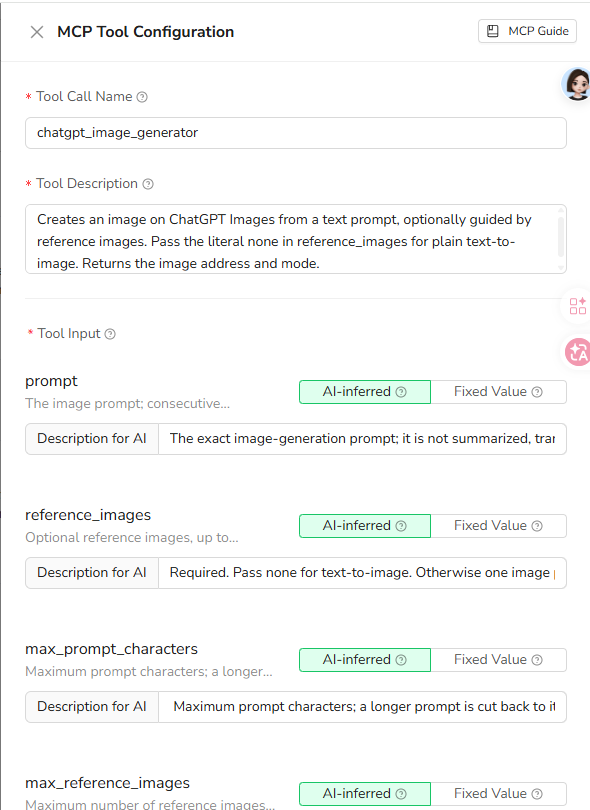
MCP field | Reference value or description |
Tool Call Name |
|
Tool Description | Creates an image on ChatGPT Images from a text prompt, optionally guided by reference images. Pass the literal |
| The exact image-generation prompt; it is not summarized, translated, rewritten, reordered, or split. |
| Required. Pass |
| Maximum prompt characters; a longer prompt is cut back to its last complete sentence. |
| Maximum number of reference images accepted from |
| Maximum size in MB accepted for a single reference image. Exceeding it fails the run; images are never skipped or downscaled silently. |
The Bot defaults are 4,000 prompt characters, four reference images, and 10 MB per image. For MCP text-to-image, pass reference_images: none and max_reference_images: 0. Keep the prompt within the character limit to preserve its complete wording, and prefer public image URLs for references.
Expose the Bot to an MCP Server
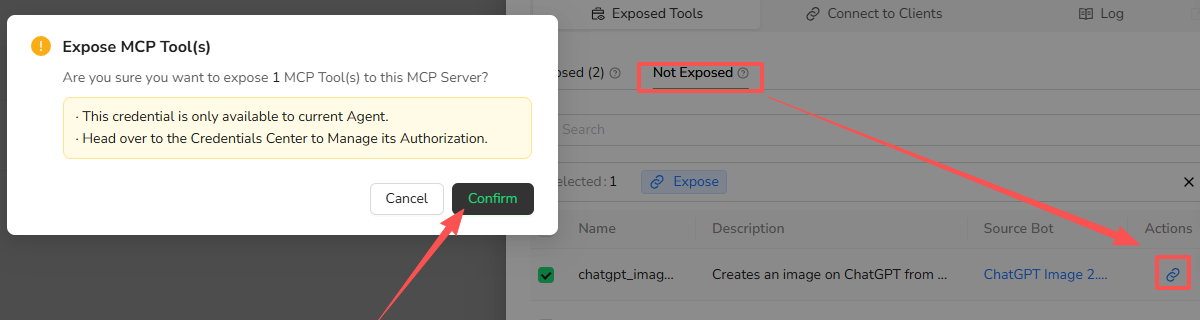
Return to the MCP card and click MCP Server. Create or select a server, open Server Management, and go to Exposed Tools → Not Exposed. Select your image tool, click Expose or its link icon, and click Confirm in the dialog.
Connect the MCP Server to Your Agent
Open Connect to Clients. Copy the MCP Server URL and create or copy an API Key from that same server.
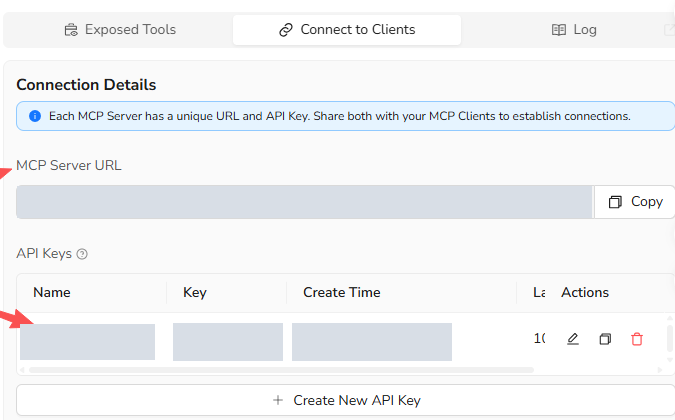
Add the URL and key in your client's MCP settings. Select Streamable HTTP and use Authorization: Bearer BROWSERACT_MCP_KEY where the client requires an authorization header, replacing BROWSERACT_MCP_KEY with your server's API key. Follow your client's connection instructions alongside the BrowserAct MCP guide. Keep the key private.
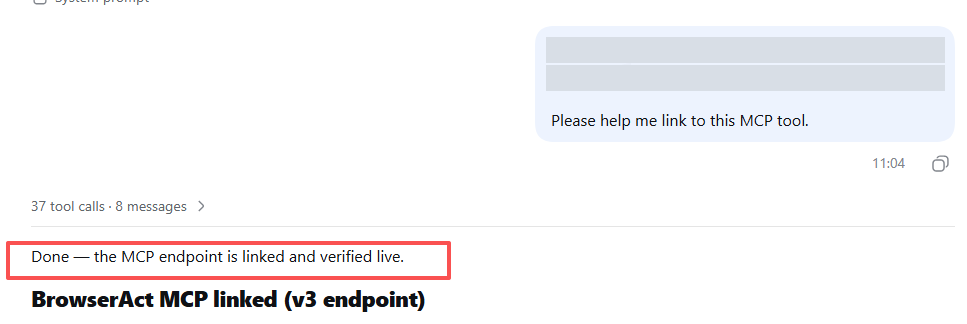
The DeepSeek client below confirms that the BrowserAct MCP connection is available. Once the client discovers chatgpt_image_generator, ask it to generate or edit an image in natural language.
Example: Generate an Image from DeepSeek through MCP
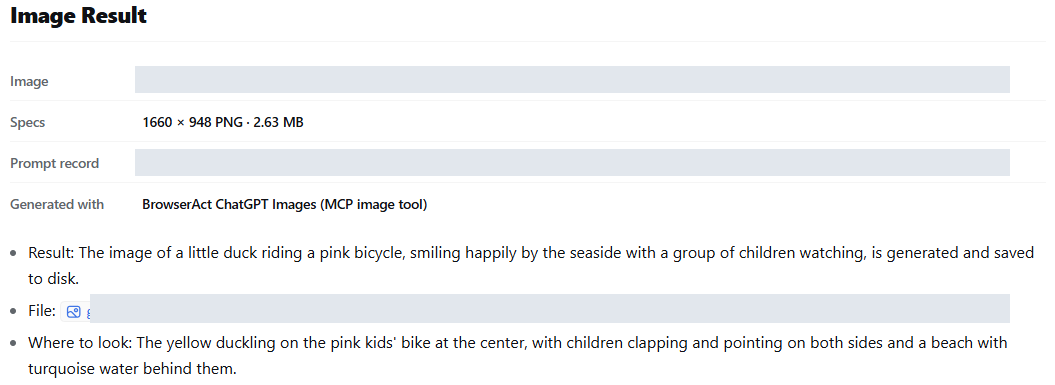
With the image tool connected, send an image request in your Agent's chat. The DeepSeek example below used this prompt:
I want to create an image of a little duck riding a pink bicycle and smiling happily by the seaside, surrounded by a group of children watching.
DeepSeek called the BrowserAct chatgpt_image_generator MCP tool to run the ChatGPT image Bot.
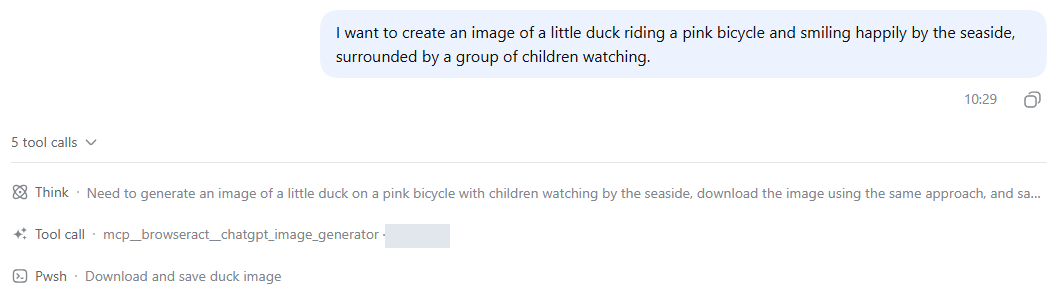
The Agent downloaded and saved the returned PNG, then reported a 1660 × 948 image with a file size of 2.63 MB. This example starts with a text prompt and no reference image.
Share the Capability, Not the ChatGPT Password
The main collaboration benefit is separation of access inside an internal team. One authorized operator maintains the ChatGPT login inside a saved Browser Profile. Teammates or internal systems receive a BrowserAct API credential or an MCP Server URL and API key, depending on the integration.
Shared-account pool | User-owned BrowserAct Bot |
ChatGPT credentials may be distributed or controlled by an intermediary | ChatGPT credentials remain with the account owner |
Requests can pass through an account and environment you do not control | Runs use the Browser Profile connected to your Bot |
Account switching may change browser context | The same saved Browser Profile can reuse its login state |
Team access is tied to the shared ChatGPT account | Team members receive BrowserAct API or MCP credentials instead of the ChatGPT password |
This does not make the setup risk-free. Store API keys and MCP credentials privately, share them only with the intended internal users, and replace them if they are exposed. A consistent Browser Profile and, when needed, one static proxy can reduce avoidable environment changes, but they do not remove authentication checks, usage limits, or platform controls.
The safer claim is therefore specific: using your own account avoids adding a third-party shared ChatGPT account pool and reduces the number of people who need the ChatGPT password. It is not a promise of absolute data security or confirmation that every account plan and workload is permitted. The account owner remains responsible for reviewing current platform terms, plan limits, and internal organization policy.
What to Test Before Running at Scale
A working Bot proves the workflow can run. It does not prove a monthly production capacity. Before connecting a large product catalog or campaign queue, run a representative pilot and record five measurements:
- Output acceptance rate: how many images preserve the product and satisfy the brief without another generation?
- Task success rate: how often does the browser process finish and return the expected PNG and metadata?
- End-to-end waiting time: measure submission to usable output, not only model generation time.
- BrowserAct credit use: observe the current range across both generation and editing tasks; page state and task behavior can change consumption.
- ChatGPT availability: record any product limit notice and the reset time shown by ChatGPT.
OpenAI's current ChatGPT Pro tier guidance and ChatGPT Images guidance do not publish a fixed daily image count guaranteed for Pro. The Pro guidance says allowances vary by tier and that ChatGPT displays a reset time when that information is available. That makes any “images per month” calculation a cost scenario, not capacity proof.
Also remember that the ChatGPT web interface does not expose the same selectable model, quality tier, and explicit pixel-dimension controls as the official image generation API. If a production job requires an exact API model, a fixed quality tier, or deterministic canvas options, evaluate the official API. If the priority is reusing a validated web workflow with a user-owned account and controlled internal access, test the BrowserAct Bot under the real load pattern before scaling.
Frequently Asked Questions
Can ChatGPT Images 2.5 edit an existing image?
Yes. Provide an existing image as a reference and describe the intended change. For repeatable work, state which subject details must remain unchanged and verify the result before using it in production.
Is a BrowserAct Bot the same as the official GPT Image 2.5 API?
No. A BrowserAct Bot operates a defined ChatGPT browser workflow through the connected Browser Profile. The official OpenAI API is a separate model-level interface with its own parameters, pricing, and limits.
Can the same Bot handle text-to-image and image-to-image tasks?
Yes. The published template uses one Bot for both modes. When running the Bot directly, a prompt without a reference starts text-to-image; a prompt with one or more references starts image-to-image or editing. In an MCP text-to-image call, pass none in the required reference_images tool field.
Do teammates need the ChatGPT account password?
No. The account owner completes ChatGPT login in the Bot’s Browser Profile. Internal teammates can receive the appropriate BrowserAct API or MCP credentials instead, which must still be protected as secrets.
Does ChatGPT Pro guarantee a fixed number of images per day?
No fixed daily image count is publicly guaranteed. Limits are dynamic, and ChatGPT may show a wait period or reset time when the account reaches a current product limit.
Turn One Image Task into a Reusable Team Tool
A ChatGPT image editor becomes more valuable when the approved process is available beyond one person’s browser. Copy the template, restore your own login without refactoring the Bot, validate the modes you plan to use, publish once, and choose API or MCP for the internal systems and compatible Agents that need access.
Your first scale test should answer two questions: does the workflow preserve the images your team cares about, and can the account sustain the real queue? Once both answers are clear, you have a repeatable operating process rather than another manual prompt routine.