How to Use a LinkedIn Profile Scraper: From URLs to CSV

You have a list of people to research and a LinkedIn URL for each one. Before you can use that list, you still need to open their profiles, check their current companies and roles, and copy the details into a spreadsheet.
A LinkedIn profile scraper handles that repeated collection. With BrowserAct, the process is to prepare your profile URLs, authorize your own Bot to access LinkedIn, collect the visible details, and download a CSV. You can then compare people in one sheet while keeping a link back to each source.
This walkthrough follows that process using the LinkedIn Profile Scraper template, with saved credentials supporting sign-in and later reuse.
What You Can Collect from LinkedIn Profiles
Start with the information you need to check. For a list of potential business contacts, current company and role help you establish whether the person still matches your research. Their headline and background add context before a conversation.
The profile data available to your signed-in account determines what the Bot can collect:
Profile information | How to use it in your sheet |
Profile URL and name | Match each record to the person in your original list |
Current position and company | Check their present role and organization |
Headline and location | Add professional context and the location they display |
About, experience, and education | Review relevant background when available |
Keep the headline separate from the current position. Someone may describe several interests or services in their headline; that text is not always their job title. Likewise, several current roles may be listed on one profile.
A profile can omit optional information, and some details may be unavailable to your account. Leave those fields blank and check the collection status before deciding a record is complete.
If your research starts with jobs, posts, or company pages, use a collector suited to those inputs. Our LinkedIn scraper guide explains the different collection tasks.
How to Scrape LinkedIn Profiles with BrowserAct
Once your links are ready, create an editable Bot from the template, authorize LinkedIn access, and run it to collect your data. Start with a small batch before processing the rest of the list.
Step 1: Prepare Your Profile URLs
Put the personal profile URLs you want to research in one column. Remove duplicates and check that each link points to the intended person. This gives you a clear source list to compare with the export.
Use standard LinkedIn personal profile links containing /in/. Company pages and search-result URLs need a different collection workflow.
For the single-line Run form, separate URLs with commas or semicolons; Chinese commas and enumeration commas also work. One URL per line works where line breaks are preserved. Configure account access separately from that list.
Step 2: Start Quickly from the LinkedIn Template
Open the LinkedIn Profile Scraper template and select Create Editable Duplicate in the upper-right corner to create your own editable Bot.
Reusing the template saves the time and cost of building the scraper from scratch. You can customize your copy to fit the profile data you need. You can also start a new Bot in BrowserAct and describe the collection task yourself.

Copy the template to your account, authorize LinkedIn access, and collect visible profile details in one record per person.
Open the LinkedIn Profile Scraper template →Step 3: Set Up LinkedIn Access for Your Bot
Wait for any tasks in this browser to finish before changing Login settings.
Open your Bot's Browser settings, find Website login, and select Settings for Account credentials. Add and save a LinkedIn credential here to authorize it for the current Bot, or authorize an existing entry from Account Credentials.
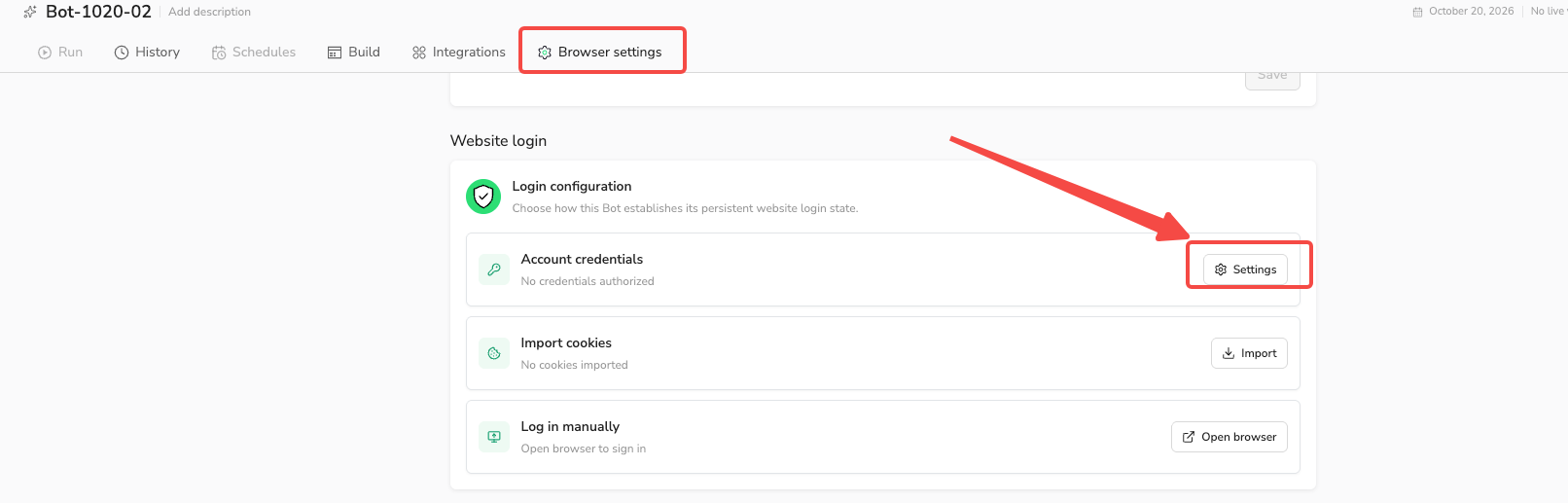
Open Account credentials settings for the Bot you copied.
For login setup, follow the Website Login guide.
Use Standard Browser to save successful login updates for later tasks. BrowserAct can reuse a valid saved session or sign in using the authorized credential when needed. LinkedIn may still ask for verification that you need to complete yourself.
For account-based work, consider a Static Proxy to keep the IP address consistent between sessions. It does not guarantee unrestricted access or remove verification.
Step 4: Run the Bot and Get Your Data
Save and publish your editable Bot, then open Run. Paste a small selection of your prepared URLs into profile_urls, separated by commas or semicolons, and start a run. When it finishes, open the results and compare the names, profile links, current positions, and companies with the source pages. This checks both identity and the fields you plan to use.
Review the collection status alongside the details. A profile that loaded but has no education information is different from a profile blocked by sign-in. Resolve access problems before treating the records as ready for research.
If a run has failed because of login, update access in the Bot's Website login settings and start a new run. Once the names and URLs match and the fields needed for your research are present, replace the input with the remaining URLs and run the Bot again.
Step 5: Export Your Data or Connect Your Agent
Download the completed results as CSV and open the file in your spreadsheet app. Keep one person per row, with the profile URL and collection status beside their details.
Before editing the data, compare the rows with your deduplicated input list. Check that each supplied profile is represented by either collected details or an explanation of why it could not be collected.
Save the original export. You can work from a separate copy while preserving the collected values and sources for later review.
You can also connect the published Bot to your automation tools from Integrations. For your own AI agent, expose the Bot as a tool on a BrowserAct MCP Server, then connect that server to an MCP-compatible client. Your agent can supply the profile URLs and receive the Bot's results.
Follow the BrowserAct MCP setup guide to expose the Bot and connect your agent.
Turn the Export into a Useful Research List
Compare the export with the information already in your working sheet. This is where a collection of profile details becomes useful research.
Suppose your original list includes a company for each person. Keep that value in an Original company column and place the collected Current company alongside it. When the two differ, mark the row for review and open the profile URL.
That difference could reflect a job change, several current roles, a variation in company naming, or the wrong profile link. Check the profile before recording an employment change or replacing your original value.
Then filter the checked rows by the fields relevant to your list, such as current role or location. Keep unresolved rows separate so that a missing field or failed visit does not silently become a research conclusion.
The spreadsheet now gives you a consistent view of the people you selected, with a source to consult when something needs context.
Reuse the Bot for Your Next List
For the next research round, use the same Bot with a new set of profile URLs. You can keep its authorized credential and reuse a saved login while it remains valid.
If LinkedIn requests another sign-in, restore access before starting a new run. Saving a login update applies to later tasks; it does not switch the session inside a task already running.
Keep exports dated so you can identify which collection informed a decision. A downloaded CSV is a snapshot of that run; profile changes do not update the file automatically.
Start with Your Existing Profile List
Choose a shortlist you need to check, set up LinkedIn access for your own Bot, and inspect a small export. Once the records fit your research, use the LinkedIn profile scraper for the rest of the list and future rounds.
Frequently Asked Questions
Do I need to write code to scrape LinkedIn profiles?
No. This BrowserAct workflow uses a reusable Bot. You provide profile URLs and configure account access without writing a scraping script.
Can this scraper find new profiles for me?
This workflow collects the personal profiles you supply. Discovering people through LinkedIn search or company research is a separate task.
Can I use Sales Navigator or company-page URLs?
This workflow expects standard personal profile URLs containing /in/. Sales Navigator URLs, company pages, and search-result pages are outside its input scope.
Will the spreadsheet include email addresses and phone numbers?
Email and phone enrichment are outside this workflow. Authorizing LinkedIn login does not give the Bot access to hidden contact information.
Can I use the data in Google Sheets?
Yes. Download the CSV and import it into Google Sheets. The imported data is a snapshot; it does not automatically synchronize with LinkedIn.


