New in BrowserAct: Scheduled Bot Runs and Result Alerts

Scheduled Bot runs are now live in BrowserAct. Set an hourly, daily, or weekly plan for a published Bot that already collects the data you need, then decide when its results should reach your inbox. BrowserAct keeps each successful result even when you turn off success emails.
If you revisit the same directory or listings each week, the schedule takes care of starting the repeat run. You can receive an email when its result changes, after every success, or—on an Agent-built Bot—when the result meets a condition you define.
- 1Scheduled Bot runs let published Agent-built and Workflow-built Bots run automatically on hourly, daily, or weekly plans.
- 2Each schedule keeps its own time zone, saved inputs, and notification choices.
- 3Both Bot types support emails for changed results, every successful result, or no successful results.
- 4Agent-built Bots also support a result-based notification condition.
- 5The first successful result establishes the change-alert baseline for each schedule.
What are scheduled Bot runs?
A schedule is a recurring plan attached to a published Bot. You choose how often it runs, set a time zone, and save the inputs to use each time. BrowserAct then runs the Bot automatically on that schedule. You can review each run and its result in BrowserAct.
Scheduled runs work with published Bots built with Agent or Workflow. One Bot can have multiple schedules with different timing, inputs, and notification choices. For example, the same Bot could collect one product category daily and another weekly, provided its published inputs support both.
The feature is designed for data your Bot already knows how to collect, such as:
- Product details or prices that you check repeatedly
- Listings in a category or search result you revisit
- Records in a directory you refresh on a schedule
- Pages whose collected content you want to compare over time
These are examples, not new extraction abilities. The Bot still needs to work on the target site and return the information you want to track.
For a concrete ecommerce example, see the Amazon product monitoring walkthrough. It shows how to set up a separate schedule for each selected product on one published Bot.
Set up scheduled Bot runs
Create a schedule from a published Bot that already returns the data you need:
If you still need to create an Agent-built Bot, Build and Run Your First Bot walks through building, testing, and publishing one before you add a schedule.
Step 1: Open Schedules
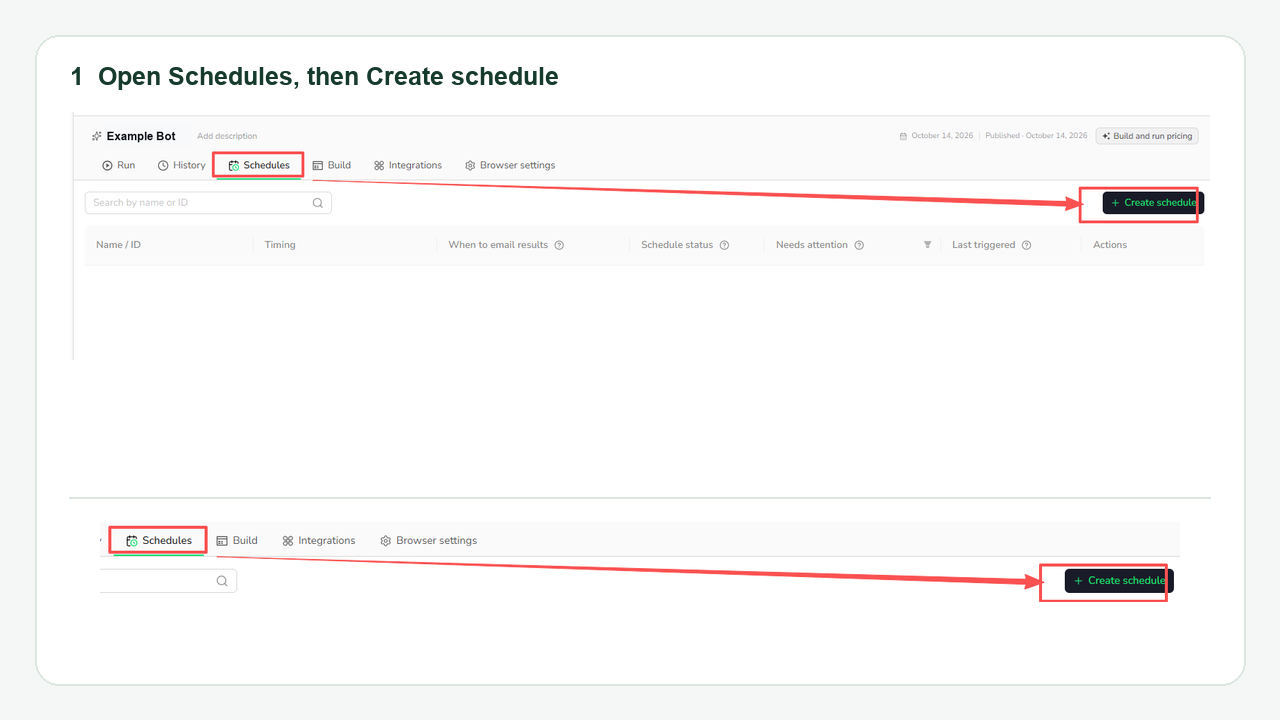
Go to Bots, select the published Bot, open its Schedules tab, and choose Create schedule.
Step 2: Set the timing
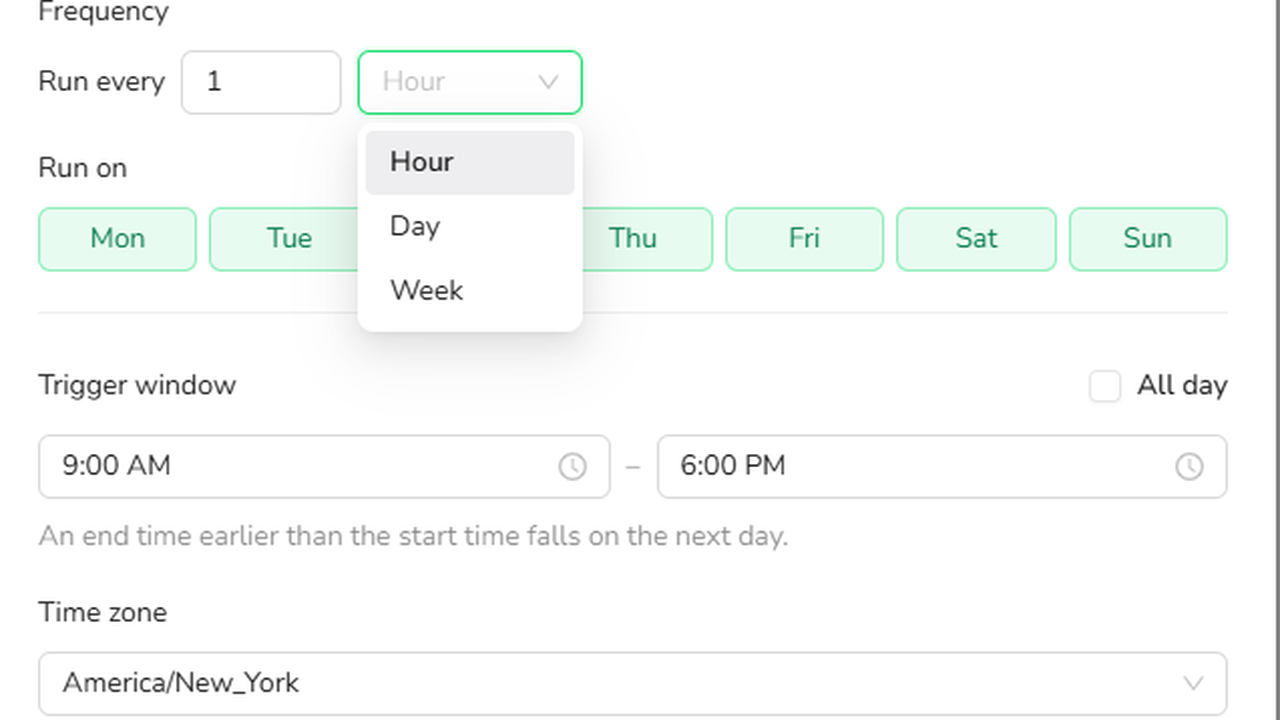
In Timing, name the schedule and choose Frequency: Hour, Day, or Week. Set Run on days where applicable, then choose a Trigger time or Trigger window. A window can cover a range of hours or All day. Select the Time zone used for the plan, then click Next.
Step 3: Confirm the inputs
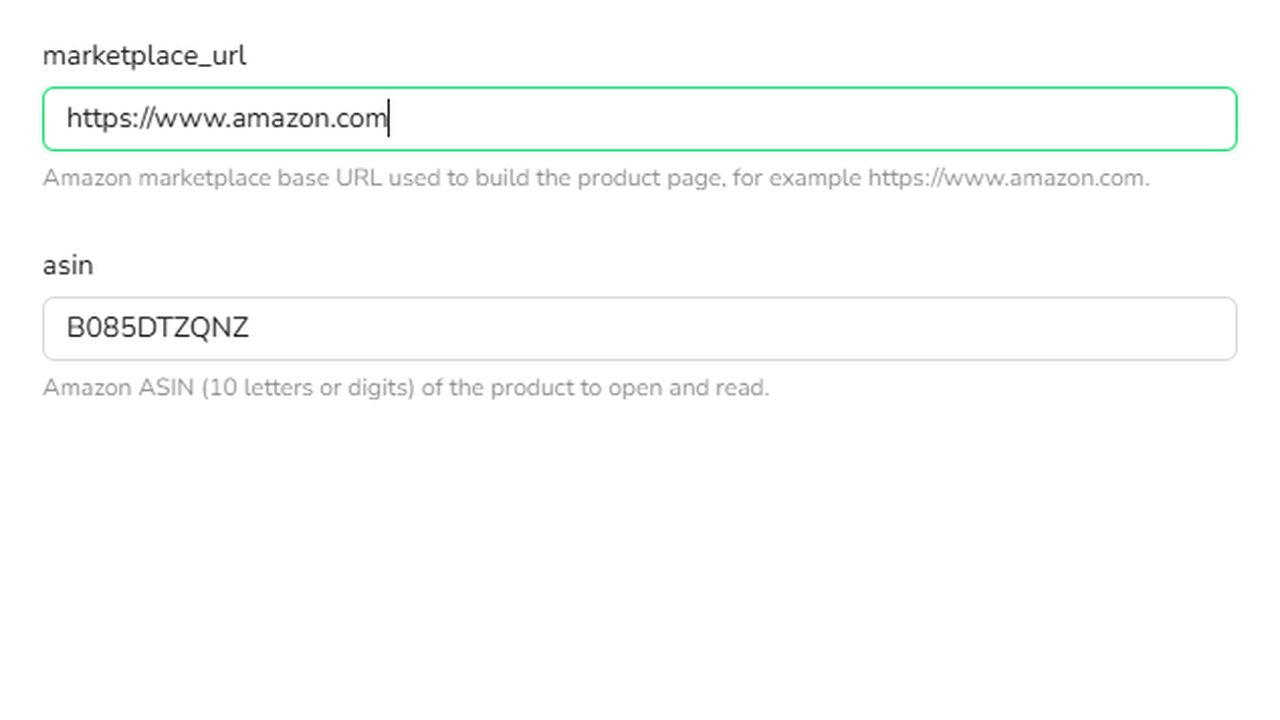
In Inputs, keep valid defaults or enter the values this schedule should use. Fill in any required field without a default, then click Next. The fields come from your published Bot; the product-input screenshot below is one example, not a standard set of fields for every Bot.
Step 4: Choose emails and retry settings
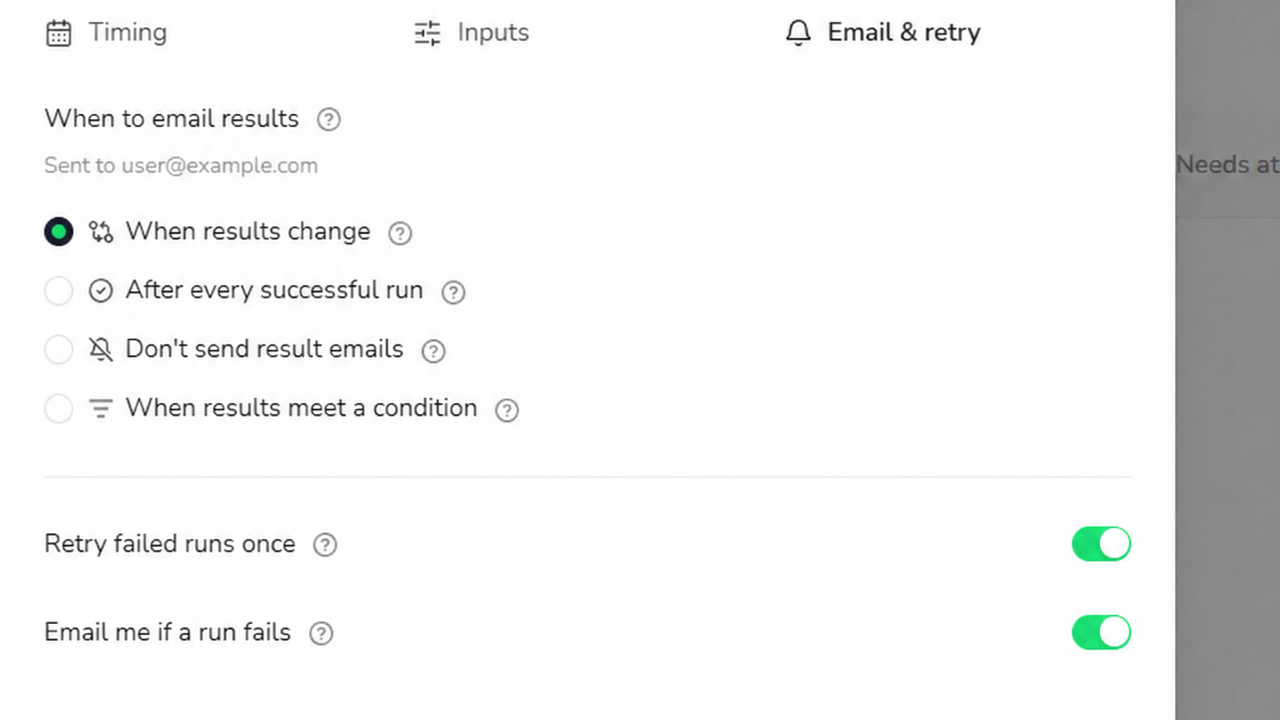
In Email & retry, choose the success-result email rule and check the account email address shown as the recipient. Decide whether to turn on Retry failed runs once and Email me if a run fails, then click Create schedule. The image shows an example recipient address; condition-based emails are available only for Agent-built Bots.
The new schedule appears in the Bot's Schedules tab. Its list shows the name and ID, timing, result-email choice, status, whether it needs attention, and the last trigger. You can edit, pause, resume, or delete it as your needs change. For screenshots and field-by-field instructions, see the Schedule Bot Runs guide.
At its configured times, the schedule runs the Bot automatically. If the Bot's published input definition changes later, a schedule with missing or invalid saved inputs will need your attention before it can run again.
Choose which results deserve an email
Both Agent-built and Workflow-built Bots offer three policies for successful results:
Email policy | What you receive |
When results change | An email when a successful result differs from the previous successful result for the same schedule. |
After every successful run | An email after each successful run, including the first. |
Don't send result emails | The successful run and its result remain in BrowserAct without a result email. |
For change alerts, the first successful result establishes a baseline. It does not trigger a change email because there is no earlier successful result to compare. Later successful results are compared in planned order for that schedule. BrowserAct checks the result content: a new filename, download link, or generation time alone does not count as a data change.
An additional condition for Agent-built Bots
If your published Bot was built with Agent, you can also select When results meet a condition and describe the condition in natural language. For example, you might request an email when a returned price falls below a threshold, as long as the Bot's result includes the price needed to decide.
The condition check can conclude notify, do not notify, or unable to determine. If the result does not provide enough information, BrowserAct keeps the successful result and prompts you to improve the condition. This condition-based choice is for Agent-built Bots; it is not part of the Workflow-built Bot options in this release.
What do result change alerts compare?
Website change monitoring can mean comparing an entire page or a screenshot. BrowserAct's result change alerts compare the content returned by your Bot on successful runs of the same schedule. They do not watch the page continuously or report visual edits that your Bot did not collect.
Suppose a published Bot collects records from a directory each Monday. You want the new result saved each week, but you only want an email if the collected records change.
Create a weekly schedule, save the directory inputs in Inputs, and select When results change in Email & retry. Here is how an illustrative sequence would be handled:
Scheduled outcome | Result-change email? | Why |
First successful result | No | This result establishes the schedule's baseline. |
Next successful result with the same collected records | No | The result content has not changed. |
Later successful result with a new or changed record | Yes | The collected result differs from the previous successful result. |
A run that fails | No result-change email | The separate final-failure email setting applies instead. |
A different output filename alone does not count as a data change. If you change which fields the Bot returns, review the next result before treating its difference as a business signal.
If the Bot was built with Agent, you could instead describe a condition tied to a field it returns, such as “email me when a returned listing includes remote work.” The result must contain enough information for BrowserAct to decide. The condition does not give the Bot new access to the website or add missing data to its result.
When a planned run needs attention
There are different outcomes to check, and they should not all be treated as a changed result:
- The task cannot be created. A rejected request, such as one blocked by insufficient balance, has no run result to email. BrowserAct reports the exception in-app with the affected Bot and schedule.
- The task fails.
Email me if a run failsis a separate setting. IfRetry failed runs onceis enabled and eligible, BrowserAct can create one retry task for that planned time before deciding whether to send a final-failure email.
Turning off success emails does not turn off the separately configured final-failure email or the in-app task-creation exception. Editing or pausing a schedule affects future runs; tasks already created keep the settings saved when they were created.
Tips for useful schedules
Start with a Bot whose ordinary run returns the fields you plan to check. Set the schedule's time zone deliberately, especially if you work across regions. Choose a notification policy that matches your decision: every success for a complete recurring report, a change alert for a comparison, or an Agent Bot condition for a specific result-based question. Review the task history and saved inputs when the source page or your Bot changes.
These steps help you interpret the emails you receive. They do not promise that every website will stay available or every run will succeed.
Scope and limits
Scheduled Bot runs and result alerts are live. Open a published Bot's Schedules tab to create and manage its plans. The available inputs and results depend on the Bot you choose.
This is scheduled data collection and result notification, not continuous, real-time watching of a website. Change alerts depend on successful results from the same schedule. A condition-based alert depends on what a successful Agent-built Bot actually returns.
FAQ
Do I need a new Bot to create a schedule?
No. Create the schedule from a Bot that has already been published. Its saved schedule inputs must remain compatible with its current published input definition.
Can one Bot have more than one schedule?
Yes. Each schedule can have its own timing, time zone, saved inputs, and email choices. Result-change comparisons stay within each schedule.
Will the first successful run send a change alert?
No. It establishes the baseline for that schedule. If you choose an email after every successful run, the first success can still send that email.
Does “Don't send result emails” also turn off failure alerts?
No. Final-failure emails have a separate setting. If BrowserAct cannot create a task at a planned time, the exception is reported in-app.
Does a result-change alert report every edit on the website?
No. It compares the content your Bot returned on successful runs of the same schedule. A visual edit or other page change that the Bot does not collect will not, by itself, appear in the result comparison.
Conclusion
Scheduled Bot runs put repeatable data collection on a plan. Result alerts help you choose whether to hear about every success, a meaningful change, or a condition supported by an Agent-built Bot's result. Start with a published Bot that already collects the data you care about, then choose the plan and notification policy that fit your work.