Amazon Product Monitoring for Competitor Research: A Scheduled Bot Guide

Amazon product monitoring for competitor research starts with a short list of specific products and the fields you want to check again. Test a published BrowserAct Bot on each selected product, then give each product its own schedule. The Bot can revisit them automatically and email you according to each schedule's result settings.
This is a practical setup for a defined competitor list. It depends on the Bot's published inputs and access to each product page; creating the schedules is a per-product task, not a bulk import.
This guide covers the public product-page data your Bot actually returns. It does not cover private Amazon Seller Central metrics, Buy Box intelligence, or keyword-rank alerts.
- 1Start with a published Bot that has already returned the Amazon product fields you need.
- 2For a defined list of products, use separate schedules with each product's accepted input; this is not a bulk import flow.
- 3Changed-result alerts compare successful results within the same schedule. The first success establishes that schedule's baseline.
- 4Both Bot types offer changed-result, every-success, and no-success-email policies. Agent-built Bots also offer a result-based notification condition.
- 5BrowserAct runs each product schedule automatically; check task history and the configured failure reminders when a result is missing.
Choose the Amazon products and fields that matter
Start with a short list of specific competitor products. Decide which product page or identifier you care about, which Amazon marketplace and product variant are relevant, and what a useful result should contain.
Depending on what your published Bot is built and tested to collect, that result might include a product title, current price, seller, availability, or other product details. BrowserAct's existing ecommerce offering includes Amazon product data collection, but the new schedule does not add fields to a Bot that cannot already return them. Amazon price monitoring is one possible use of those results; this setup does not create a dedicated price-history chart.
For a practical first pass, write down:
Decision | Example for a defined competitor list |
Products | Three selected Amazon product pages in one category |
Input for each run | The values your Bot accepts; a tested Amazon Bot may expose |
Fields to check | The price and seller information your Bot actually returns |
Cadence | A daily or weekly plan that fits your decision cycle |
Email rule | A changed result, every success, or a supported Agent Bot condition |
Using the same input and output shape for repeated checks makes the results easier to interpret. Before adding a schedule, run the Bot normally and inspect the output: confirm that the price, seller, availability, or other field you intend to watch is actually present, not merely that the run completed.
Pick fields that lead to a clear follow-up. A changed price might prompt a pricing review; a changed seller or availability value might prompt a closer look at that listing. These are decisions for your team after reviewing the result, not actions the schedule performs for you. If a field is missing from a product's successful result, do not treat it as a confirmed price, seller, or stock change without checking the page and Bot output.
If you need to create an Agent-built Bot first, Build and Run Your First Bot covers how to build, test, and publish one before adding schedules.
If you need a starting point, explore the Amazon Product Details Scraper template. Its documented inputs are Marketplace URL and ASIN, and its output schema includes fields such as current price, availability, and seller when those details are available on the public page. Test it with a product you care about and inspect the result. The scheduling steps below apply to a published Bot in your Bots list; visiting the template page alone does not create a schedule.
Set up a separate schedule for each product
A published Bot can hold multiple schedules. Each schedule saves its own timing, time zone, inputs, and notification choice. That gives you a straightforward way to organize several specific Amazon products if your Bot accepts a product URL or identifier as an input.
For the full explanation of schedules and result-email rules, read Scheduled Bot Runs and Result Alerts. The steps here apply those settings to a defined product list.
For each product in your list, follow the same five steps with that product's saved inputs:
Step 1: Open Schedules
Go to Bots, select the published Bot you tested, open its Schedules tab, and click Create schedule.
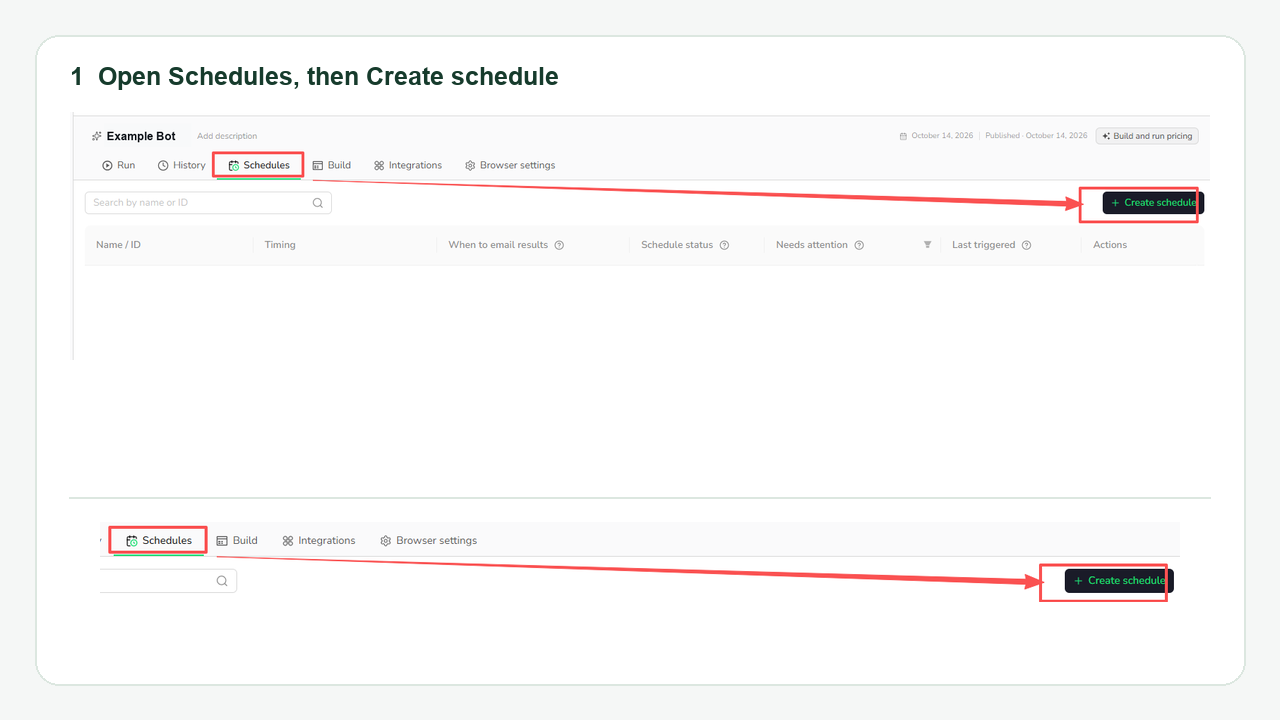
Step 2: Set the timing
Give this product's schedule a recognizable Name. Under Frequency, choose Hour, Day, or Week. Set Run on days where applicable, choose a Trigger time or Trigger window (including All day when appropriate), and select the Time zone. Click Next.
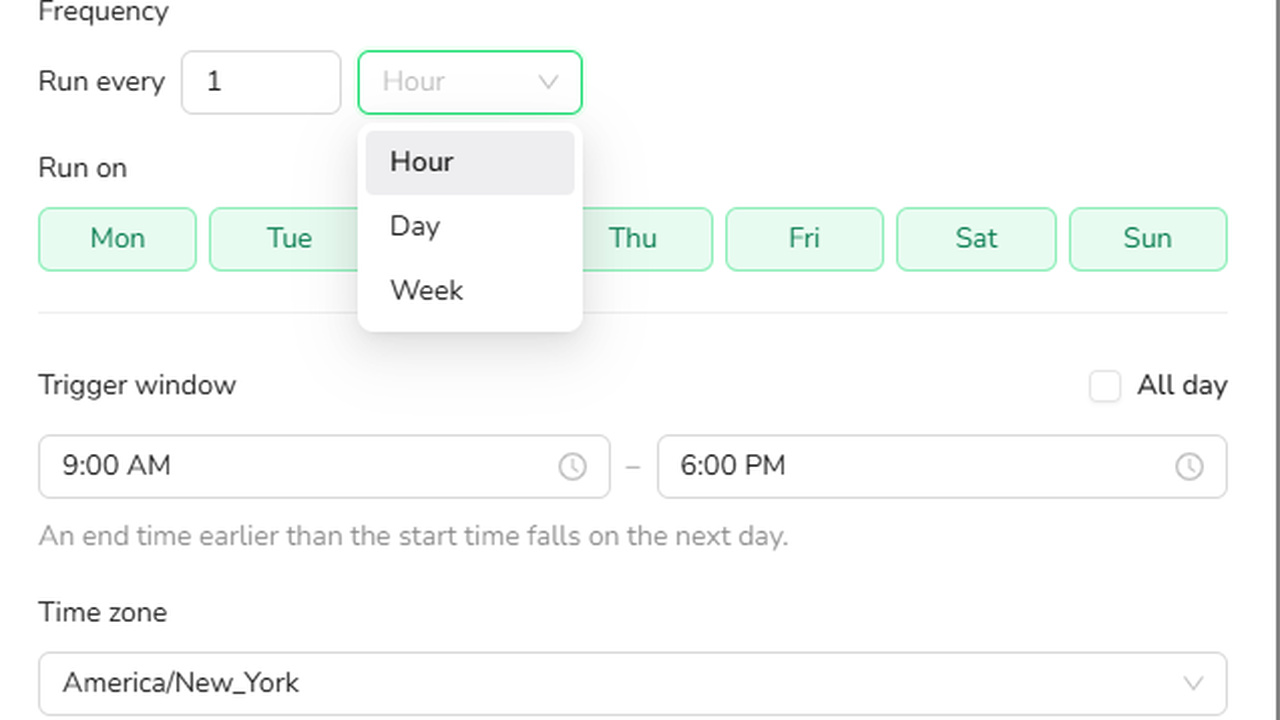
Step 3: Save this product's inputs
Use the published Bot's displayed fields. For a Bot whose inputs are marketplace_url and asin, keep or set the marketplace and enter this product's ASIN, as in the screenshot. Another Bot may accept a product URL or different fields. Keep valid defaults where useful, complete any required input without a default, and click Next.
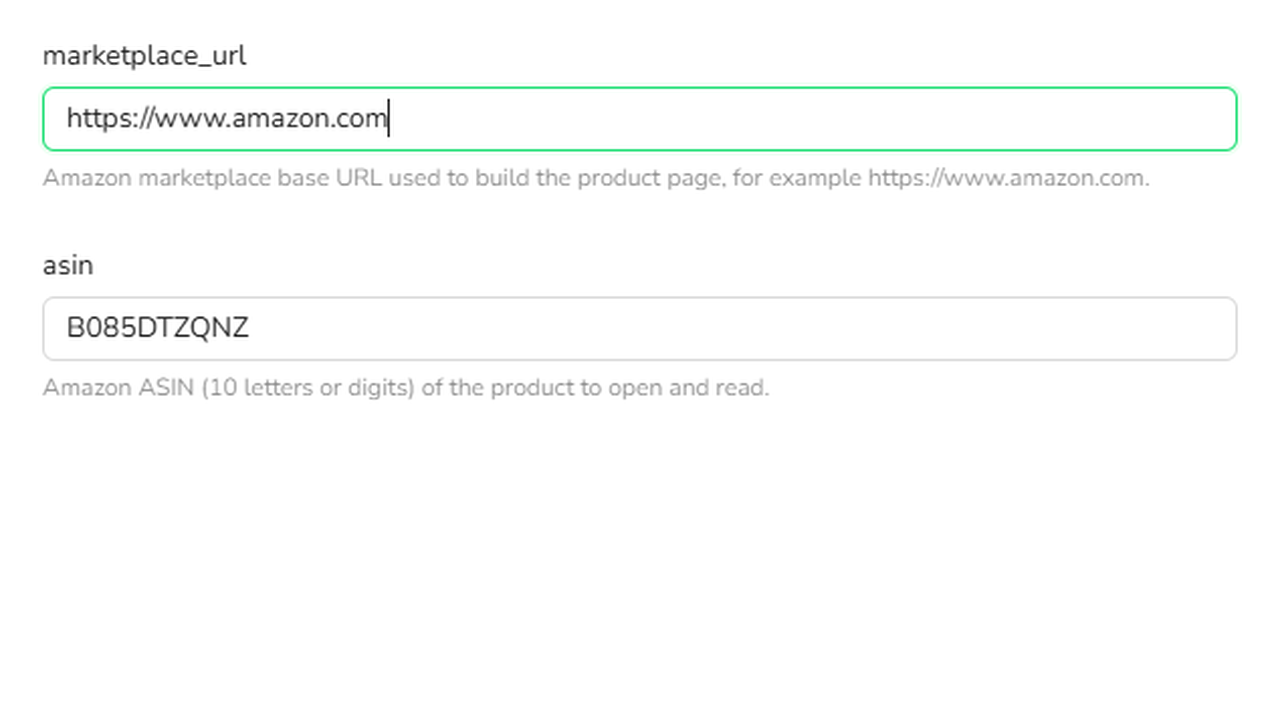
Step 4: Choose result emails and retries
Under When to email results, choose When results change, After every successful run, or Don't send result emails. If this is an Agent-built Bot, you can also choose When results meet a condition. Check the account email address shown as the recipient, choose whether to enable Retry failed runs once and Email me if a run fails, then click Create schedule. The image uses an example recipient address.
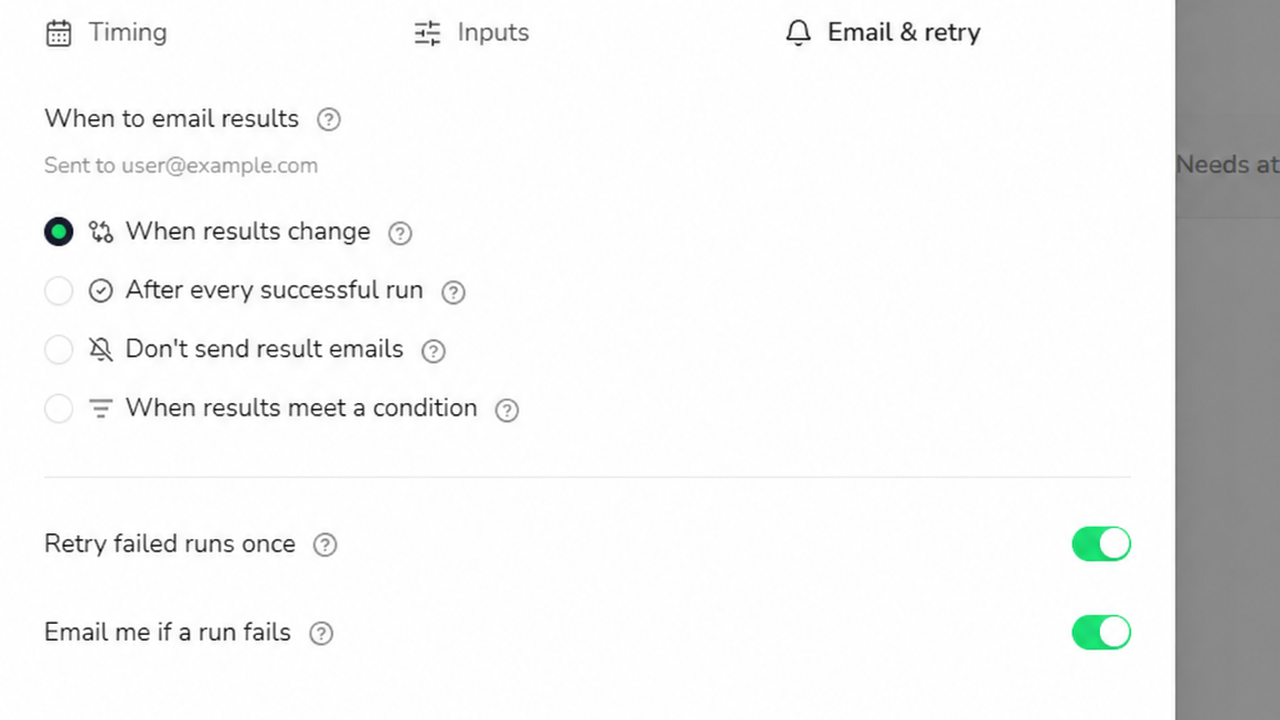
Step 5: Repeat for the next product
Reopen Create schedule for each additional product and save its own input values. The Bot's Schedules list shows each schedule's name and ID, timing, email choice, status, needs-attention state, and last trigger. The screenshot shows multiple schedules on one Bot; their displayed inputs are not visible in this list.
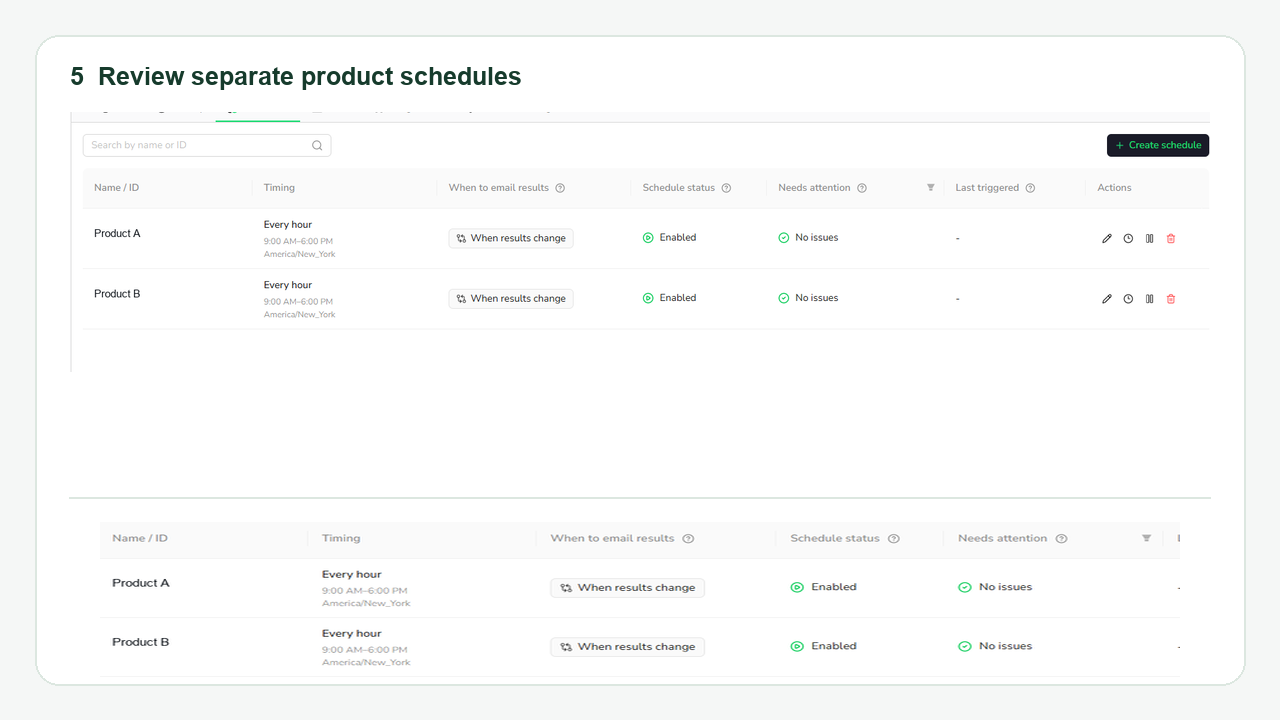
If your Bot is designed to take one product URL per run, create one schedule per product. If it uses another input design, follow the fields that Bot actually exposes.
How the three-product example would work
Imagine a Bot that has been published and tested to collect the same fields from three selected Amazon products. It accepts marketplace_url and asin as inputs. You could save the same marketplace URL in three schedules while giving each schedule a different product ASIN:
Schedule | Saved product input | What its result is compared with |
Product A | ASIN for Product A | The previous successful result from Product A's schedule |
Product B | ASIN for Product B | The previous successful result from Product B's schedule |
Product C | ASIN for Product C | The previous successful result from Product C's schedule |
These are illustrative labels, not actual Amazon products. Give the schedules the same daily cadence or different plans based on when you need fresh information.
BrowserAct runs each schedule automatically with that product's saved input. When a run succeeds, its result belongs to that product's schedule and can be reviewed in BrowserAct.
If you choose When results change for all three schedules, each one establishes its own baseline with its first successful result. A later successful result for Product A is compared with the previous successful result for Schedule A, not with B or C. A changed result from B can produce a separate email even if A has not changed.
This distinction matters for competitor research. Scheduled result alerts help you notice what changed on each monitored product over time. They do not by themselves build a cross-product pricing dashboard or decide how your own price should change.
Choose the email that answers your question
Both Agent-built and Workflow-built Bots offer the same three success email choices:
Your question | Email choice | What to expect |
“Did this product's collected result change?” | When results change | The first success establishes a baseline; a later successful result can trigger an email if its content differs. |
“Can I receive every completed check?” | After every successful run | Every successful run can send an email, including the first. |
“Can I keep the results without routine success emails?” | Don't send result emails | Results remain in BrowserAct without result emails. |
A change email is about the Bot's actual result content, not just a new filename, download link, or generation time. It also does not mean “price changed” unless the returned data and comparison support that reading. If your Bot returns price, seller, and availability, review the result to see which value changed.
For a more specific question, an Agent-built Bot can also choose When results meet a condition and describe a natural-language notification condition. For example: “Notify me when the returned price for this product is below my threshold.” BrowserAct can decide to notify, not notify, or report that it cannot determine the answer from that successful result. The result must contain the information required by the condition. Workflow-built Bots do not have this condition-based choice in this release.
Keep the checks useful as your list changes
You can edit, pause, resume, or delete a schedule. A new competitor product can get another schedule if the published Bot accepts its input. If a product leaves your watchlist, you can pause or delete its schedule without changing the others. Editing a schedule affects future planned requests; tasks already created retain the settings saved when they were requested.
Review the Bot's task history when an expected result is missing. A scheduled run may fail, or BrowserAct may be unable to create its task, for example because of insufficient balance. BrowserAct reports a task-creation issue in-app rather than sending a result email for a task that never existed. For a task that was created and ultimately fails, Email me if a run fails and Retry failed runs once are separate options you can choose in Email & retry.
If you publish a new Bot version with changed inputs, check that each schedule's saved product input still fits the published definition. A schedule with missing or invalid inputs will need attention before it can request another task.
Scope and limits
Scheduled Bot runs and result alerts are live in BrowserAct. Open a published Bot's Schedules tab to set up the recurring checks described here. The available inputs and results depend on that Bot's published definition.
The approach is scheduled collection, not real-time observation of Amazon. It depends on a published Bot that can access the selected pages and return the fields you need. Product pages, access requirements, and available data can change. Schedules do not add bulk creation, automatic repricing, or guaranteed success on every Amazon page.
FAQ
Can I import an Amazon URL list and create all the schedules at once?
This release does not include a bulk-import flow for schedules. The setup described here is a separate schedule for each product input accepted by your published Bot.
Can one Bot be used for several products?
One published Bot can have multiple schedules, each with its own saved inputs. Whether a particular Bot accepts a product URL, ASIN, or another identifier depends on that Bot's published input definition.
Will BrowserAct tell me that Product A is cheaper than Product B?
Changed-result emails compare successful outputs for the same schedule over time. They do not automatically compare two products' prices against each other. You can review the collected results for your own analysis.
Will the first check send a change email?
No. The first successful result becomes the baseline for that schedule. The every-success option can still email the first completed check.
What if a Bot run cannot determine my price condition?
For an Agent-built Bot, an unable-to-determine condition keeps the successful result and prompts you to improve the condition. It does not invent a price match or turn the successful run into a failed task.
Conclusion
Amazon product monitoring for competitor research can begin with a defined list and a Bot that already collects the fields you need. Give selected products their own schedules, keep each product's results, and choose which changes or successful runs deserve an email. Start by checking the Bot and the product inputs you want to reuse, then set up each product from your Bot list. For field-by-field setup, see the Schedule Bot Runs guide.