LinkedIn Scraper Troubleshooting: AuthWall, Empty Fields, 999/403, and Stop Rules

When LinkedIn scraping blocked searches show up, the user usually wants one of three things: an explanation, a quick fix, or a way to avoid breaking the workflow again. This guide gives the first and third. It does not give bypass recipes. If a LinkedIn scraper hits an AuthWall, unusual-activity notice, empty fields, 999/403/429 response, profile-view cap, or sudden UI break, the correct production response is not “try harder.” It is to classify the failure, preserve evidence, stop risky action
- 1Do not treat AuthWall, 999, 403, 429, empty fields, or unusual-activity notices as ordinary “retry” states.
- 2Manual Chrome and headless automation can behave differently; that difference is a signal, not a bug to hide.
- 3There is no universal safe request rate for LinkedIn scraping. Avoid content that promises one.
- 4Empty fields often mean the source page did not expose the field, the page changed, or the row needs review.
-
5A safe troubleshooting workflow records
source_url,input_url,captured_at, screenshot, error state, and next allowed action. - 6BrowserAct should be recommended after the search intent is answered: use it for bounded, read-only, source-linked browser workflows, not for bypassing access controls.
Why this topic matters
The BrowserAct LinkedIn topic workbook marks this cluster as LNK-08: “Reliability / authwall / rate limits.” It has 10 evidence rows, an average evidence score of 4.32, and 6 P0/P1 evidence rows.
The workbook includes real search/failure patterns:
User problem | Evidence pattern |
Chrome opens the page, Puppeteer gets a login wall | Stack Overflow AuthWall thread |
Crawler receives a 999 response | Stack Overflow Scrapy/LinkedIn thread |
User asks for a safe request limit | Stack Overflow request-limit thread |
LinkedIn shows profile scraping or unusual activity notifications | Official LinkedIn Help |
Profile views are capped | Official LinkedIn Help |
Browser automation breaks after LinkedIn UI changes | Competitor and GTM-stack content |
Fields are null or empty | Scraper product pages and user complaints |
LinkedIn authwall at US SV 20 / KD 1 / TP 20. LinkedIn 999 response was queried but had no visible SV/KD in the workbook. No fresh Ahrefs query was run for this article.
Low visible volume does not make the topic unimportant. These are pain-driven searches from users whose workflow is already broken.
The safe troubleshooting model
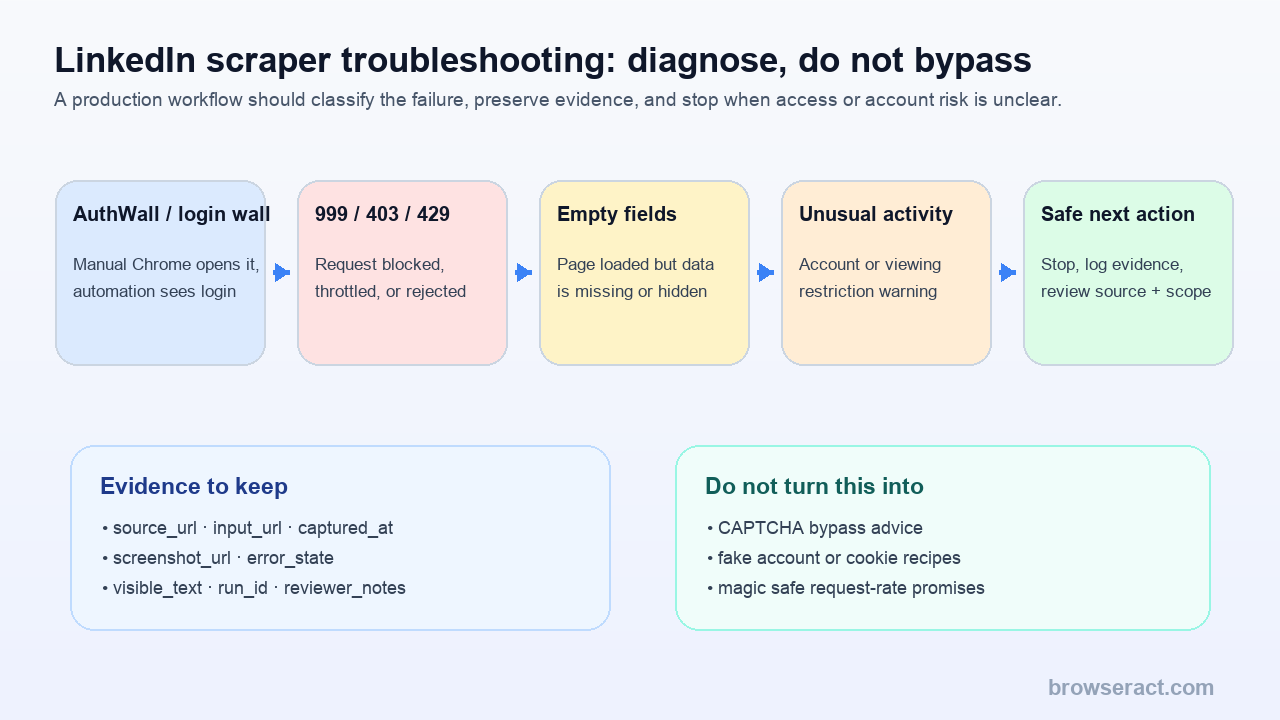
Use a five-state model:
- AuthWall or login wall.
- 999, 403, 429, or similar blocked response.
- Empty or missing fields.
- Unusual activity, scraping-limit, or profile-view notification.
- Safe next action.
The workflow should not jump from state 1 to “rotate more things.” It should first answer:
- What input caused the failure?
- What source URL was visible?
- Was this public, authenticated, or restricted?
- Did manual browser behavior differ from automation?
- Did the run attempt any action beyond reading?
- Did LinkedIn show a warning or limitation?
- Is the next allowed action retry, reduce scope, manual review, official API/export, or stop?
Pro Tip: Add error_state and next_allowed_action fields to every scraper output. A failed row with a clear state is more useful than a silent empty row.
AuthWall: Chrome opens it, automation sees login
AuthWall means the automation sees a login or authentication wall where the user expected public content.
This happens in real developer workflows. One Stack Overflow thread describes a case where manual Chrome could open a public LinkedIn page, but Puppeteer saw an authentication wall. That does not prove the page is safely automatable. It shows that browser state, cookies, user profile, headers, rendering mode, and access context can change what the page returns.
Diagnosis checklist:
Question | What it tells you |
Does the URL open in a clean, logged-out browser? | Whether the page is actually public |
Does it open only in a logged-in personal profile? | The data may be session-dependent |
Does headless mode differ from visible mode? | Automation context is being treated differently |
Does the page require 2FA, CAPTCHA, or unusual-activity review? | Stop and mark restricted |
Does the input URL redirect? | Store final URL and redirect reason |
- Do not bypass the wall.
- Do not borrow cookies from a personal account.
- Do not keep retrying until the warning disappears.
- Mark the row as
authwall_or_login_required. - Move the row to manual review or an approved data source.
999, 403, and 429 responses
Developers often search for LinkedIn 999 responses because the status feels strange. In practice, treat 999, 403, 429, repeated redirects, and sudden connection failures as blocked or throttled states until proven otherwise.
Do not promise a magic fix. The correct production question is not “how do I beat 999?” It is “what should our workflow do when LinkedIn rejects the request?”
Use this table:
State | Likely meaning | Safe next action |
999 | Nonstandard block or rejection signal | Stop, log evidence, reduce scope, review source |
403 | Access forbidden or rejected | Stop or use an approved source |
429 | Too many requests / throttling | Pause, back off, review run design |
CAPTCHA | Automated access challenge | Stop and require manual review |
Login wall | Access context mismatch | Classify as AuthWall |
Run the scrape once with browser-act. Package the repeatable path with Skill Forge.
- 1. An agent uses browser-act to search Google Maps, scroll listings, inspect place pages, and extract visible fields.
- 2. The team validates the schema: business name, category, address, phone, website, rating, review count, and source URL.
- 3. browser-act-skill-forge turns the proven flow into a reusable scraper Skill for future agent runs.
Empty fields: bug or visibility limit?
Empty fields do not always mean the scraper is broken.
They can mean:
- The field is not visible on that source page.
- The field is visible only when logged in.
- The page uses a different layout.
- The content is loaded later or inside a collapsed section.
- LinkedIn changed markup.
- The tool’s parser expected an old field name.
- The row is a company, post, profile, job, or comment, but the schema assumes another type.
The output should make that visible:
Bad output | Better output |
|
|
no row | row with |
|
|
overwritten previous value | new snapshot with |
Unusual activity and profile scraping notifications
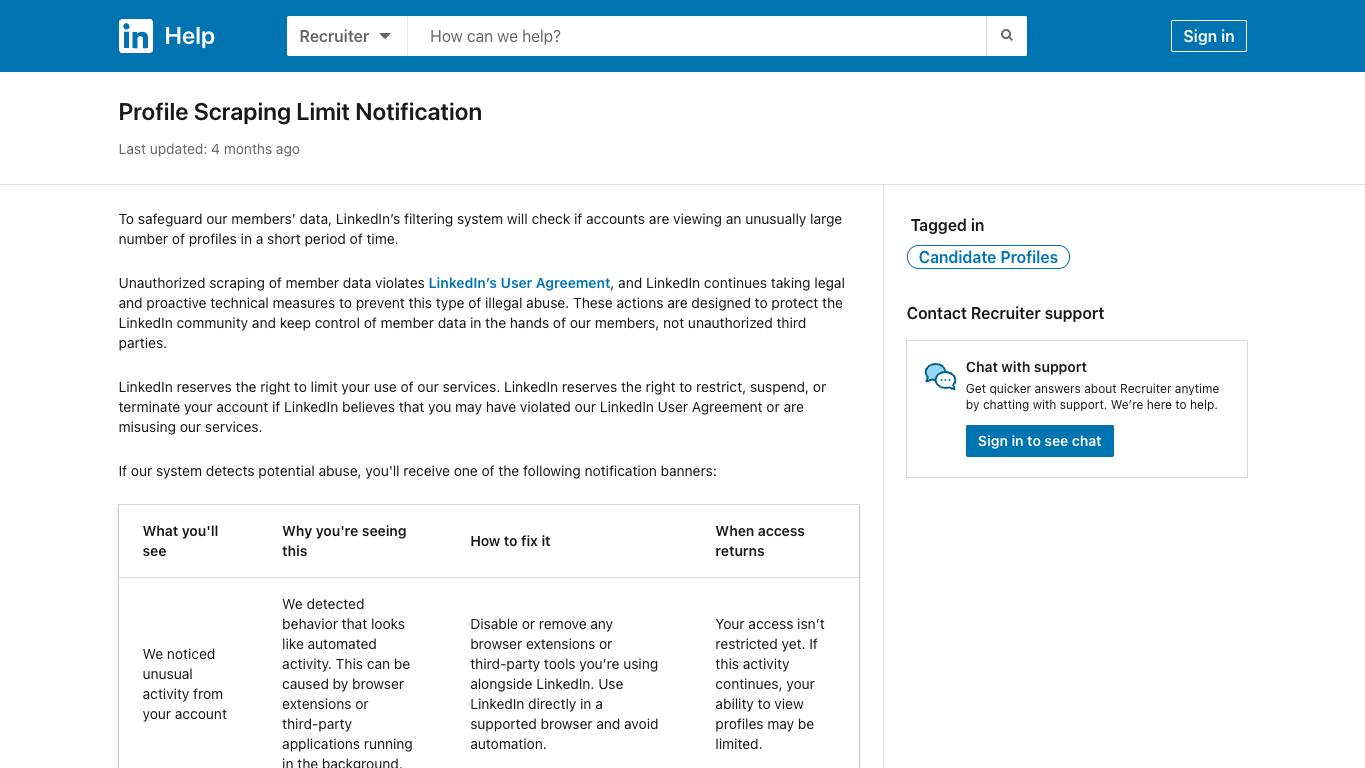
Official LinkedIn screenshot. Source: Profile Scraping Limit Notification.
LinkedIn’s own Help page for profile scraping limit notifications says LinkedIn checks whether accounts view an unusually large number of profiles in a short period of time. It also says unauthorized scraping of member data violates LinkedIn’s User Agreement and that LinkedIn may restrict, suspend, or terminate accounts it believes may have violated the agreement or misused services.
That source matters because it changes the troubleshooting posture.
If a user sees unusual activity, profile scraping, or profile-view limitation notices, treat the workflow as an account-risk event, not a normal error.
Safe action:
- Stop the automation.
- Remove or disable suspicious browser extensions or third-party tools.
- Record the notice as an evidence screenshot if allowed.
- Do not attempt to work around account restrictions.
- Re-scope the workflow to public, lower-risk, reviewed data sources.
- Consider official API, first-party export, or manual review.
Rate limits: no one can give you a universal safe number
Users often ask “how slow should my LinkedIn scraper run?”
The honest answer is that there is no universal safe number. Risk depends on data type, page type, account state, geography, session behavior, browser extensions, network reputation, repetition, time window, and whether the workflow performs actions beyond reading.
Avoid advice that says:
- “X requests per minute is always safe.”
- “Use these headers and you are fine.”
- “Rotate accounts to avoid limits.”
- “Human-like speed means compliant.”
Better guidance:
- Reduce scope.
- Prefer public pages and approved sources.
- Separate testing from production.
- Use append-only logs.
- Stop on warnings.
- Review whether the data is necessary.
- Use official API or first-party export when available.
How BrowserAct fits after troubleshooting
Once you know the failure mode, BrowserAct is useful for workflows that need visible, source-linked browser execution.
Use it when:
- The task is easier to describe than to code.
- You need screenshots and source URLs.
- You need custom fields that fixed actors do not expose.
- You need a human-review handoff for uncertain rows.
- You want the Bot to stop on login, CAPTCHA, 2FA, payment, unusual activity, or access uncertainty.
Recommended BrowserAct prompt pattern:
Open each URL in this input sheet.
Collect only visible public business information.
Return source_url, final_url, captured_at, requested_fields, extracted_fields, missing_fields, screenshot_url, extraction_status, error_state, and reviewer_notes.
If the page shows login, CAPTCHA, 2FA, payment, unusual activity, scraping warning, or access uncertainty, stop that row and mark next_allowed_action as manual_review.
Do not like, follow, comment, message, connect, repost, publish, apply, or bypass access controls.
BrowserAct does not remove the need for boundaries. It makes the boundary visible.
For broader tool selection, use the Best LinkedIn Scraper Tools guide. For a no-code setup, see How to Scrape LinkedIn Without Coding.
Troubleshooting table
Symptom | Likely category | What to log | Next action |
Manual browser works, automation sees login | AuthWall | input URL, final URL, screenshot | Manual review or approved source |
999 response | Blocked crawler | status, headers summary, run ID | Stop and review scope |
403 response | Forbidden | source URL, status, user-visible state | Stop or use approved access |
429 response | Throttling | request count, time window, source type | Pause and redesign run |
Empty fields | Visibility or parser issue | missing field list, screenshot | Mark partial; inspect source |
Profile scraping notification | Account-risk event | notice screenshot, timestamp | Stop automation |
Profile view cap | Account/viewing limit | account state, notice, timestamp | Stop and reduce scope |
UI changed | Maintenance issue | before/after screenshots | Repair workflow, do not overwrite |
Two Skills, One Repeatable Browser Workflow
Start with live browser execution when the agent needs to understand a page. Move to Skill Forge when the same scraper should run again without re-exploring the site.
Run once with browser-act
Give Codex, Claude Code, Cursor, Windsurf, or another agent a real browser for rendered pages, clicks, scrolling, screenshots, DOM extraction, and network inspection.
Open browser-act SkillPackage with Skill Forge
Explore the site once, verify the extraction path, then generate a callable Skill package that other agents can reuse for batch jobs or scheduled workflows.
Open Skill ForgeFurther reading: LinkedIn research
Frequently Asked Questions
Why is LinkedIn scraping blocked?
LinkedIn scraping can be blocked because the page requires login, the request is rejected, the account or IP appears risky, the workflow views too many profiles, or the automation hits access-control or anti-abuse systems.
What is a LinkedIn AuthWall?
An AuthWall is a login or authentication wall shown before content. If automation sees an AuthWall where a manual browser does not, treat it as an access-context mismatch and stop for review.
What does LinkedIn 999 response mean?
LinkedIn 999 is commonly discussed by developers as a nonstandard blocked or rejected response. Treat it as a blocked state, log evidence, and avoid bypass-style retry recipes.
Are empty LinkedIn scraper fields always a bug?
No. Empty fields may mean the source page did not expose the data, the layout changed, the field is login-only, or the parser expected a different page type.
What should I do after a profile scraping limit notification?
Stop the automation, remove suspicious third-party tools or extensions, preserve the notice for review, and do not attempt to work around the restriction.
Is there a safe LinkedIn scraper rate limit?
No universal safe number exists. Avoid advice that promises one. Use narrow scope, source evidence, stop rules, and approved sources where possible.
Where does BrowserAct help?
BrowserAct helps by running bounded browser workflows from prompts, preserving screenshots and source URLs, exporting error states, and stopping rows that require login, CAPTCHA, 2FA, payment, unusual-activity review, or manual judgment.


