Sales Navigator Scraper: How to Export Leads to CSV in 2026

A sales navigator scraper search usually starts with a very normal sales problem: you built the right lead search, filtered by geography, seniority, industry, title, and company size, and now you need the results in a spreadsheet your team can clean, review, and send to CRM. That is where the workflow gets awkward. LinkedIn’s own help page says Sales Navigator does not offer a normal CSV or XLS export for account and lead information, and its Sales Community FAQ says Custom Lists cannot be down
- 1A sales navigator scraper is useful only when it turns a narrow Sales Navigator search into a clean, reviewable lead table with source URLs and clear stop rules.
- 2This guide first answers the search intent: what LinkedIn officially allows, why Sales Navigator exports break down, what fields belong in the CSV, and how to split searches safely.
- 3Once those questions are answered, BrowserAct is the first recommended workflow for teams that need source-linked exports, custom fields, screenshots, stop rules, and repeatable review.
- 4The winning CSV schema is smaller than most teams expect: lead identity, company context, source URL, segment, review status, and CRM handoff fields matter more than raw volume.
- 5Do not automate outreach, follows, messages, or engagement from a scraping workflow. Keep this use case read-only, auditable, and human-reviewed.
What is a Sales Navigator scraper?
A Sales Navigator scraper is a tool or browser workflow that collects selected visible information from LinkedIn Sales Navigator pages and exports it into a structured format such as CSV, Excel, JSON, Google Sheets, or a CRM-ready table.
The important word is selected. A good workflow does not try to capture everything. It captures the fields your team can justify, review, dedupe, and use. In most B2B teams, that means a lead name, profile URL, current title, company, company URL, location, segment, source search URL, and review status.
The commercial reason this topic matters is clear in the keyword data you already collected. In the Ahrefs workbook, sales navigator scraper has US search volume 150, KD 5, CPC $13, and Traffic Potential 1,500. The more explicit export sales navigator leads has US search volume 90, KD 0, CPC $8, and Traffic Potential 900. Those are not giant vanity keywords, but they are high-intent buyer terms. People searching them usually have an active Sales Navigator workflow and a spreadsheet-shaped problem.
The official export reality
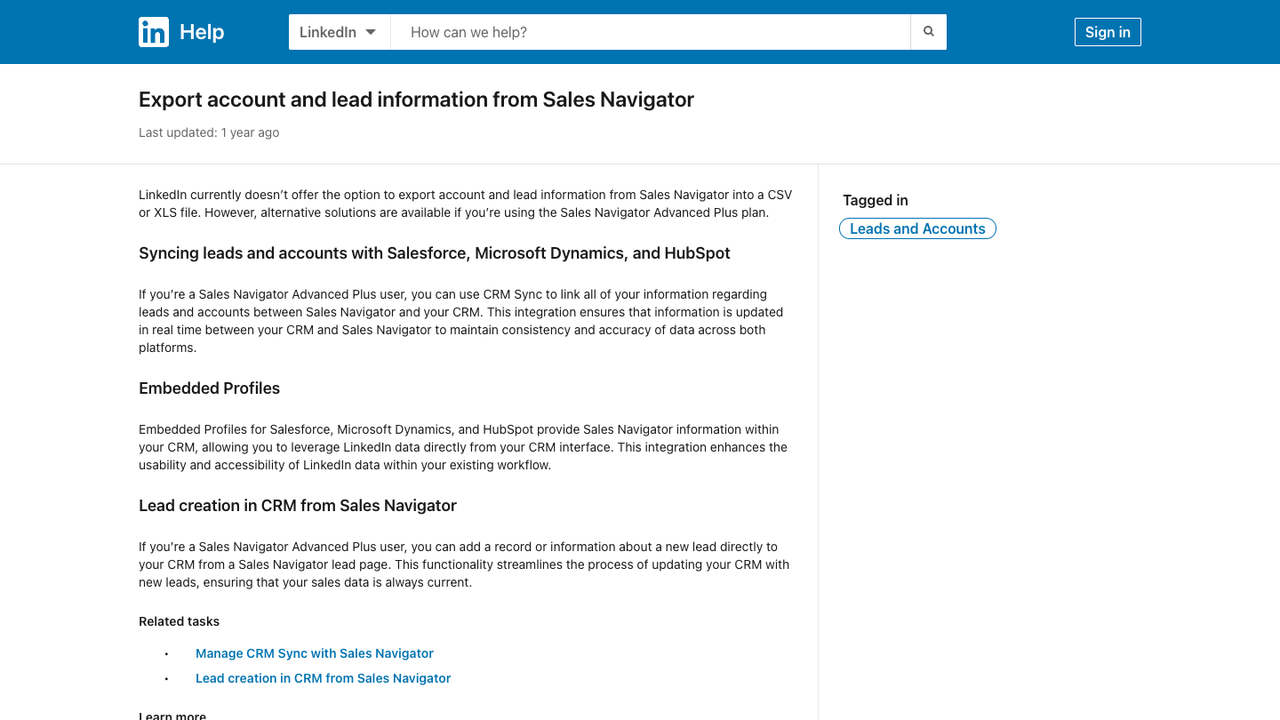
Official LinkedIn Help screenshot. Source: Export account and lead information from Sales Navigator.
The first decision is not which scraper to use. It is whether you need a scraper at all.
LinkedIn provides some first-party export and sync paths, but they do not all solve the same job. The official Sales Navigator help page says LinkedIn does not currently offer the option to export account and lead information from Sales Navigator into CSV or XLS. It points eligible Sales Navigator Advanced Plus users toward CRM Sync alternatives with Salesforce, Microsoft Dynamics, and HubSpot.
That changes the buyer question. The real question is not “How do I scrape LinkedIn?” It is:
- Does LinkedIn already provide an approved export or CRM sync for this exact data?
- If not, is the job a one-time CSV export, a recurring list refresh, or a custom account-research workflow?
- What fields are actually needed downstream?
- What should the workflow do when it hits a login wall, unusual activity warning, missing field, duplicate, or profile-view limit?
If you skip those questions, you can end up with a CSV that looks impressive and performs terribly. Lots of rows. Weak fit. Missing source URLs. Duplicate leads. No review trail.
Pro Tip: Treat the official export check as step zero. If CRM Sync or a first-party export covers your workflow, use it. Third-party extraction should be reserved for jobs that first-party tools do not handle and that your team is allowed to run.
Why Sales Navigator lead export breaks down
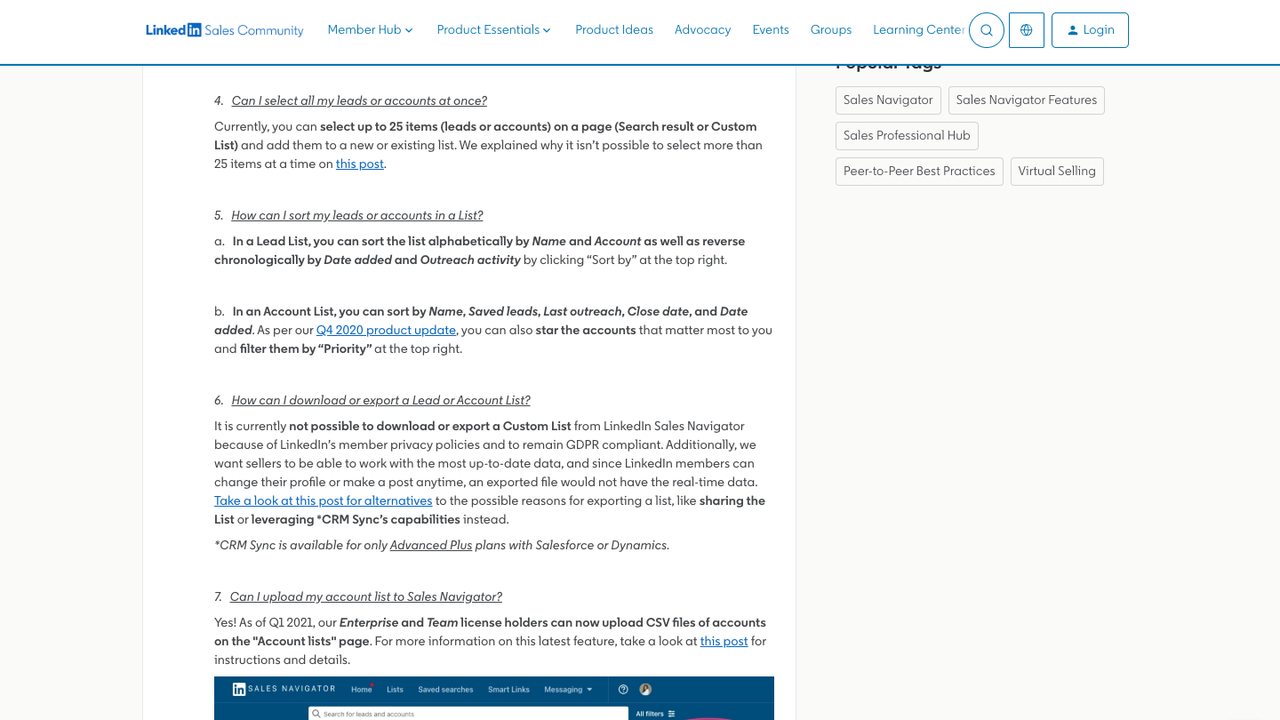
Official LinkedIn Sales Community screenshot. Source: Community FAQ: Lists and Sharing Lists.
The LinkedIn Sales Community FAQ is blunt about one common frustration: downloading or exporting a Custom List is not currently possible. The page suggests sharing the list or using CRM Sync capabilities instead.
That is the root of the market. Sales teams do not usually wake up wanting “scraping.” They want operational movement:
User need | What the user thinks they need | What the workflow actually needs |
Save search results | Export Sales Navigator leads to CSV | A repeatable schema, source search URL, and row-level review |
Hand leads to SDRs | Download a Lead List | Segmentation, dedupe, territory ownership, and CRM import fields |
Build a named-account list | Scrape companies and leads | Account criteria, buying-signal fields, and source evidence |
Refresh weekly prospecting | Schedule a Sales Navigator scraper | Change detection, run logs, screenshots, and failure states |
Enrich leads | Get verified emails and phones | A downstream enrichment step, not necessarily more scraping |
Keep the boundary cleaner: collect allowed, reviewable research fields first; enrich and contact people only through approved systems and policies.
Recommended tools and workflows for Sales Navigator CSV export
After you understand the official export limits, the CSV schema, and the safety boundary, the product decision gets much easier. There are four practical paths. If your team wants a custom, reviewable export workflow rather than a one-click vendor CSV, put BrowserAct first.
1. Use BrowserAct for custom prompt-led export workflows
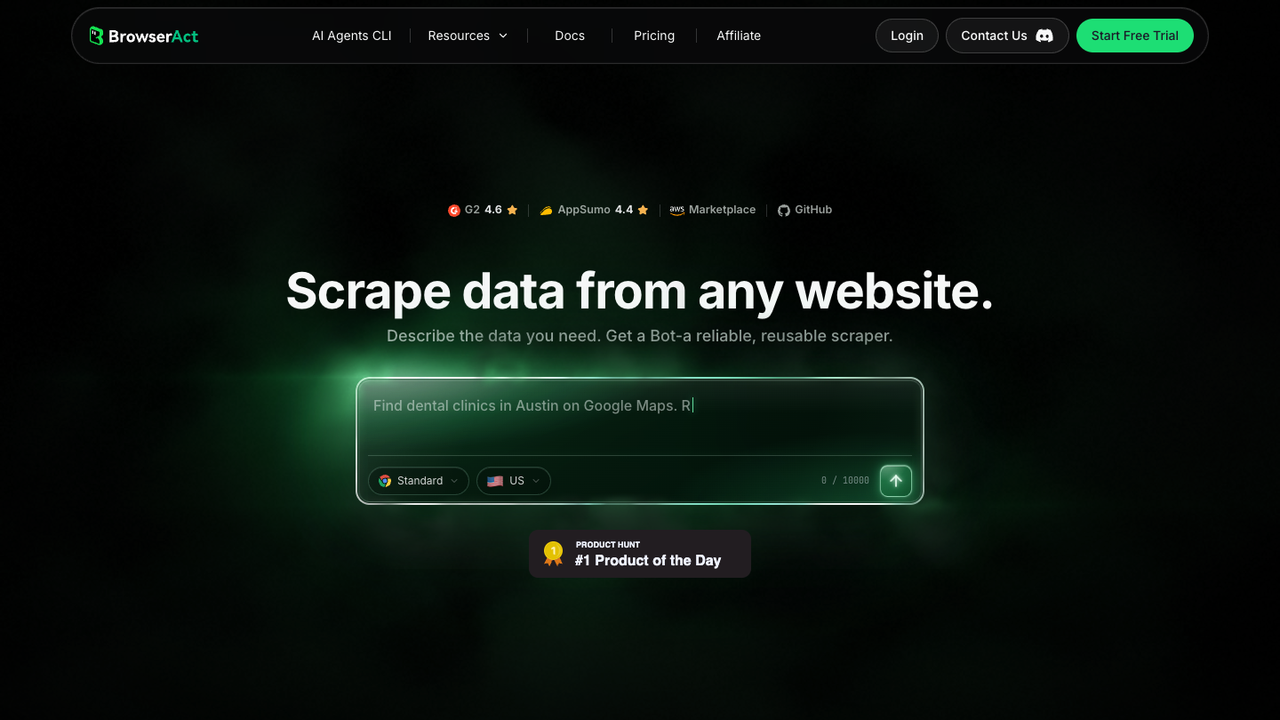
Official BrowserAct screenshot. Source: BrowserAct.
BrowserAct is the first workflow to consider when the Sales Navigator export is not just “download a standard CSV.” It is the better fit when the job includes custom fields, source URLs, screenshots, segment rules, human review, or recurring runs.
For example, you might want to:
- Start from a Sales Navigator search URL.
- Collect only visible lead cards that match a segment rule.
- Open selected detail pages only when needed.
- Capture source URLs and screenshots for audit.
- Add a “why this lead matched” note.
- Stop on login/CAPTCHA/2FA/unusual activity/payment/blocked pages.
- Export a structured CSV for human review before CRM import.
That workflow is easier to describe than to code. With BrowserAct Agent, you can test the run in a real browser from a natural-language prompt. Once the schema and stop rules are stable, BrowserAct Workflow can preserve the repeatable path. If a data or RevOps team later needs to trigger the same approved workflow from a scheduler or internal process, BrowserAct CLI is the handoff point.
Strengths: Custom field logic, source-linked evidence, browser execution, prompt-defined runs, screenshots, structured export, reusable workflows.
Limitations: Not a magic permission layer. It should not be used to bypass access controls, automate engagement, or ignore platform restrictions. It also requires a clear brief; vague prompts create vague data.
Best for: Teams that need custom lead research, recurring reviewable exports, and a visible workflow they can audit.
2. Use a dedicated Sales Navigator exporter for narrow list-to-CSV jobs
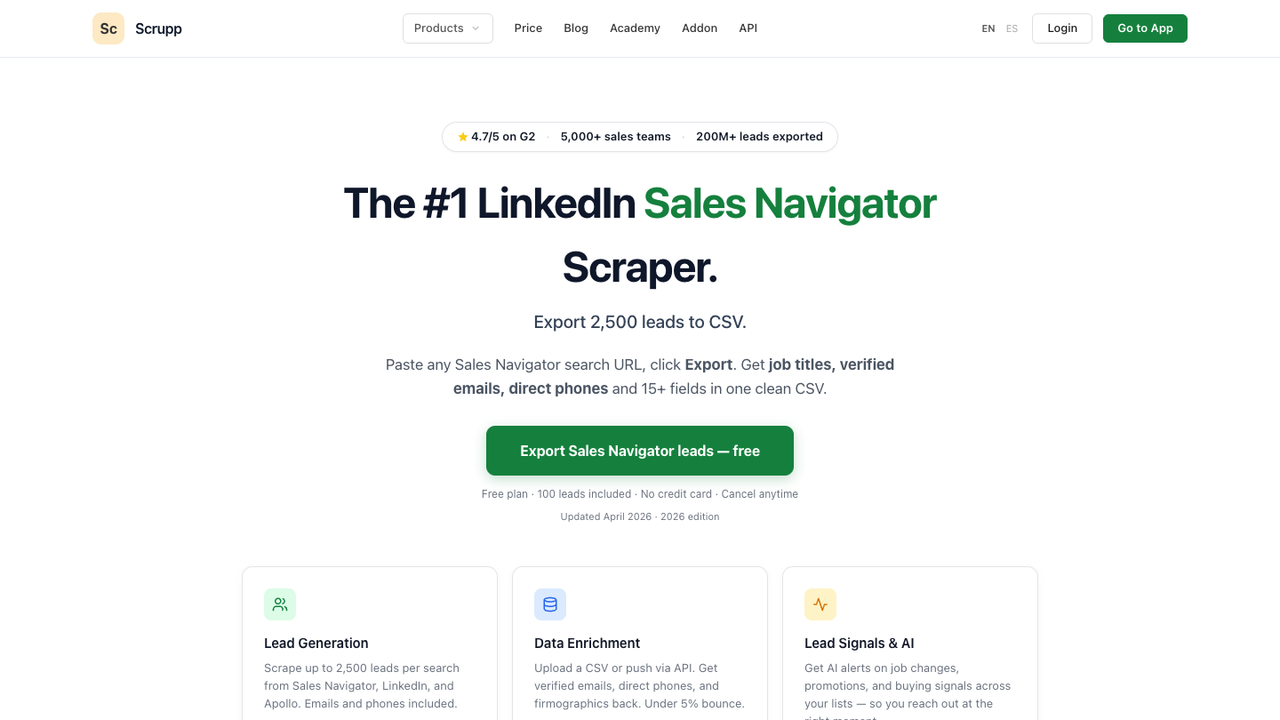
Official Scrupp page screenshot. Source: Scrupp.
Dedicated exporters are built for one job: take a Sales Navigator search or list and produce a spreadsheet. Scrupp, for example, positions itself around exporting Sales Navigator leads to CSV, with enrichment and CRM handoff as adjacent features.
This path is attractive when the workflow is simple. You have a Sales Navigator search. You want a CSV. The fields are mostly standard. You do not need custom navigation, multi-source checks, or an unusual review process.
Strengths: Fast setup, sales-team-friendly UX, CSV/XLS output, often includes enrichment options.
Limitations: Less flexible when your field schema changes, when you need custom source evidence, or when the workflow expands beyond Sales Navigator results.
Best for: SDR teams that want a narrow export workflow and accept the vendor’s data model.
3. Use a Chrome extension or in-browser exporter when local session control matters
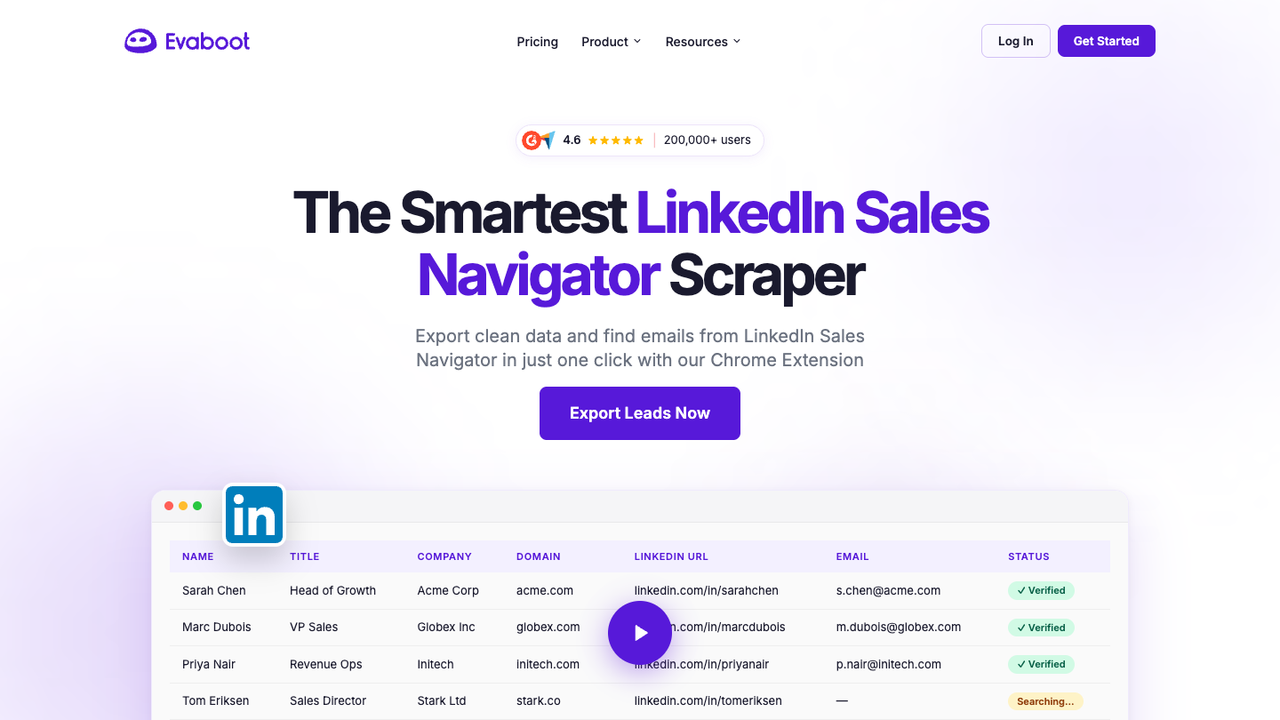
Official Evaboot page screenshot. Source: Evaboot.
Some tools position themselves around the browser session or extension model. Evaboot, for example, frames the product around clean Sales Navigator exports and email discovery from a Chrome extension workflow.
The appeal is obvious: the user is already in Sales Navigator, and the export happens close to the workflow they know. That can feel more natural for sales teams than an API dashboard or actor marketplace.
Strengths: Familiar browser-based flow, good fit for search-to-spreadsheet workflows, less engineering involvement.
Limitations: Extension-based workflows can still be constrained by page state, plan limits, rate limits, UI changes, and account risk. They also may be less appropriate for backend scheduling or multi-source research.
Best for: Sales operators who want a tool inside their existing browser workflow and do not need custom automation logic.
4. Use official LinkedIn exports or CRM Sync when they fit
Official paths should still win when they cover the job. They are easier to defend internally, easier to explain to legal and RevOps, and less likely to create messy operational side effects.
For Sales Navigator, that often means CRM Sync for eligible Advanced Plus users rather than a generic CSV export. For ordinary LinkedIn account data, users may also have first-party data archive options, though those exports are not the same as exporting Sales Navigator search results or non-first-degree prospects.
Strengths: Best permission model, cleanest stakeholder explanation, direct CRM alignment when supported.
Limitations: Does not solve every lead-list or search-result export use case. Access depends on plan, admin setup, CRM, and product eligibility.
Best for: Larger teams with approved CRM integration and clear governance.
The CSV schema that actually helps sales teams
The most common failure is over-collection. A CSV with 45 columns looks rich until SDRs ignore it, RevOps cannot map it, and nobody knows which rows are current.
Start with a practical schema:
Field | Why it matters | Example note |
Lead name | Human review and CRM matching | Keep as displayed, do not infer missing names |
Profile URL | Source evidence and dedupe key | Required for every row |
Current title | Qualification | Capture visible current role only |
Company name | Account mapping | Match to CRM account if available |
Company URL | Account-level dedupe | Prefer LinkedIn/company or official website URL when captured |
Location | Territory routing | Keep raw visible location plus normalized region if needed |
Segment | Search split or ICP bucket | Example: US SaaS VP Sales, 51-200 employees |
Source search URL | Reproducibility | Save the Sales Navigator search URL or list source |
Match reason | Human-readable qualification | Example: title + industry + headcount fit |
Review status | Workflow control | New, reviewed, rejected, CRM-ready |
Run date | Freshness | YYYY-MM-DD |
Failure note | Audit trail | Missing field, blocked page, duplicate, needs manual check |
Those fields may exist later in an enrichment or CRM workflow, but they should not be silently mixed into the extraction step.
Pro Tip: Use profile URL plus company URL as your first dedupe keys. Name-only matching creates bad merges, especially for common names, title changes, and companies with similar naming conventions.
Run the scrape once with browser-act. Package the repeatable path with Skill Forge.
- 1. An agent uses browser-act to search Google Maps, scroll listings, inspect place pages, and extract visible fields.
- 2. The team validates the schema: business name, category, address, phone, website, rating, review count, and source URL.
- 3. browser-act-skill-forge turns the proven flow into a reusable scraper Skill for future agent runs.
A prompt-led BrowserAct workflow for Sales Navigator CSV export
Here is a practical BrowserAct brief you can adapt:
Open the provided Sales Navigator search URL.
Collect visible lead cards from the current result pages only.
For each lead, capture:
- displayed name
- current title
- company name
- location
- profile URL
- source search URL
- visible matching reason based on the ICP rules below

ICP rules:
- title contains VP Sales, Head of Sales, Revenue Operations, or Sales Director
- company appears to be B2B SaaS
- region is United States or Canada

Do not send messages, follow users, like posts, connect, or change any account settings.
Stop and report if you hit login, CAPTCHA, 2FA, payment, unusual activity, blocked page, or missing required fields.
Export rows as CSV with a failure_notes column.
The point of this prompt is not to be clever. It is to make the workflow auditable. A reviewer can see the source, the field list, the selection rule, and the stop conditions.
After the first successful run, tighten it:
- Remove fields nobody uses.
- Add a segment name so every row has context.
- Add dedupe rules before CRM import.
- Add screenshots only for sampled rows or exception states if full screenshot capture is too heavy.
- Save the approved run as a BrowserAct Workflow.
For a recurring workflow, do not simply “run the same scrape every Monday.” Add comparison logic:
Recurring control | Why it matters |
Same source search URL | Keeps the input stable |
Same segment name | Prevents territory confusion |
Same field schema | Keeps CSV imports predictable |
Duplicate detection | Avoids reassigning the same lead |
New/changed flags | Helps SDRs focus on fresh rows |
Failure screenshot | Shows what changed when a run breaks |
Human review queue | Prevents raw data from becoming outreach |
How to split Sales Navigator searches before export
Users often mention the 2,500-result problem because a broad Sales Navigator query becomes too large to review or export cleanly. Even when a tool claims it can handle large exports, broad searches usually create poor sales data.
Split searches by segments your team actually uses:
Split method | Example | Why it works |
Geography | US West, US East, UK, DACH | Matches territory ownership |
Company size | 11-50, 51-200, 201-500 | Improves ICP relevance |
Seniority | Director, VP, C-level | Aligns messaging and qualification |
Function | Sales, Marketing, RevOps, Product | Prevents mixed outreach motions |
Industry | SaaS, logistics, healthcare, ecommerce | Improves account fit |
Signal | Hiring, expansion, funding, tech stack | Makes follow-up more relevant |
If a Sales Navigator search is too broad to split, it is probably too broad to export. You are better off with five smaller CSVs that map to real campaigns than one huge table nobody trusts.
Sales Navigator exporter vs BrowserAct: when to choose which
Situation | Better fit | Why |
Need custom fields and source evidence | BrowserAct | Prompt-led browser workflow can preserve URLs, screenshots, and notes |
Need recurring segmented research | BrowserAct Workflow | Keeps inputs, fields, stop rules, and review steps consistent |
Need backend trigger after approval | BrowserAct CLI | Useful after the browser workflow is stable |
One-time standard Sales Navigator CSV | Dedicated exporter | Faster if the vendor’s schema matches your need |
Need enrichment bundled with export | Exporter/enrichment tool | BrowserAct should not pretend to verify emails |
Need official CRM sync | LinkedIn CRM Sync | Best when available and approved |
Need automatic messaging or connection requests | Neither in this workflow | Keep export separate from engagement automation |
If your job is “build a repeatable, reviewable prospect-research workflow with custom fields and source evidence,” BrowserAct is the most natural first choice. If the job is only “give me this Sales Navigator search as a standard spreadsheet,” a focused exporter can still be enough.
Safety boundaries for Sales Navigator exports
LinkedIn is not a neutral database. It is a platform with account rules, commercial products, privacy obligations, and anti-abuse systems.
For a responsible workflow:
- Use official LinkedIn APIs, exports, or CRM Sync when they fit.
- Collect only fields that are visible and necessary for the business purpose.
- Do not bypass login, CAPTCHA, 2FA, paywalls, access controls, or unusual activity warnings.
- Do not automate messaging, following, connection requests, liking, commenting, or profile engagement from an export workflow.
- Keep source URLs and run dates so rows can be audited.
- Add human review before CRM import or outreach.
- Get qualified legal and compliance review for your specific data, market, and use case.
BrowserAct should be used here as a controlled browser research workflow, not as a shortcut around platform rules. That distinction matters.
Pro Tip: Add a failure_notes column to every export. Empty rows are dangerous when nobody knows whether the field was genuinely missing, hidden behind a login wall, blocked by the page, or skipped by the workflow.
Recommended workflow
If you are building this from scratch, use this sequence:
- Check official LinkedIn export, CRM Sync, and admin reporting options.
- Define the campaign segment before touching tools.
- Choose the minimum CSV schema your CRM and SDR team need.
- Run a small sample export of 25-50 leads.
- Review duplicates, missing fields, bad-fit rows, and source URLs.
- Test the workflow in BrowserAct first if you need custom fields, source URLs, screenshots, stop rules, or recurring review.
- Use a focused exporter only if the sample proves the job is a simple one-time CSV with a standard schema.
- Save the approved workflow and stop rules.
- Only then scale the export by segment.
That sequence is slower on day one and faster every week after that.
Conclusion
A sales navigator scraper should not be judged by how many rows it can pull. Judge it by whether the CSV is clean, source-linked, reviewable, and useful inside the actual sales process.
Use BrowserAct first when the real work is custom research: prompt-defined navigation, source URLs, screenshots, structured fields, repeatable runs, and human review before CRM handoff. Use LinkedIn’s official paths when they fully cover the job. Use a dedicated Sales Navigator exporter when you only need a simple list-to-CSV workflow.
Build a source-linked Sales Navigator export workflow with BrowserAct
Two Skills, One Repeatable Browser Workflow
Start with live browser execution when the agent needs to understand a page. Move to Skill Forge when the same scraper should run again without re-exploring the site.
Run once with browser-act
Give Codex, Claude Code, Cursor, Windsurf, or another agent a real browser for rendered pages, clicks, scrolling, screenshots, DOM extraction, and network inspection.
Open browser-act SkillPackage with Skill Forge
Explore the site once, verify the extraction path, then generate a callable Skill package that other agents can reuse for batch jobs or scheduled workflows.
Open Skill ForgeFrequently Asked Questions
Can I export Sales Navigator leads to CSV directly from LinkedIn?
LinkedIn says Sales Navigator does not currently offer a normal CSV or XLS export for account and lead information; eligible users may have CRM Sync alternatives.
What is the best Sales Navigator scraper?
Use BrowserAct first for custom fields, screenshots, source URLs, and review rules. Use a focused exporter for simple CSV jobs and LinkedIn CRM Sync when available.
What fields should a Sales Navigator CSV include?
Start with lead name, profile URL, title, company, location, segment, source search URL, match reason, review status, run date, and failure notes.
Is a Sales Navigator scraper the same as a LinkedIn lead enrichment tool?
No. Scraping collects source fields from pages; enrichment may add emails, phones, firmographics, or verification from other sources and should be handled as a separate step.
Can BrowserAct export Sales Navigator leads without coding?
BrowserAct can run a prompt-led browser workflow and export structured data when the task is allowed, visible, and reviewable; it should stop on login, CAPTCHA, 2FA, payment, or blocked states.
How do I avoid duplicate Sales Navigator leads in CSV?
Use profile URL as the main dedupe key, combine it with company URL when available, keep segment names, and review changed rows before CRM import.
Is Sales Navigator scraping legal or safe?
There is no universal answer. LinkedIn restricts scraping and unauthorized automation; permissions, contracts, privacy duties, access, purpose, and local law all matter.


