Kimi Code Token Usage: Why 1M Context Still Needs BrowserAct

Kimi Code token usage just became a much more serious topic for agent builders. Kimi K3 adds a 1M-token context window for eligible users, Kimi Code now warns that switching model or effort can invalidate the existing prompt cache, and the CLI fixed a context-size indicator bug that previously under-reported actual context usage. That is a useful update. It is also a warning. Long context lets an agent remember more. Prompt cache makes repeated work cheaper when you avoid invalidating it. Better
- 1Kimi K3 brings a 1M-token context window, but the official docs also warn that model or effort switches invalidate prompt cache and increase consumption.
- 2Kimi Code v0.26.0 fixed context-size under-reporting, which means teams should treat token usage as an operational signal, not a cosmetic meter.
- 3Long context is excellent for codebases, plans, docs, and task memory; it is not a replacement for authenticated browser execution.
- 4BrowserAct reduces token waste by moving live-page work out of repeated prompts and into a browser execution layer with screenshots, URLs, structured output, and handoff.
- 5The practical stack is simple: use Kimi for planning and reasoning, BrowserAct for web operation, and reusable Skills for workflows that repeat.
What changed in Kimi Code token usage?
Kimi Code’s July updates are not just feature polish. They change how teams should think about agent cost.
Kimi’s official docs say Kimi K3 is available in Kimi Code, built at 2.8T parameters, and supports native visual understanding with up to a 1M-token context window. The same page says Moderato members and above can use K3, while Allegretto members and above unlock the 1M context window. It also says K3 supports low, high, and max thinking effort levels.
Those are the headline capabilities.
The operational details matter more for day-to-day agent work. Kimi’s docs explicitly warn that switching models invalidates the existing context cache, so consumption is higher right after switching; they recommend starting a new session before using Kimi K3 for better results and lower consumption. Kimi Code v0.26.0 also added cache-invalidation hints in the /model and /effort pickers, suggesting /new to avoid extra token costs. The same release fixed the context-size indicator so it no longer under-reports actual context usage.
That is the piece many teams will miss.
The update does not say “tokens no longer matter because context is huge.” It says the opposite: Kimi now gives you more room, but also more reasons to manage session state, cache boundaries, effort level, and context growth deliberately.
Pro Tip: Treat a model switch like a cost boundary. If you are moving from a normal coding session into K3 max-effort work, start a clean session and pass only the source material the task needs. Carrying an old chat forward can burn tokens without improving the result.
What is Kimi Code token usage?
Kimi Code token usage is the amount of model context and generation budget consumed by a Kimi Code session: instructions, conversation history, files, tool outputs, media attachments, reasoning traces, and the final answer all compete for context. With Kimi K3, that budget can become very large, but it is still a budget.
The practical problem is not just the maximum context size. It is what goes into that context.
An agent that repeatedly pastes rendered HTML, scraped text, screenshots, stale errors, and previous attempts into the model may look “smart” because it has a long transcript. Under the hood, it is often paying for the same discovery work again and again.
For browser-based workflows, this gets expensive quickly.
Imagine a Kimi Code agent trying to verify a pricing-page change across five competitors. If every attempt dumps page HTML, retries selectors, summarizes broken pages, and carries the whole interaction forward, the context grows. If the agent switches from one model to another midstream, the prompt cache may no longer help. If the context meter used to under-report usage, the team may not notice the true cost until later.
The fix is not “never use long context.”
The fix is to stop using long context as a substitute for execution infrastructure.
Why 1M context does not solve browser automation
The 1M-token context window is genuinely useful. It helps when the agent needs to reason across a large repository, multiple documents, design specs, runbooks, API references, logs, or architectural notes.
But browser automation fails for reasons that context does not solve.
Browser task | What long context helps with | What still needs BrowserAct |
SaaS QA | Acceptance criteria, role rules, runbook memory | Logged-in session, clicks, screenshots, PASS/FAIL evidence |
Ecommerce research | Product taxonomy and comparison rubric | Dynamic pages, filters, pagination, anti-bot handling |
Search and media monitoring | Query plan and source ranking | Fresh SERP/news/social pages and source timestamps |
Government portal checks | Form instructions and policy context | Auth, JavaScript rendering, PDF/download verification |
Finance or medical review | Risk checklist and approval boundaries | Read-only browser session, screenshots, human handoff |
That distinction matters more as models improve.
When the model is weak, the plan fails early. When Kimi K3 or another strong model produces a good plan, the failure moves downstream: login, page state, bot checks, layout changes, stale sources, and verification.
This is why BrowserAct should appear early in the workflow, not as an emergency patch after token spend explodes.
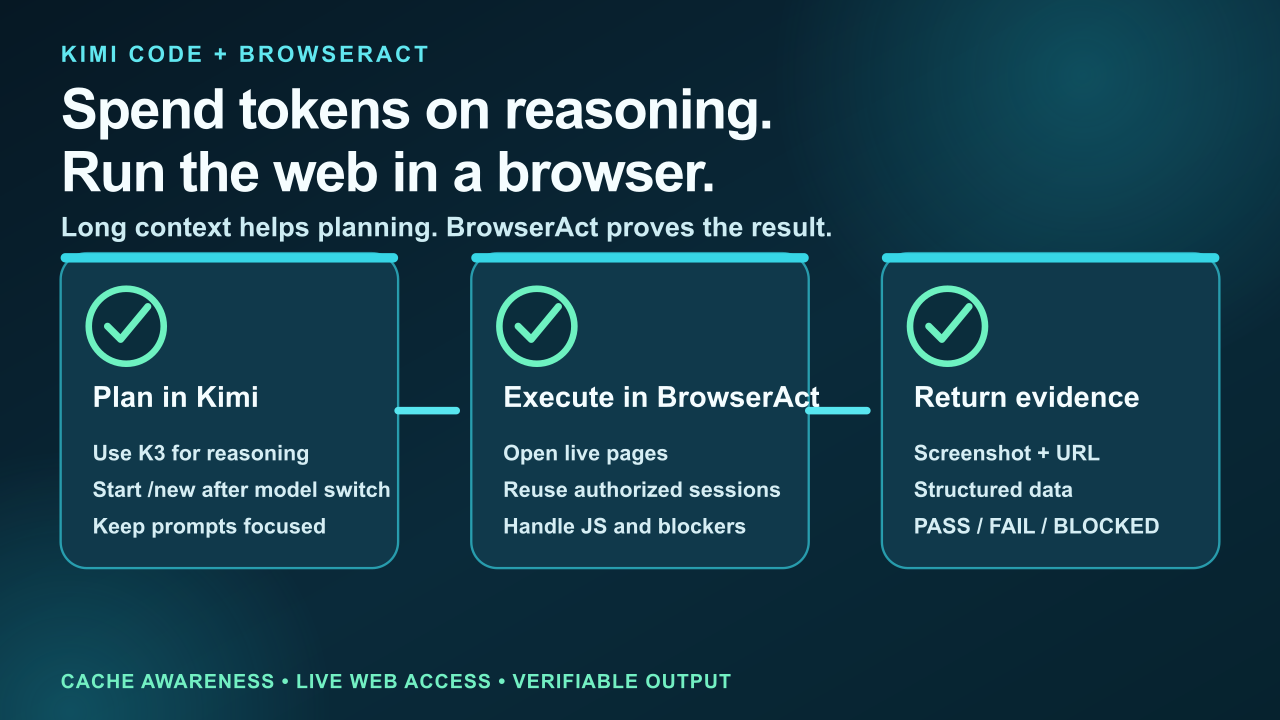
The better workflow: Kimi plans, BrowserAct executes
A practical Kimi + BrowserAct workflow separates reasoning from web operation.
1. Start a clean Kimi session for the goal
If the work depends on K3 or a different effort level, start fresh. Kimi’s own docs recommend a new session when switching to K3 to reduce consumption after prompt cache invalidation. Put the goal, allowed sources, output schema, and approval boundary in the opening prompt.
Do not paste the whole history of failed browser attempts into the new session. That is how teams turn a clean task into a context landfill.
Pro Tip: Put the browser contract in the first prompt: which identity may be used, which pages are read-only, which actions require approval, what evidence must be returned, and what counts as BLOCKED.
2. Use BrowserAct for the live web step
When the agent needs current information or page interaction, call the browser layer. BrowserAct can operate real websites, reuse authorized sessions, handle JavaScript-rendered pages, capture screenshots, return structured data, and pause for human handoff.
This is different from asking Kimi to keep reading page dumps.
For example, if the task is competitor monitoring, Kimi should decide what fields matter and how to compare them. BrowserAct should open the relevant pages, interact with filters or tabs, and return a normalized result. For ecommerce work, BrowserAct can pair with a reusable workflow such as the Amazon Product Search API skill or the Amazon Competitor Analyzer when the source pattern is stable.
For search and social research, Kimi should reason over the source strategy. BrowserAct should collect current pages, not rely on old summaries. Workflows like Google News API Skill and BrowserAct’s Social Media Finder can become repeatable source lanes instead of one-off prompts.
For setup details, the BrowserAct install guide is the cleaner starting point than pasting credentials or raw browser state into a Kimi session.
3. Return evidence, not a giant transcript
The output from BrowserAct should be compact and verifiable:
- final URL
- screenshot path or CDN link
- extracted fields
- retrieved_at timestamp
- blocked reason if the page failed
- next safe action
That is much cheaper than feeding the model a full DOM dump and asking it to infer what happened.
It is also better for humans. A reviewer can inspect a screenshot, compare a URL, and decide whether a blocked step needs approval. A giant context blob only proves that the agent spent tokens.
4. Promote repeatable work into a Skill
If the same browser workflow succeeds twice, stop re-prompting it from scratch.
Turn it into a reusable Skill with the route, allowed identity, output schema, blocked reasons, and approval boundaries. Then Kimi can invoke the Skill when needed, and BrowserAct can execute the browser part with less rediscovery.
Pro Tip: A good browser Skill should include failure language. “If Cloudflare, CAPTCHA, account selector, 2FA, payment, deletion, or submit action appears, stop and return BLOCKED with screenshot.” That sentence can save more cost than another 100K tokens of context.
Where Kimi token savings actually come from
The naive strategy is to shrink every prompt. That helps a little, but it misses the bigger waste.
The biggest savings come from avoiding repeated discovery.
Waste pattern | Why it burns tokens | Better pattern |
Re-reading old chat history | Carries stale attempts into every turn | Start /new after model or effort switches |
Dumping full HTML | Makes the model parse UI noise | BrowserAct returns fields, URL, screenshot |
Re-solving the same page path | Agent rediscovers filters and buttons | Save a BrowserAct Skill after success |
Treating blockers as reasoning problems | Model keeps guessing around auth/CAPTCHA | Human handoff with same browser session |
Mixing research and execution | Context grows with every failed attempt | Kimi plans; BrowserAct executes; Kimi summarizes |
Kimi is making the model side more powerful and more transparent. BrowserAct makes the web side operational.
Give your agent a real browser, then turn the workflow into a Skill.
- 1. Use browser-act when an agent needs to open, click, scroll, extract, or inspect a live site.
- 2. Use browser-act-skill-forge when the workflow should become reusable across runs and agents.
- 3. Keep the operational boundary simple: automate what the user can already do in the browser.
Example: Kimi Code browser automation for pricing research
Here is a concrete workflow.
A growth team wants weekly pricing intelligence across 25 competitors. Kimi Code can design the schema:
company, plan_name, visible_price, billing_period, seat_limit, source_url, retrieved_at, blocked_reason
Kimi can also decide which sources are authoritative: pricing page first, docs second, blog announcement third, support page fourth.
BrowserAct should do the live web work:
- open the competitor pricing page
- click monthly/annual toggle if present
- scroll to plan comparison
- capture screenshot
- extract visible fields
- return BLOCKED if login, CAPTCHA, country wall, or payment flow appears
Kimi then summarizes the changes and flags anomalies.
The key is that Kimi does not need to carry every page interaction in context. It needs a compact evidence package.
If the same pricing run needs multiple browser lanes, use the same principle from concurrent browser automation: isolate sessions, keep outputs structured, and avoid turning parallel page work into one giant prompt.
Example: Kimi Code UI verification after a frontend change
Kimi K3 is positioned as strong for long-horizon programming and frontend work. But a frontend change is not finished when the code compiles.
It is finished when the UI works.
For a staging verification workflow, Kimi can inspect the diff and write the acceptance checklist. BrowserAct can open the staging route with an authorized QA session, click through the changed area, capture screenshots, and return PASS / FAIL / BLOCKED.
That reduces the common failure where an agent says “done” after tests pass but never verifies the browser state.
Pro Tip: Require browser evidence in the done condition. If the task touches UI, “tests passed” is not enough. The final answer should include at least one URL, one screenshot, and a clear PASS / FAIL / BLOCKED status.
What to put in your Kimi + BrowserAct prompt
Use this prompt pattern when the task needs the live web:
Goal: Use Kimi for planning and BrowserAct for browser execution.

Task:
Collect current pricing data for the listed competitors.

Browser rules:
- Use authorized read-only browser sessions only.
- Do not submit forms, change settings, buy, delete, publish, or message.
- If login, CAPTCHA, 2FA, payment, or account selection appears, pause for human handoff.

Output:
- structured table
- source URL
- retrieved_at
- screenshot per source
- PASS / FAIL / BLOCKED
- blocked reason and next safe action
This prompt is intentionally boring.
That is the point. Boring constraints save tokens because the agent does not have to rediscover the rules mid-task.
How to decide when BrowserAct should enter the loop
Use BrowserAct when any of these conditions are true:
- the answer depends on current web data
- the page requires login or session state
- the page renders through JavaScript
- the workflow involves clicking, filtering, scrolling, or downloading
- the task needs screenshot evidence
- the source can block bots or show CAPTCHA
- the result must be reused on a schedule
- the agent needs human handoff without losing browser state
If none of those are true, Kimi may be enough. For static docs and repository reasoning, long context is a superpower.
But if the task touches the real web, context is not the same thing as access.
Conclusion
Kimi Code token usage is getting easier to understand precisely because Kimi is exposing the real trade-offs: 1M context is powerful, prompt cache boundaries matter, effort switches have cost, and context indicators must be accurate.
That is good news for agent builders.
It means the next step is not to stuff every workflow into a larger context window. The next step is to split the agent stack correctly: Kimi for reasoning, BrowserAct for live web execution, and reusable Skills for workflows that repeat.
If your Kimi agent needs to search, verify, scrape, monitor, or operate a real website, give it a browser layer early. Start with BrowserAct, keep the model context clean, and make the final output evidence-based instead of transcript-heavy.
Sources
- Kimi Code What's New
- Kimi Code CLI Changelog
- Kimi Code Model Configuration
- Kimi Code Sessions and Context
- BrowserAct Skills repository
Two Skills, One Repeatable Browser Workflow
Start with live browser execution when the agent needs to understand a page. Move to Skill Forge when the same scraper should run again without re-exploring the site.
Run once with browser-act
Give Codex, Claude Code, Cursor, Windsurf, or another agent a real browser for rendered pages, clicks, scrolling, screenshots, DOM extraction, and network inspection.
Open browser-act SkillPackage with Skill Forge
Explore the site once, verify the extraction path, then generate a callable Skill package that other agents can reuse for batch jobs or scheduled workflows.
Open Skill ForgeRelated reading: How to Reduce MCP Token Usage in Browser Automation
Further reading: Token usage
Frequently Asked Questions
What is Kimi Code token usage?
Kimi Code token usage is the model context and generation budget consumed by instructions, files, tool outputs, history, reasoning, and final answers in a session.
Does Kimi K3 have a 1M-token context window?
Kimi’s official docs say Kimi K3 supports up to a 1M-token context window for eligible Allegretto members and above.
Why does switching Kimi models increase token consumption?
Kimi docs warn that switching models invalidates the existing context cache, so consumption is higher right after switching.
Does long context replace browser automation?
No. Long context helps reasoning over large inputs, but websites still require sessions, JavaScript rendering, clicks, blockers, screenshots, and verification.
How does BrowserAct reduce token waste?
BrowserAct moves live web interaction out of repeated prompts and returns compact evidence: structured fields, URLs, screenshots, timestamps, and blocked reasons.
When should Kimi use BrowserAct?
Use BrowserAct when the task needs current web data, logged-in pages, JavaScript-heavy sites, clicking, scraping, monitoring, screenshots, or human handoff.


