How to Extract LinkedIn Emails: Native Export vs Finders vs Enrichment

You can extract LinkedIn emails through an existing-connection export, record contact information a person has made available to you, or use identity details to find a business email elsewhere. These routes solve different problems. Choosing one starts with the people already on your list.
An archive of your network will not discover every cold prospect's address. A database may return an email that never appeared on LinkedIn. A pattern-based finder may produce a plausible address that still needs checking.
Choose the method that matches your starting list, and keep the source alongside each address.
Choose an email extraction method from your starting list
Are these existing connections, profiles you can view, or a CSV of names and companies? That determines your first step, the extra services required and what “missing email” means.
| Starting point | Method to examine | Meaning of a missing email |
|---|---|---|
| Existing first-degree connections | LinkedIn's own archive | The address may not have been shared for viewing or download |
| A permitted page with visible contact details | Record displayed information | There may be no address on the page |
| Names, employers or supported profile URLs | Email finder or enrichment service | The provider may lack a match or sufficient identity information |
| A multi-page research brief | A BrowserAct Bot, then enrichment if required | Distinguish research failure from missing email coverage |
The final row is a workflow, rather than a new mailbox source. Its purpose is to improve the identity information sent into a finder and preserve the supporting page.
Method 1: use LinkedIn's export for existing connections
LinkedIn's official instructions describe requesting an archive through Settings & Privacy, Data privacy and Get a copy of your data. Download the requested archive through the link sent to your primary email.
The boundary is explicit: the export covers connections, and addresses appear only where those connections have allowed viewing or download. It does not export non-first-degree contacts.
This is a useful first check for an existing network. It can avoid a separate paid lookup for information already shared with you. An empty field does not establish a broken export; repeating the download will not make an unshared address appear.
Before importing the file, check current employer, company domain and existing CRM records. A first-party export establishes its source, not that every field is current. Keep the original archive as a reference and perform any corrections in a separate working copy.
Pros: Use your existing network without buying lookup credits.
Cons: An address is absent if the member does not allow that export.
Method 2: record emails that are actually visible
A permitted contact section, profile description or business website may display an address. Recording that address is different from searching a contact database.
Save the source URL and the date checked. If the address appeared on a company contact page, use that page as its source. Do not label LinkedIn as the email source simply because it helped you discover the company.
Check whether the address belongs to a person, a team or the company generally. A general inbox can be a useful business route without being the private mailbox of the profile you started from. Preserve that distinction.
If no email appears, leave the field empty with a reason such as “not visible.” Do not silently generate a likely address and give it the same status as an address read from a page. A guess belongs in a separate stage.
For repeated, authorized research across company websites, a Bot can collect the same visible fields and sources. The build example below focuses on that task.
Pros: Keep a link to the page on which each address appeared.
Cons: A profile can be accessible without showing an email.
Method 3: find emails from identity and company information
Finders accept information such as a name, current employer, company domain or supported profile URL. They may query a database, check several providers, construct likely addresses or combine those approaches.
That is why “extract LinkedIn emails” often means a two-part operation: establish identity first, then find an email through another source.
Database lookup
Wiza's current extension guidance describes contact reveal from an individual full profile. The address is available through its service; it does not have to be printed on the LinkedIn page.
Surfe's email finder describes a waterfall across multiple providers. Returned values still need identity and employer checks. The number of sources does not establish your list's actual coverage.
Address patterns and verification
Snov.io's LI Prospect Finder describes constructing possible business emails from profile data and common patterns, then verifying them.
A current employer domain is an important input. If that match is wrong, a tool can follow the expected steps and still return an irrelevant address. Verification of a mailbox and matching a person to an employer are different checks.
Enrichment after research
Hunter's integration FAQ says Hunter cannot integrate with LinkedIn. It instead supports name-and-company finding, including uploaded lists.
That makes it a possible downstream service after appropriate research. It does not make Hunter a LinkedIn page-scraping extension.
Linked Helper's email feature distinguishes visible contact details from database and provider lookups, and notes that its sources do not share one universal verification status. Preserve provider labels before mapping results into your own review rules.
Pros: Start from names and company domains, even when the profile shows no address.
Cons: A match can belong to the wrong employer or have uncertain deliverability.
Build a BrowserAct Bot to prepare a better enrichment input
BrowserAct lets you describe a web-data task and build a reusable Bot. In this workflow, its job is collecting employer context, official websites, public contact pages and business addresses actually displayed on permitted sources.
A Bot becomes useful when a standard lookup is too narrow. You may need to distinguish companies with similar names, open the current employer's site or retain evidence for someone checking the output.
Build the research stage first. Add a finder only when the resulting identities are reliable enough to use as inputs.
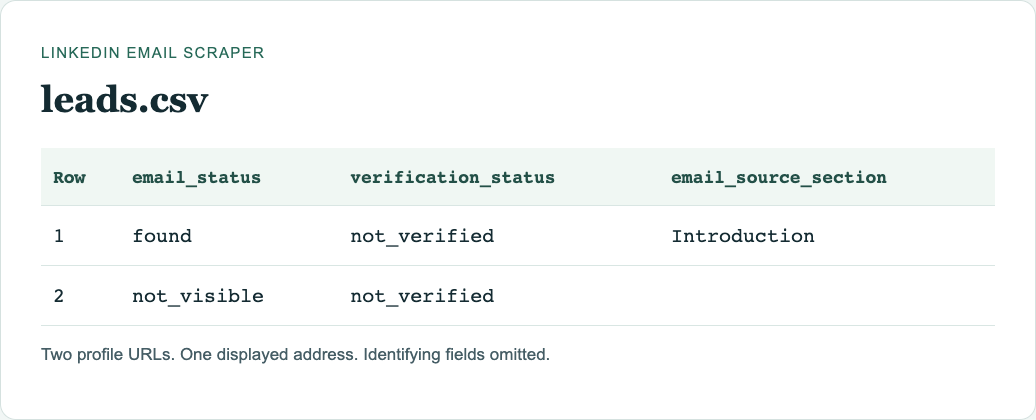
If you already hold profile URLs, the LinkedIn Email Scraper template implements the visible-contact method. Connect your own LinkedIn account on the Run tab, select profile_urls and enter up to ten personal URLs separated by commas or semicolons. Compare leads.csv with emails.csv: a person can appear in the first file without an address in the second. A visible email is not a deliverability check.
Supply a short list of approved profile URLs and the fields you need. For an exported lead list, keep its original identity key and provide the company website where available.
1. Open BrowserAct and define the input
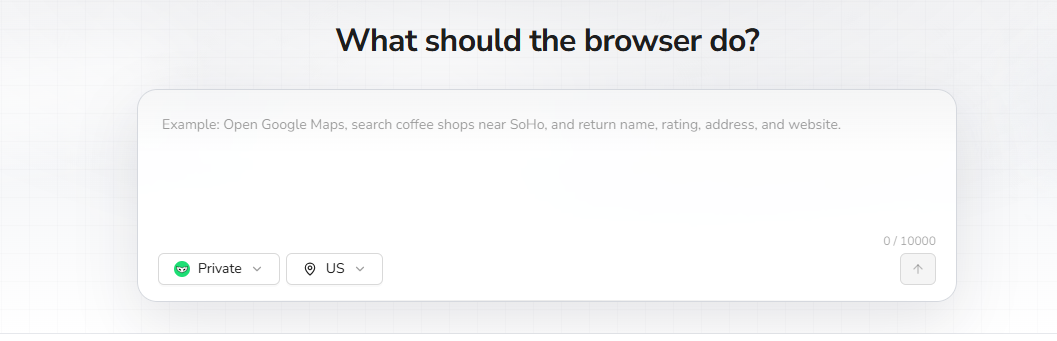
In the Dashboard, use the left-side +, a Quick start entry or the center Agent input to start a Bot. Choose the browser/session mode and region for the approved source.
2. Copy the request, then review the build plan
Provide the approved URL list or lead file with this request. Confirm the proposed sources, fields and sample limit before BrowserAct explores and tests the task.
Scrape data from any website.
Describe the data you need. Get a Bot — a reliable, reusable scraper.
3. Complete required confirmation manually
If BrowserAct pauses for login, CAPTCHA, 2FA or account confirmation, handle it yourself. Leave restricted or unavailable rows flagged for review rather than changing the task to bypass the restriction.
4. Review the sample, export and reuse the Bot
Check the identity, company domain and source page for each sample row. Remove duplicates and wrong matches; preserve empty emails and their reasons. Export CSV or JSON, save the Bot and rerun it with new approved inputs after the sample is reliable.
Check these output columns: profile_url, company_domain, company_source_url, visible_business_email, email_source_url, email_type, extraction_status. These are requested fields, not a claim that a completed run has returned emails.
The ready-made template returns its own files. Here are the status columns from a two-profile URL run:
You can improve the Bot without rebuilding the request from scratch. For example:
Keep the current extraction fields.
Add company_domain_source_url and email_source_url.
When a page does not display an email, leave visible_business_email empty.
Separate named-person emails from general company inboxes.
Keep uncertain company matches for review instead of completing them.
This changes the output contract. It does not add a mailbox database or guarantee wider email coverage. The getting-started guide explains the underlying build, test and reuse process.
Connect research and enrichment without losing the source
Use stable keys between tools. A profile URL, reviewed company domain and your own record ID are better anchors than matching on a name alone.
| Suggested field | Why keep it |
|---|---|
| record_id | Stable key across tools |
| profile_url | Identity reference supplied for the task |
| company_name, company_domain | Reviewed employer context |
| company_source_url | Evidence supporting the company match |
| visible_business_email | Address actually displayed on an approved source |
| email_source_url | Page showing that address |
| enriched_email, provider | Separately returned finder result |
| verification_status, verified_at | Result and date of the check |
| review_status | Identity and intended-use review |
This is a suggested schema, not a completed run. If a service cannot expose a field, record that limitation.
Keep rows with no email in the handoff. Otherwise you cannot distinguish an unavailable source, an unknown employer and a finder that simply had no match. That distinction also determines the next useful action: fix the source, review the identity or try another permitted provider.
Review uncertain matches before expanding the job
Two people can share a name, and one person can have several current roles. Use the source profile, company name and domain together rather than matching on a name alone.
Prioritize the rows with conflicting evidence. A profile may name a parent company while the employee uses a subsidiary domain. A consultant may list several clients. An address can be technically plausible while belonging to a previous employer.
Do not resolve those cases by taking the first non-empty value. Keep an uncertain status, retain the competing source pages and decide whether the row belongs in the list at all. Reducing a false match is often more valuable than adding another unreviewed email.
When a provider returns a catch-all or unknown result, preserve it separately from a clear valid status. Your acceptance rule should be defined before you compare tools, so a product is not rewarded simply for returning more uncertain values.
Calculate cost against usable results
Count distinct identities after deduplication, then the emails that meet your chosen matching and verification rules. Track uncertain statuses separately.
Include the required product plan, paid lookup, verification and any necessary Sales Navigator seat. A tool that charges for exported identities has a different unit from one that charges for a successful email lookup.
An export of 200 profiles and a return of 80 emails are not two quantities of the same service. A verification tool can also reject bad addresses without proving that the remaining ones belong to the right people.
Keep access and downstream use separate
LinkedIn's User Agreement restricts unauthorized scraping and automation. Permission to access a page, use a tool and reuse data are separate questions.
Keep the Bot read-only, handle required account confirmation manually and stop on unavailable or restricted access. Review records before transferring them to another system. Collecting information does not authorize contacting people.
For more context, see the LinkedIn scraping risk framework.
Choose the next step from the list you have
For an existing network, inspect the official archive first. For an address displayed on a permitted source, record it with the page. For reviewed identities without emails, choose a finder and retain its status.
Build a Bot when the research repeats or needs several pages. That gives you a way to extract LinkedIn emails where available and preserve unanswered rows where they are not, without confusing a successful export with a complete contact list.
FAQ
Q: Can I extract LinkedIn emails for free? A: LinkedIn offers an archive for connections, subject to their sharing settings. Other tools may offer limited trials or credits; check download restrictions as well as lookup allowances.
Q: Why are emails missing from my connection export? A: LinkedIn includes addresses only where connections have allowed viewing or download. An empty field does not establish an export failure.
Q: Does a finder reveal a hidden LinkedIn email? A: Often it uses identity information to query another source or construct and check a business address. That differs from revealing a hidden field on LinkedIn.
Q: Can I build a BrowserAct Bot without a template? A: Yes. Describe the allowed target, required fields, limit and review rules, let BrowserAct build and test the task, then inspect the output before reuse.
Q: Should guessed and visible emails share the same status? A: No. Keep discovery source and verification state separate. A guess should not inherit the status of an address displayed on a source page.


