ChatGPT Images 2.6: Create Ad Variants for A/B Testing

A marketer has an approved product ad and needs a second version for the next campaign test. The request sounds small: replace the studio background with a kitchen scene. The cup, lid, logo, offer, and headline should stay recognizable. A new background is useful only if the rest of the ad still represents the same product.
ChatGPT Images 2.6 gives teams another way to create and refine those visuals. Start by defining the change, use the approved image as the reference, and review the returned picture before handing it to your media buyer. When the same request keeps coming back, the browser task can become a shared tool your teammates call from their own AI clients.
- 1Start with an approved control and one clearly defined change.
- 2Review the actual images for product accuracy and unintended differences before treating them as comparable assets.
- 3Reuse a validated browser task through a shared tool when the team repeatedly needs the same kind of image work.
- 4Keep human approval and live advertising measurement separate from asset generation.
What ChatGPT Images 2.6 Adds to Ad Creation
Where reference-led editing helps
In its Images 2.6 announcement, OpenAI describes improvements to professional visuals, editing control, and consistency of products and brand details. For a marketing team, the relevant task is taking an existing image and asking for a focused revision: a different setting, a new headline, or an updated offer.
Treat the reference as the basis of the request. Describe what should change and what must remain usable. An instruction to preserve a label still needs a label check afterward; a polished composition can hide a changed word, cap shape, or product color.
Separate creating an asset from testing its performance
An image generator produces candidates for a campaign. Your advertising process determines whether those candidates perform better. Before making a variant, identify the question you want the test to answer—for example, whether a kitchen setting works better than a studio setting for this product. Generating a second image does not answer that question.
Decide What the Next Ad Variant Should Change
Choose the control, one variable, and the details to preserve
Your control is the approved asset the new version will be compared against. Keep that original file. Choose one intended change for the next version, then record the other details that should remain consistent. This follows the hypothesis-and-variation approach described in AppsFlyer’s creative testing guide and gives the creator and reviewer the same definition of the task.
Consider this example brief for an insulated cup. It is a production plan, rather than a generated result:
Brief element | Control A | Requested variant B |
Source | Approved product ad | The same approved product ad |
Background | Plain gray studio | Warm kitchen setting |
Product details | Approved cup, lid, logo, and color | Preserve the same details |
Offer and headline | Approved copy | The same copy |
Review question | Baseline for comparison | Did the background change without material changes to the product or copy? |
If the requested change is a new headline, keep the background and offer fixed instead. If you want to explore several changes together, label the result as a new concept. It can still be useful creative work, but it answers a different question from a focused background revision.
Write a brief your team can review
Include the source file, intended change, required copy, details to preserve, and intended placement. Add the output requirements your team actually needs, such as a downloadable image and room for an existing text overlay. Check the final dimensions after export instead of assuming a requested format was followed exactly.
Edit the attached product ad. Replace the gray studio background with a warm kitchen setting. Keep the cup silhouette, lid, logo, product color, camera angle, and existing copy consistent with the reference. Keep the full product visible and preserve the space around the headline. Return the edited image for review.
That prompt sets the intended boundaries. The review decides whether the output meets them. For recurring requests, keep the brief in a form teammates can reuse; later, a BrowserAct Bot can accept the image prompt and reference without requiring everyone to repeat the browser work.
Create and Review a Control and a Variant
Start from the same approved reference
Keep Control A as the original approved file. Create each candidate from that same reference. Building version C from an unapproved version B can carry an unnoticed product change into every later image. Keep exploratory drafts separate from the source chosen for the actual test assets.
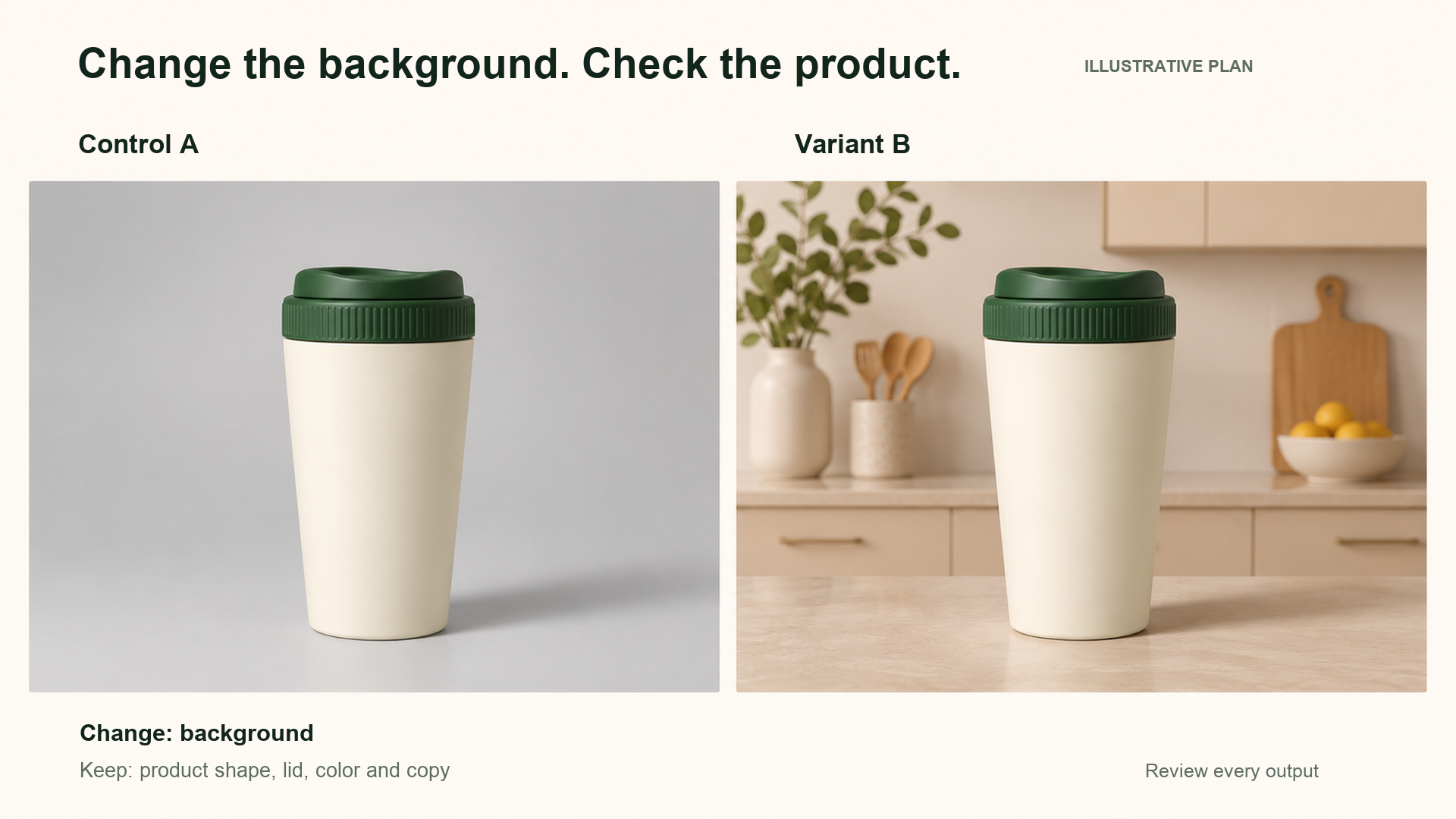
Illustrative plan: request a new background, then compare the product and copy against the original. These pictures illustrate the brief; they are not recorded Bot outputs.
If your account offers a selection or annotation control, it can help communicate the area to edit. Still inspect the whole returned image. The important outcome is that the revised file satisfies your brief, including the parts you intended to preserve.
Check the product, copy, and unintended changes
Compare the original and candidate side by side. Check the product at a useful zoom level, then examine the full composition at the size where the ad will appear. Small packaging details and overall readability need different views.
Review area | What to inspect | Decision if it changed unexpectedly |
Product | Shape, lid, color, proportions, label, and logo | Rework before treating the asset as comparable |
Copy | Headline, offer, price, punctuation, and required wording | Correct and review again |
Composition | Crop, product size, camera angle, and copy space | Rework or classify as a separate creative concept |
File | Download opens, dimensions fit, and text remains readable | Prepare a usable export before handoff |
For the cup example, a kitchen background with a changed lid is a rework. A kitchen background with a much tighter crop may be worth keeping as an exploratory concept, but it should not silently replace the planned background-only variant. A candidate that passes these checks is ready for the next approval step; it has not yet won a campaign test.
When a revision changes several unrelated details, return to the approved source and narrow the request. For exact promotional copy, a practical fallback is to keep the wording in your usual design tool and use the generated image for the product and setting. Review the assembled asset again before delivery.
When Ad Variants Become a Repeated Team Request
The process becomes an operational problem when several teammates need similar work. Someone uploads the product image, pastes the brief, waits for generation, downloads the file, and sends it back. The next request repeats the same sequence, often with another person managing the ChatGPT session.
A reusable BrowserAct Bot can package that browser task. The team keeps the creative decision—what to change and whether the image is acceptable—while the Bot handles the image request through the connected web account. The useful unit to share is this repeatable task with defined inputs and a retrievable result.
Make the ChatGPT Browser Task a Shared MCP Tool
Package the validated image task as a personal Bot
Use the ChatGPT image Bot template as a starting point for the browser task. Create an editable duplicate, choose Standard Browser, and configure your own account through Website login. Publish the personal Bot and check that it completes the image task you intend to reuse.
The template is currently listed as ChatGPT Image 2.5 API and documents PNG output. Check the ChatGPT experience available in your own account before using the copied Bot for an Images 2.6 task. A model release does not establish that an existing browser Bot supports every new editing control or output format.
Keep the task description focused on the result: the source image, requested change, details to preserve, and returned image. Put the creative instructions into the image prompt and use the Bot's current reference-image input. A campaign brief is useful for your team, but its fields do not automatically become new Bot parameters.
Let teammates request assets from a compatible AI client
MCP, or Model Context Protocol, lets a compatible AI client call external tools. With a BrowserAct Custom MCP Server, you can expose the selected published image Bot and connect using that Server's URL and matching key. The BrowserAct MCP guide covers the setup.
The account owner maintains the ChatGPT login. Authorized teammates use the shared tool from their own compatible clients instead of receiving the ChatGPT password. Their requests can reuse the image capability of the connected web account, while the account's access conditions and usage limits still apply. Keep the Server's connection credentials private and share them only with the intended users.
A teammate can ask for the same kind of cup revision in ordinary language. Supply the actual approved reference in a format accepted by the Bot; naming it in a message does not attach the file. After the personal Bot is connected, an example request could be:
Use BrowserAct MCP to call our shared ChatGPT image Bot with the approved cup ad and the kitchen-background brief. Keep the product and existing copy consistent with the reference. Return the completed image for review.
The client submits the Bot task, waits for completion, and retrieves the result. A returned task ID means the request has been submitted; the teammate still needs the completed file. The team then applies the same product and copy checks used for a manually created candidate.
This makes the browser task callable through a team tool. It remains a browser-based route through your connected ChatGPT account; it is separate from OpenAI’s model API. An internal application can also call the published Bot through the BrowserAct API. For that route, use the current API Keys & Authentication guide.
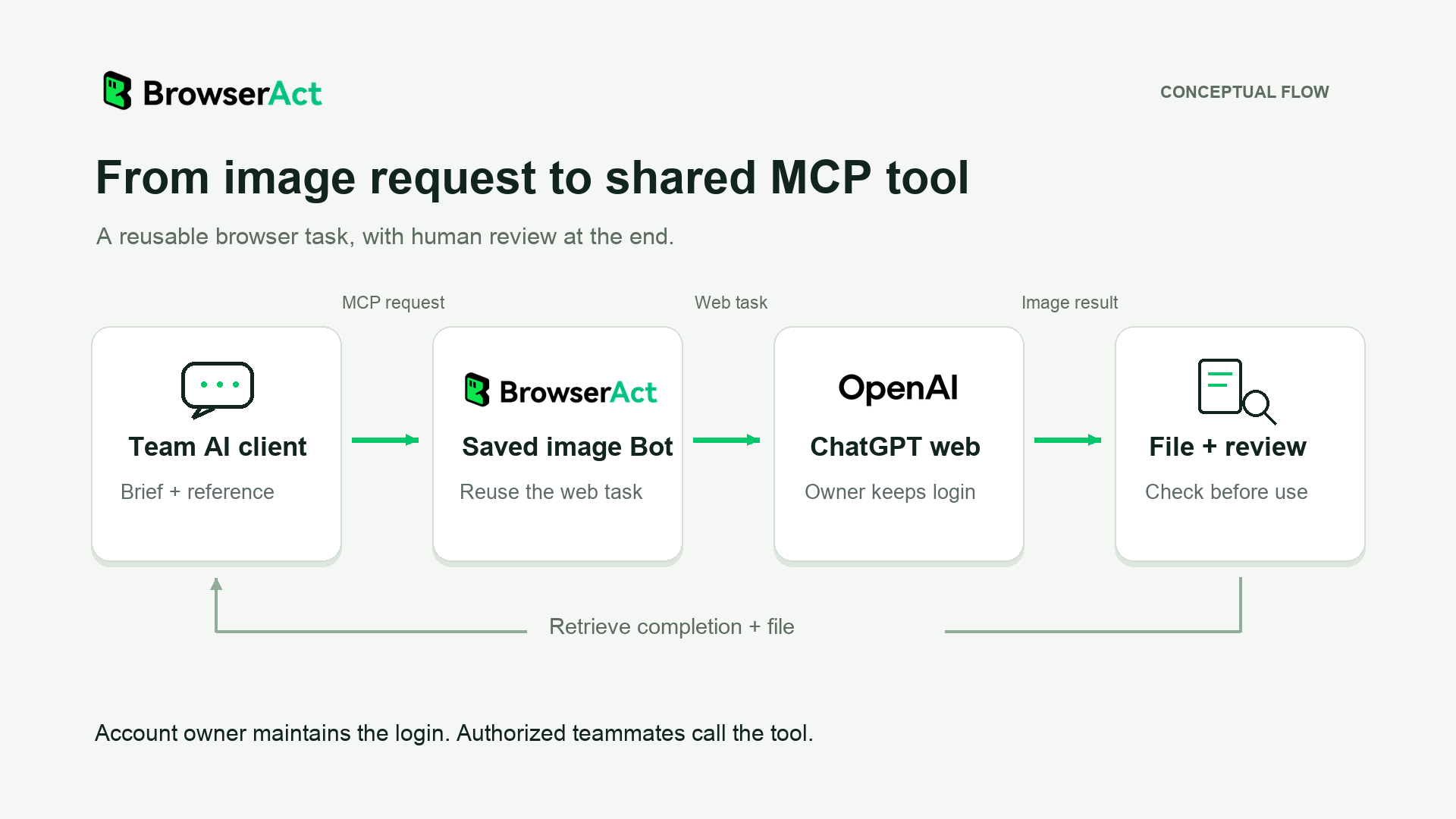
Conceptual flow: an authorized client calls the saved image Bot, the owner maintains the ChatGPT login, and the team retrieves the completed file for review.
Reuse the image task with your team
Start with one recurring image-editing request, connect your own account, and check the returned file before making the Bot available to teammates.
Hand Off Reviewed Assets for the Actual Test
Keep the control file, candidate file, intended change, and review decision together. Give each accepted asset a clear name so the media buyer can match it to the planned comparison. An image named only “latest” loses context as soon as another version arrives.
The handoff should tell the next person what changed, which details were checked, and whether anything still needs correction. Keep rejected candidates out of the folder used for launch assets. A returned file is a production result; the reviewer decides whether it is ready to enter the advertising process.
Start with one useful comparison. ChatGPT Images 2.6 can help create the visual options, and a shared BrowserAct MCP tool can make repeated requests easier to deliver across the team. Human approval and the subsequent campaign test determine what should actually run and what performs better.
FAQ
Can ChatGPT Images 2.6 create ad variants from an existing product photo?
Yes. Reference-led image editing is a relevant use of ChatGPT Images 2.6. Supply the product photo and a focused change request, then inspect the returned image for product, text, and composition changes before using it as a campaign asset.
How do I keep an AI-generated ad consistent with the original product?
Use the same approved reference and list the product details to preserve. Compare the result against the source, especially labels, logos, proportions, and color. Return to the approved source if later edits drift away from the product.
Does changing one prompt element guarantee that only one image element changes?
No. A focused instruction states your intent; the model can still alter other details. Review the actual output and rework unintended changes before describing the asset as a single-variable candidate.
Can teammates call the ChatGPT browser task through MCP?
Yes. One option is to publish your personal BrowserAct Bot, expose it on a Custom MCP Server, and connect authorized teammates’ compatible clients with that Server’s URL and matching key. The Bot uses its connected browser account, and the returned image still needs review.
Does generating an ad variant mean an A/B test has been completed?
No. Generating a variant prepares a candidate asset. A/B testing also requires a suitable experimental setup, campaign delivery, and measurement. Passing a visual review says the file meets the brief; it does not prove better advertising performance.


