Best LinkedIn Email Finder Extensions: Wiza, Snov.io, Surfe and Kaspr

A LinkedIn email finder extension should reduce the work between opening a profile and saving a usable contact. The useful comparison is the whole sequence: confirm the person, reveal an address, understand its status, save the right company and deliver the record.
Wiza, Snov.io, Surfe and Kaspr each document a LinkedIn-side extension. They differ in discovery method, saving and CRM options, free allowances and what happens after a lookup. Wiza's recent removal of LinkedIn search/list bulk actions also changes how it belongs in a shortlist.
1. Wiza: a side panel for individual contact research
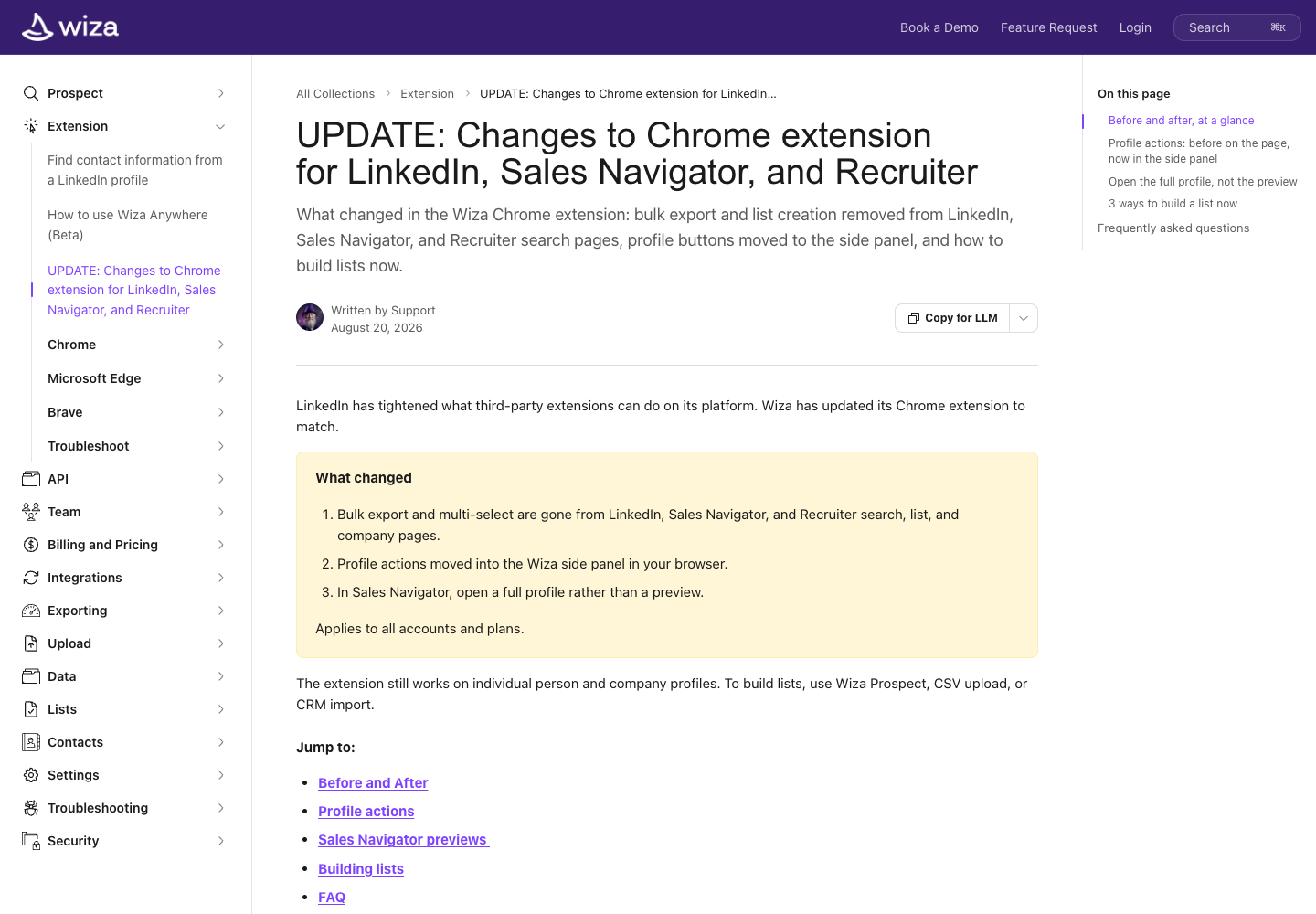
Wiza's current extension opens beside a full LinkedIn profile. Its official update describes revealing available contact details, adding one person to a list and using supported CRM actions.
The full-profile requirement matters. A preview can look like the same person, but the documented workflow expects the complete page. If a panel appears empty, check the page context before assuming the contact is absent from the database.
Relevant features:
- Reveal available email and phone information beside a full profile.
- Save an individual contact without losing the research page.
- Use available CRM actions from a connected account.
- Move bulk prospecting to Wiza Prospect or supported imports.
Pricing
- Free offer: 20 valid emails and 5 phone numbers. Do not assume this is a monthly allowance.
- Starter: $49 per user per month, with 100 email and 100 phone credits.
- The separate annual Email plan is billed at $990 per user per year and displayed as $83/month; it is a different plan from Starter.
- One email credit corresponds to a valid email; risky emails are not charged as email credits. Reveal allowances and export limits are separate.
Wiza is a strong fit when you already know whose profile to examine. It is a weaker match for a brief that requires bulk exporting a LinkedIn or Sales Navigator search through the extension: that workflow was removed in August 2026.
For a trial, check an existing contact as well as a new one. Inspect whether the record is recognized, what gets saved and how an employer update is handled. The reveal itself is only part of the work.
Pros: Look up one person without leaving their open profile.
Cons: The profile lookup is a poor fit for a bulk Sales Navigator export.
2. Snov.io: finding and checking business emails
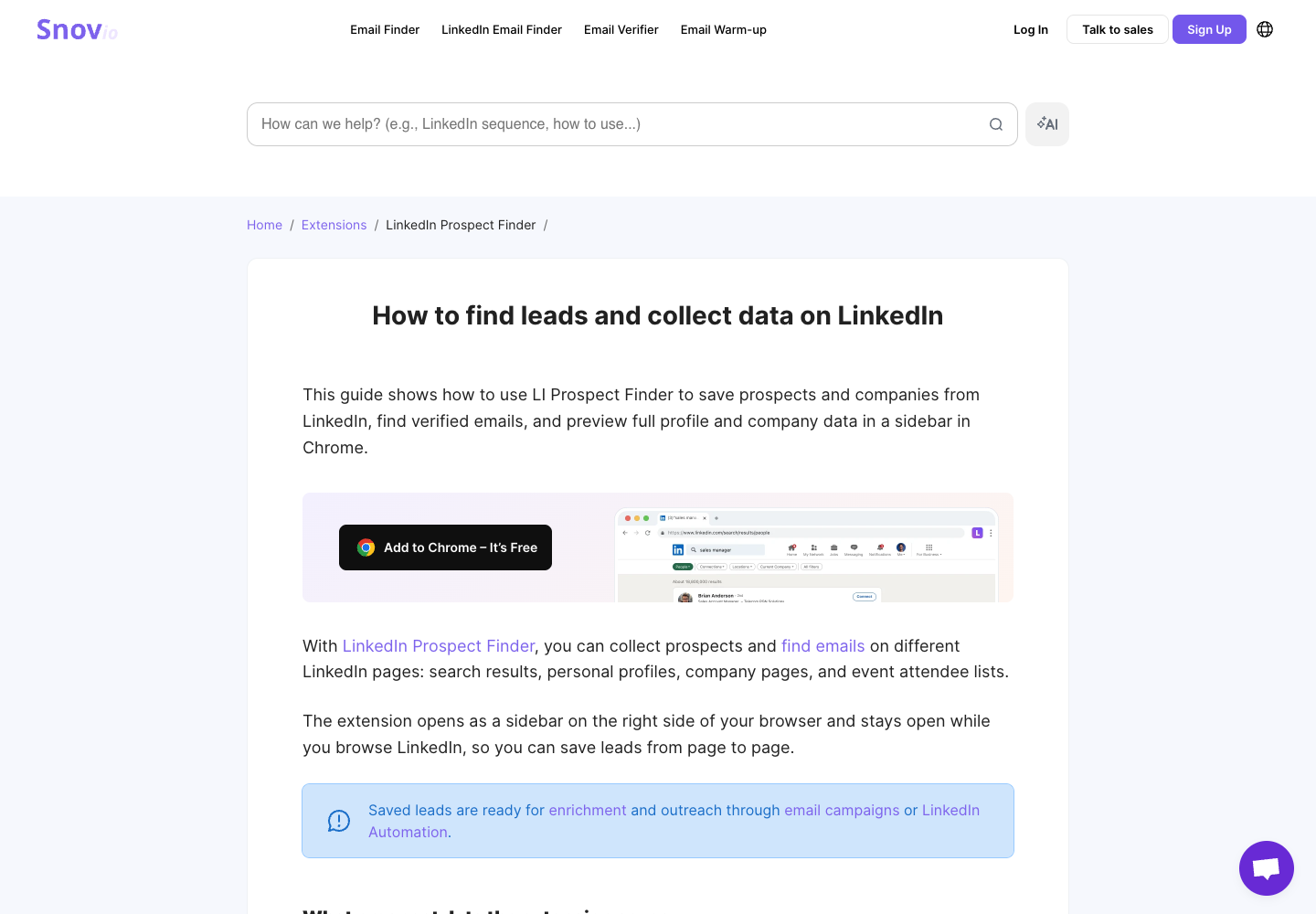
Snov.io's LI Prospect Finder supports several LinkedIn contexts. For this comparison, keep the task to the same individual profiles used with the other extensions.
Its finding process uses identity and company information to construct possible business emails and verify them. This makes the employer match important: a correct name paired with the wrong company is still a bad enrichment input.
Relevant features:
- Save prospects from supported profile and list contexts.
- Find business addresses and retain returned email states.
- Keep identity data when an email cannot be found.
- Continue work in the prospect list after the browser-side collection.
Pricing
- Free: 50 credits each month. CSV, XLS and Google Sheets exports require a premium plan.
- Starter Sales Suite: $39/month with 1,000 credits. Annual billing is displayed at $29.25/month; $351 is the calculated yearly total.
- LI Prospect Finder charges one credit for a prospect with a valid or unknown email; no-email and invalid results do not consume that prospect credit.
- Separate LinkedIn automation capacity is an additional purchase. Do not include it in the email-finding plan's base price.
Snov.io is most useful when the contact belongs in an ongoing list-building and verification process. Its credit rules are important for evaluating the result: valid and unknown email prospects can both consume credits.
If your team accepts only a clear valid status, do not divide plan cost by every charged result and call that cost per verified email. Count the statuses separately. A product can be following its documented billing rules while producing fewer rows that satisfy your acceptance rule.
Pros: Find and verify candidates in the same workflow.
Cons: Trial access to finding a contact does not include every export option.
3. Surfe: putting the contact into a CRM
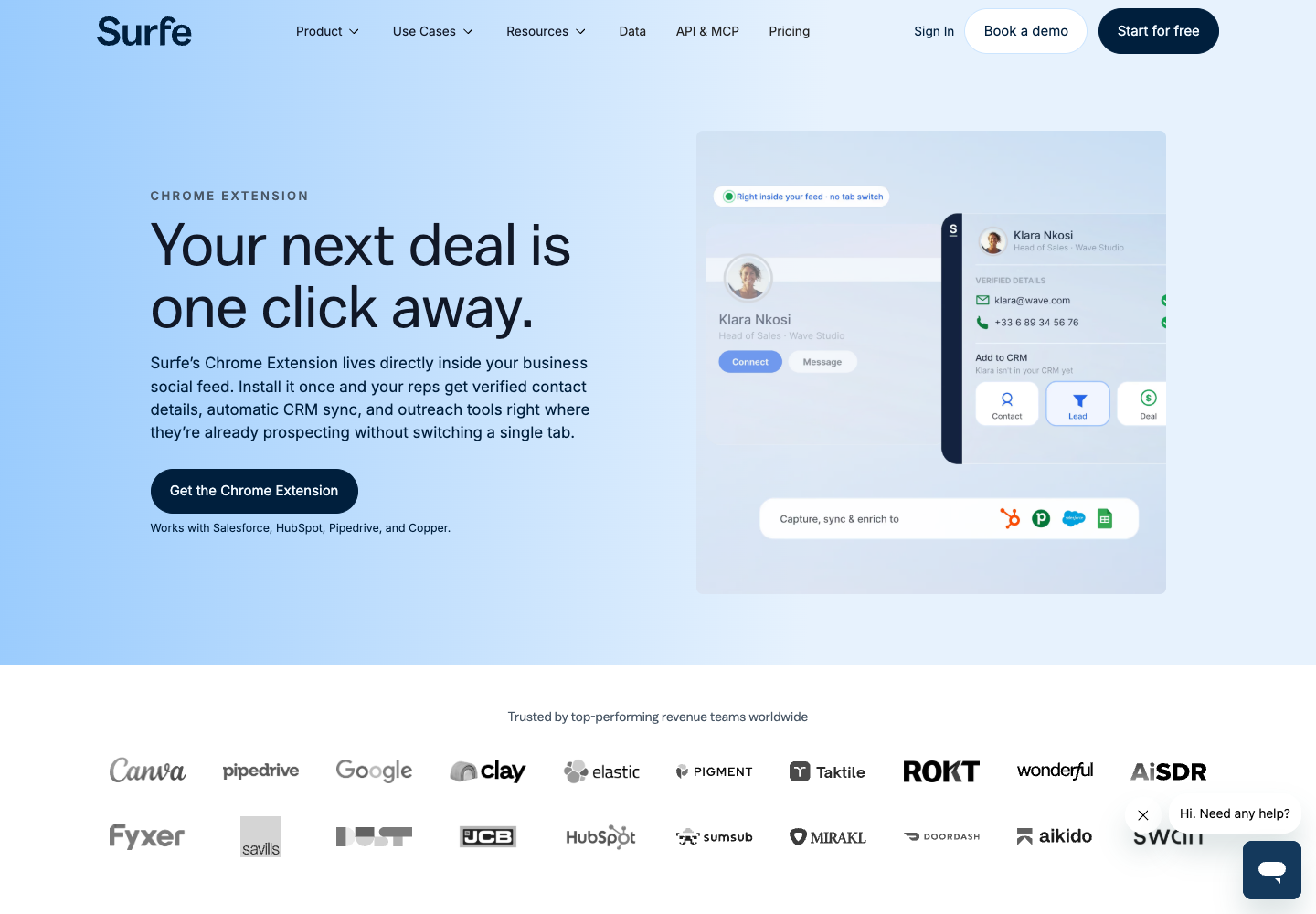
Surfe's extension is designed around working with contacts while browsing LinkedIn and transferring supported information into the CRM. Its multi-source finding service supplies the contact data behind that interface.
For a team with an existing CRM, the important test comes after “find email.” Check which record is selected, whether a company association is created and how an already populated field is handled.
Relevant features:
- Reveal contact information in the context of a profile.
- Add or update supported CRM records.
- Enrich and transfer lists through available workflows.
- Use other interfaces for larger integrations where the plan supports them.
Pricing
- Free: 20 email finds and 5 mobile finds per month, with a limited CRM transfer allowance.
- Essential: $49 per user per month, with 150 email finds and 50 mobile finds.
- Annual Essential is displayed at $39 per user per month, equivalent to a calculated $468/year.
- A separately priced CRM connector and API access are different purchases; do not assume the Essential price includes every interface.
Surfe is a good candidate when CRM handoff costs more effort than the search itself. Test a new contact and an existing contact with conflicting information. The desired behavior may be a reviewed update, rather than automatically replacing a field.
Compare the full workflow on the plan you would actually buy. A separate connector price and a plan containing email-finding allowances do not describe the same purchase.
Pros: Send contact data straight into a connected CRM.
Cons: The value is smaller if your team only needs a CSV.
4. Kaspr: email and phone discovery in one interface
Kaspr's LinkedIn extension brings available email and phone information into the profile-research workflow. Its broader contact package can be useful if your team needs both.
For an email-only comparison, record the business-email allowance separately from phone and personal-email allowances. Kaspr also has export credits, so finding a contact and exporting it can consume different resources.
Relevant features:
- Discover available contact information while browsing LinkedIn.
- Keep saved leads in a dashboard.
- Export supported records or use a CRM handoff.
- Manage business email, direct email, phone and export allowances separately.
Pricing
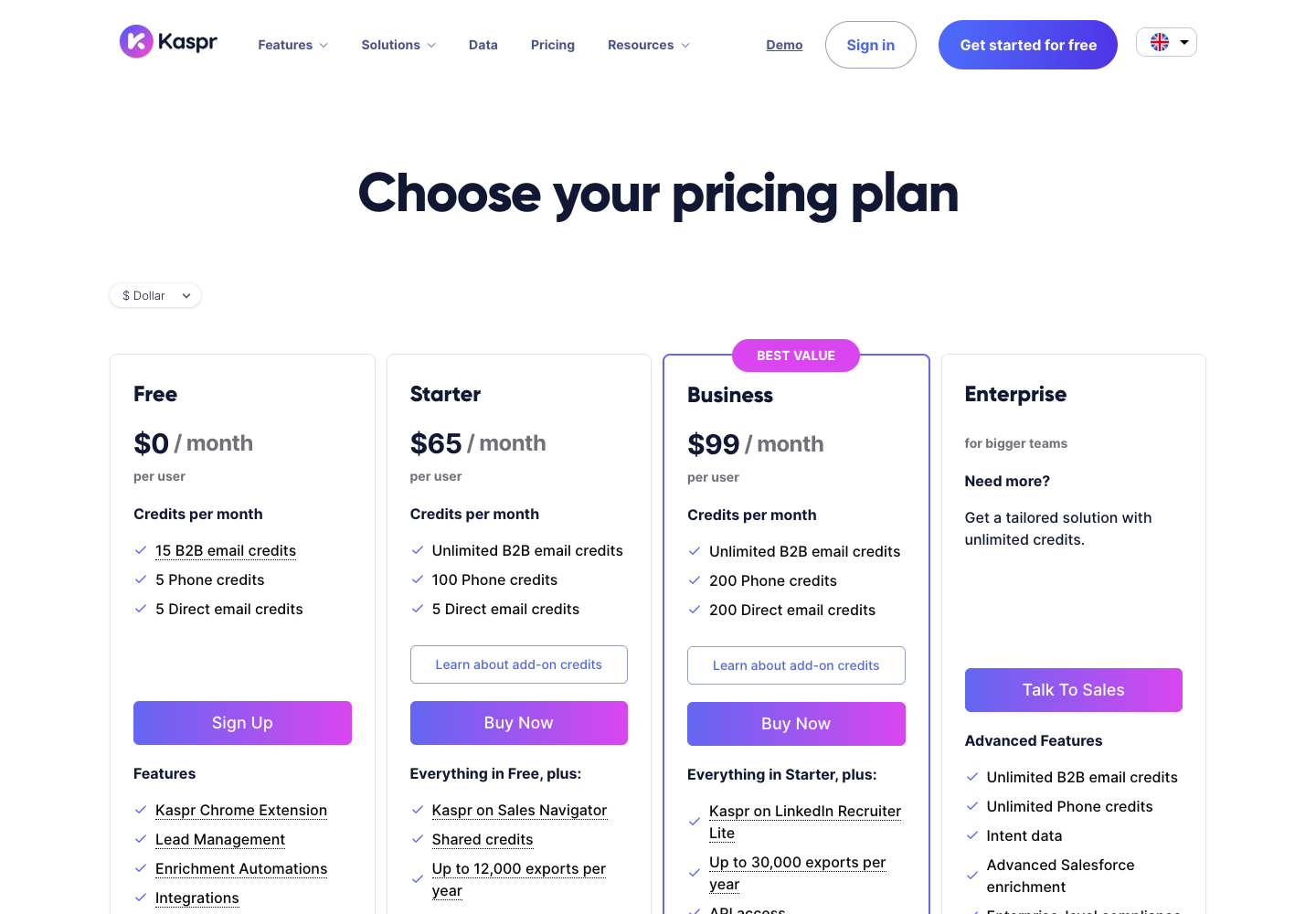
- The current pricing page lists 15 B2B email credits, 5 phone credits and 5 direct-email credits per month on Free.
- Starter: $65 per user per month in USD. The USD annual display is $49/month, or a calculated $588/year.
- Paid Starter advertises unlimited B2B email credits, while direct-email, phone and export allowances remain separate.
- Exporting a lead consumes an export credit, including a repeat export. Older invitation-reward wording should not replace the current free-plan allowance.
Kaspr suits people who want contact information in the LinkedIn context and value more than one channel. For repeated exports, check the export credit rules: an already found lead can still consume an export credit when exported again.
That makes your handoff design important. Decide whether reviewers work in the dashboard or in exported files, and avoid treating every download as a free step in the process.
Pros: Use one panel for business email and phone discovery.
Cons: Email, direct email and phone allowances are separate.
Compare the extensions on the same profile task
| Decision | Wiza | Snov.io | Surfe | Kaspr |
|---|---|---|---|---|
| Central use case here | Individual contact reveal | Finding and checking business emails | Research-to-CRM handoff | Email and phone contact discovery |
| Important source distinction | Contact-service lookup | Pattern-based finding and verification | Multi-provider enrichment | Contact-data service; inspect returned statuses |
| Operational detail to test | Full profile; current individual workflow | Status and credit behavior | Existing-record matching | Separate reveal and export allowances |
| Bulk qualification | LinkedIn search/list bulk actions removed | Check the exact supported route | Check the selected list workflow and plan | Verify the specific batch context and limits |
For an individual-profile comparison, give each product the same reviewed identities. Use the current employer as a separate reference field and inspect the result before saving it.
A useful trial contains different cases: a contact already in your CRM, a person who has changed employers, a profile with an ambiguous company name and a profile where the provider finds no email. These are test cases to prepare, not a claim about results produced in this comparison.
Measure clicks and manual corrections, but keep them separate from data quality. Fewer clicks are useful only when they save the correct person, company and email state.
Read the free allowance all the way to export
Free installation does not describe the full free workflow. Confirm the number and type of reveals, whether unused credits renew, and what can be saved or downloaded.
Snov.io's trial documentation distinguishes its monthly free credit allowance from premium-only exports. Kaspr separates several types of credits. Wiza's unlimited-reveal language on certain plans does not restore the removed search-export workflow.
Plan the trial around a completed task. If the job ends with a CSV, inspect the downloadable file. If it ends in a CRM, inspect the saved record. An on-screen reveal alone is not an exported or synchronized contact.
Why Hunter is not in this LinkedIn extension comparison
Hunter's current integration FAQ says it cannot integrate with LinkedIn. Its Chrome extension explanation describes looking up indexed addresses for a website domain.
Hunter may fit a later name-and-company enrichment step. It is not a like-for-like choice for “open a LinkedIn profile and reveal an email in a LinkedIn extension.”
Similarly, dedicated Sales Navigator exporters deserve a different comparison when your input is a search or saved list. Treating every Chrome-based entry point as the same product category hides whether the work runs locally or in a cloud service.
Build a BrowserAct Bot when research needs more pages
An extension is convenient when a known profile is the center of the task. A research brief may also require opening an official company website, finding the relevant contact page, preserving source evidence and recording why a company match is uncertain.
BrowserAct lets you describe that research and build a reusable Bot. The purpose here is to prepare context for email finding and collect business addresses that are actually shown, with their sources.
Keep the scope clear. A custom browser task does not by itself add an email database, and an empty visible-email field should remain empty. You can hand reviewed identity information to a separately configured finder afterward.
For a list rather than an open browser tab, try the LinkedIn Email Scraper template. It runs in BrowserAct using your LinkedIn session. Supply personal profile URLs or a keyword and region; the export keeps a row even when the person displays no email. This is an alternative to installing a finder extension when the address and its source must be visible to a reviewer.
Supply a short list of approved profile URLs and the fields you need. For an exported lead list, keep its original identity key and provide the company website where available.
1. Open BrowserAct and define the input
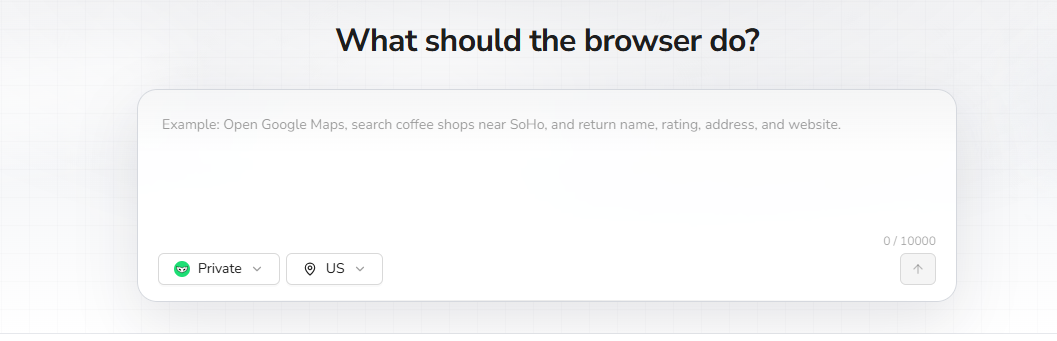
In the Dashboard, use the left-side +, a Quick start entry or the center Agent input to start a Bot. Choose the browser/session mode and region for the approved source.
2. Copy the request, then review the build plan
Provide the approved URL list or lead file with this request. Confirm the proposed sources, fields and sample limit before BrowserAct explores and tests the task.
Scrape data from any website.
Describe the data you need. Get a Bot — a reliable, reusable scraper.
3. Complete required confirmation manually
If BrowserAct pauses for login, CAPTCHA, 2FA or account confirmation, handle it yourself. Leave restricted or unavailable rows flagged for review rather than changing the task to bypass the restriction.
4. Review the sample, export and reuse the Bot
Check the identity, company domain and source page for each sample row. Remove duplicates and wrong matches; preserve empty emails and their reasons. Export CSV or JSON, save the Bot and rerun it with new approved inputs after the sample is reliable.
Check these output columns: profile_url, company_domain, company_source_url, visible_business_email, email_source_url, email_type, extraction_status. These are requested fields, not a claim that a completed run has returned emails.
The ready-made template returns its own files. Here are the status columns from a two-profile URL run:
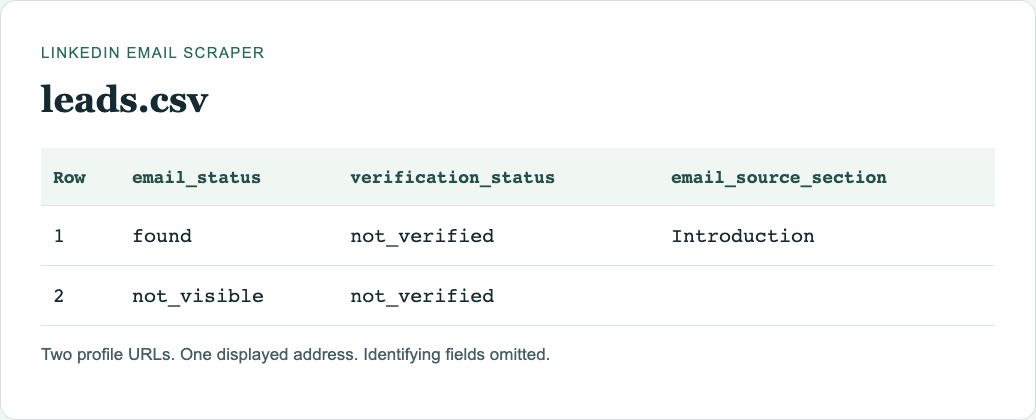
The first-Bot guide explains how to build, test and improve the task. When you review the sample, check one row against its sources before expanding the limit.
Choose the extension by the task after the reveal
Shortlist Wiza for individual profile research, Snov.io for a finding-and-verification list workflow, Surfe for CRM-centered research, and Kaspr when email and phone access both matter. These are workflow recommendations, not measured accuracy rankings.
Then complete the smallest real job you can review. Save the person, inspect the company, keep the email status and verify the final handoff. That sequence will tell you more about a LinkedIn email finder extension than an isolated “email found” animation.
For the platform's access boundary, see the LinkedIn scraping risk framework. Installing an extension does not grant permission for an otherwise unauthorized task.
FAQ
Q: What is the best LinkedIn email finder extension? A: It depends on the full workflow: individual reveal, verified list building, CRM updates or combined email and phone discovery. Test the complete handoff on the same profiles.
Q: Do I need Sales Navigator for every extension? A: Check the exact entry point. Individual-profile lookup and Sales Navigator list export have different access requirements; do not buy a seat solely on a generic feature list.
Q: Does free installation include free CSV exports? A: Not necessarily. Reveal, saving, export and CRM sync can have different allowances. Snov.io, for example, documents premium-only file exports.
Q: Does Hunter's extension work on LinkedIn? A: Hunter says it cannot integrate with LinkedIn. Its name-and-company tools can be considered for a separate enrichment step.
Q: When should I build a Bot instead? A: Build a Bot for repeated custom research across permitted pages. Keep mailbox discovery and verification as separate services unless your configured workflow explicitly supplies them.


