Get Started with BrowserAct: Build and Run Your First Bot

Learn how to describe a web data task, let BrowserAct build and test a reusable Bot, run it, review structured results, update it, and troubleshoot issues.
BrowserAct Agent-built turns a natural-language data request into a tested, reusable Bot that extracts structured data from complex websites.
No code, scraper setup, or local Agent installation is required.
Before you start
Why you need BrowserAct Agent-built?
BrowserAct Agent-built works best when you need structured data from live websites, and your task goes beyond reading a single static page.
Use it when you need to:
- Extract fields from JavaScript-rendered pages.
- Apply filters, switch tabs, paginate through results, or open detail pages.
- Combine fields from listing pages and detail pages.
- Repeat the same research task with different keywords, regions, categories, or URLs.
- Create a reusable data task without writing selectors or scraping code.
Practical scenarios
Common examples include:
- E-commerce and supplier research: collect product, price, rating, seller, or supplier information from public marketplace pages.
- Customer and market research: collect public posts, comments, reviews, ratings, and source URLs from communities and review platforms.
- Local business research: find businesses in a location and return public details such as name, category, rating, address, phone number, website, and source URL.
- Competitor research: compare public pricing pages, product pages, blogs, or changelogs with a consistent set of fields.
- Creator, launch, and job research: organize publicly accessible creator, product-launch, or job-listing information into a repeatable research table
Use BrowserAct Agent-built
Describe the data you need
Enter your request in the prompt box.
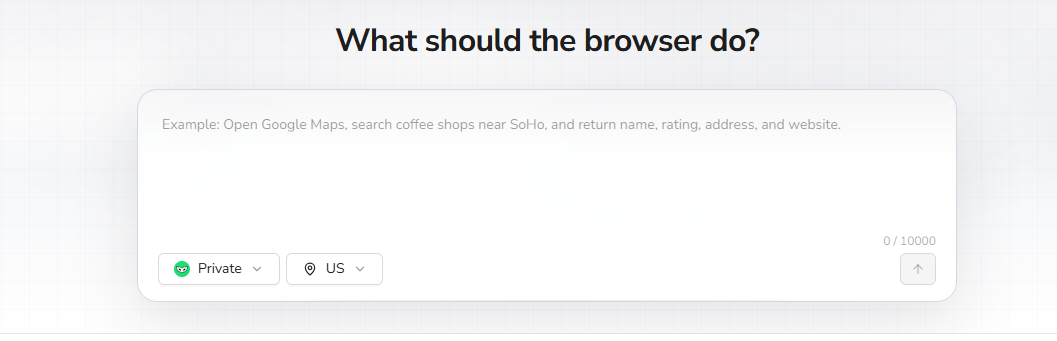
Include:
- The website or starting page.
- The records you want to find.
- Any search terms, locations, categories, or filters.
- The fields you want returned.
Prompt Example:
Amazon Best Sellers category data extraction
Go to https://www.amazon.com/Best-Sellers
Scrape the top 100 products from the Best Sellers list.
For each product, return the product name, price, product URL, and other relevant fields.
Supports filtering by category.
Reddit Post extraction
Go to https://www.reddit.com
Find public posts that mention "browser automation".
For each post, return the post text, post title, publication date, score, post URL, upvote count, comment count and post author.
Search keywords, time filter and extraction limit are configurable.
YouTube keyword video information extraction
Go to https://www.youtube.com
Find publicly accessible videos related to the keyword "browser automation".
For each video, return the title, channel name, publication date, duration,
view count when shown, video URL, and channel URL.
Search keywords, video publish date filter, maximum extracted video quantity are configurable.
Amazon product detail extraction
Go to https://www.amazon.com
Search the keyword: wireless+earbuds
Open the product detail pages for the first 20 relevant results.
For each product, return the product title, brand, current price, rating, review count, availability, seller, ASIN, and product URL when shown.
Website domain, search keywords and maximum extracted product quantity are configurable.
Amazon review extraction
Go to https://www.amazon.com
Search the keyword: B09S3HNMHF
Open the public customer review section for this product, collect up to 20 reviews.
For each review: return the rating, review title, review text,
publication date, verified-purchase label when shown, helpful-vote count, and review URL
ASIN, website URL and maximum extracted review quantity are configurable.
X public post information extraction
Go to https://x.com/browseract/status/2070426671144911059.
Collect all comments under this post.
For each comment, return the commenter name, commenter profile URL, publication date, comment text, and comment URL.
Post URL and maximum extracted comment quantity are configurable.
> Tip:
- Specific requests produce better Bots. Include the target page, record limit, conditions, and required fields.
- After you enter your requirements, the Agent will analyze them and confirm the target with you. Once confirmed, the Agent proceeds. Please confirm within 60 minutes.
Choose browser mode and proxy region
Before submitting the request, select the browser model that fits the target website and task.
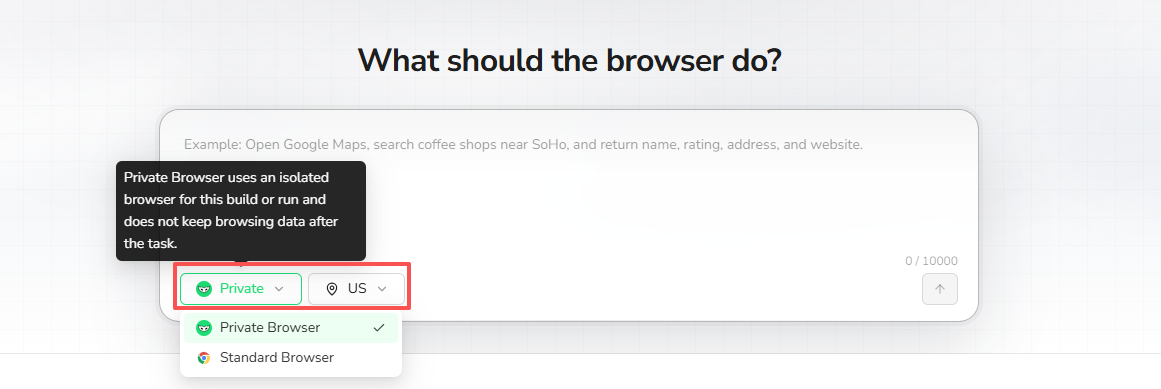
- Choose a browser mode based on the website's access requirements.
- Choose the proxy region required for the target country or market.
- Keep the default settings when the task has no specific browser or regional requirement.
These settings are used when the Agent builds and tests the Bot and during future runs.
Let the Agent build and test the Bot
After you submit the request, BrowserAct Agent-built will Confirm the plan with you,and than
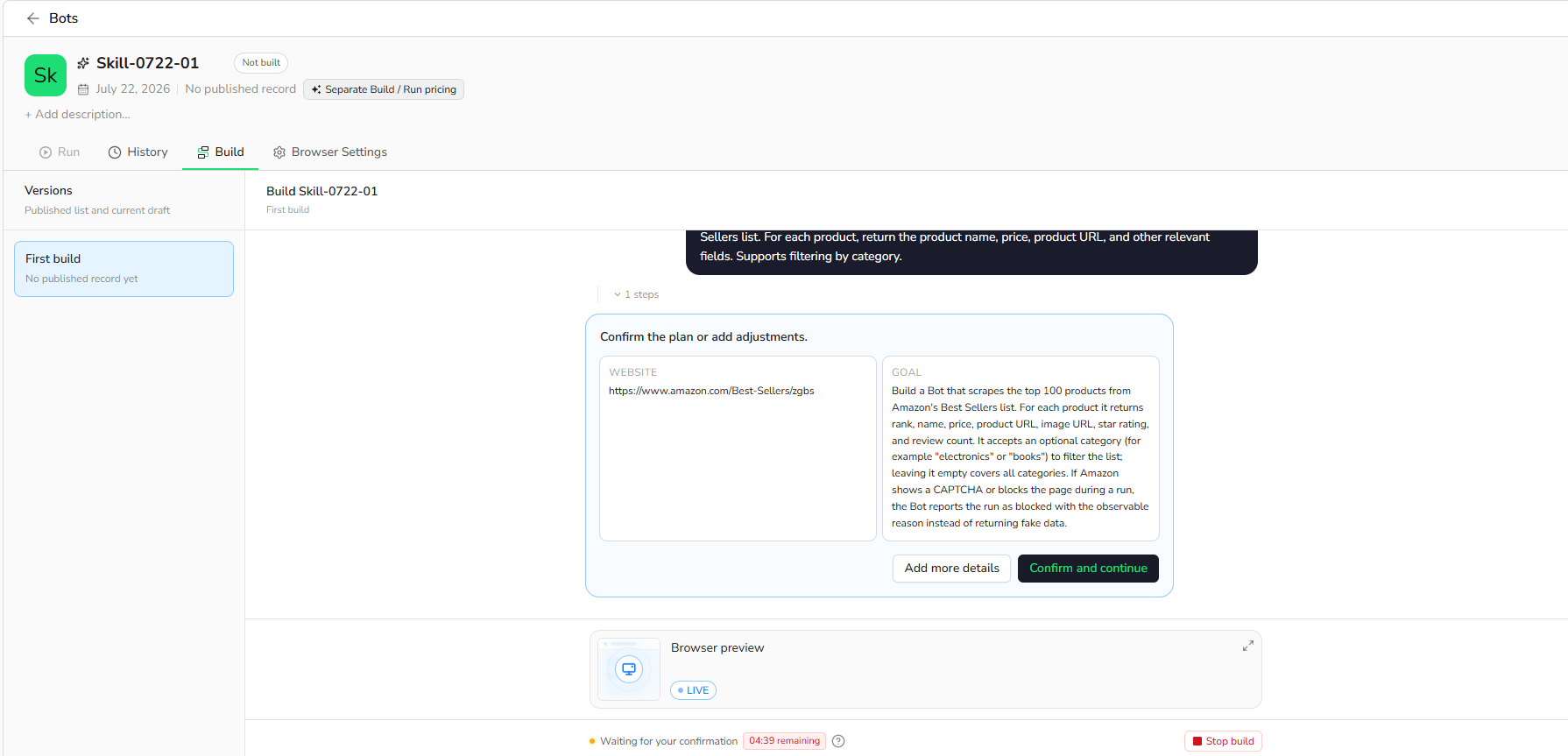
- Interpret the website, conditions, and required fields.
- Explore the live website in a real browser.
- Work through supported filters, tabs, pagination, scrolling, and detail pages.
- Test the extraction on the live website.
- Create a reusable Bot when the test succeeds.
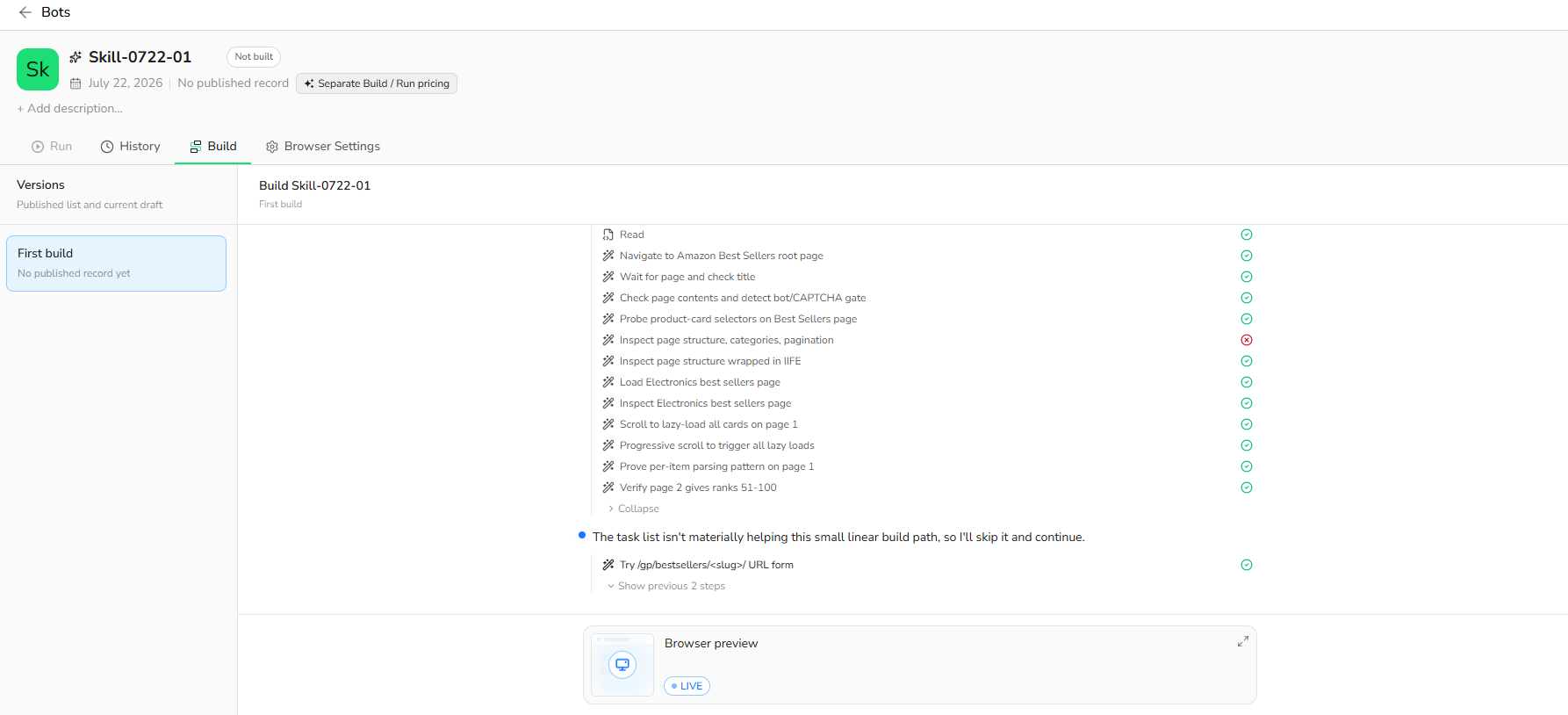
If the Agent requests more information, reply with the missing website, condition, field, or expected result.
> Tip: Click the Browser Preview button to view the real-time browser operation.
> Tip: If you want to add more information during construction, you can click the "Pause" button.
Run the Bot and review the result
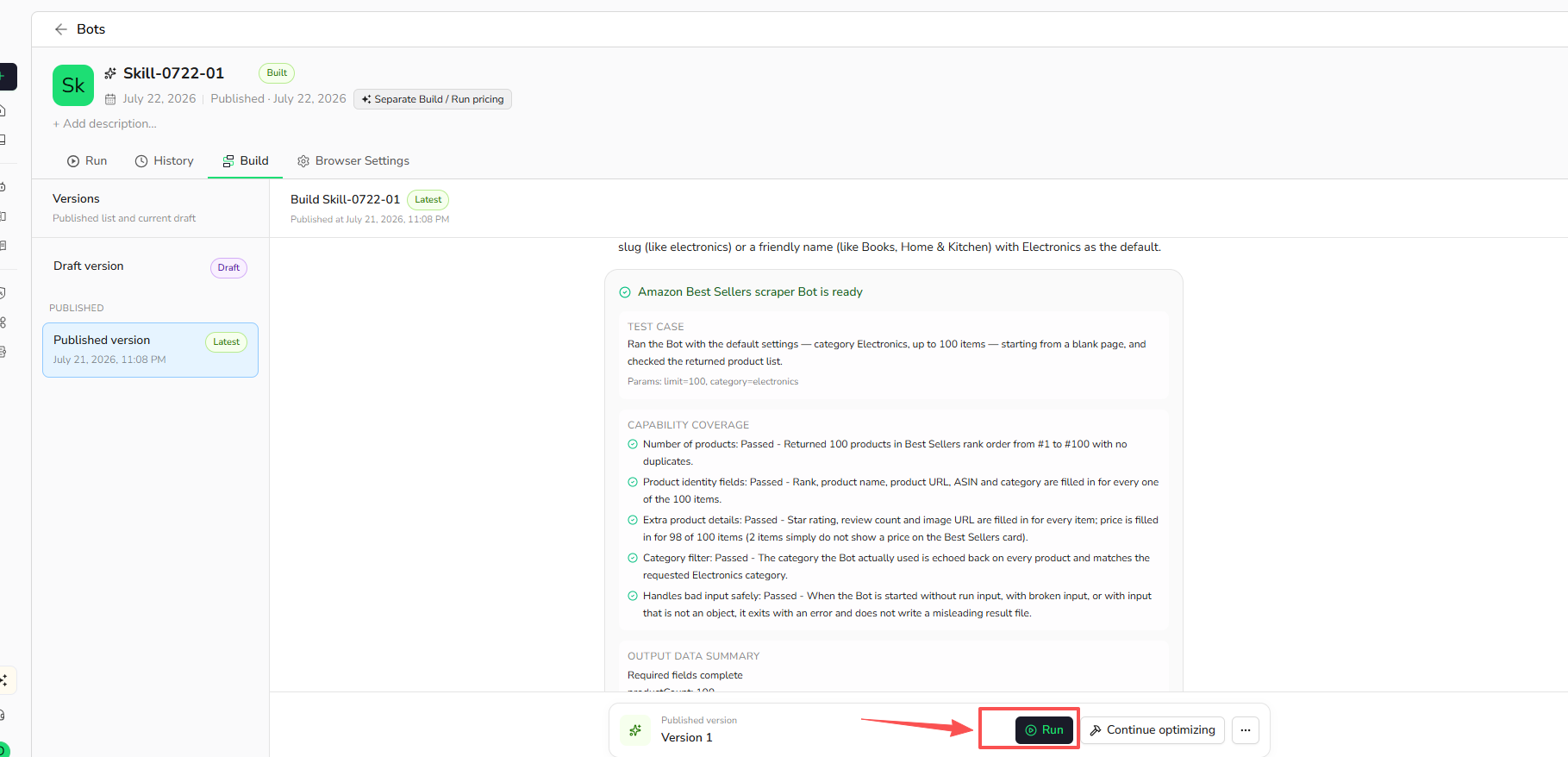
Click the "run" button in the lower left corner
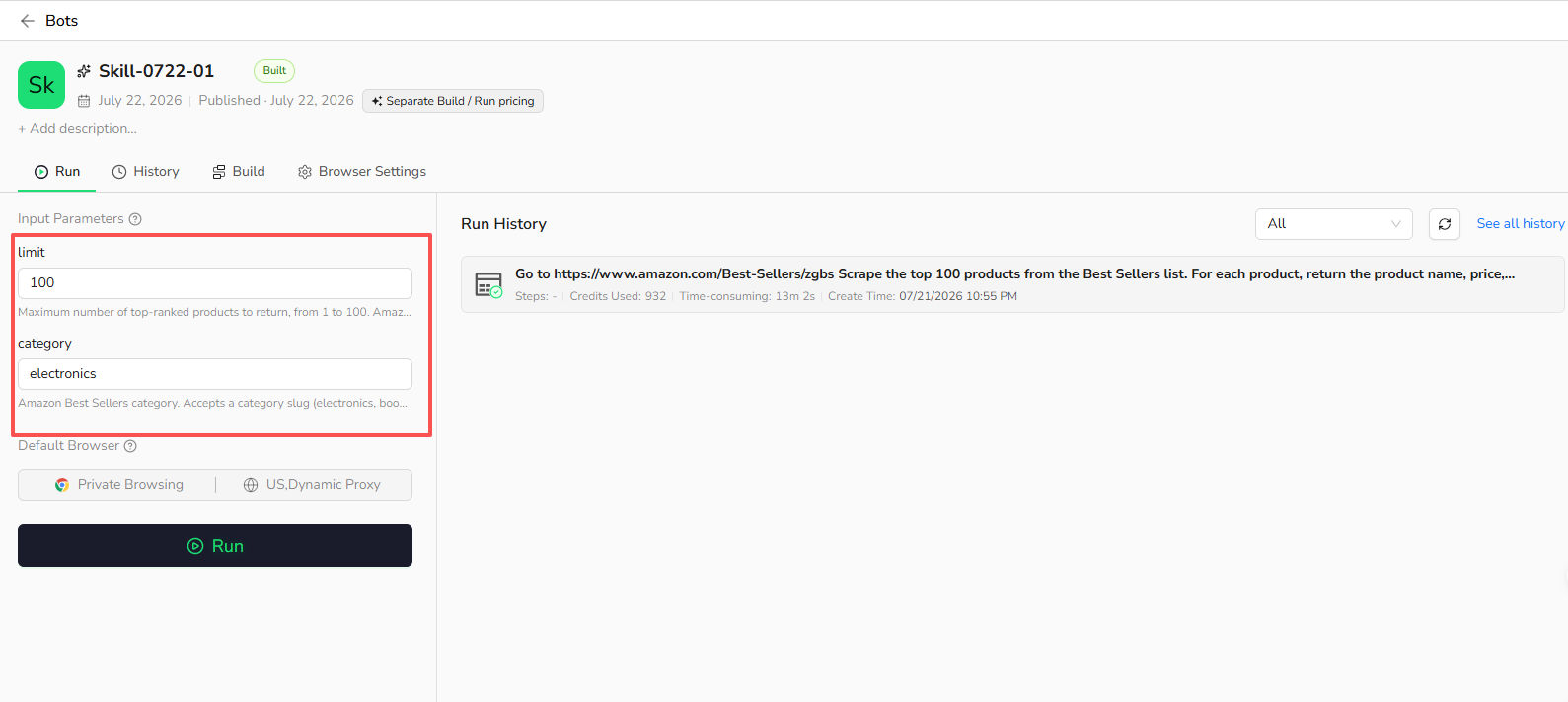
- Adjust the input parameter values for the current task.
- Click Run to start the Bot.
- Wait for the run to complete.
When the run succeeds, the extracted data is returned in a structured format.
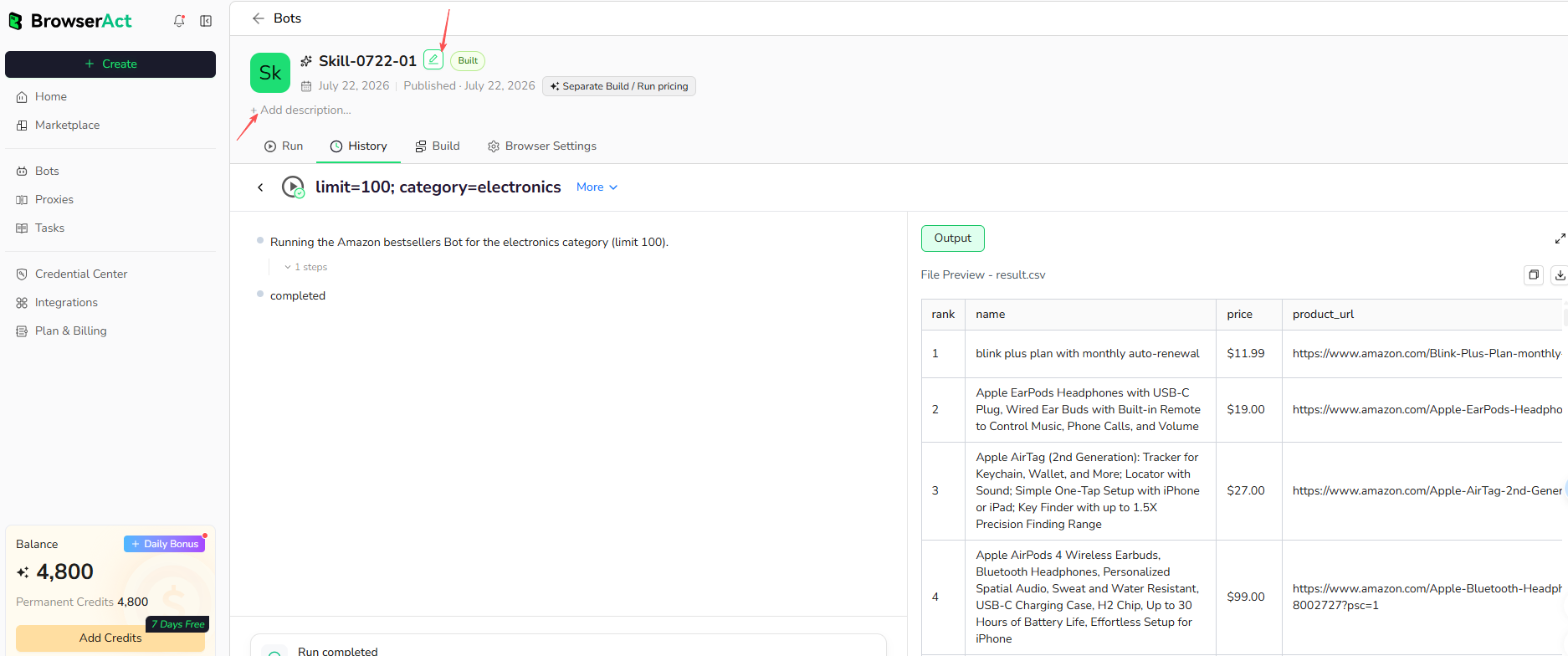
> Tip: Click the edit button next to the name to rename the Bot. Click the description area to add a description for the Bot.
Alternative: Start from the Bots menu
You can also create a Bot from Bots:
- Open Bots Menu——click "Create"
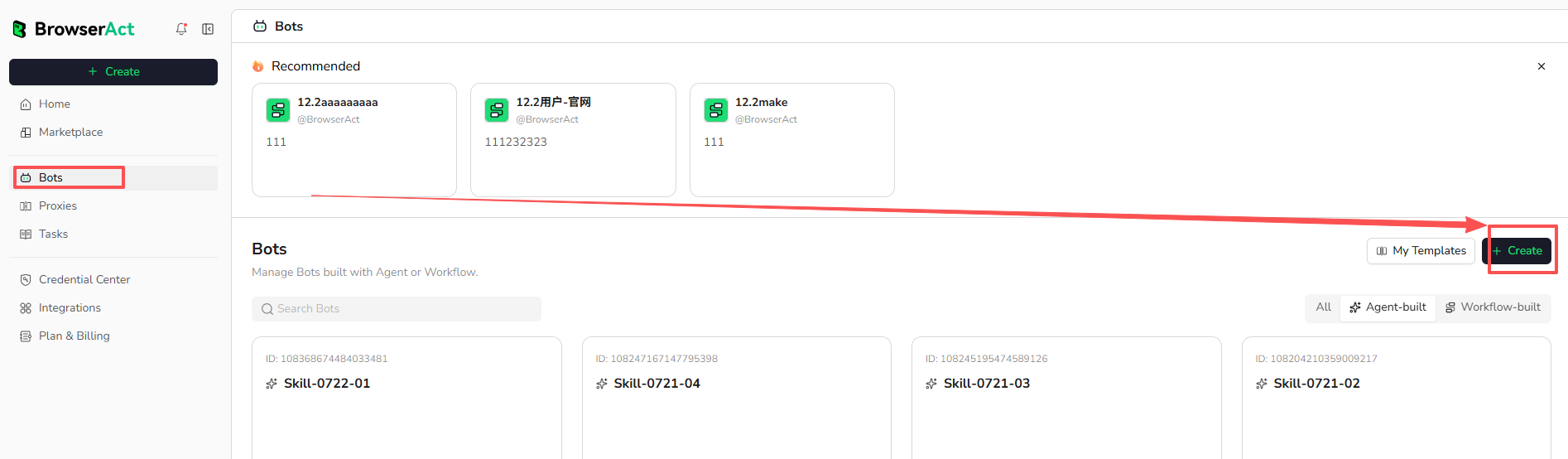
- Select Build with Agent
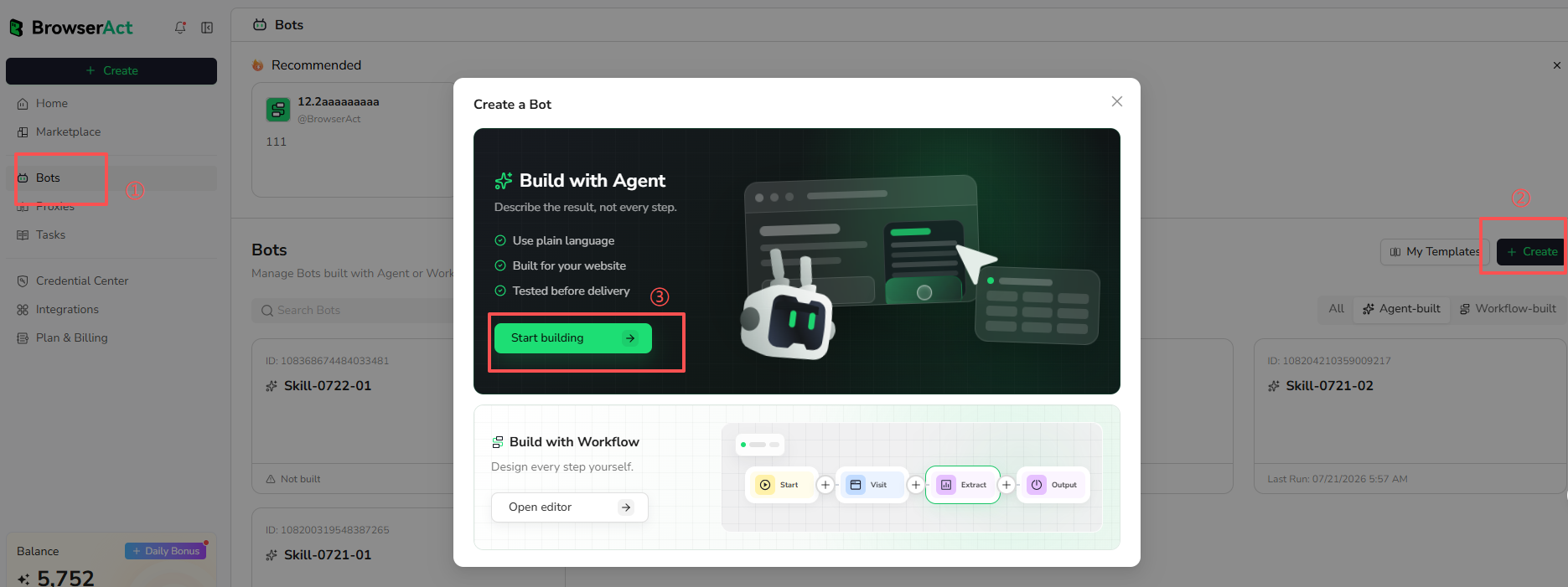
- Enter the data request.
- Choose the browser mode and proxy region.
- Submit the request.
View run history
- Open Bots Menu
- Select the Bot to review.
- Select History.
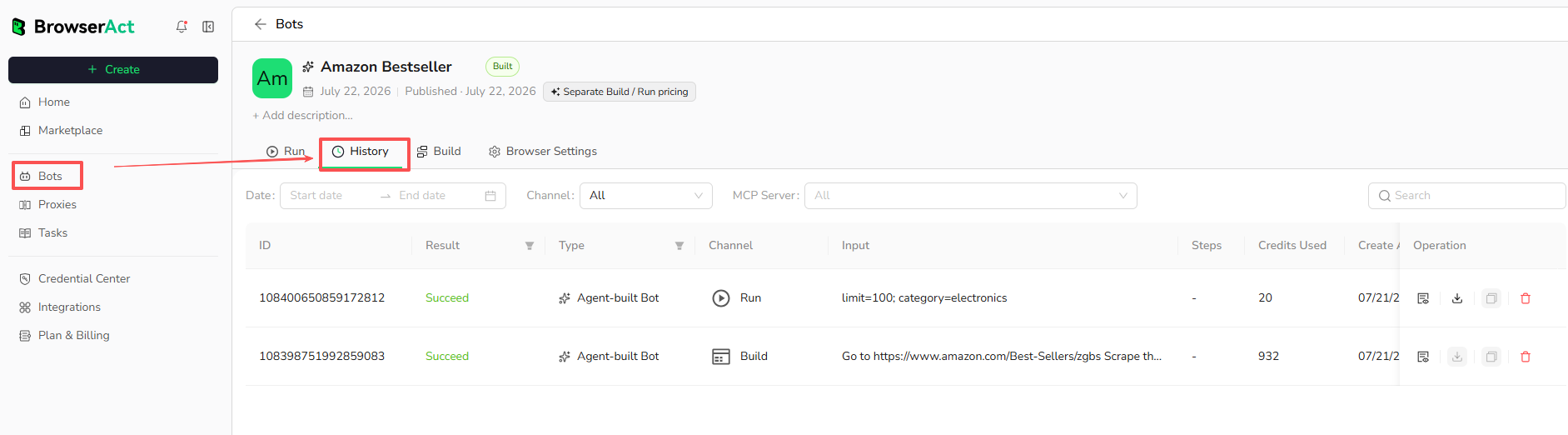
History includes previous Build and Run records. Open an individual record to review its inputs, results, and available task details.
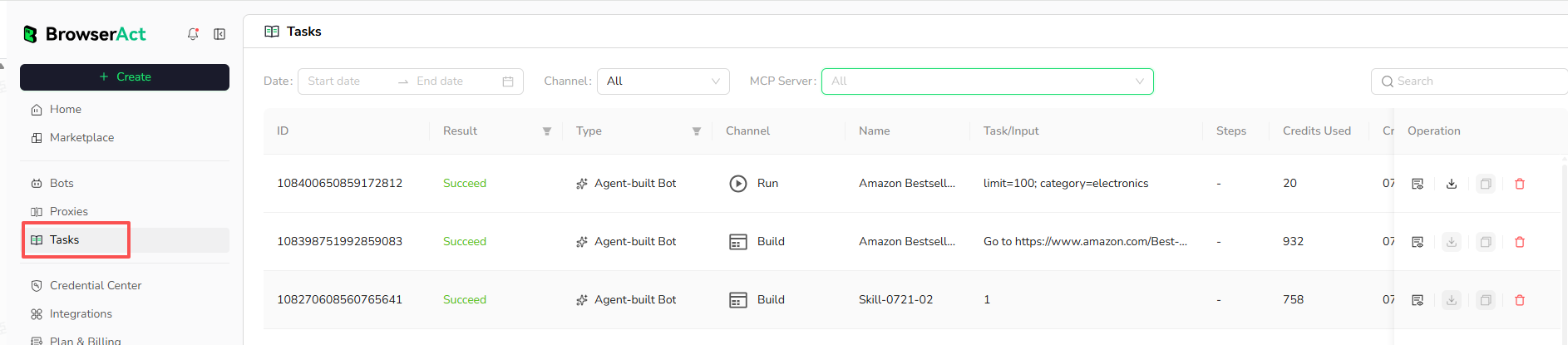
You can also view running records of all Bots via the Task menu.
Update a Bot
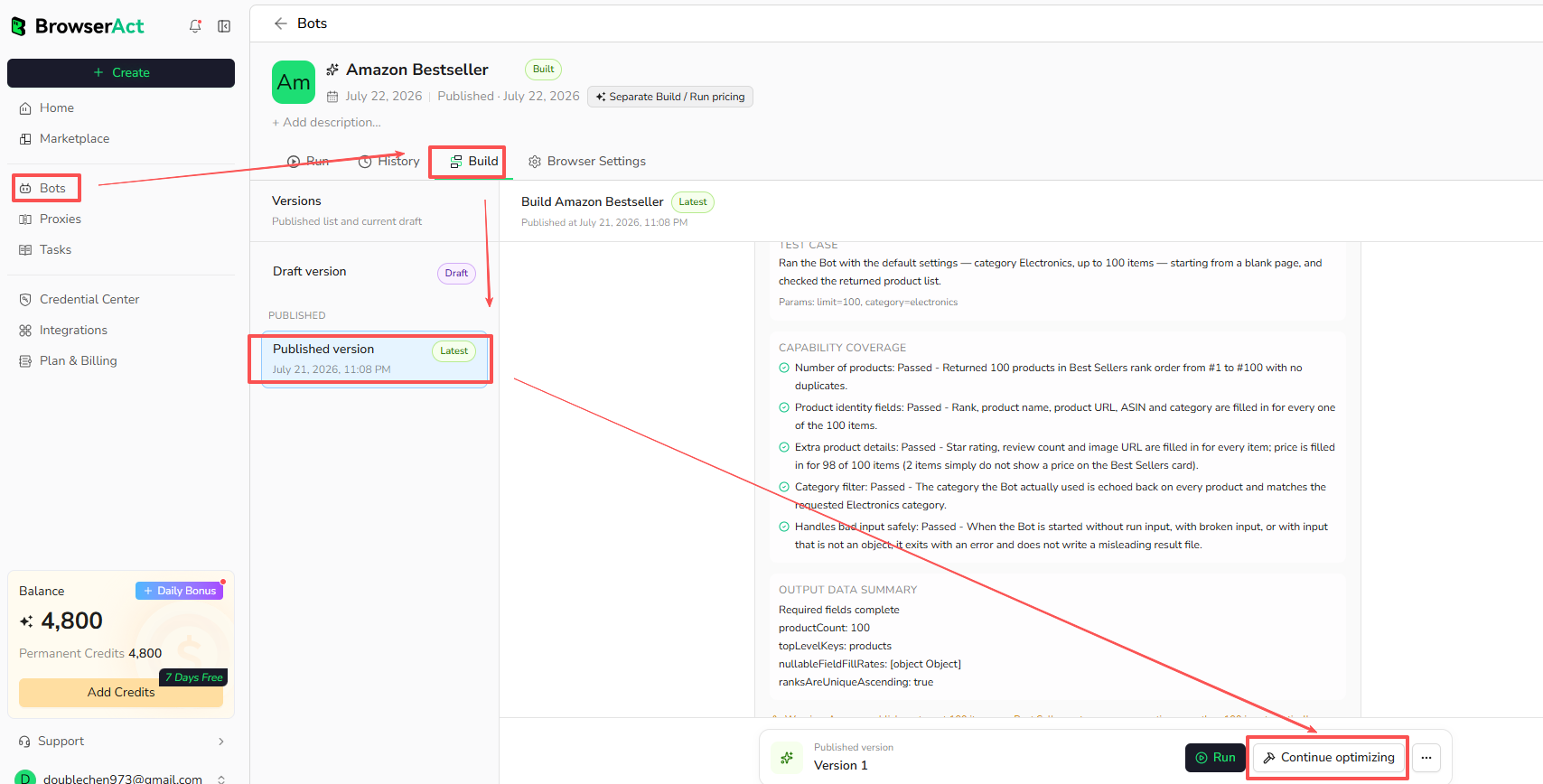
Update a Bot when you need to change its target website, fields, conditions, or page coverage.
- Open Bots. Select the Bot you want to update.
- Select the Build tab.
- Select the Latest version
- Click Continue optimizing in the lower-right corner.
- Enter the requested change in the conversation box,and wait for the Agent to update the Bot.
Example update:
Change the target website from amazon.com to amazon.de.
- Click Test to verify results after the Agent modification.
- Click Publish draft in the upper-right corner.
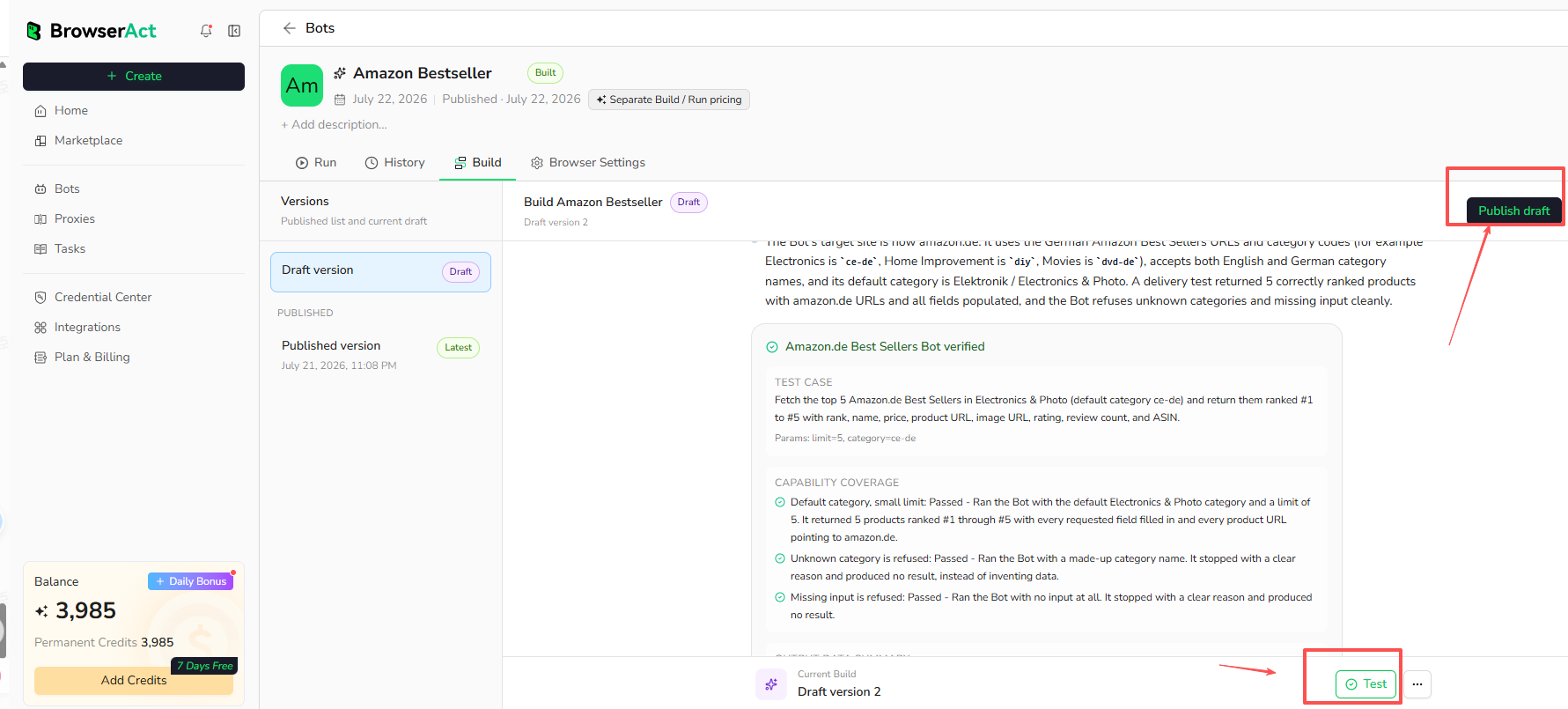
The published draft becomes the current version used for future runs.
If a previously working Bot stops returning the expected result, describe the issue and let the Agent test an update against the live website.
Connect a Bot to other systems
After you have built and successfully tested a Bot in BrowserAct, you can run it from another application or automation platform using the BrowserAct API, Make, or n8n.
Choose an integration
Integration | Best for |
BrowserAct API | Custom applications, backend services, scripts, and code-controlled integrations |
Make, n8n, or Zapier | Connecting BrowserAct to other apps through a visual automation workflow with little or no custom code |
Run a Bot with the BrowserAct API
Use the BrowserAct API when you want to start and manage a tested Bot from your own application, script, or external service.
Before you begin, make sure that:
- The Bot is available in your BrowserAct Dashboard.
- The Bot has completed at least one successful test run.
- You know which input parameters the Bot requires.
Step 1: Create an API key
- In the BrowserAct Dashboard, open Integrations.
- Click Create New API Key.
- Copy the API key and store it securely.
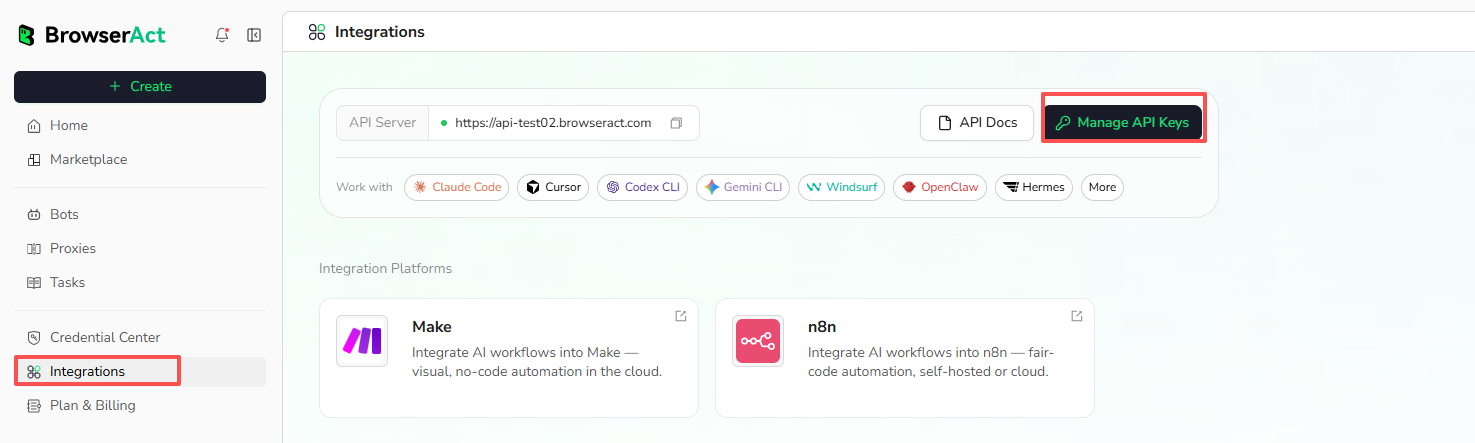
> Important: Do not expose the API Key in public repositories, client-side code, screenshots, or shared documents.
Step 2: Copy the Bot ID
- Open the Bot menu.
- Copy the Bot ID.
- Review the Bot’s required input parameters.
When creating a task through the API, pass the Bot ID as the workflow_id..
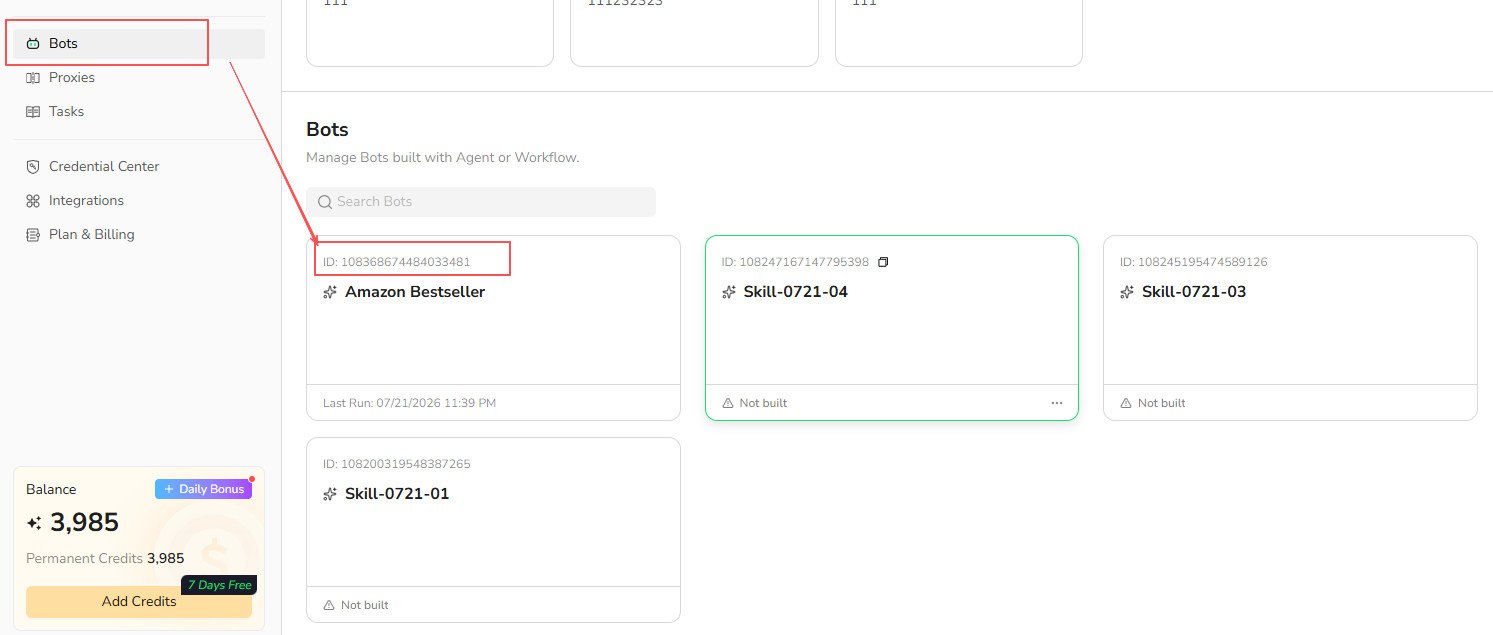
Confirm that the Bot is available in your Dashboard and has been tested successfully before integrating it.
Step 3: Create a task
Send a POST request to:
https://api.browseract.com/v2/workflow/run-task
Include the following information:
- Your API key as a Bearer token in the
Authorizationheader. - The Bot ID in the
workflow_idfield. - The required values in
input_parameters.
For complete request examples, callback settings, browser-data options, and response fields, see:
Run a workflow - Create a task
Run a Bot from Make, n8n, or Zapier
Use Make, n8n, or Zapier to start a tested BrowserAct Bot from a trigger and send the results to other applications.
Common triggers include schedules, webhooks, form submissions, and record updates.
For setup instructions, see the platform-specific guides:
Troubleshoot common problems
How many Bots can I build at the same time?
Free accounts can run up to one Build tasks at the same time.
Paid accounts can run the number of simultaneous tasks included in their subscription plan. The limit applies only to active Build tasks. Your current account plan determines how many tasks can run concurrently.
What happens if I run out of credits during Build?
The exploration task stops when your available credits run out.
After adding more credits, return to the original Build conversation and enter Continue. The Agent will resume the unfinished exploration from that conversation.
Can BrowserAct Agent extract data from a website that requires login?
Yes, during Build exploration, when the task reaches a supported login or verification step, the Agent can provide a remote-assist link. Open the link and complete the login yourself in the assisted browser session.
Need help?
Contact BrowserAct support or consult our documentation for more automation tips.
Discord: [Discord Community]
E-mail: service@browseract.com


