Human Interaction Node Guide

Learn how to use the Human Interaction node in BrowserAct to handle manual login, verification, and decision-making steps. Step‑by‑step guide with a Quora login example.
Empower your workflow with human decision-making when automation alone isn’t enough. The Human Interaction node temporarily hands browser control to the user—perfect for login flows, captchas, manual reviews, or any step requiring human judgment.
What Is the Human Interaction Node?
The Human Interaction node pauses your automated workflow and allows a human to directly operate inside the browser. Once the user completes the required action and clicks Resume, the workflow continues automatically.
When Should You Use It?
Use the Human Interaction node when your workflow involves:
- Login or verification steps requiring manual input (e.g., email/SMS codes)
- Captcha-protected websites
- Platforms with unpredictable human-first UI elements
- Steps requiring judgment (e.g., choosing a category or confirming an action)
Key Features
- Flexible Notifications
Supports in-app notifications and optional email notifications. - Two Execution Modes
Perform actions directly in the BrowserAct interface or via a standalone Web interface accessible from email. - Automatic Workflow Resume
Once the human step is completed, control returns to the AI workflow seamlessly.
Usage Rules
- The node can be placed anywhere in the workflow.
- You can customize the human intervention time limit.
- Email notifications can be sent to any valid email address.
- Each Human Interaction node can include multiple required tasks before exiting.
Setup Guide (Step-by-Step)
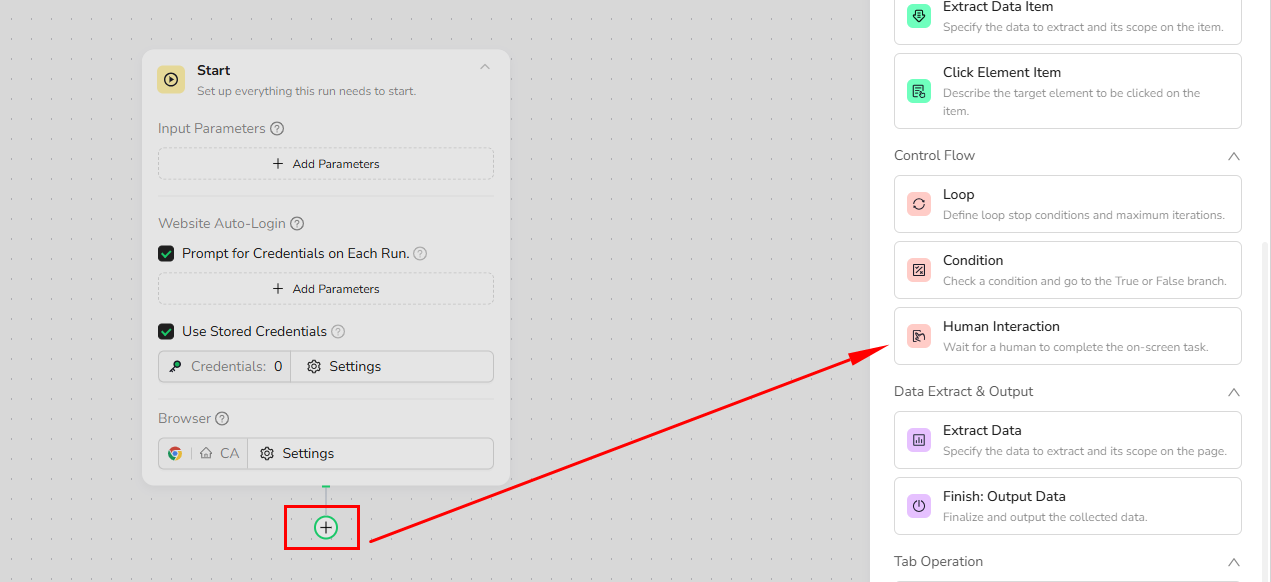
1. Insert the Human Interaction Node
Click the + button in your workflow, then select Human Interaction from the node library.
2. Configure Basic Settings
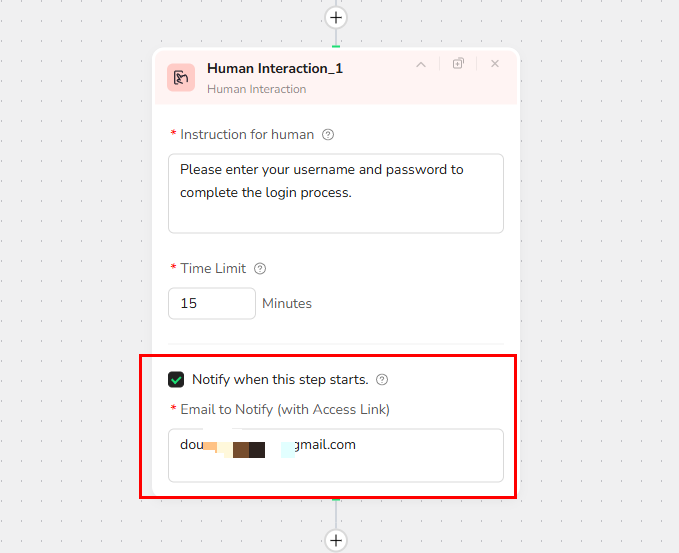
- Instruction for Human
Write clear instructions that explain what the user must do.
Example:
"Please enter your username, password, and verification code."
- Time Limit
Sets the maximum duration allowed for human intervention.
When the time expires, the workflow exits this step immediately.
- Notify When This Step Starts
Checked: Send an email notification to the entered address. The user can perform the task through a standalone Web interface—ideal when they are away from the computer.
Unchecked: The user performs the intervention directly inside the BrowserAct interface.
Example: Quora Post Scraper (with Human Login)
This example demonstrates how to use the Human Interaction node to log in to Quora and extract post data.
Before You Start
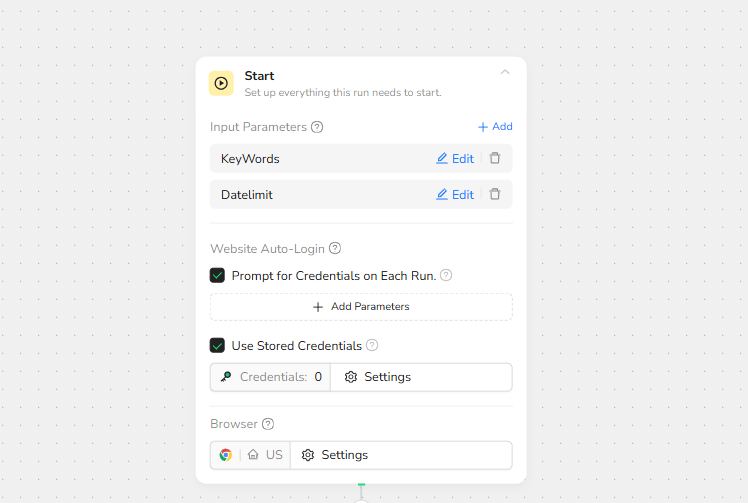
Set up required parameters:
- Keyword: Default = “Scraper”
- Datelimit: Default = “5” (number of posts to extract)
Adjust based on your scraping needs.
1. Start Node – Parameter Settings
Set:
Keyword = ScraperDatelimit = 5
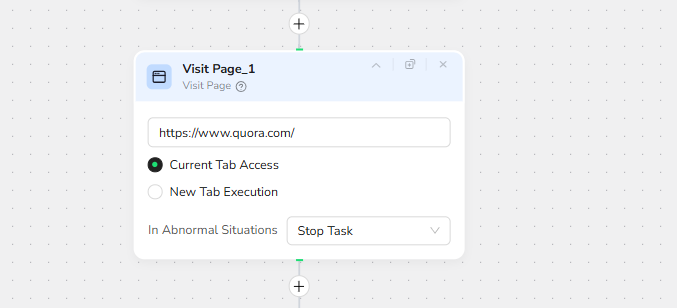
2. Add a Visit Page Node
Goal: Navigate to Quora
Action: Enter URL: https://www.quora.com/
3. Add Condition Node
Goal: Detect whether the user is logged in.
Action:
Enter: Does a login box appear on the page?
You may customize this based on platform (e.g., check for login button in the top-right corner).
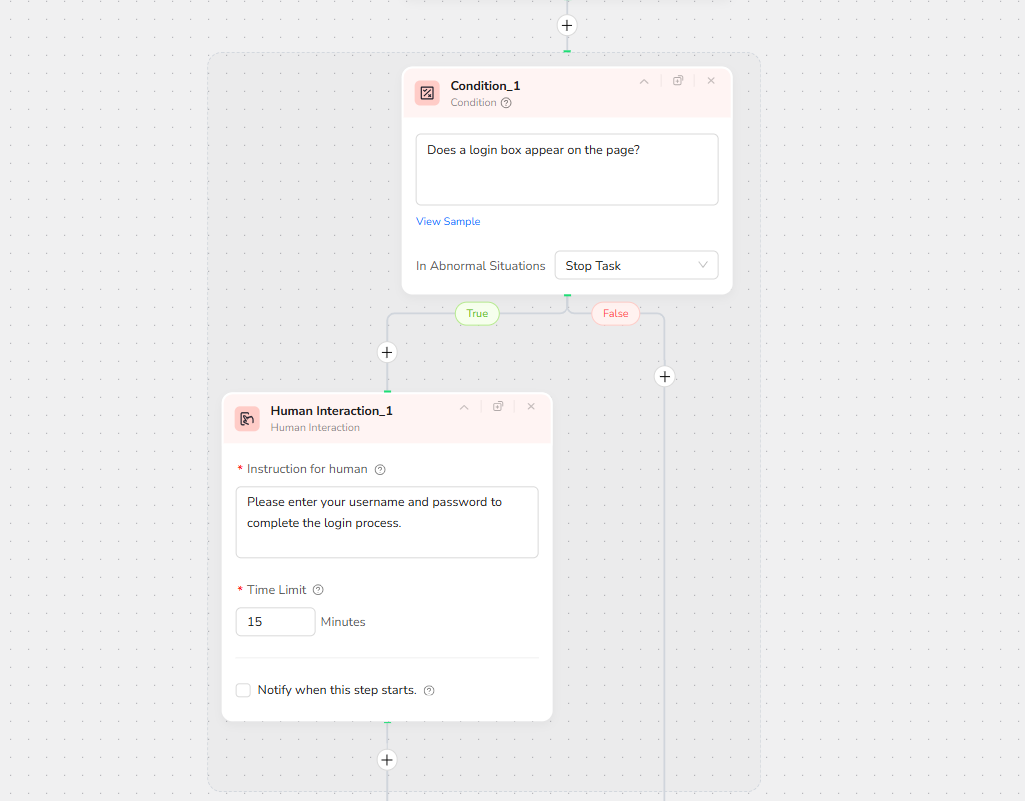
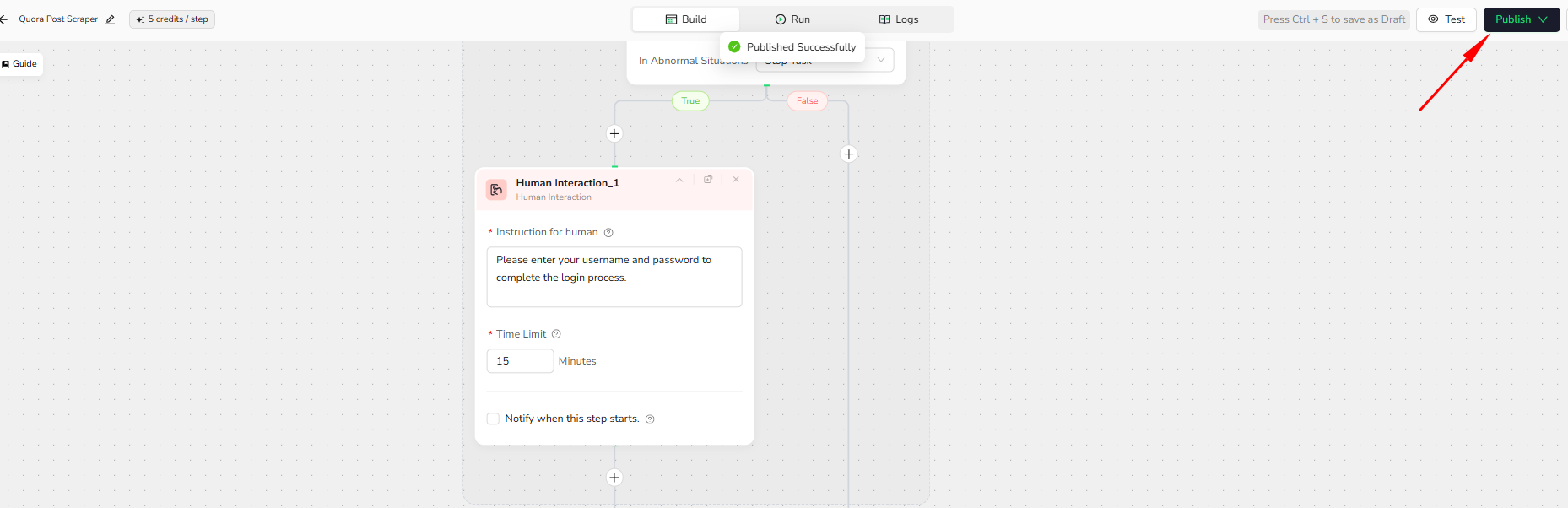
4. Add Human Interaction Node (True Branch of Condition)
Goal: Allow manual login using username/password and any required verification.
Actions:
- In the instruction field, enter:
“Please enter your username and password to complete the login process.” - Leave Notify when this step starts unchecked to complete the action directly in the interface.
- You can adjust this behavior depending on your workflow.
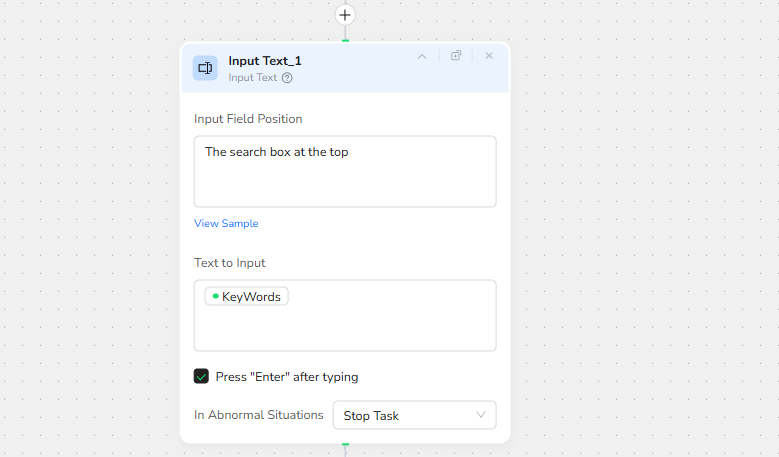
5. Add Input Text Node
Goal: Enter the keyword into Quora’s search box.
Actions:
- Input Field Position: “The search box at the top”
- Text to Input: Type “/” to reference the Keyword parameter
- Check Press Enter after typing
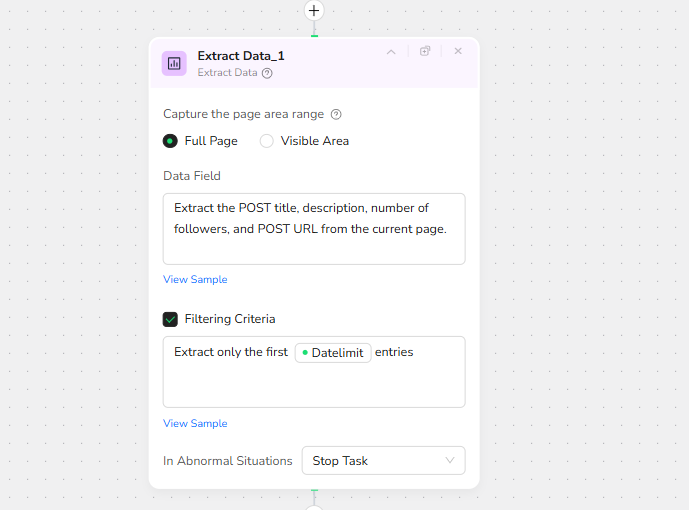
6. Extract Data
Goal: Extract post information from the search results.
Actions:
- Enable Full Page
- Data Field:
“Extract the POST title, description, number of followers, and POST URL from the current page.” - Filtering Criteria:
“Extract only the first /Datelimit entries”
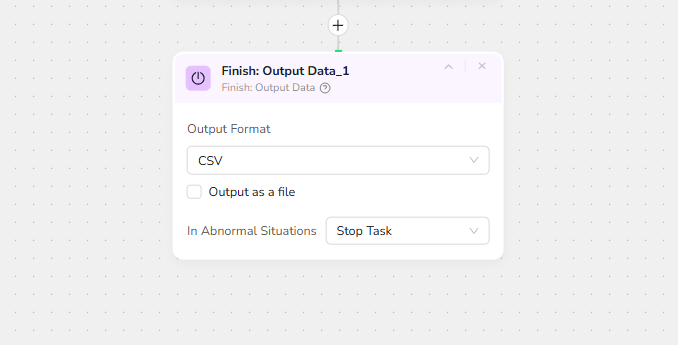
7. Output Data
Goal: Export the collected data.
Actions:
- Choose CSV
- Enable Output as a file
Adjust output format as needed.
8.Publish
Click “Publish” in the upper-right corner to save the workflow.
9.Run the Workflow
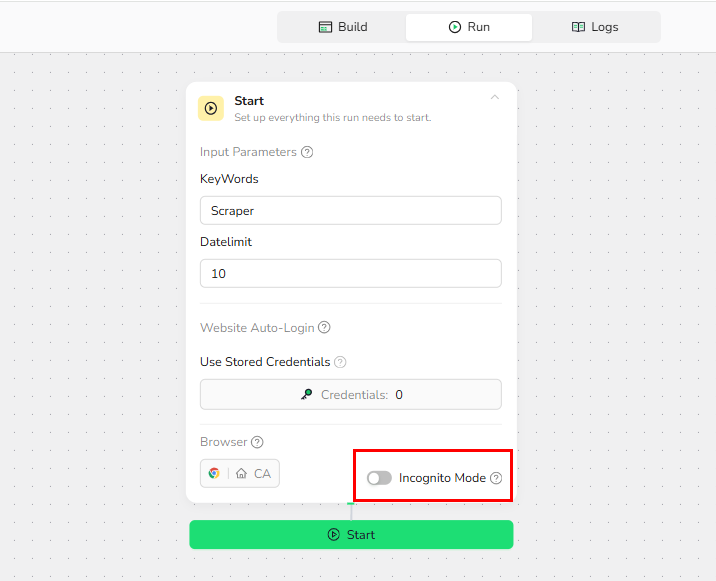
Click “RUN” → “Start” to begin executing the workflow.
It is recommended to disable incognito mode to preserve login status.
Human Interaction in Action
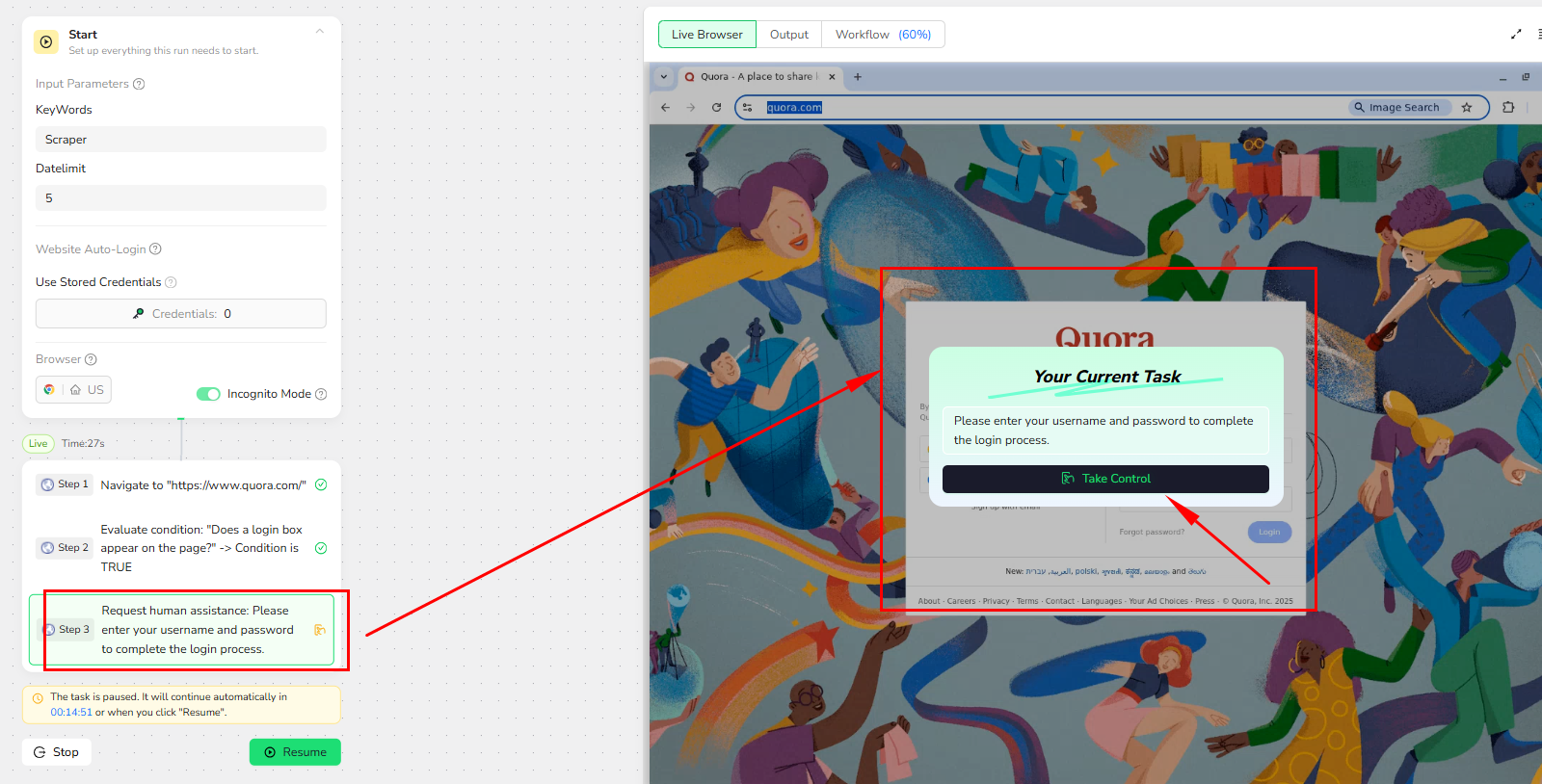
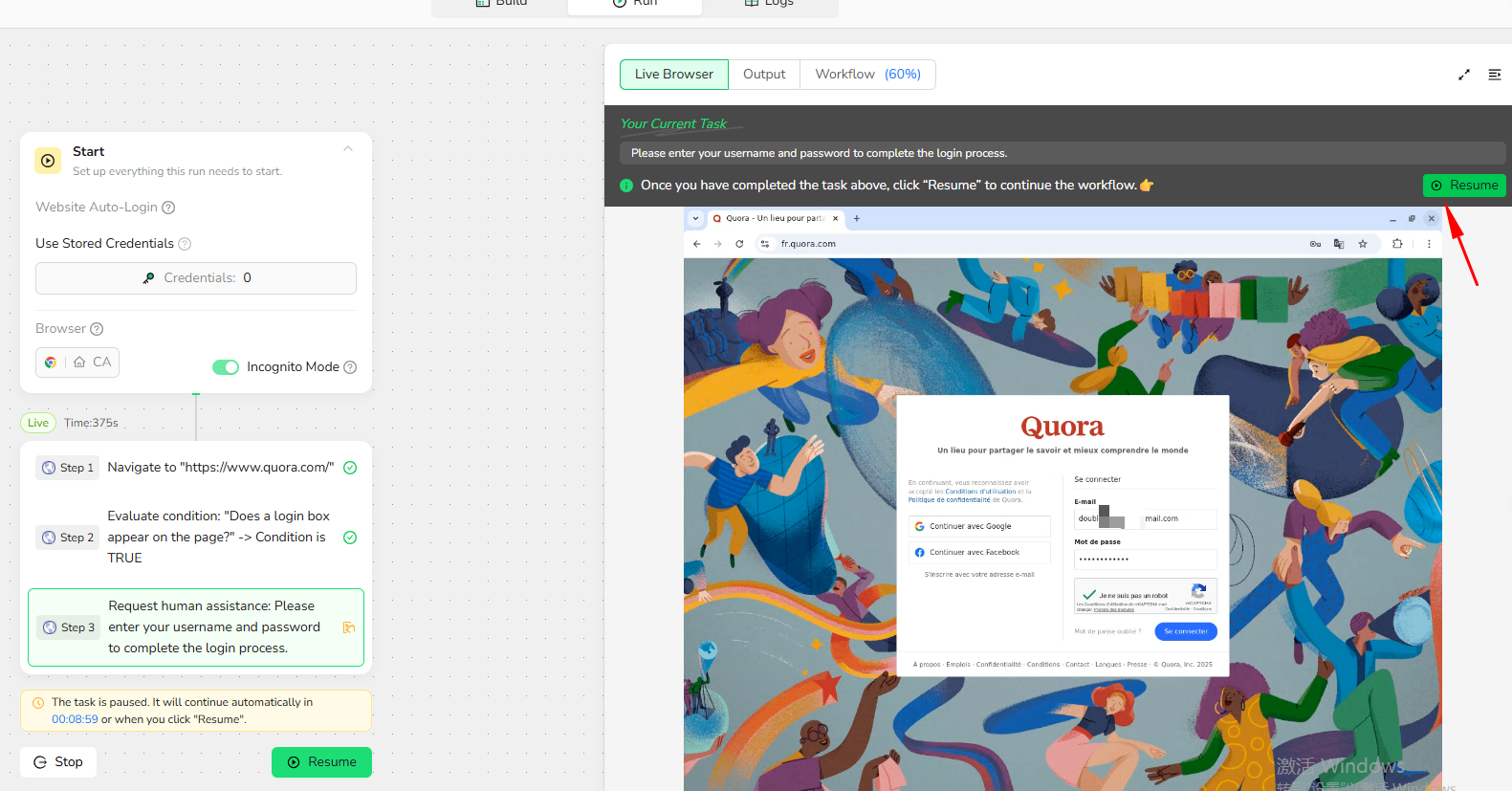
1. Open the Human Intervention Page
Click Task Control to access the interaction interface.
2. Perform the Required Action
Enter your username/password and complete the login.
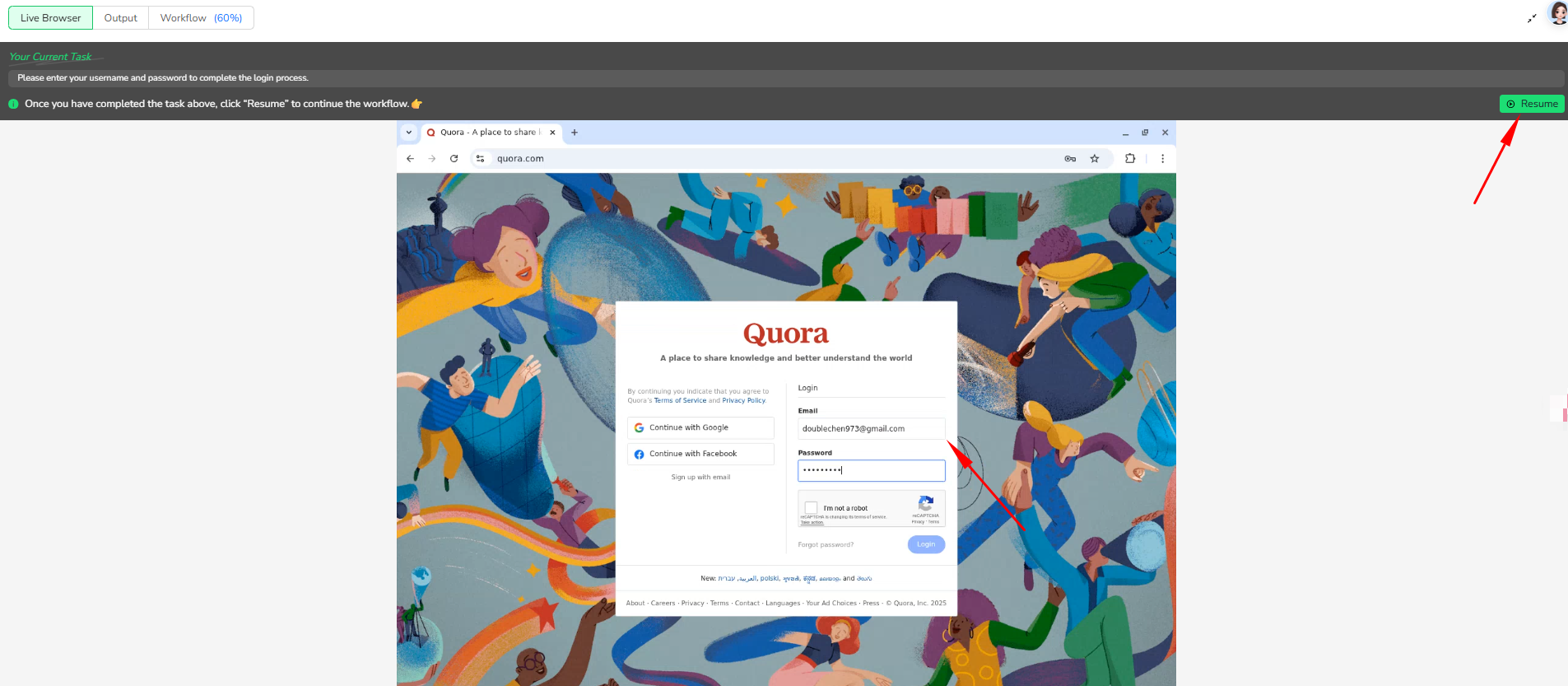
3. Resume the Workflow
Click Resume to return control to the workflow.
Notes
- Human Interaction nodes can appear anywhere in your workflow.
- Always provide clear instructions so the user knows exactly what to do.
- Email notifications require a valid address.
- Time limit should match the complexity of the manual action.
Best Practices
- Use short, precise instructions (“Enter verification code from email”).
- Use email notifications when the task might require mobile or off-site access.
Quick Review
- When should you use the Human Interaction node?
- What happens when the time limit expires?
- When should you enable email notifications?
Need Help?
If you’re unsure how to integrate Human Interaction into your workflow, feel free to ask.
I can walk you through your exact website or automation scenario step-by-step.
Discord: [Discord Community]
Email: service@browseract.com
Related reading: AI Browser Automation Login Problems: Google Auth, 2FA, and


