Upwork Job Scraper: Export Public Job Listings to CSV

Scrolling through job cards makes it hard to compare budgets and skill requirements side by side. An Upwork job scraper can organize visible listings into a spreadsheet for review. BrowserAct has a public-category template for this task. This guide explains its documented fields, how to check the CSV, and where a custom Bot requires separate setup and permission.
- 1An Upwork job scraper can structure job-card data for screening; a listing export doesn't automatically include complete project details or client profiles.
- 2Start with the template's category URL, then check the returned count and six fields; our test exceeded the requested limit.
- 3Technical access and permission are different. Check Upwork's terms, obtain required authorization, and stop at access restrictions.
What the existing Upwork template collects
The Upwork Job Scraper template documents a JavaScript freelance-jobs category as its starting page. Its inputs are target_url and data_limit, with a default limit of 10.
The workflow visits the category, scrolls to Load more jobs, clicks that button, and extracts the requested job cards. Its output instructions specify CSV with Output as a file selected. The readme also lists JSON, XML, and Markdown alternatives.
Keep the field list precise
The actual extraction instructions name six fields:
Documented field | How to use it |
Job Title | Identify relevant work before reviewing the source |
Price | Retain the client's displayed budget or rate text |
Payment Methods | Distinguish hourly work from fixed-price projects |
Experience level | Compare opportunities within a similar requirement level |
Posted Time | Record the displayed recency without inventing an exact timestamp |
Related Skills | Group listings by the skills shown on the card |
In our October 20, 2026 test, the JavaScript category run completed and returned 20 rows with the six fields above, although we had set data_limit to 3. The file therefore exceeded the requested limit. Some hourly rows placed weekly availability such as “Less than 30 hrs/week” in price, with “Hours needed” in payment_methods; these are not hourly pay rates. One sampled row had no related_skills value. Keep the raw file, check the returned count, and correct field mapping before using numeric price filters. This test validates the ready-made template's observed output; the custom prompt below requires its own test.
That's the useful starting point: an export with a schema you can inspect. Test another public category before assuming its layout behaves like the documented JavaScript page. The readme's single Load more jobs action also doesn't establish unlimited pagination.
Check permission before collecting Upwork data
Public visibility doesn't settle permission
Upwork's published Terms of Use, section 3.5, restrict scrapers without written permission and prohibit bypassing access restrictions. Review the terms that apply to your use and obtain the required authorization before running a collection. A publicly visible page and a working template aren't a substitute for that permission.
Its human-verification help page also explains why automated access may encounter verification. This guide doesn't provide a way around those controls. If you can't proceed within your authorized access, stop and use an approved data-access route.
The workflow below is for a permitted collection. It doesn't automate applications, proposals, messages, or account changes.
Build a custom Bot when the template's fields aren't enough
For the documented fields, begin with the existing template rather than rebuilding the task. The following four steps describe an optional custom Bot. Use it when you need to specify a different field arrangement or retain source links that aren't in the template's explicit extraction instructions.
A custom request still needs testing. Asking for a field doesn't mean it exists on the page, and asking for a larger limit doesn't make more records accessible.
1. Open BrowserAct and choose the public category
Click the left-side + to create a Bot, choose Quick start, or paste your request into the center Agent input. Select the public category you have permission to collect from. The documented template starts with https://www.upwork.com/freelance-jobs/javascript/.
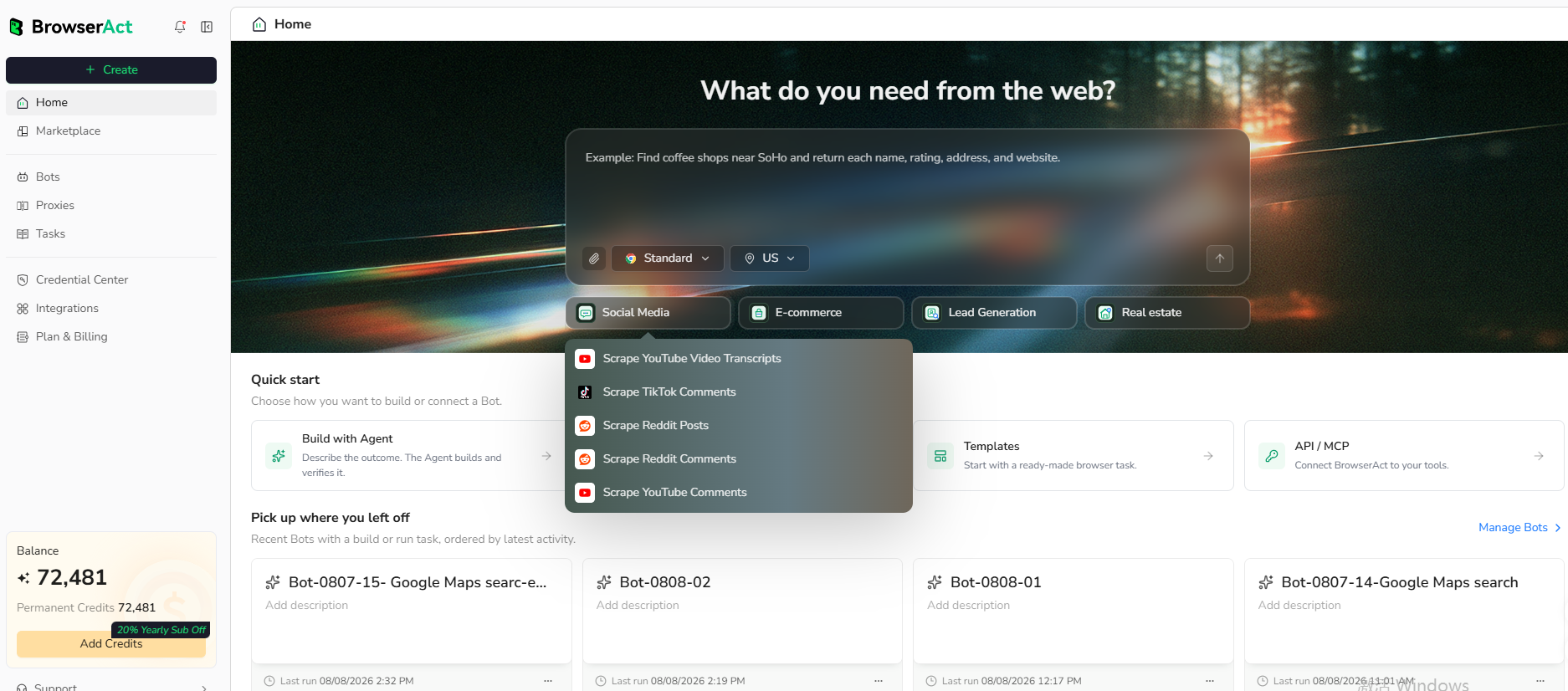
BrowserAct's official workspace screenshot, also shown in the template documentation. Use the create or Agent entry for a custom Bot.
Check the page before building. Does it show the kind of work you want to compare? A broad development category can mix very different projects. Choose a relevant source before spending time designing a more elaborate spreadsheet.
2. Copy the prompt and specify the output
Use the custom prompt below to define the category, a small record limit, visible fields, and CSV output. Keep hourly and fixed-price labels with the price text. If you request a job URL, make it explicit that the Bot should return a visible link only, leaving it missing when unavailable.
Describe the data you need. Get a Bot — a reliable, reusable scraper.
Review the Bot BrowserAct builds before treating it as a reusable collector. Keep the initial request narrow enough to inspect: a category, a limited set of cards, and fields you can identify on those cards.
If you need client country or a full project description, first determine where that information appears and whether you're authorized to access it. That is a different requirement from reading the category's job cards. Don't label a summary export as a complete project dataset.
3. Review the build and handle access requests
Let BrowserAct build and test the Bot, then answer any clarification about the target or field mapping. If it pauses for login, CAPTCHA, two-factor authentication, or account confirmation, handle the request manually only within your permitted access. Stop if the restriction remains.
A successful page load is only the first check. Confirm that the workflow reached the expected category and can identify job cards. An access message, empty state, or unrelated page should be reported as such rather than converted into apparently successful job rows.
Also check the collection limit. If fewer records are returned than requested, examine the visible list and the run's outcome before increasing the limit. Treat the requested count as a setting to verify, not a guarantee about the returned file.
4. Check the rows and export the file
Compare a few records with the visible cards. Match titles, price labels, skills, and experience levels. Verify that one row represents one listing rather than a heading or a block containing several jobs.
Remove confirmed duplicate records carefully. A title alone isn't a reliable identifier: separate clients can post similarly named projects. If your custom Bot collects visible job links, use those for comparison and preserve them in the clean file. Keep the original output too.
Export the checked result as CSV or another supported format. Use the example below to inspect the column layout, then check your own download against the source cards. An example file doesn't establish what a new run will return.
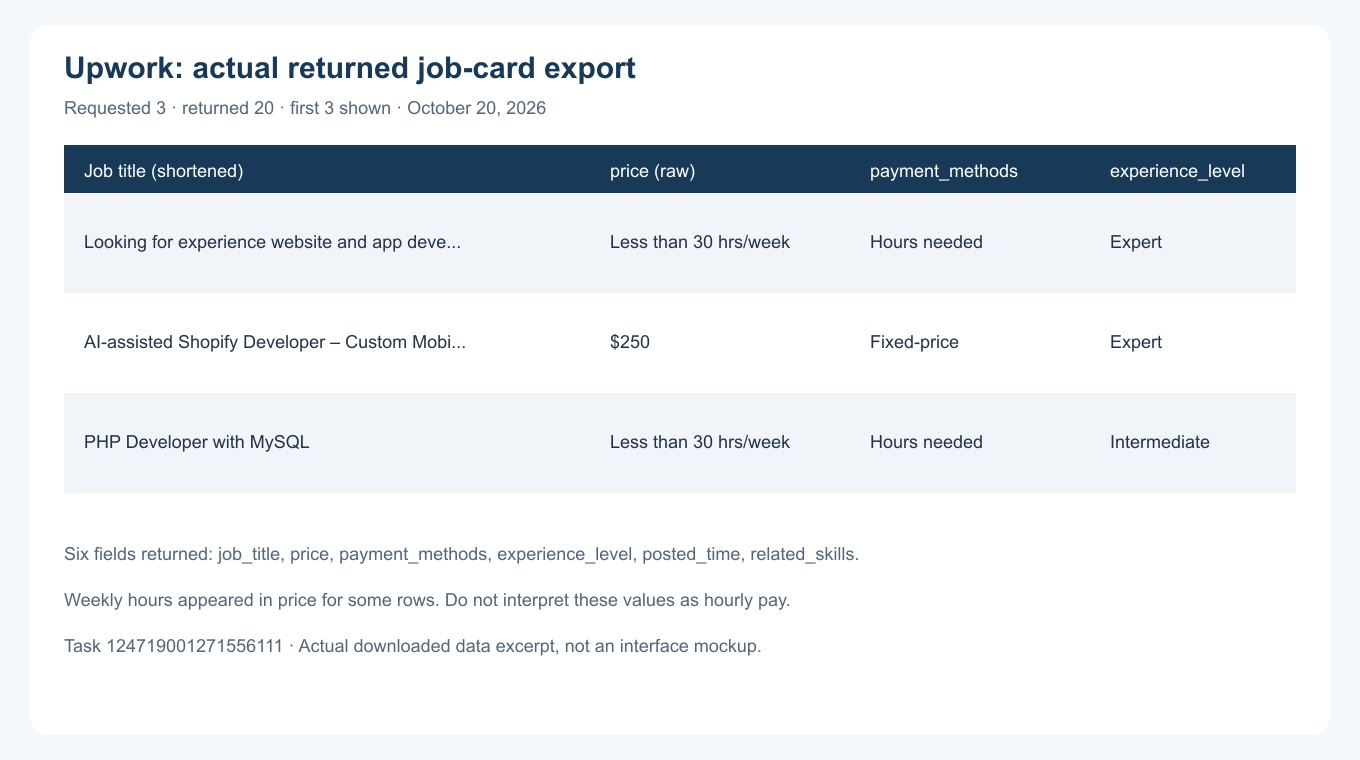
Preview of the downloaded validation result. This shows the actual returned fields, not a mockup of a successful run.
Reopen the download in your spreadsheet. Check that quoted text, commas, and skill lists haven't shifted the columns. Keep the source category and collection time in your working notes so the file remains understandable after the page changes.
Use the CSV to screen opportunities accurately
Separate hourly rates from project budgets
First check that price actually contains a budget or rate. Our test included weekly hours in that field, so those rows need a separate availability column rather than a numerical price. Price is useful only with its payment type. An hourly rate and a fixed project budget measure different things, so sorting all prices together produces a misleading shortlist.
Keep the original price text, then create separate analysis columns if you need numerical filtering. Don't fill missing rates with zero or assume an unspecified currency. Those choices make a spreadsheet easier to sort while making the underlying information less accurate.
Group comparable work before drawing conclusions. A small bug fix and an ongoing application project may share a JavaScript tag but require very different effort. Use title, experience level, and skills to narrow the group, then return to the source for the project scope before deciding whether to apply.
The export is a screening tool, not a salary survey. Posted budgets aren't confirmed earnings or evidence that a contract was awarded at that price.
Add research questions before adding automation
A useful first question might be whether a particular skill appears often in your selected category, or which payment type is common among the listings you collected. Answer that from the checked sample before building daily alerts or multi-category reports.
If you repeat the work, preserve the same category and method so differences remain interpretable. Record collection times; a relative label such as “hours ago” loses meaning without them. Don't call each row a newly posted job simply because it appeared in a new export.
BrowserAct's broader guide to online job scraping provides context for building structured job datasets. Keep each source's permission requirements and field definitions separate when combining files.
The best next step with an upwork job scraper is a permitted, small collection you can check yourself. Confirm the six template fields first. Add a custom Bot only when a concrete research question requires more, and verify each additional field before relying on it.
Frequently Asked Questions
What does the BrowserAct Upwork template extract?
Its extraction instructions specify job title, price, payment method, experience level, posted time, and related skills from public category job cards.
Can I export Upwork jobs to CSV?
The template documents CSV output with Output as a file selected. Inspect the downloaded columns and compare sample rows with the source cards.
Does it include client ratings and full descriptions?
Those aren't in the template's explicit six-field extraction step. A different workflow must be configured and tested before promising them.
Is scraping allowed because a job page is public?
Public visibility isn't permission. Upwork's published terms restrict scrapers without written permission. Check the applicable terms and obtain required authorization.
Will the Bot apply for jobs or send proposals?
No. This tutorial covers read-only collection and file review. Applications, proposals, messages, and account changes are outside its scope.


