Glassdoor Job Scraper: Extract Job Details Without Code

A Glassdoor job scraper turns a posting into fields you can compare: role, employer, location, salary and description. Start with the individual job URL. This guide shows how to use BrowserAct's job-details template, check what it returns, and prepare the result for a spreadsheet without mixing salary estimates with employer-provided pay.
- 1The ready-made template processes one Glassdoor job-detail URL per run. Search-result collection is a separate task.
- 2Keep the salary's original text and label. A missing value should stay missing.
- 3Check the source posting and output before reusing the Bot or building a larger dataset.
Choose the posting, then choose the fields
A search page helps you discover jobs. A detail page lets you read a particular role. The distinction matters because a search card may contain only a short description, while the posting contains responsibilities, qualifications and benefits. Pointing a detail scraper at a search page can leave you with the wrong unit of data before extraction even starts.
Open the role you want to examine and copy its full address. The current Glassdoor Job Details Scraper accepts a required job_url: a public Glassdoor job-listing address carrying a numeric jl identifier. Preserve the query string when you copy it. The identifier is more useful for matching records than a title that several employers may share.
For a first run, choose a posting you can already inspect in your browser. You need a reference against which to check the output. A page you cannot read is a poor starting point for deciding whether a scraper captured the right information.
The template documents these groups of fields:
Field group | What to retain | What to check |
Posting identity | job_id, job_url, job_title | The result points to the role you selected |
Employer and location | company_name, company_rating, location | The rating belongs to the employer, not the job |
Compensation | salary | Currency, pay period and salary label remain understandable |
Role content | description, requirements, benefits | The description is more than a search-card snippet |
Optional context | workplace_type, employment_type, posted_date | Empty fields are preserved rather than inferred |
Extract Glassdoor job details with BrowserAct
The template is the shortest route for a single posting: open its Run Task tab, review job_url, run the Bot, and inspect the Output. Use the existing Bot before creating another workflow with the same purpose.
If you need different fields or a reusable workflow tailored to your research, describe that narrower task in BrowserAct. The following four actions keep the target, extraction and review connected.
1. Open BrowserAct and choose your starting point
From BrowserAct's Bot workspace, open the create control or use the central Agent input. For the ready-made route, stay on the Glassdoor template and choose Run Task. These are two starting points for the same research goal; creating a custom Bot is optional.
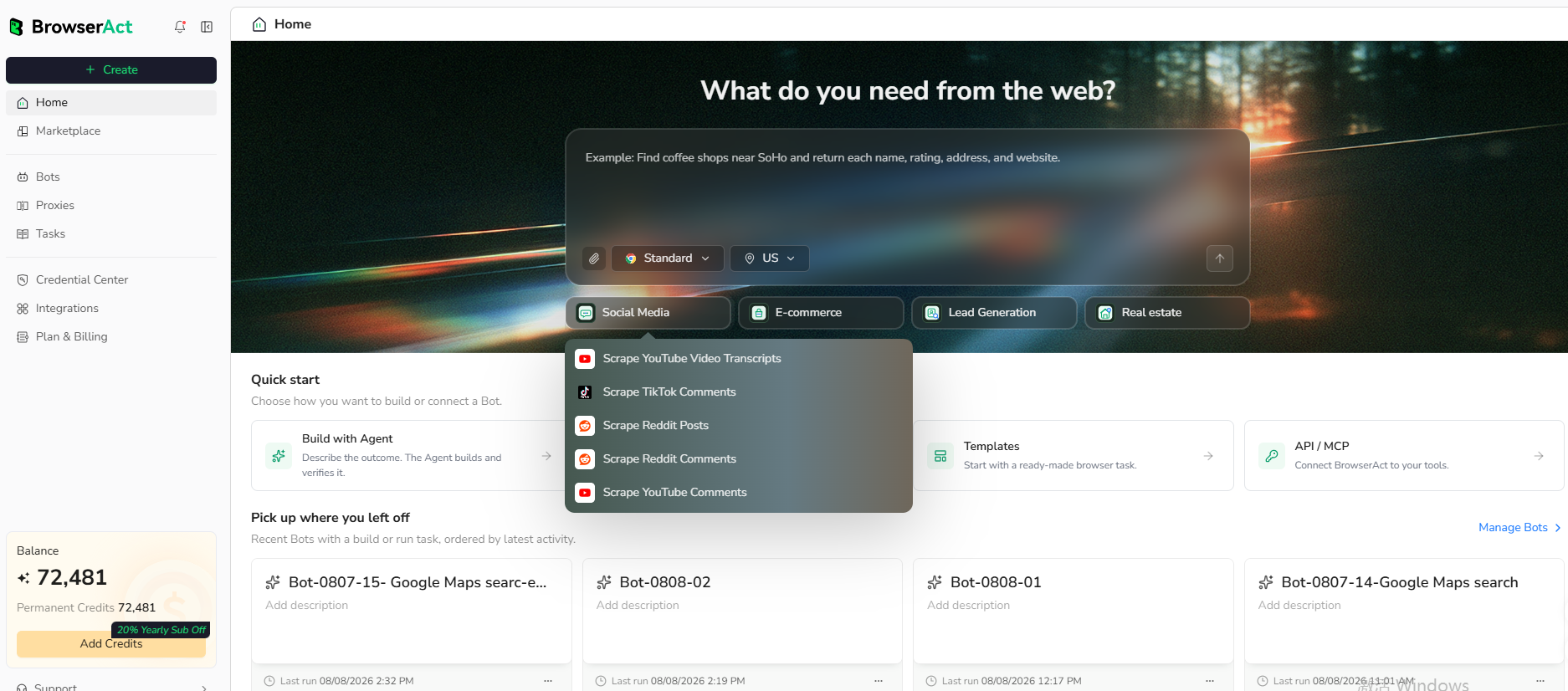
BrowserAct's official workspace screenshot, also shown in the template documentation. Use the create or Agent entry for a custom Bot.
Set the first run to one posting. This makes a wrong URL, a shortened description or an unexpected salary label easy to spot. Once the output is right, reuse the Bot with another supported input rather than rebuilding it each time.
2. Copy a complete extraction request
Use this request when building a custom Bot. Replace the target with the full posting URL you have selected. The ready-made template only needs its documented input; the extra field instructions below describe a custom build, not additional controls in the template form.
Describe the data you need. Get a Bot — a reliable, reusable scraper.
3. Resolve access prompts only when they appear
The template is documented for public job pages without a Glassdoor account. That is its intended route, not a promise that every URL will remain publicly accessible. A removed posting, a regional restriction or a page asking for authentication can change what is available.
If an access prompt prevents the run from continuing, inspect the status. Complete any permitted login or account confirmation yourself when the product asks for it. Do not turn a restricted page into a successful-looking record by filling fields from another listing. Check the source site's rules and your permission before collecting or reusing its data.
4. Check the output and export the usable record
Compare the returned job ID, company, title and source URL with the page you opened. Then read the beginning and end of the description. A populated description field can still contain truncated text or unrelated page material.
Keep optional fields empty when they are unavailable. In a verification run on October 20, 2026, the default posting returned one available record: a Staff Software Engineer role at Synopsys in Sunnyvale, CA. The structured salary, workplace type and employment type fields were null. Salary text appeared within the description, which shows why checking the full output matters. Treating the missing values as “remote” or “full-time” would add information the result does not establish.
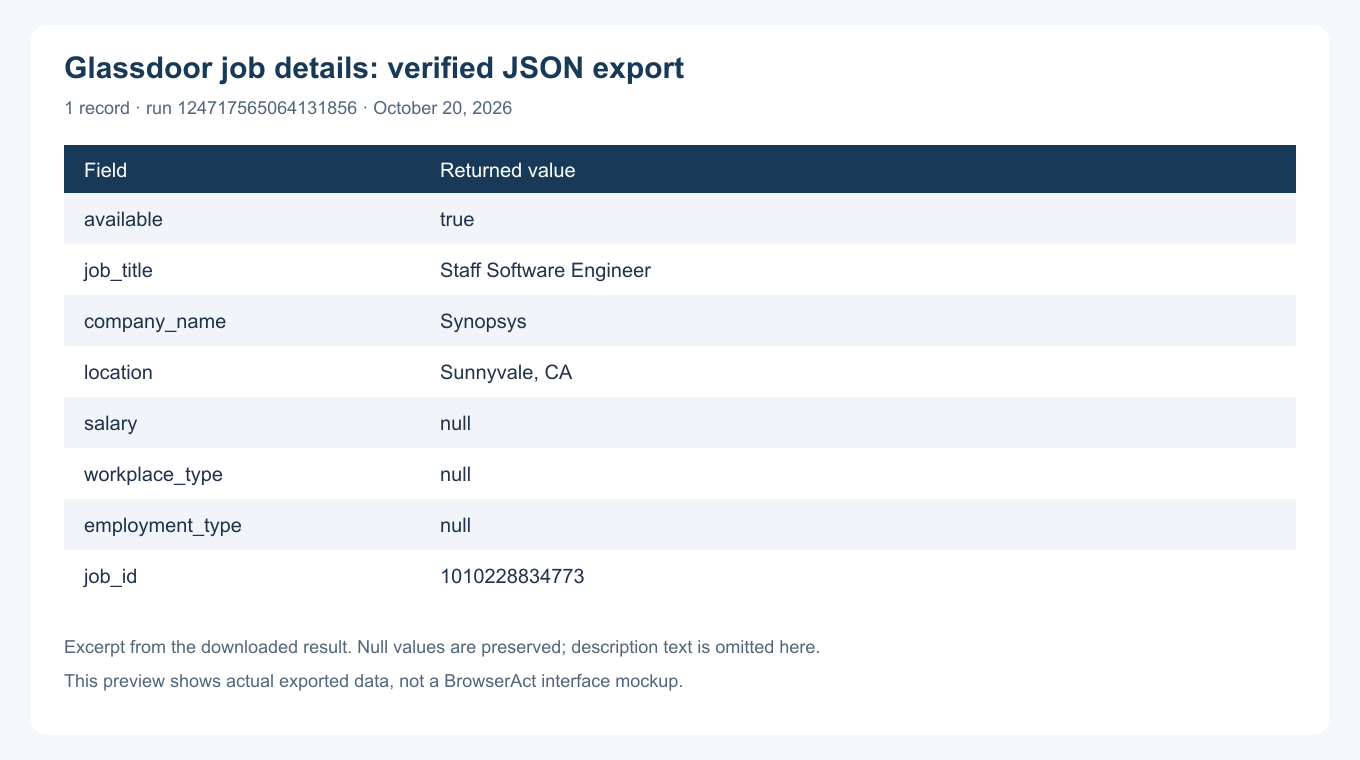
Preview of the actual JSON downloaded from the October 20 verification run. One record is shown; null values are preserved. The description is omitted from this compact view.
After that check, use the available result export or JSON API for the next step in your workflow. If you need a CSV, confirm the columns and text quoting before opening it in a spreadsheet. Long descriptions can contain commas and line breaks; a broken import can make a correct record look like several incorrect rows.
Keep salary data useful after extraction
Salary comparisons go wrong when the number survives but its context disappears. Keep the original salary value next to any normalized fields you add. A range labelled “Employer provided” should remain distinguishable from an estimate. Never apply one label to all records because the first posting used it.
Separate the currency, lower bound, upper bound and pay period only when the text supports the split. An hourly range and an annual range should not enter the same average without an explicit conversion assumption. A blank salary is not zero pay, and a company rating is not evidence that the salary is accurate.
This is a useful place to review a small sample manually. Pick records with different salary formats, rather than checking only the cleanest row. If a value cannot be interpreted confidently, retain its raw text and flag it for review. That preserves more information than forcing every posting into the same numeric format.
The resulting dataset can help compare advertised responsibilities or organize a set of target roles. It does not, by itself, establish actual employee compensation, the number of people being hired, or whether an employer will make an offer.
Expand only after the single-posting check passes
For a collection of roles, make a list of their source URLs and decide what one row represents. A job ID is a practical deduplication key within Glassdoor. Keep a collection date as well: the same posting collected twice may be a duplicate in a snapshot, or a useful second observation in a history table.
The current job-details template processes one selected target per run. Do not assume that changing its input to a search URL gives you automatic pagination or all matching vacancies. If discovery is part of your project, validate that as a separate workflow before linking it to detail extraction.
Cross-platform research needs the same discipline. The Indeed scraper guide covers a different source and input flow. Retain a source column when combining the results, and check repeated jobs using employer, location and the source identifiers instead of title alone.
Start your Glassdoor job scraper with one role you can verify. A record with the right source, readable salary context and an honest missing value is a better foundation than a large file whose columns you cannot trust.
Frequently Asked Questions
Does this Glassdoor job scraper collect search results?
The ready-made template processes one job-detail URL per run. A workflow that discovers jobs from search results needs separate validation.
Can it extract the full job description?
The template documents a description field. Check its returned text against the selected posting, including the end of the description, before treating it as complete.
Are Glassdoor salary values always employer-provided?
Preserve the label shown on each posting. Do not combine employer-provided pay and estimates as though they have the same provenance.
What should happen when a field is missing?
Retain a null or empty value. Do not infer employment type, remote status, salary or a deadline from another posting.
Can I reuse the BrowserAct template for another job?
Yes. Change the supported job_url input and check the new output. Access conditions and visible fields can differ between postings.


