Booking.com Reviews Scraper: Collect Hotel Feedback Without Code

A hotel's overall score won't tell you whether guests keep complaining about the same room, breakfast service, or street noise. A Booking.com reviews scraper puts individual comments into rows you can compare. This guide explains how to start with BrowserAct's existing template, check what it returns, and build a custom Bot when your research needs a different layout.
- 1A Booking.com reviews scraper collects individual guest feedback for analysis; hotel ratings and room prices are different datasets.
- 2Start with the existing single-property template, inspect a small result, then use a custom Bot only for requirements the template doesn't cover.
- 3Keep review identifiers, source links, filters, and missing values. A clean sample is more useful than a larger file with uncertain coverage.
Start with the hotel review template
The Booking.com Hotel Reviews Scraper accepts one public hotel URL. Its documented defaults request 10 reviews starting at position 1. You can choose review order and traveler type, and exclude previously collected review IDs.
Open Run Task, review the populated inputs, run the Bot, and inspect Output. The template uses public pages without requiring a Booking.com account. That describes its intended scope, not a promise that every property will remain accessible.
These inputs help you collect a defined slice of feedback. They don't establish that the file contains a hotel's entire review history. Start small enough to compare the output with the source yourself.
Choose fields that answer your question
The documented output includes hotel and reviewer details, review and stay dates, traveler and room types, stay length, title, positive and negative comments, combined review text, score, review ID, position, source URL, and a continuation position.
Treat those fields as different kinds of evidence:
Field group | What it helps you examine | What to check |
Score and comments | Whether the text explains the numerical rating | A high score can still contain a specific complaint |
Review date and stay date | When feedback was posted versus when the stay occurred | Don't use the dates interchangeably |
Room and traveler details | Whether a theme appears within a comparable group | Missing details should remain missing |
Review ID and source URL | Where a record came from and whether it was collected before | Preserve them when cleaning the file |
If your question is about recent operations, use the newest available feedback and keep that choice consistent. If you're investigating complaints, a low-score view can help locate examples, but it cannot measure the share of all guests who experienced a problem.
Build a custom review Bot when you need a different dataset
Use the existing template first when its inputs fit. The following four steps describe an optional custom Bot, rather than extra settings already built into that template. This route lets you specify a different output arrangement and ask BrowserAct to build and test it against your selected page.
Decide what the dataset is for before writing the prompt. A front-desk team investigating check-in complaints needs different context from an analyst comparing room types. Request the fields that support that decision; collecting extra personal details doesn't improve the analysis.
1. Open BrowserAct and define the hotel to inspect
Click the left-side + to create a Bot, choose Quick start, or use the center Agent input. Have the exact public hotel URL ready. Confirm the property name and location so you don't accidentally collect another hotel with a similar name.
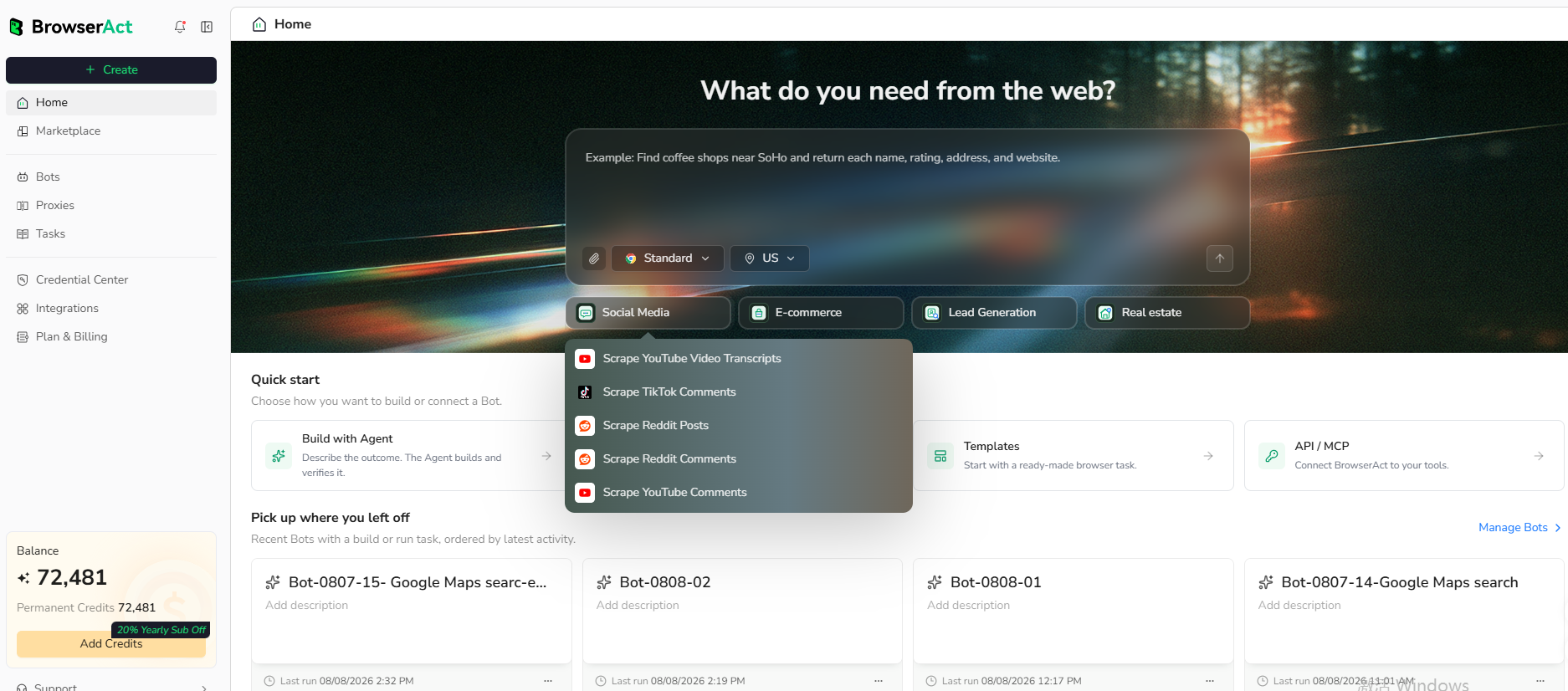
BrowserAct's official workspace screenshot, also shown in the template documentation. Use the create or Agent entry for a custom Bot.
Keep the first build to one property. That makes it easier to spot a wrong target, a missing section, or a field mapped to the wrong piece of text. Add more complexity only after the basic record is correct.
2. Copy the prompt and adjust the request
Use the prompt below as a starting request for a custom Bot. Replace its hotel URL with your target, keep a small review limit, and specify the visible fields your analysis needs. Ask for original comment text and missing values instead of inferred answers.
Describe the data you need. Get a Bot — a reliable, reusable scraper.
BrowserAct builds a reusable Bot from the request. Review any clarification it asks for about the page, filters, or output. A prompt is a specification, not proof that the finished Bot can collect every requested field.
For a first test, retaining separate positive and negative comments makes inspection easier. You can combine them later; recovering distinctions after a summary has replaced the source text is much harder.
3. Review the build and resolve access requests
Let BrowserAct build and test the workflow. If it pauses for login, CAPTCHA, two-factor authentication, or another account confirmation, handle the request manually only when you're authorized to proceed. Stop if access remains restricted. Don't change the request to force entry into an unavailable section.
Check the target again before running the completed Bot. A page that opens successfully still needs to show the intended property and review content. If the visible content has changed, adjust the workflow rather than accepting an empty or unrelated result.
The ready-made template's public-page scope is a useful boundary for a custom build too: collect the records you can legitimately access, and make restrictions visible instead of treating them as missing guest feedback.
4. Inspect the rows, remove duplicates, and export
Compare a few records with their source reviews. Check the property, score, comment text, and dates. Confirm that a missing title hasn't been replaced by another field and that positive and negative comments haven't been swapped.
Use a review identifier to detect duplicates when available. Keep the source URL with the record, and retain the unedited output separately from your cleaned analysis file. Export the checked data using the formats available in your completed workflow, such as CSV or JSON.
An October 20, 2026 verification run requested 10 reviews from the default property and returned 10 records with distinct review IDs. Some review titles and comment fields were null. The hotel-name field also included page-style fragments before the property name. Keep that original output, then remove the unrelated markup from a separate analysis copy before grouping hotels. The preview below shows selected fields from that run; it does not establish complete review coverage.
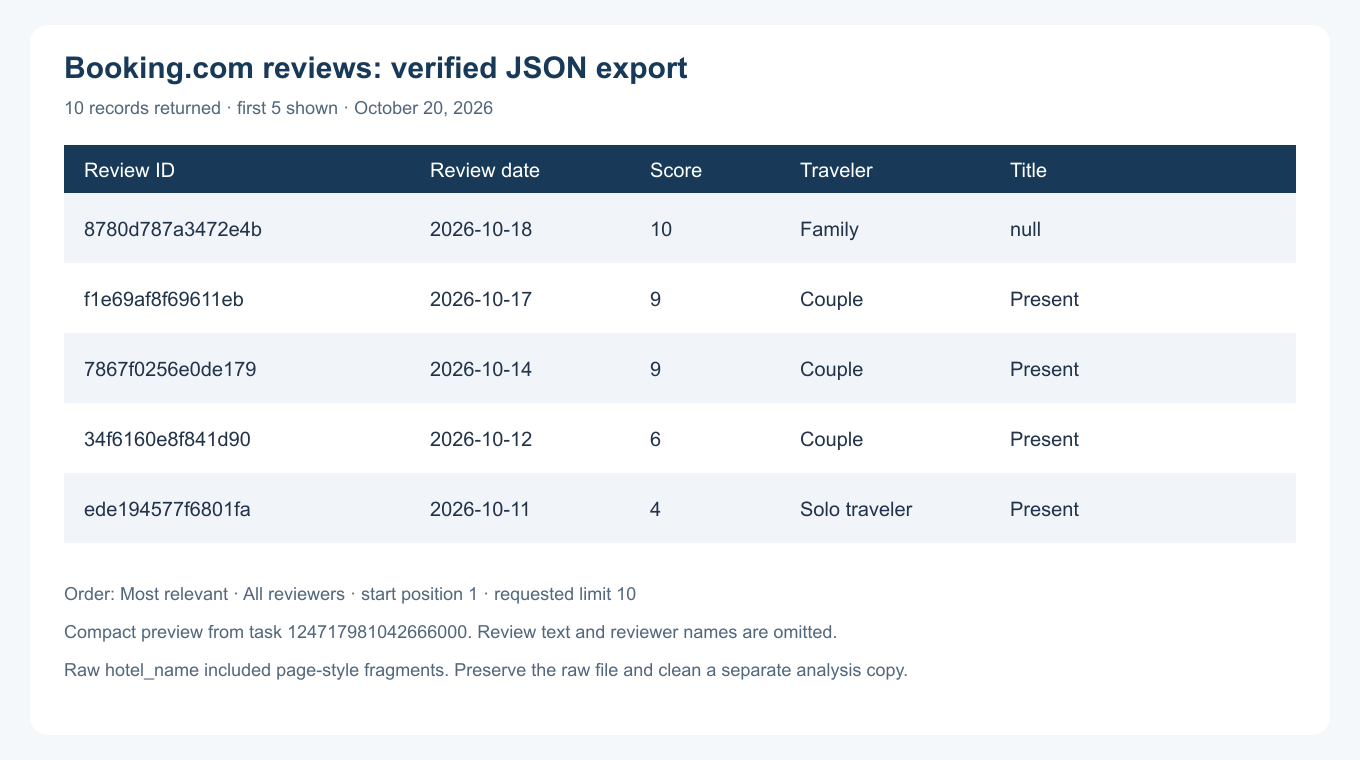
A compact view of the downloaded verification result. Original JSON is retained for checking IDs, source links and missing fields.
Open the exported file before moving on. Comments containing commas, quotation marks, or line breaks should stay inside their own cells. If columns have shifted, correct the file import settings before analyzing it. In a spreadsheet, also check whether dates were interpreted consistently rather than converted according to an unexpected locale.
Turn the export into a useful feedback report
Compare like with like
Keep each collection's hotel URL, selected filters, and collection date alongside the rows. That small amount of context prevents an easy mistake: comparing one property's low-score reviews with another property's most relevant reviews and calling the difference a satisfaction gap.
Choose a manageable set of themes, such as cleanliness, noise, breakfast, and staff. Read the actual comments when assigning those themes. One review can discuss several topics, and the same phrase can express praise or criticism depending on context.
Keep counts tied to the sample. “Noise appeared in these collected comments” is defensible; “most guests dislike the noise” needs a representative denominator you may not have. Review exports support investigation, but the collection method determines how far the conclusion can go.
For the next stage, the guide to analyzing customer feedback with n8n explains how a separate analysis workflow can process collected comments. Extraction and sentiment analysis remain separate tasks.
Know when the official API is the better route
Booking.com does have a Guest Review API. Its documentation describes permissioned access for properties and internal use, including review retrieval and replies. It isn't an unrestricted endpoint for downloading any hotel's reviews.
If you already manage a property through an approved integration, investigate that route first. For any public-page collection, check the applicable terms and your rights to use the material. Keep internal analysis separate from republishing guest comments.
A Booking.com reviews scraper is most useful when it produces a dataset you can explain: which property, which reviews, which filters, and which gaps. Start with one hotel, inspect the first rows, then expand the work around a specific operational question.
Frequently Asked Questions
Can I scrape Booking.com reviews without coding?
BrowserAct offers a ready-made hotel review template and an optional prompt-based Bot builder. Check a small output before expanding the collection.
Does the template require a Booking.com login?
The documented template works with public hotel review pages without a target-site login. Availability can change, and restricted access should stop the collection.
Can I download every historical review?
Don't assume complete history. The template stops at the requested limit or the end of the accessible public list. Check coverage against the source.
How do I avoid duplicate hotel reviews?
Preserve review IDs and source URLs, compare new rows with your previous file, and use the template's excluded-ID input when collecting again.
Does Booking.com have a reviews API?
Yes. Its Guest Review API requires permissioned access and is intended for internal property use. It is separate from public-page collection.


