How to Use Google Maps MCP With a No-Code Scraper

You ask your AI agent to find 10 dental clinics in Austin. It returns a polished list, but you cannot tell whether it opened Google Maps, reused an old directory, or filled gaps from model memory. A Google Maps MCP workflow should remove that ambiguity: the client calls a real scraper, passes explicit inputs, and receives structured records with source URLs.
With BrowserAct, the Google Maps scraper is the execution layer and MCP is the connection layer. You first test and publish a BrowserAct Bot, expose it through a BrowserAct MCP Server, then let Codex, Claude, or another compatible client call that tool when current business data is needed.
- 1A Google Maps MCP workflow has separate execution and connection layers: BrowserAct runs the scraper Bot, while MCP lets the client discover and call it.
- 2Test and publish the Bot before exposing it. This separates extraction issues from Server or client configuration issues.
- 3Verify the actual tool call, BrowserAct execution log, runtime inputs, and source URLs. A confident AI answer alone does not prove that fresh Google Maps data was collected.
What a Google Maps MCP Setup Actually Does
A Google Maps MCP setup makes a tested Google Maps workflow callable from an AI client. MCP does not scrape the page by itself. It gives the client a standard way to discover the BrowserAct tool, provide runtime inputs, start the Bot, and receive its result.
The four parts have different jobs:
Layer | What it does | What it does not do |
BrowserAct Bot | Searches public Google Maps pages and returns structured business records | Decide when your agent needs the data |
MCP Tool | Describes the callable Bot and its runtime inputs | Run independently without a Bot |
BrowserAct MCP Server | Exposes selected tools to approved clients | Automatically expose every Bot in your account |
MCP client | Chooses when to call the tool and supplies inputs | Replace the scraper's browser workflow |
This distinction matters because “Google Maps MCP” can refer to very different products. Some servers help developers write Maps API code. Others return place lookups. This tutorial uses a browser-based Google Maps scraper Bot that can be called through MCP and returns one structured record per visible business.
What You Need Before You Start
Prepare four things before connecting a client:
- A BrowserAct account.
- An editable Google Maps Local Lead Finder Bot in your workspace.
- A successful small test run with the inputs and fields you plan to use.
- An MCP-compatible client that supports the transport and authentication shown in BrowserAct.
Use a Bot that does not require credentials on every run. Google Maps Local Lead Finder accepts Search Query, Location, and Count.
The current output schema includes business name, public phone, rating, review count, address, website, Google Maps URL, category, business hours, and a recent visible review summary when available. A missing conditional field should remain empty; it is not permission for the client to guess a value.
If you are still deciding which fields belong in the Bot, start with the Google Maps scraper lead-generation guide before configuring MCP. The tool interface should expose a workflow you already understand, not hide an undecided extraction scope.
Step 1: Create and Test the Google Maps Scraper Bot
Start with a working scraper before adding MCP. This keeps browser extraction problems separate from client connection problems.
Create an editable duplicate
Open the Google Maps Local Lead Finder and choose Create Editable Duplicate. BrowserAct adds a copy to your workspace with the existing input contract and output structure.
The marketplace page is not automatically an exposed MCP tool. Your workspace copy is the Bot you can test, publish, and expose through your Server.
Run a small Google Maps search
Use a bounded first run:
Input | Example value | Why start here |
Search Query |
| Clear business category |
Location |
| Specific city and state |
Count |
| Small enough to review row by row |
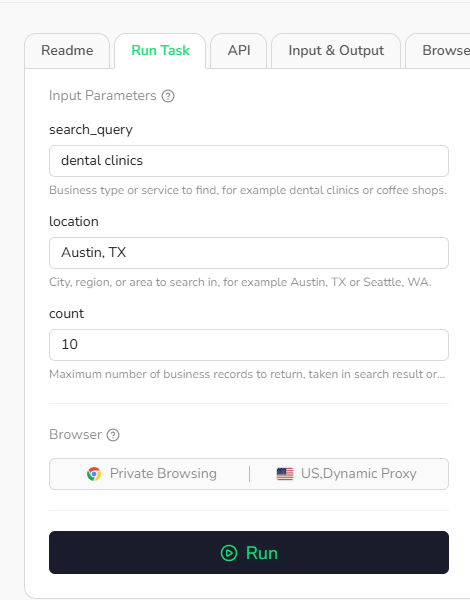
Run the Bot, then inspect the result before changing anything. Confirm that each row represents a business, maps_url points to the source listing, and the address and category match the place you intended to collect. Review missing phone, website, hours, or review fields as honest source gaps.
The template's validated default run returned 10 business records for this input. That proves the configured workflow can complete the example; it does not prove complete coverage of every dental clinic in Austin. Google Maps visibility and available public fields can vary by query, location, language, and page state.
Publish the tested Bot
Publish the version you just reviewed. External tool calling should point to a stable Bot version, not an unfinished build that may still change its parameters or output.
If you need different fields, improve and test the Bot before publishing. Do not use the MCP client as the place to debug an unverified extraction workflow.
Step 2: Turn the Bot Into an MCP Tool
Once the Bot is published, configure how an MCP client should understand and call it.
Open MCP in the Integrations tab
Open the Bot, select Integrations, and find the MCP card. Review the generated MCP Tool information before exposing it.
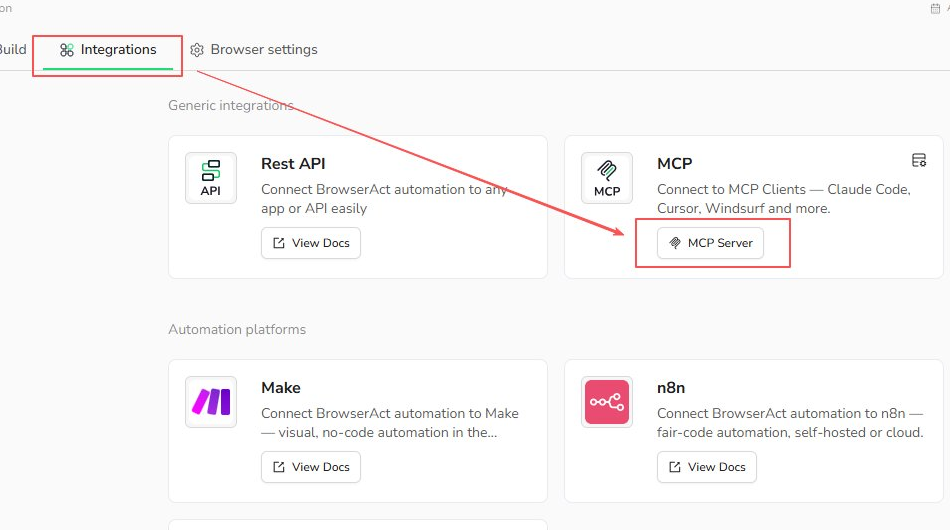
Three descriptions deserve attention:
- Tool Call Name should identify the task clearly.
- Tool Description should explain when the client should use the tool.
- Input descriptions should distinguish the business query, geographic location, and maximum record count.
A useful description is specific enough for tool selection:
Searches public Google Maps results for a business category and location,
opens visible place details, and returns structured business records with
source URLs. Use it when current Google Maps business data is required.
Avoid vague descriptions such as “gets leads” or “searches Maps.” The client uses these descriptions to decide whether the tool fits the request and how to supply its parameters.
Create or select an MCP Server
From the MCP area, create a Server or select an existing BrowserAct MCP Server. One Server can expose multiple related BrowserAct tools, so you can group local research Bots together instead of creating a new Server for every workflow.
The Server is the connection point. It does not run an unexposed Bot merely because both exist in the same account.
Expose the Google Maps Bot
Open Server Management, go to Exposed Tools, find the Google Maps Bot under tools that are not yet exposed, and expose it.
Publishing and exposing are separate steps:
- Publishing creates the stable Bot version.
- Exposing makes that Bot discoverable through a specific MCP Server.
If your client connects successfully but cannot find the Google Maps tool, this is one of the first settings to check.
Step 3: Connect Your MCP Client
Open Connect to Clients for the BrowserAct MCP Server. Copy the Server URL and create or copy the API Key from that same Server, then follow the setup shown for your client.
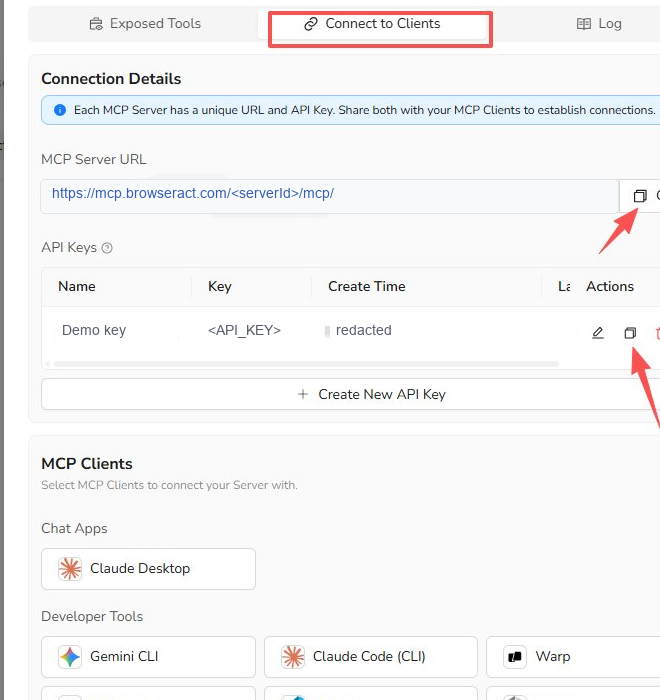
Keep the URL and Key paired. Authentication can fail when a URL from one Server is combined with a Key from another.
The API Key belongs in the client's MCP configuration. Do not paste it into a prompt, screenshot, repository, shared document, or article. A public example can safely show a redacted URL pattern such as:
https://mcp.browseract.com/<server-id>/mcp/
If your client is not listed, follow its generic MCP Server instructions and confirm compatible transport and authentication. Reload it when required, then check that the BrowserAct tool appears.
For a broader explanation of the setup screens, see the BrowserAct MCP setup tutorial.
Step 4: Run a Real Google Maps Search From the Client
Now give the client a bounded request that matches the Bot's parameters and output. Keep credentials out of the conversation.
Use the exposed BrowserAct Google Maps tool to find 10 dental clinics in Austin, TX.

Return one business per row with its name, category, rating, review count,
address, public phone, website, and Google Maps URL. Keep unavailable fields empty.
The expected sequence is:
- The client selects the exposed BrowserAct Google Maps tool.
- It maps
dental clinicsto the search query,Austin, TXto the location, and10to the count. - BrowserAct runs the published Bot against public Google Maps pages.
- The tool returns structured business records.
- The client formats those records without inventing missing values.
If the client answers without showing a tool call, do not assume MCP was used. Ask it to use the named BrowserAct tool explicitly, then verify the execution inside BrowserAct.
How to Verify the MCP Run Really Worked
A fluent answer is not proof of a successful Google Maps MCP run. Verify the execution at both ends.
Use this checklist:
- The client discovered and selected the intended BrowserAct tool.
- The runtime inputs match the request.
- BrowserAct MCP Server execution logs show the run.
- The run reached a completed state rather than only starting.
- The returned rows include source Google Maps URLs.
- Conditional fields remain empty when the public source does not show them.
- The client did not add businesses from memory or another directory.
When something fails, isolate the layer instead of changing everything at once:
Symptom | First checks |
Client cannot connect | Server URL, API Key, transport, authentication configuration |
Client connects but sees no tool | Bot published, tool exposed, Server online, client reloaded |
Tool appears but cannot run | Required inputs, BrowserAct account status, available credits, execution logs |
Run completes with fewer rows | Public result availability, requested count as a maximum, feed end |
Some fields are blank | Whether the public listing exposed the phone, website, hours, or review detail |
This separates a connection failure, a Bot execution failure, and a valid result with limited public data.
When to Use MCP Instead of Running the Template Manually
Use MCP when an AI client needs to decide when to collect Google Maps data as part of a larger task. Use another BrowserAct entry point when the workflow is simpler or more fixed.
Situation | Better starting point |
Test inputs or inspect a result manually | BrowserAct Run Task |
Let an AI client call the scraper in context | BrowserAct MCP |
Call a fixed Bot from application code | BrowserAct API |
Move results through an automation platform | n8n, Make, Zapier, or another supported integration |
Review or share records manually | CSV or spreadsheet export |
MCP is useful because it lets the agent discover and call a stable tool. It is not automatically the best choice for every repeatable task. For the broader interface decision, read MCP vs CLI for AI browser automation.
Connect a Tested Google Maps Scraper to Your Agent
Start with a small Google Maps search, review the structured records, then expose the published Bot through your BrowserAct MCP Server.
Duplicate the tested Google Maps scraper, define its runtime inputs, and expose the published Bot to your approved MCP client.
Frequently Asked Questions
Is MCP the Google Maps scraper itself?
No. In this setup, the BrowserAct Bot performs the browser workflow and returns structured records. MCP is the connection layer that lets a compatible client discover the Bot as a tool, pass its inputs, and receive its output.
Can I use the same BrowserAct MCP Server with Codex and Claude?
Potentially, yes, when both clients support the Server's required transport and authentication method. Configure the same Server separately in each approved client and keep its API Key out of prompts and shared files.
Does publishing a Bot automatically expose it as an MCP Tool?
No. Publishing creates a stable Bot version. You must separately expose that Bot from the selected MCP Server's Exposed Tools area before a connected client can discover it.
Where should I store the BrowserAct MCP API Key?
Store it in the MCP client's protected configuration or secret storage. Do not put it in chat prompts, screenshots, repositories, or public documentation.
Why can my client connect to the Server but not see the Google Maps tool?
Confirm that the Bot is published, the correct tool is exposed through that Server, the Server is online, and the client has been reloaded after configuration. Also verify that the URL and API Key came from the same Server.
Why did the Bot return fewer businesses or empty fields?
Count is a maximum, not a coverage guarantee. Google Maps may expose fewer matching results, and fields such as phone, website, hours, or recent review text may be unavailable on individual public listings. Keep those fields empty rather than filling them with guesses.
Build the Scraper First, Then Add MCP
A reliable Google Maps MCP workflow follows one order: test a small BrowserAct run, publish the reviewed Bot, expose it through the intended MCP Server, connect the client, and verify the actual tool call. That gives your agent current structured records without asking the model to recreate the browser workflow or invent missing business details.


