LinkedIn Sales Navigator Scraper: Build a Lead List Without Your Login

A small B2B team wants to find revenue operations leaders, but nobody wants to connect a personal LinkedIn session to a scraping tool. A no-login LinkedIn Sales Navigator scraper can help collect candidate profiles using supported keywords or an existing people-search URL. The important preparation is deciding which conditions the input can express and which you will need to check in the returned list.
BrowserAct's LinkedIn Sales Navigator Lead Scraper provides that collection step without asking for your own LinkedIn login or cookies. You still need BrowserAct access. Start with a small query, inspect the returned people, and build a reviewed prospect list before looking for contact details.
- 1Define the person, employer and location you want before collecting names; a search match is a candidate, not a qualified lead.
- 2Choose an input route that supports your criteria. Keywords are not separate title, company or location filters, and a search URL must already be available.
- 3Review returned roles, companies and locations, keep uncertain records separate, and deduplicate by profile identity before combining batches.
- 4Treat contact discovery and outreach as later decisions. A profile record does not guarantee an email address, buying intent or permission to contact.
What a No-Login Sales Navigator Scraper Can Help You Do
Separate People Searches from Company Research
Use a people search when your next decision concerns a person: whether their current role and employer make them relevant to your offer. The useful output is a list of names with professional context and profile links you can revisit. A company research task starts with organizations and needs different information, such as their products, customer segments or headquarters.
For example, a company selling sales operations software might want people responsible for revenue systems at B2B software businesses. A matching phrase in a profile can identify someone worth checking, but it does not establish their budget, authority or current need. Keep those questions in your review process.
No LinkedIn Session to Connect; BrowserAct Access Still Applies
For this BrowserAct template, no login means you do not have to supply your own LinkedIn account or paste a LinkedIn cookie. It does not remove BrowserAct authentication or usage charges. Check the template's Pricing tab before starting, especially before increasing the requested number of profiles.
The input routes also have different preparation requirements. Keyword search does not require you to build a Sales Navigator search first. The URL route requires an existing Sales Navigator people-search link; creating that search inside Sales Navigator requires the appropriate access. No-login extraction does not give you a Sales Navigator subscription or its full interface.
Define the People You Want Before You Search
Write Down Role, Employer, Person Location and Exclusions
Write one sentence describing the people you want to research, then turn it into review criteria. For the sales operations software example, that might be: people working in revenue operations at B2B software companies, with the individual based in your service region. Decide whether consultants, agencies and former employees belong in the same list.
Criterion | What to specify | What to check in the result |
Role | Responsibilities and acceptable title variations | Is the role current, and does it involve the problem you solve? |
Employer | Target companies or a clear business category | Does the company actually fit that category? |
Person location | The region where the individual needs to be based | Does the person's stated location fit, rather than only the company's headquarters? |
Exclusions | Roles or company types outside your audience | Is there a clear reason to remove the record? |
Separate Must-Have Criteria from Information to Check Later
Some criteria will decide whether a record stays in your list. Others will help you prioritize it later. A current employer may be essential; a detailed About section may simply be useful. Keeping those categories separate prevents you from treating an incomplete profile as an automatic rejection.
A missing field is a question to resolve. If location is essential and the returned location is blank, put the record aside for a location check. Do not fill the gap with the employer's headquarters or assume the search already established it.
Choose Keywords or an Existing People-Search URL
Start with Keywords When You Do Not Have a Search URL
The template's keywords input searches text matched against lead profiles. It supports Boolean expressions, such as AI OR "machine learning". For a first pass at revenue operations contacts, you could start with revenue operations and inspect whether the returned roles fit your definition.
That phrase is a keyword query, not a dedicated current-job-title filter. It may match professional context beyond the person's current role. Likewise, adding a company or place name to the phrase does not turn it into a separate employer or geography filter. Review those attributes in the returned records.
The current inputs also include optional first_name and last_name filters. These help narrow a known name; they do not establish identity by themselves. People with the same name still need a profile and employer check.
Use an Available Sales Navigator People-Search URL
If you or a colleague already has access to the relevant Sales Navigator people search, copy the address of the actual people-search results page into the template's url input. Record the intended criteria alongside it. A personal profile, company page or saved lead list is a different input; do not substitute one for a people-search URL.
This route can carry criteria encoded in the search URL, but the returned list still needs checking. Do not assume that every Sales Navigator filter, saved list or account-specific relationship can be reproduced by a separate service. If you cannot obtain a usable people-search URL, use the keyword route and retain the extra review work.
Know Which Input Wins When a URL Is Supplied
When url is supplied, the template ignores the other search filters except limit. Adding keywords or a first name beside the URL will not further narrow that URL-based search. Choose one input route for the query you intend to run.
Input route | What you prepare | What still needs review |
Keywords, optionally a first or last name | Relevant profile text and a modest result limit | Current role, employer, person location and identity |
Existing people-search URL | A usable Sales Navigator people-search link and its intended criteria | Whether returned people actually match; any missing or unsupported context |
No usable keyword or search URL yet | A clearer audience definition | Refine the search before submitting a task |
Run a Small Search and Read the Returned Profiles
Open the Template, Choose One Input Route and Set the Limit
Open the LinkedIn Sales Navigator Lead Scraper in BrowserAct. For a keyword-based configuration example, leave url empty, enter revenue operations in keywords, and set limit to 10. This describes a setup you can try; it does not predict the people or number of matches you will receive.
- Select Run on the template page.
- Enter your keywords or an existing people-search URL, then set
limit. - Click Run to submit the task.
- Open the completed result and review the returned profiles against your criteria.
The result limit defaults to 25 and accepts values from 1 to 2,500. It is the maximum number requested, not a promise that the search will find that many people. Increasing it will not fix an unclear target or make a keyword query behave like a precise title filter.
Review Names, Current Roles, Employers, Locations and Source Links
The result structure contains a leads list, with one record per returned person. Read full_name, job_title, company and location together. Keep linkedin_url and profile_id so you can identify and revisit the person, and use the available about text for context. Company identifiers or summaries can be missing.
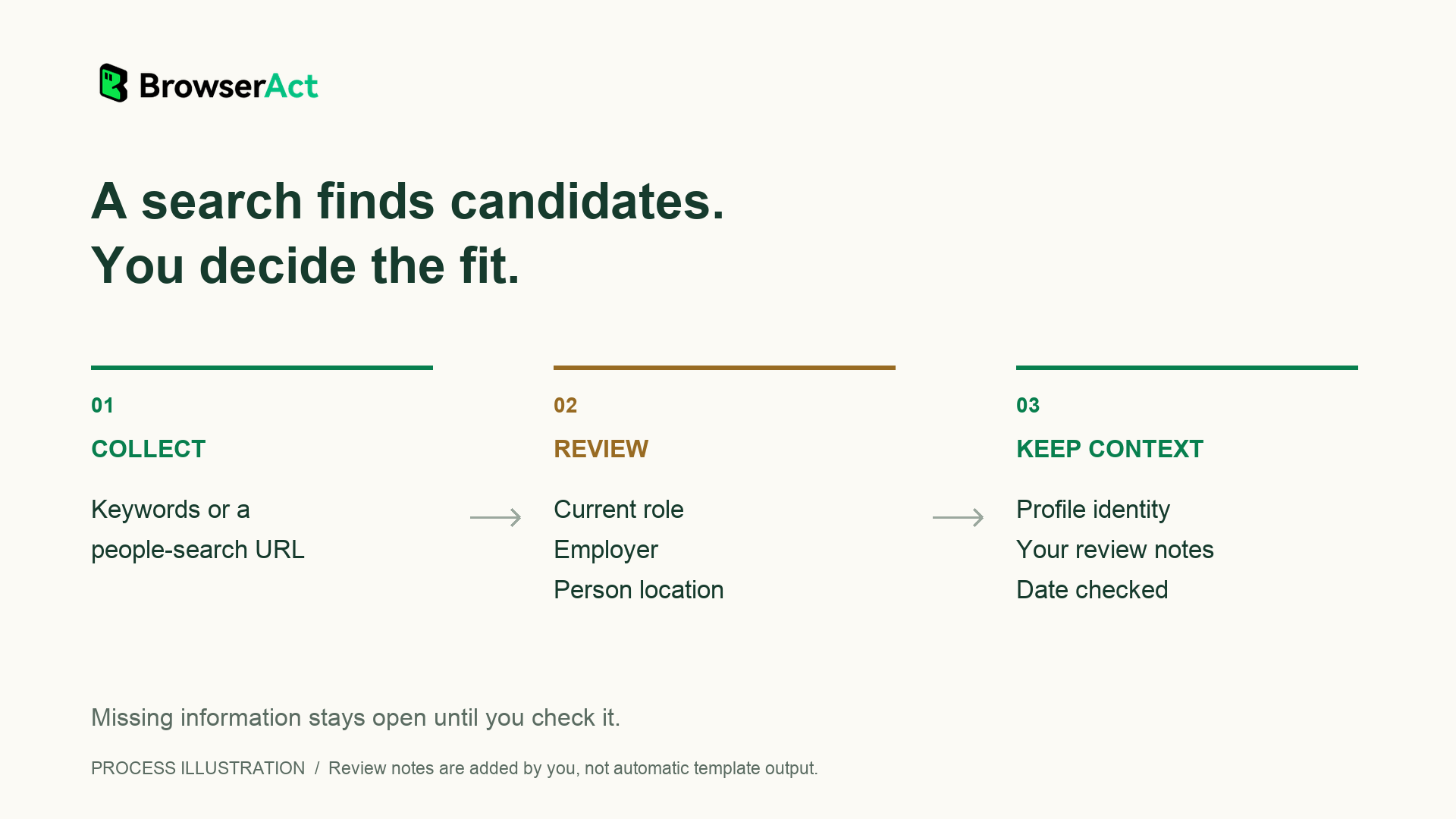
Process illustration. You review the fit and add the notes; these are not automatic qualification results.
A recognizable name or a relevant headline is not enough to accept a record. Check whether the role is current and whether the employer is the company you intended. If opening a profile brings up a login wall, the guide to viewing LinkedIn profiles without an account explains what public information may be available and where visibility can stop.
Turn Search Results into a Reviewed Prospect List
Keep Matching, Uncertain and Excluded Records Separate
Add your own review columns next to the returned data. A practical set is role fit, company fit, location fit, decision, reason and next check. These are your working notes, not automatic qualification fields supplied by the template.
Review decision | When to use it | Next action |
Matches research criteria | The available evidence supports each must-have condition | Retain the person for the next research step |
Needs checking | A required fact is missing, ambiguous or conflicting | Record the exact fact to verify before accepting |
Exclude from this segment | A known fact conflicts with a must-have condition | Keep the reason so the same record is not repeatedly reviewed |
Consider a hypothetical review for an in-house revenue operations audience. A Head of Revenue Operations at a confirmed target company, with the required person location, can stay for further research. A Revenue Operations Consultant at an agency would be excluded if agencies are outside the segment. The same relevant title with an unclear employer or missing location goes into the needs-checking group. The rule is to decide from the full set of required facts, not the title alone.
Deduplicate by Profile Link or Identifier, Then Review Conflicts
Before combining batches, compare profile_id and linkedin_url. If the same profile identifier appears with different links, retain those links as aliases while reviewing the repeated record. If identifiers disagree or only a name matches, check the profiles before merging. Count distinct people after resolving duplicates, rather than adding each batch's row count.
If two records point to the same profile but show different employers, keep the conflict visible until you can check which information is current. A more recent collection date tells you when you obtained a value; it does not prove when the person updated their profile.
Save the Search Recipe, Source Link and Review Date
Keep the keywords or search URL, the audience definition and your review date with the working list. This lets a teammate understand why the people were collected and what still needs checking. For another pass, change one search decision at a time so you can understand the difference in relevance.
For example, if a keyword query mostly surfaces consultants when you want in-house operators, first review the wording and employer context. Do not respond only by requesting more rows. A larger list with the same mismatch creates more sorting work.
Decide What Each Accepted Record Needs Next
Once a person matches your research criteria, decide what you need to learn next. That might be confirming responsibilities from a public professional source, reading the company's product pages, or checking whether there is an appropriate business contact route. Keep company research and person-level conclusions separate.
This lead search returns profile information, not a guaranteed email address or phone number. If contact discovery is your next task, the guide to finding available emails from LinkedIn profiles without logging in covers the separate lookup and the checks to make before relying on an address.
Start with one narrow query, review the results, and decide which people deserve further research. That is the useful role of a no-login LinkedIn Sales Navigator scraper in this process: collecting profiles you can assess against a clear audience definition.
Frequently Asked Questions
Can I Use a Sales Navigator Scraper Without Connecting My LinkedIn Account?
BrowserAct's no-login LinkedIn Sales Navigator Lead Scraper does not require your own LinkedIn login or cookies. You still need access to BrowserAct, and usage charges apply. This concerns the collection step; creating a search inside Sales Navigator is a separate task that requires access to that service.
Do I Need a Sales Navigator Search URL to Start?
No. You can start with the template's keywords input, optionally adding a first or last name. An existing Sales Navigator people-search URL is another input route. Keyword matching does not provide the same control as separate job-title, employer and location filters, so review those attributes yourself.
Can I Enter Job Title, Company and Location as Separate Filters?
The current template inputs are url, keywords, first_name, last_name and limit. Separate job-title, company and location inputs are not included. Use a supported query route and check those criteria in the results. When you supply url, other search filters are ignored except limit.
Why Did the Search Return Fewer Profiles Than My Limit?
The limit is a maximum, not a guaranteed result count. Matching records or source information may be unavailable. Review the query and any task messages before changing it. A completed search with fewer matches is different from a failed task; neither should be turned into an assumed full list.
Does a Returned Lead Record Include an Email Address?
This template's output describes names, professional roles, employers, locations, profile links, identifiers and available summaries. It does not include a dedicated email or phone field. Treat contact lookup as a separate step, and check that any address you find belongs with the right person and your intended purpose.


