How to View LinkedIn Profiles Without an Account

You have a meeting tomorrow, and someone has sent you a LinkedIn profile to read beforehand. You click the link and see a sign-in prompt. If you want to view LinkedIn without an account, you may still be able to read a limited public profile. What appears depends on the person's visibility settings and what LinkedIn shows to signed-out visitors.
For a quick check, start with the public profile or a search result. If you need to organize several known profile links, BrowserAct's no-login template can retrieve available professional details without connecting your own LinkedIn account. You still need access to BrowserAct, and the result may have missing fields.
- 1Start with a public profile URL and check that it belongs to the intended person.
- 2Expect a limited public view; a search snippet can be older than the person's current profile.
- 3Choose direct browsing for a quick lookup and structured retrieval when you need consistent research records.
- 4Check missing fields and source links before using the information; no-login access does not unlock private data or guarantee anonymity.
What Can You See on LinkedIn Without an Account?
Public Information and a Full LinkedIn Profile Are Different
A public profile is a simplified version of a person's LinkedIn profile. You might see their name, headline, location and some background information. You should not expect every section, contact detail or piece of recent activity to be available.
LinkedIn's public-profile guidance explains that members control which sections are eligible for public display. LinkedIn may also show a narrower preview in some situations. A field can therefore be absent even when you know the person has added it to their profile.
Choose a Method Based on the Result You Need
Start with what you already know and the decision you want to make. Reading one person's background before a call is different from preparing a consistent set of research records.
Your situation | Start here | What to check |
You already have a profile URL | Open the public link | Does the identity match, and is enough information visible? |
You know a name and company | Use a search engine to find the profile | Could the result belong to someone with the same name? |
You have several URLs to research | Retrieve the available details in a consistent structure | Which profiles and fields actually returned usable information? |
You need private information | Ask the person or use an appropriately authorized source | A no-login method does not make private information available |
For meeting preparation, choose the few details that would change your questions: the person's professional focus, relevant experience and the organization they appear to work with. You can stop once you have enough reliable context for that purpose.
Find and Open the Right Public Profile
Search by Name and Company with Google
When you do not have a link, search for the person's name with their employer. Google's site: operator can restrict results to LinkedIn profile pages, while quotation marks keep a phrase together. Google's search-operator instructions explain these controls.
For example, the following is an illustrative search pattern. Replace the name and company with the details you have; it is not a reported search result:
site:linkedin.com/in "Alex Morgan" "Example Company"
Add a city, school or professional specialty if the name is common. If the extra detail produces no useful match, try the name and company alone. The search can only find pages in the search engine's index; an empty result does not prove the person has no profile.
Check Identity Before Relying on the Result
Open a plausible result and compare more than the name. Look at the employer, location and career history together. A matching name with an unrelated background is a reason to keep looking, not to fill the gaps with assumptions.
Search snippets can also be old. LinkedIn says search engines may take weeks or months to reflect public-profile changes. If a snippet names one employer and another source shows a later role, keep both sources and mark the role as needing confirmation. A recent company biography or the person's own website may help resolve it.
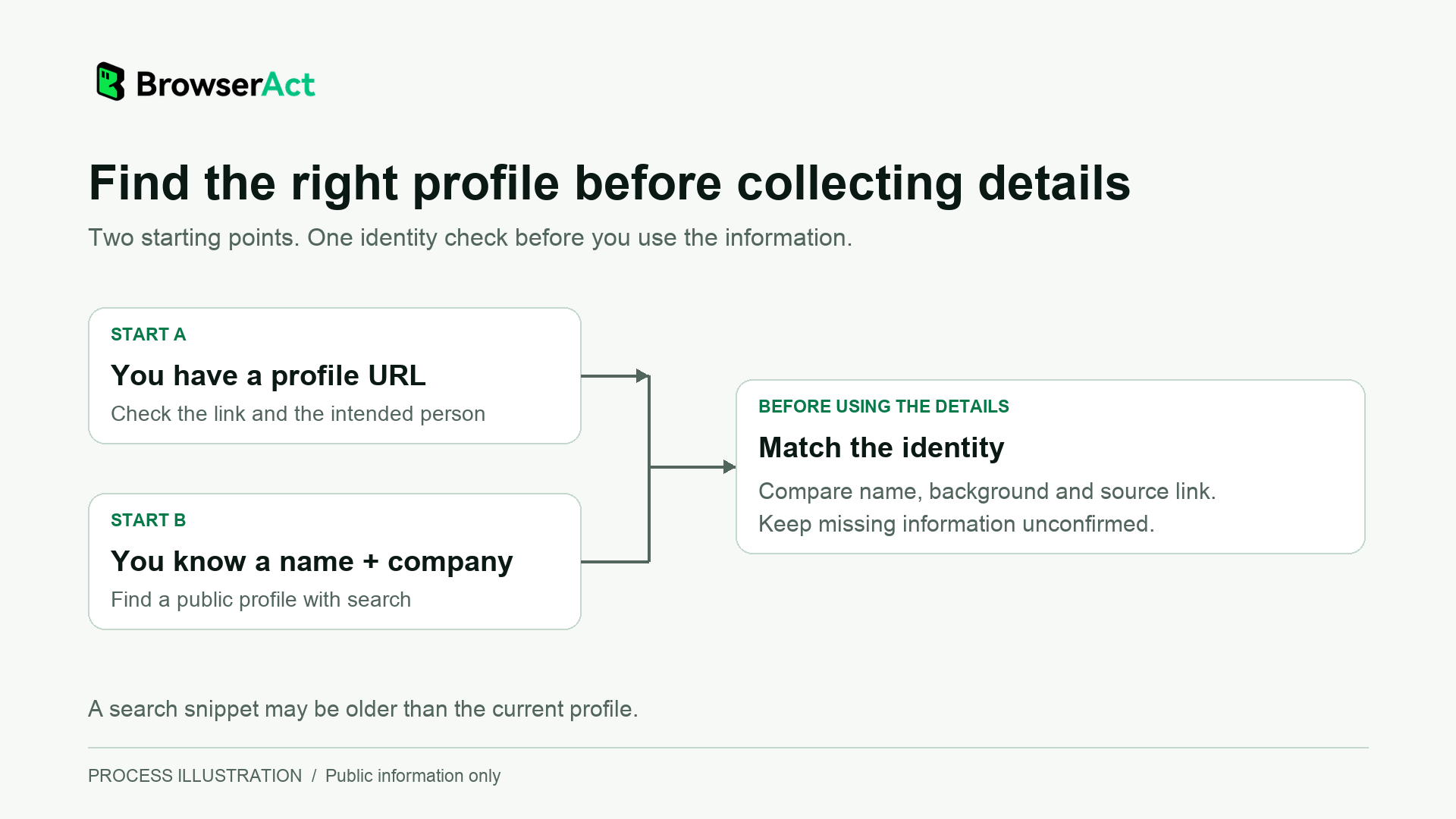
Find the intended person before relying on the available details.
Get Available Profile Details Without Connecting Your LinkedIn Account
Open the No-Login BrowserAct Template and Enter a Profile URL
Once you have the right link, the LinkedIn Profile Scraper without your own login gives you a route from known profiles to structured research data. You provide profile URLs or public identifiers; you do not need to upload or paste your LinkedIn cookies.
- Open the template in BrowserAct and select Run.
- Enter your targets in
profile_urls. The published input accepts profile URLs or public identifiers, separated by new lines, commas or semicolons. - Start with one profile whose identity you can check. Click Run to submit the task.
- Open the completed result and compare the returned information with the person you intended to research.
“No login” here refers to your LinkedIn account. You still use BrowserAct to run the template, and the template's charging rules apply. Check the current Pricing tab before submitting a task. This workflow does not require setting up a personal LinkedIn session, but it also does not promise that every target or field will be available.
Run the Task and Read the Returned Record
The template covers profile identity, headline, About text, location, experience, education and other available professional details. A returned person is a profile record; the roles listed inside their experience section are not additional people.
The template page includes a historical example using https://www.linkedin.com/in/williamhgates. The selected fields below show how that input relates to a returned record. These are values displayed in the historical example, not a new lookup or a promise that the data is current.
Returned field | Value shown in the template's historical example |
|
|
|
|
| Bill |
| Gates |
Read the fields for what they say. A headline can describe several interests or affiliations; it is not automatically a verified current job title.
Check the Results Before You Use Them
Match the Person and Retain the Source URL
Keep the returned linkedin_url beside the person's details so you can trace the record back to its source. Check the returned name and background against your original target before using the information in a meeting brief or contact record.
Use a small review sheet rather than treating every populated cell as confirmed. The research-date and notes columns below are columns you add yourself, not fields promised by the template.
Review item | What to inspect | What to record |
Source link | Returned | The link associated with the person |
Identity match | Name plus relevant background | Matched, uncertain or a different person |
Professional role | Headline and the relevant experience entry | What the source actually states; flag ambiguity |
Missing information | Absent or empty sections | What is unavailable, without guessing |
Research date | When you reviewed the record | Your own date of review |
Follow-up notes | Questions the available data cannot answer | What to confirm with the person or another source |
For example, suppose a returned headline mentions advising startups, while the experience section does not establish a current employer. Your useful conclusion is “professional focus found; current employer unconfirmed.” Do not turn the headline into an employer field just to make the sheet look complete. This is an illustrative review decision, not a claim about a particular person's result.
Treat Missing Sections and Nested Data Correctly
An empty field means the information was not returned; it does not prove the person has no experience, education or skills. If an important detail is missing, check another relevant public source or leave it unconfirmed.
Some sections, including experience and education, are returned as JSON text: a list of entries stored inside a field. Keep those entries attached to the same person. If you later turn them into separate rows for analysis, retain the profile link so a job-history entry is not mistaken for another contact.
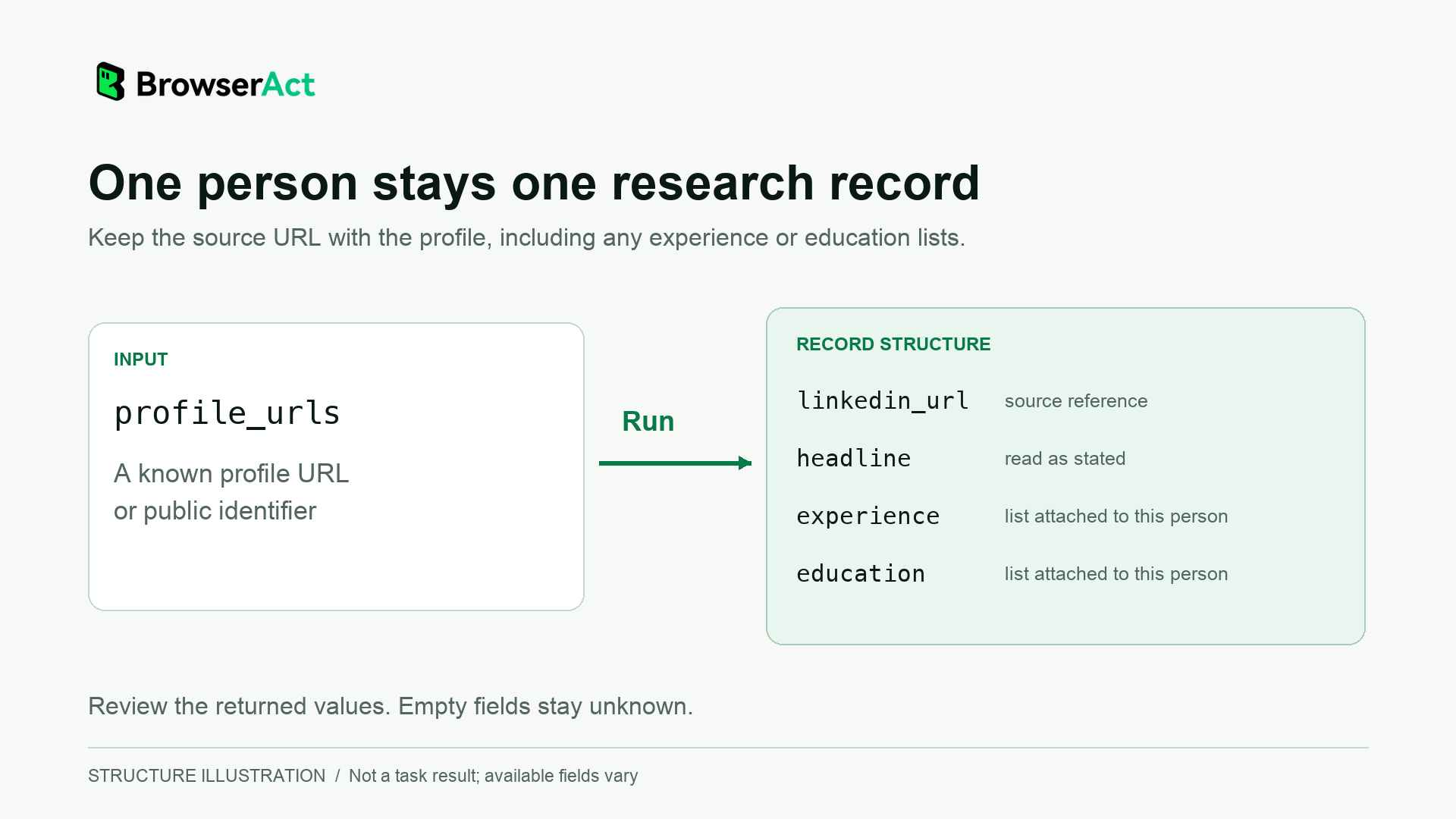
Structure illustration, not a task result. Available fields vary; list entries stay attached to their source profile.
To check your first record, run the LinkedIn Profile Template with one profile URL. Inspect the actual result before adding the rest of your list.
What to Do When LinkedIn Asks You to Sign In
A sign-in prompt does not necessarily mean you copied the link incorrectly. LinkedIn can show a limited preview even when a member has enabled public information. An incognito window lets you try a separate browser session; it does not unlock restricted sections or change what the member has made public.
If the available view does not answer your question, check sources suited to the same task: the person's website, their employer's team page, a conference biography or a recent public interview. Record which source supports each important fact. If you still cannot confirm something, ask the person directly when appropriate.
Treat account-free access and permission to collect or reuse information as separate questions. LinkedIn restricts unauthorized scraping and automation. A template's no-login input requirement is not a statement that LinkedIn authorizes every use of its data.
If you choose an account-based collection workflow, the LinkedIn profile-to-CSV guide covers a different route using your own LinkedIn login and Bot. The MCP contact-research workflow also starts with a personal Bot and your own login; neither is a prerequisite for the no-login template described here.
Frequently Asked Questions
Can I View a Full LinkedIn Profile Without an Account?
Do not expect a complete profile. A signed-out visitor may see a simplified public version, and LinkedIn may limit it further. Public visibility settings and the information available through the chosen method determine what you can read. No-login access does not unlock private fields.
Why Does a Public LinkedIn Profile Still Ask Me to Sign In?
Public visibility makes sections eligible to appear; it does not guarantee a full page for every visitor. LinkedIn's guidance allows for more limited previews, and full profile access may require signing in. A search engine can also show an older snippet even when the page you open is restricted.
Is Incognito Browsing the Same as LinkedIn Private Mode?
No. Incognito is a browser feature; you can still sign in to LinkedIn inside that window. LinkedIn's private mode is an account setting that changes how you appear to members whose profiles you view. It requires a LinkedIn account and is different from viewing a public page while signed out.
Will Someone Know That I Viewed Their Profile Without Logging In?
For the BrowserAct template, you do not supply your personal LinkedIn account or cookies. That establishes the account requirement, not whether every platform or service records a visit. LinkedIn's private-mode guidance concerns a separate, signed-in setting. If avoiding identification is essential, do not rely on “no login” as an anonymity guarantee; review the service's data handling before submitting a lookup.
Do I Need My Own LinkedIn Account or Cookies to Use the BrowserAct Template?
The LinkedIn Profile Scraper (No Login) template says you do not need to provide LinkedIn cookies. Its input is the profile URLs or public identifiers you want to retrieve. You still need access to BrowserAct and should review the template's charging rules. Available fields and results can vary.
To view LinkedIn without an account, begin with the person and the question you need to answer. Find the correct public link, read what is available, and use structured retrieval when it helps organize your research. Keep the source and any uncertainty with the result so you can verify the details that matter before your meeting.


