How to Find Email from LinkedIn Without Logging In

You have a prospect's LinkedIn profile URL and a reason to contact them, but no work email. You can try to find email from LinkedIn without logging in by checking public business contact sources or using a service that accepts a profile URL. Either route may return no address. The profile helps identify the person; it does not give you access to their private LinkedIn login email.
BrowserAct's no-login profile and email template offers the URL-based route: enter the profiles you want to research, click Run, and review the available profile details and email results together. You need access to BrowserAct, but you do not need to supply your own LinkedIn account or cookies.
- 1Use the profile to confirm the right person and current employer before looking for an address.
- 2Check public business contact sources first; a LinkedIn profile URL can also be an input to an email lookup without your own LinkedIn login.
- 3A found email still needs an identity, company and verification check; a status label is not a delivery guarantee.
- 4Keep missing or uncertain results separate and use an appropriate public contact route rather than guessing an address or sending automatically.
Can You Find Someone's Email Without Connecting on LinkedIn?
What LinkedIn Email Visibility Actually Tells You
Sometimes you can find a work email without being connected, particularly when the person or their company has published it elsewhere. That is different from seeing the email registered to their LinkedIn account.
LinkedIn's email-visibility guidance explains that the registered primary email is visible to direct connections by default, with additional rules for email contacts and connected services. Members can change that setting. Being connected therefore does not guarantee visibility, and a public profile does not guarantee a public email address.
A LinkedIn email finder may use a profile URL to search for an available contact address. Do not assume that an address returned by a separate service is the person's LinkedIn sign-in email or that it is suitable for business outreach.
Choose a Route Based on the Information You Already Have
Start with your strongest identifying information. If you need help checking a profile while signed out, follow the guide to viewing LinkedIn profiles without an account.
What you have | Useful next step | Before you rely on it |
A work address published by the person or company | Read the surrounding contact instructions | Is it current and intended for your purpose? |
A profile URL belonging to the right person | Try a profile-URL lookup | Does the returned person and employer match? |
A name and current employer | Check the official company site and public professional pages | Could the result belong to someone else? |
Conflicting identity or company information | Resolve the mismatch first | An email result alone will not settle it |
No-login lookup does not unlock private profile information. Some details or email addresses may be unavailable.
Check Public Work Contact Sources
Confirm the Person's Current Company and Its Official Website
Use the profile's available experience information, then cross-check it against a current company page or another public professional source. A headline may describe someone's specialty, several roles, or a previous position. It is not enough on its own to confirm their employer.
Visit the company's official website and check the domain. A familiar brand name in a search result can lead to a reseller, an old company site, or an unrelated business with the same name. Match the organization before attaching an address to the person.
Look for a Relevant Address or Contact Route on Public Pages
Check the company team page, a published author or speaker biography, and any professional website the person links to. Look for an address explicitly associated with the person and the type of inquiry you want to make.
Read the context around the address. A press contact is intended for media inquiries; a support mailbox serves customers. A general company address can be a useful way to ask for the right contact, but it should stay labeled as a company channel rather than the person's direct email.
Save the page URL and the date you checked it. If the page refers to an old employer, keep that discrepancy visible instead of assuming the address is still current. When these sources do not provide a suitable address, a profile-URL lookup is another option.
Look Up Available Emails from Profile URLs with BrowserAct
Prepare the Profile URLs
The LinkedIn Profile Email Scraper accepts one or more profile URLs in the required profile_urls input. Separate them with new lines or commas. Start with a profile whose identity you can check, then inspect the result before processing a longer list.
Use links to individual profiles. A name, company homepage, or LinkedIn search-results page is not a substitute for the profile URLs this input requires. Remove duplicate entries from your working list so that you can review each person once.
Run the No-Login Profile and Email Template
- Open the template in BrowserAct and select Run.
- Enter your profile URLs in
profile_urls, one per line or separated by commas. - Click Run to submit the task.
- Open the completed result. Use Input & Output on the template page to review field definitions and examples.
You do not need to paste LinkedIn cookies or connect your own LinkedIn account for this template. BrowserAct access and its usage charges still apply; check the template's Pricing tab before running your list. Submitting a task starts the lookup rather than guaranteeing an immediate or complete result.
Read the Returned Profile and Email Data Together
Each returned person has a record containing available profile information and any email results found. Review the name, profile link and professional history alongside the contact data. This context helps you check whether an address belongs with the person you intended to research.
Email results can include returned checking indicators, such as status, deliverability, catch-all information or a quality score. Read the fields actually present in your result. They describe the returned checks; they do not guarantee delivery or establish the recipient's permission to receive a message.
Some fields can be empty or null. The template also describes email and career sections as JSON text, so a cell may contain a nested list rather than one short value. Several addresses within one person's record should not be counted as several different people.
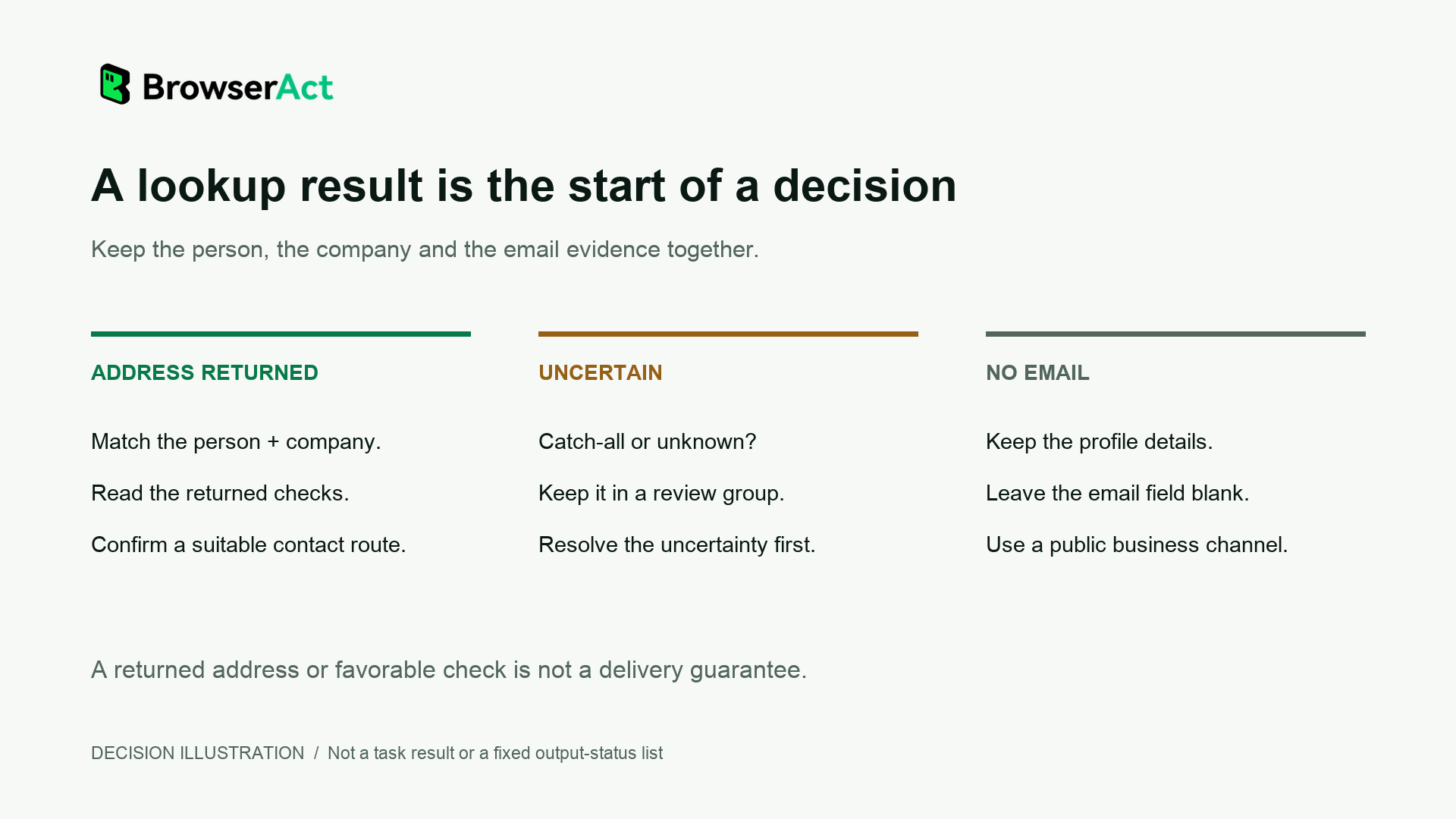
Decision illustration, not a task result. Use the fields and checking information actually returned.
Check an Email Before You Add It to a Contact List
Match the Address to the Person and Current Employer
A plausible address is a starting point for review. Check that the returned name and profile URL match your target, then compare the employer information with the organization behind the email domain. If they disagree, investigate the mismatch before adding the address to an outreach list.
An address may be personal, associated with a previous employer, or a shared company mailbox. Keep that distinction in your record. For a business inquiry, choose a channel relevant to the person's work and the purpose of your message.
Separate Confirmed, Uncertain and Missing Results
Use the result to decide what needs attention next. The following are review categories you can apply to your own contact list, rather than a fixed set of BrowserAct output labels.
What you observe | What it establishes | Next action |
An address, a matching person/company and a favorable checking result | There is a supported contact candidate | Record the source and check date; assess whether contact is appropriate |
Catch-all or accept-all information | The domain response does not confirm the specific mailbox | Keep the address in a separate review group |
Unknown status or no checking information | Validity is unresolved | Obtain further confirmation before using it |
An invalid result | The address did not pass the reported check | Leave it out of the sending list |
No email returned | The lookup has not provided an address | Keep the profile record and consider another contact route |
An employer or domain mismatch | The address may not fit the current professional context | Cross-check the company and source before proceeding |
For general verification terminology, Hunter's status explanations distinguish catch-all domains from confirmed mailboxes and describe unknown results as unresolved. Use each provider's own definitions when interpreting its checks; these terms do not imply that BrowserAct uses Hunter.
If an address was checked some time ago, review it again before relying on it. Hunter's verification FAQ notes that mailbox status can change after verification. A favorable result is useful evidence at a point in time, not a promise about a future message.
What to Do When No Email Is Found
Keep the Missing Result and Use a Public Business Contact Route
An empty email field means the result has not supplied an address. It does not prove that the person has no work email, and it is not a reason to fill the gap with a guessed address.
For a concrete reading example, the template page shows a historical profile result with this email value:
{"emails": null}
For that historical record, keep the available profile details, leave the email field blank and mark the next action as checking a public business contact route. A returned profile gives you research context even when it has not supplied an address. This example shows how to handle a missing result, not a successful email discovery.
Check the person's current public professional contact page or the company's relevant contact form. You can ask for the appropriate business channel there. If you already have another suitable way to speak with the person, ask which address they prefer for the conversation.
Save the Source, Check Date and Next Action
Keep the profile URL, confirmed company, address if available, returned checking information, source, check date and next action together. These are suggested review columns for your working contact list. Keeping an unresolved row is useful: it stops someone else on the team from treating the same person as ready to email.
For a separate workflow using your own logged-in LinkedIn Bot and an AI client, see the guide to organizing LinkedIn contact research with MCP. That guide has its own login requirements. To carry out the no-login profile-URL lookup described here, use the template steps above.
Frequently Asked Questions
Can I Find a Work Email from a LinkedIn Profile Without Connecting?
Sometimes. A person or their company may publish a work address, and a service accepting profile URLs may find an available contact email. Being unconnected does not rule out those routes, but neither a public profile nor a lookup guarantees an address. Confirm the person's current employer and the address's business relevance.
Do I Need a LinkedIn Account or Cookies to Use the BrowserAct Template?
You do not need to supply your own LinkedIn account or cookies for the LinkedIn Profile Email Scraper (No Login). You still need access to BrowserAct and must meet its usage conditions. Enter the required profile URLs, run the task and review what it returns.
Can I Look Up Emails from Several LinkedIn Profile URLs?
Yes. The template accepts multiple profile URLs in profile_urls, separated by new lines or commas. Check the input requirements and Pricing tab before submitting your list. Multiple inputs do not mean that every profile will return an email.
What Does a Catch-All or Unknown Email Result Mean?
In common verification terminology, catch-all or accept-all means the domain accepts addresses without confirming that the specific mailbox exists. Unknown means validity has not been determined. Read the checking provider's definitions and keep uncertain addresses separate until you have enough evidence to use them.
Is a Found Email Guaranteed to Be Delivered?
No. Finding an address and checking it do not guarantee future delivery. The mailbox or its settings can change, and the address may no longer fit the person's current role. Review identity, company, checking information and your reason for contact before sending.
To find email from LinkedIn, begin with one correctly matched profile and choose a method that fits what you already know. Keep useful profile context, inspect any available address, and leave uncertain records out of automatic sending.


