How to Turn Agent Built BrowserAct Bots into MCP Tools

AI workflows often need one step that happens outside the model: open a website, search, click through dynamic pages, collect fresh information, and return a result the rest of the workflow can use.
AI workflows often need one step that happens outside the model: open a website, search, click through dynamic pages, collect fresh information, and return a result the rest of the workflow can use.
That browser step is usually where things get messy. You can rebuild browser logic inside every AI environment, maintain selectors by hand, or pass work back to a human whenever a website task appears.
BrowserAct now gives you another path: turn a published Agent Built Bot into an MCP Tool.
With BrowserAct MCP, you can build and publish a Bot in BrowserAct, expose it through a BrowserAct MCP Server, connect a compatible MCP client, and let that client run the Bot when it needs browser-powered data or a repeatable website workflow.
In other words: BrowserAct handles the browser workflow. MCP makes that workflow callable from your AI toolchain.
If you are new to BrowserAct, start by creating your first Bot, then connect it to an MCP client when you are ready to reuse it inside a larger AI workflow.
- 1BrowserAct MCP Tools now support Agent Built Bots.
- 2A published Bot can be exposed through a BrowserAct MCP Server.
- 3A compatible MCP client can discover and run exposed BrowserAct tools.
- 4Runtime inputs are supplied by the connected client based on the Bot’s parameters.
- 5One MCP Server can expose multiple BrowserAct tools.
- 6Server URL and API Key should come from the same MCP Server and stay out of public prompts or screenshots.
What changed
Agent Built BrowserAct Bots now support MCP.
That means a Bot created through BrowserAct’s Agent Built flow can be reused as a tool outside the BrowserAct interface. Once the Bot is published and exposed through an MCP Server, a compatible MCP client can discover it, provide runtime inputs, run it, and receive the result.
The flow looks like this:
- Build a Bot in BrowserAct.
- Publish the Bot.
- Review or edit its MCP Tool information.
- Expose the Bot through an MCP Server.
- Connect an MCP-compatible client.
- Ask the client to run the BrowserAct tool with the required inputs.
- Use the returned result in the rest of your workflow.
The result is a direct path from a tested BrowserAct Bot to a callable tool inside your AI workflow.
Why this matters for AI agents
Many agents are good at deciding what should happen next. They are less reliable when every website interaction has to be recreated from scratch.
A research workflow may need current public posts from a forum. A sales workflow may need fresh company data before drafting outreach. A monitoring workflow may need to check a page, collect prices, or compare listings. In each case, the browser task has a clear job, but that job can be tedious to rebuild inside every agent environment.
BrowserAct is designed to make the website task reusable. You describe the data or workflow you need, BrowserAct explores and tests the live website, and the result becomes a Bot you can run again.
MCP adds the connection layer. Instead of treating that Bot as something you can only run from one place, you can expose it as a callable tool for a compatible MCP client.
The practical difference is simple:
Without MCP | With BrowserAct MCP |
Browser work stays separate from the agent workflow. | The agent can call a published BrowserAct Bot as a tool. |
Teams recreate website logic in each environment. | Teams reuse the same Bot through an MCP Server. |
Inputs and outputs often need manual handoff. | The client provides runtime inputs and receives the Bot result. |
How BrowserAct MCP fits together
There are four pieces in the BrowserAct MCP workflow:
- Bot: the published BrowserAct automation you want to reuse.
- MCP Tool: the callable tool representation of that Bot.
- MCP Server: the BrowserAct connection point that exposes selected tools.
- MCP client: the compatible client or agent environment that connects to the Server and runs the exposed tool.
The separation is useful. A Bot does not become available to clients just because it exists. You choose which Bot to expose, which Server exposes it, and which client connects to that Server.
This keeps the build workflow and the external execution workflow cleanly separated: BrowserAct builds and runs the browser task; the MCP client decides when to call it and what inputs to pass.
Before you start
Prepare the following before setting up BrowserAct MCP:
- A BrowserAct account
- A published BrowserAct Bot
- An MCP-compatible client
- A Bot that does not require manual credential input on every run
Client compatibility depends on whether the client supports the required MCP Server transport and authentication method. If a client is not listed in BrowserAct’s setup interface, follow that client’s instructions for adding a generic MCP Server.
Step-by-step: expose an Agent Built Bot as an MCP Tool
Use this path when the Bot was created through BrowserAct’s Agent Built flow.
Step 1: Select the Bot to expose
Open Bots in BrowserAct and select the Agent Built Bot you want to use as an MCP Tool.
If you do not have a published Bot yet, start with Get Started with BrowserAct: Build and Run Your First Bot, then return to this MCP setup.
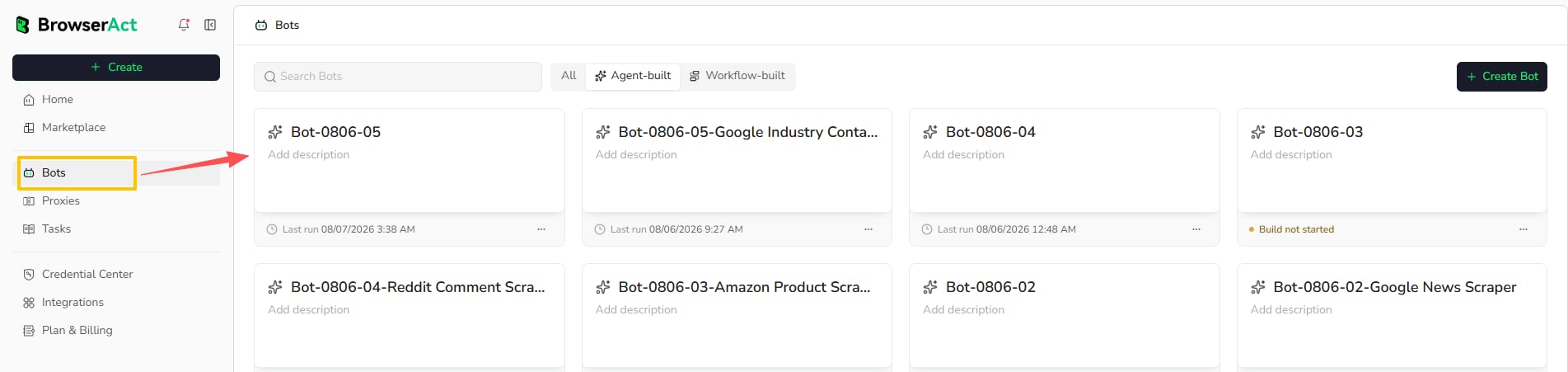
Select the published Agent Built Bot you want to expose as an MCP Tool.
Use a published Bot for external tool calling. A connected client should call a stable version of the workflow, not an unfinished draft.
Step 2: Open MCP from the Bot’s Integrations tab
Inside the Bot, open the Integrations tab and find the MCP card.
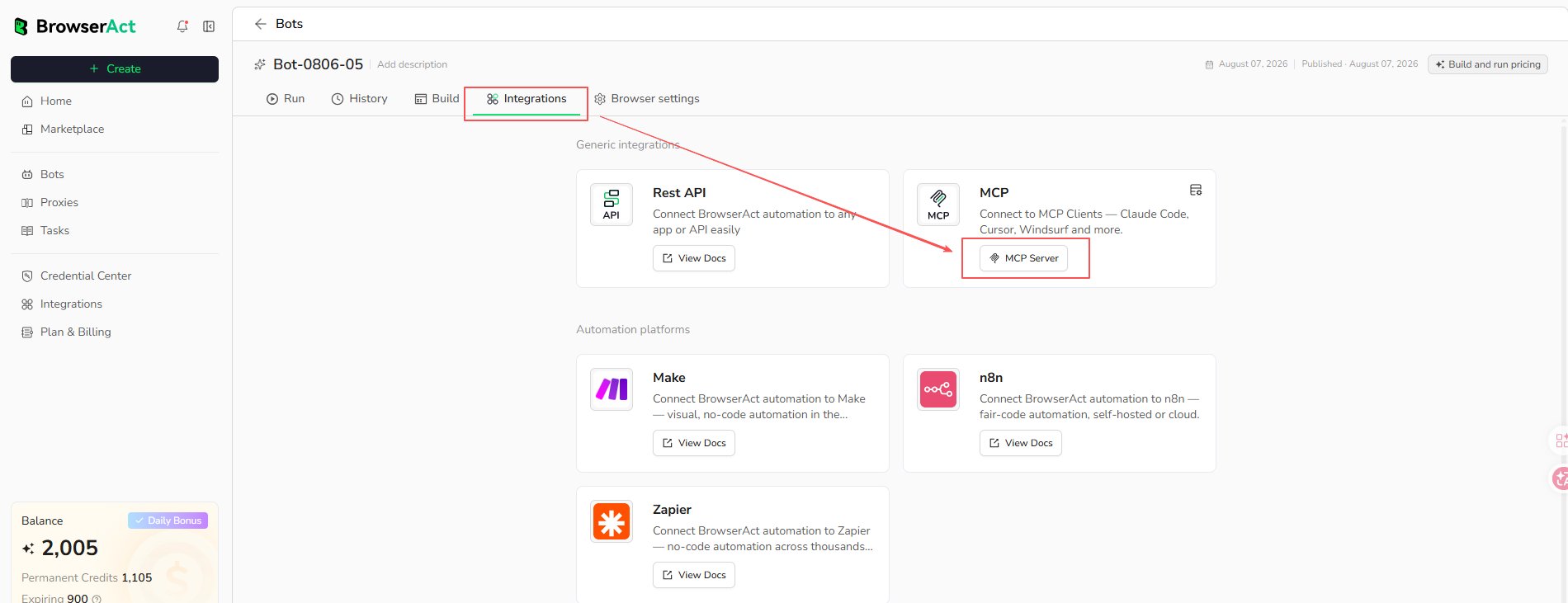
Open the Bot’s Integrations tab and select MCP Server from the MCP card.
Before exposing the Bot, review the MCP Tool settings. BrowserAct can generate the Tool Call Name, Tool Description, and input descriptions automatically, but you can adjust them before making the Bot available to clients.
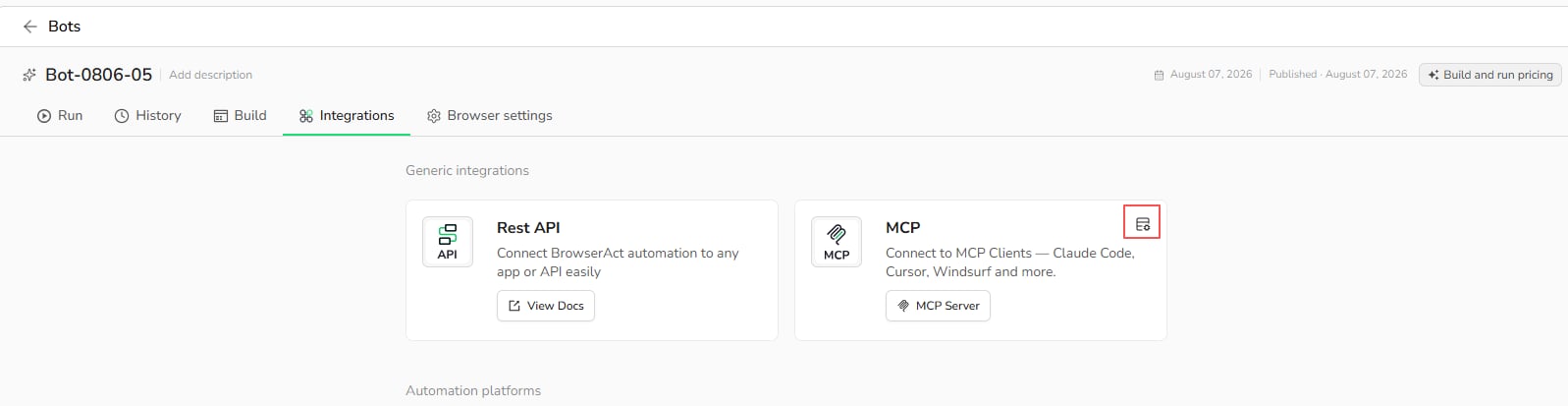
Open the MCP Tool settings before exposing the Bot.
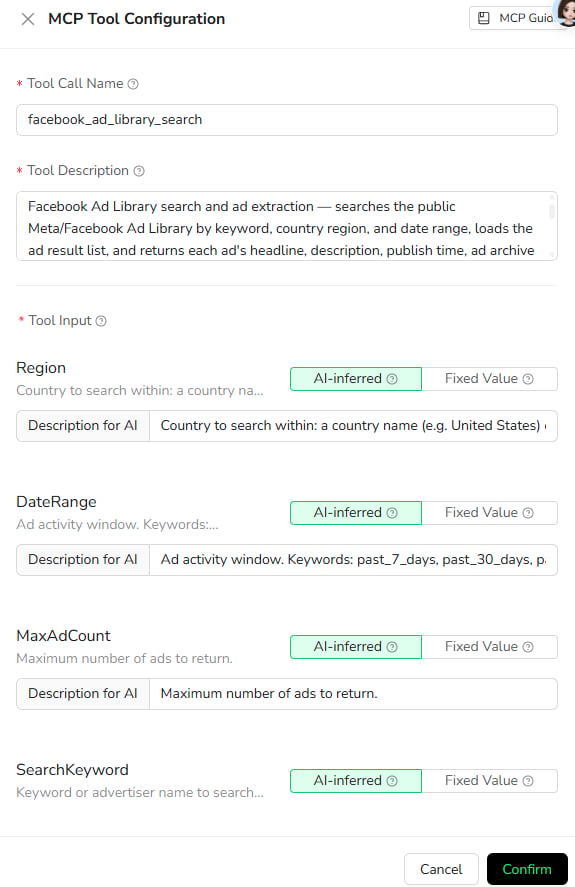
Review the Tool Call Name, Tool Description, and runtime input descriptions.
This step is worth the extra minute. MCP clients rely on tool names and descriptions to understand when a tool should be used and how inputs should be supplied.
For example, instead of a vague description like “gets data,” describe the actual job:
Searches a public website category page and returns a structured list of products with name, price, rating, seller, and URL.
Step 3: Create or choose an MCP Server
From the MCP Server page, create a new Server or choose an existing one.
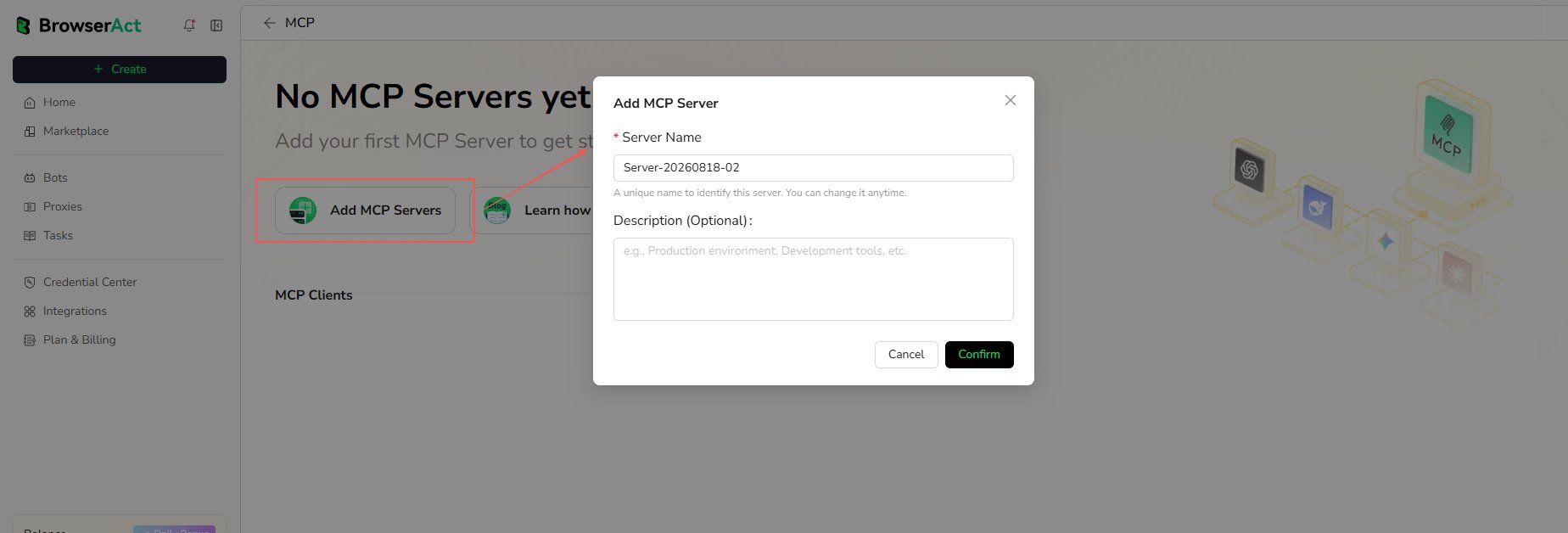
Create a BrowserAct MCP Server or select an existing Server for the Bot.
One MCP Server can expose multiple BrowserAct tools. That makes it useful for grouping related Bots by team, workflow, or client environment.
For example, you might create separate Servers for:
- Market research Bots
- Sales data extraction tools
- Public website monitoring
- Support research workflows
Step 4: Expose the Bot
After the Server is ready, open Server Management, then go to Exposed Tools.
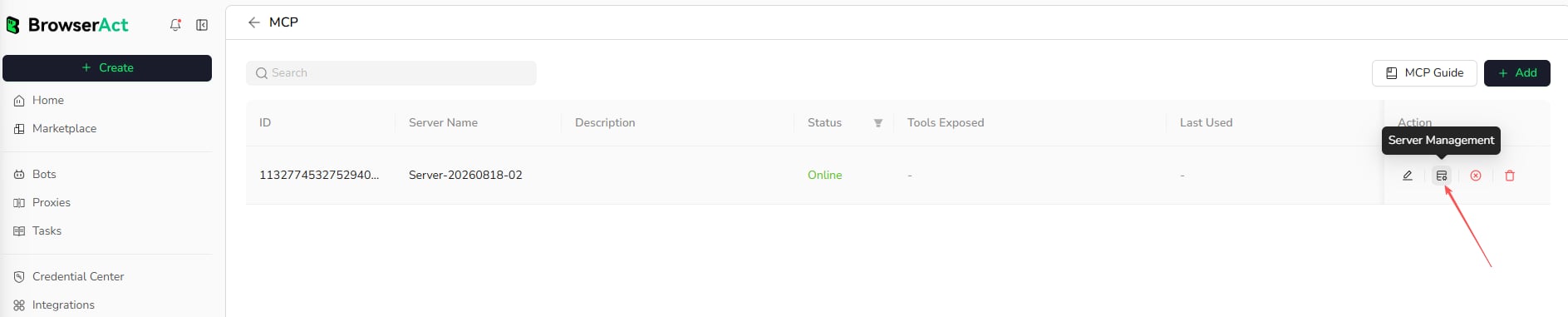
Open Server Management for the MCP Server you want to use.
Find the Bot under Not Exposed, select it, choose the expose action, and confirm.
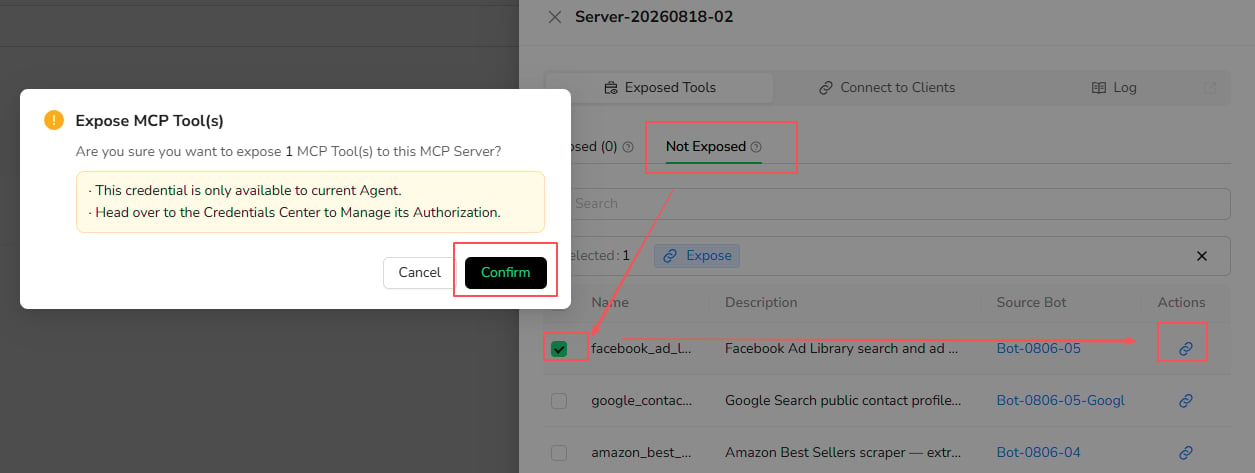
Select the Bot from Not Exposed tools, choose the expose action, and confirm.
This is the moment the Bot becomes available through that MCP Server. Publishing a Bot and exposing it to an MCP Server are separate actions.
Step 5: Connect an MCP client
Open Connect to Clients for the MCP Server.
Copy the MCP Server URL and create or copy the API Key from that same Server. Then follow the setup instructions for your target MCP client.
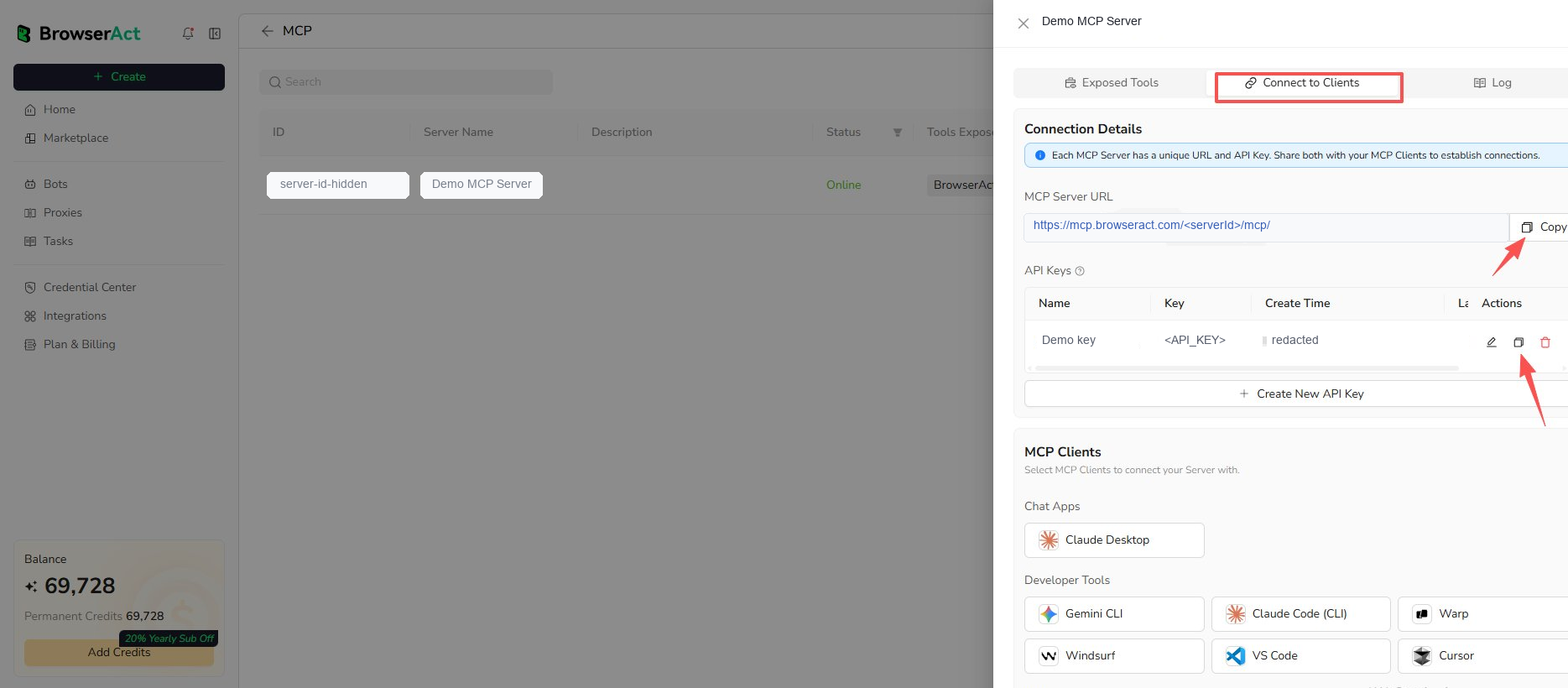
Copy the Server URL and API Key from the same MCP Server. This public screenshot uses placeholder values.
Keep the Server URL and API Key paired. If the API Key belongs to a different MCP Server, authentication will fail.
Do not put the API Key in prompts, screenshots, repositories, or public configuration files. The key belongs in the MCP client configuration.
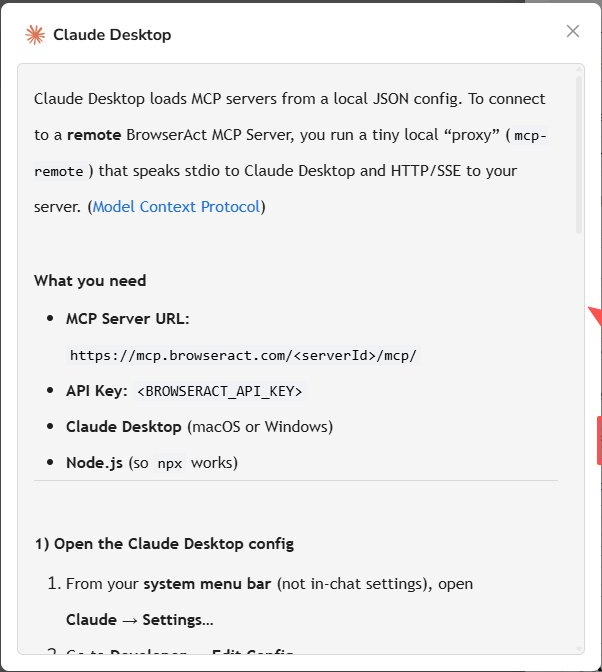
Select a supported MCP client and follow the setup guide shown in BrowserAct.
After setup, reload the client if required and confirm that the exposed BrowserAct Bot appears as an available tool.
Run the BrowserAct MCP Tool in Codex
Once BrowserAct MCP is configured in Codex, you can ask Codex to connect to the BrowserAct MCP Server, call the exposed Bot, and return the output in the format you need.
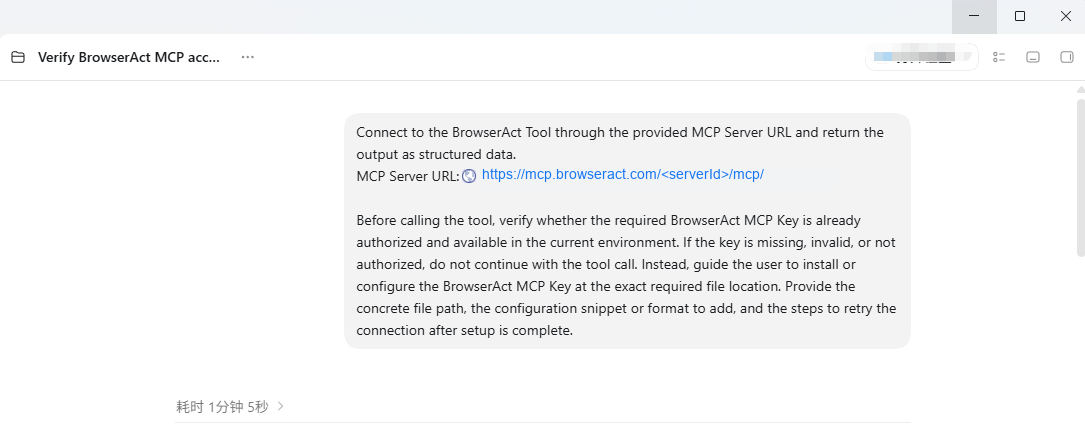
Ask Codex to run the exposed BrowserAct MCP Tool with the required runtime inputs. Keep real Server URLs and keys out of public screenshots.
Here is a safe Codex prompt pattern:
Connect to the BrowserAct tool through the provided MCP Server URL and return the output as structured data.

MCP Server URL:
https://mcp.browseract.com/<serverId>/mcp/

Run the exposed BrowserAct MCP Tool with these inputs:
- Search keyword: browser automation
- Time filter: past month
- Extraction limit: 25

Return the result as a clean structured table.
The BrowserAct MCP API Key should already be configured in Codex’s MCP setup. Do not paste the API Key into the prompt. If Codex cannot find or run the tool, check the BrowserAct MCP Server URL, API Key configuration, exposed tool status, and the required Bot inputs.
The exact inputs depend on the Bot you exposed. A Reddit research Bot may ask for a keyword, time filter, and extraction limit. A product listing Bot may ask for a category URL. A monitoring Bot may ask for a target page and fields to check.
After the run starts, you can open the MCP Server execution logs in BrowserAct to review status, duration, and errors.
Example workflows you can build with BrowserAct MCP
MCP support is useful when a browser workflow needs to become one step inside a larger AI process.
Here are a few examples:
- A research agent calls a BrowserAct Bot to collect public website data, then summarizes the findings.
- A sales workflow runs a prospect research Bot before drafting outreach.
- A market monitoring setup checks listings, prices, reviews, or page changes.
- A support analysis agent retrieves public posts or documentation pages before generating an answer.
- An internal operations agent runs a repeatable browser workflow without rebuilding the browser logic itself.
The core idea is reuse. Build the browser workflow once in BrowserAct, expose it through MCP, then call it from the agent environment where the rest of your work happens.
Conclusion
BrowserAct MCP turns a published Bot into a reusable tool for compatible AI workflows.
Instead of rebuilding the same browser task in every environment, you can build and publish the Bot in BrowserAct, expose it through an MCP Server, connect your client, and call the Bot whenever your workflow needs fresh web data or repeatable website interaction.
Ready to try it? Start building a BrowserAct Bot, publish it, and expose it as an MCP Tool for your agent workflow.
For implementation details, see the BrowserAct MCP setup guide.


