Gemini CLI Browser Automation: Search, Scrape, and Verify the Live Web

AI Agents run on information. If an Agent can find more current, complete, and verifiable information than another Agent, it starts with an enormous advantage. Gemini CLI already has an excellent research brain. It can search the web, fetch pages, reason across files, call tools, and turn a pile of sources into a report. But search is only the map. The valuable data may be inside a JavaScript pricing table, behind a social-media login, below an infinite scroll, inside a government query form, or
- 1Gemini CLI search discovers useful URLs; BrowserAct retrieves the live page state needed to verify the information.
- 2Use direct sources first, protected-page extraction second, and a real browser for filters, JavaScript rendering, scrolling, login, or verification.
- 3Keep price, stock, government, social, finance, and medical values attached to their visible conditions, source URL, and retrieval time.
- 4Run source groups in isolated BrowserAct sessions so login, region, filters, and navigation do not leak between research workers.
- 5Turn the successful collection route into a reusable Skill only after it produces complete structured evidence.
Gemini CLI has become a capable Agent—but the web still fights back
Gemini CLI now supports Agent Skills as on-demand packages of instructions and resources. It can discover Skills at the user or workspace level, manage them with /skills, and activate the relevant procedure when a task matches.
That means Gemini can learn a repeatable research method instead of receiving another 200-line prompt.
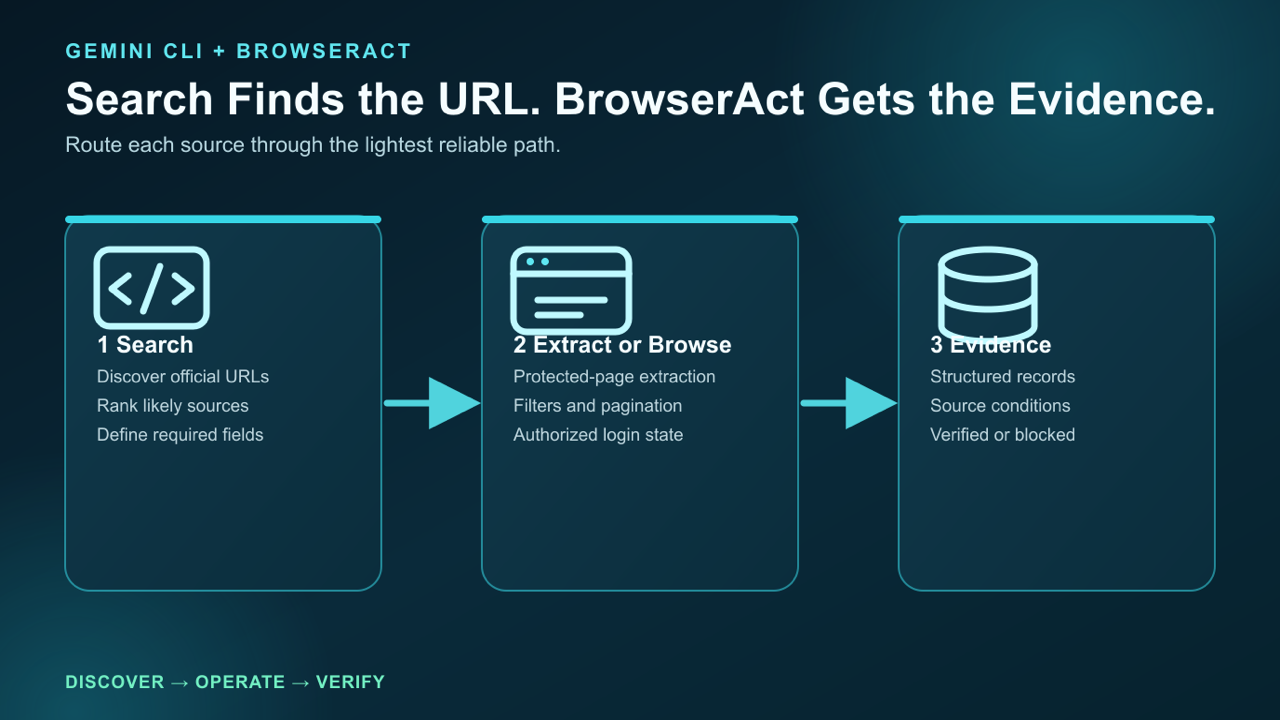
Gemini CLI starts with search; BrowserAct takes the workflow to the rendered source and preserves the evidence behind each field.
The missing piece is not the plan. It is access to the live state of the web.
Without BrowserAct, a Gemini CLI research task commonly breaks in five places:
- Search finds the page, but fetch returns incomplete HTML.
- The useful content appears only after JavaScript runs.
- Search, filters, tabs, or pagination must be operated.
- The real data requires an existing authorized login.
- The page triggers anti-bot checks, CAPTCHA, or another trust boundary.
Install BrowserAct with this instruction:
Install browser-act. Skill source:
https://github.com/browser-act/skills/tree/main/browser-act
Verify it works after installation.
Gemini CLI discovers workspace Skills from .gemini/skills/ and .agents/skills/, and user Skills from the matching home-directory paths. You can confirm discovery with /skills list and refresh it with /skills reload.
Want Gemini to move past the search result? Follow the BrowserAct setup guide, then test it on one public URL before starting the full research job.
First challenge: search finds ten URLs, but five pages cannot be read
Suppose you ask Gemini CLI:
Find the newest government incentives for small e-commerce businesses.
Return program name, region, applicant requirements, deadline,
funding amount, source URL, and retrieval date.
Gemini can search for the notices. The difficult part begins after it has the links.
One government page may be static. Another may require selecting a region and year. A third may display the notice inside a rendered document viewer. A fourth may block ordinary automated requests. A fifth may have an attached PDF whose deadline contradicts the summary page.
BrowserAct lets Gemini route each page instead of declaring the entire web “unavailable.”
Route 1: direct source
If the official HTML or document contains every required field, collect it and stop.
Route 2: protected-page extraction
If ordinary fetch returns a challenge or incomplete content, try BrowserAct extraction. The goal is to obtain the rendered information without paying the cost of a full interactive browser.
Route 3: real browser operation
If the page requires a region selector, search form, pagination, scrolling, or a document-viewer click, open an isolated browser session and operate it.
The prompt becomes operational:
For every official source:
1. Try the lightest method that can return all required fields.
2. If fetch is incomplete, use BrowserAct protected-page extraction.
3. If the page requires interaction, use an isolated browser session.
4. Save the visible evidence and final URL.
5. Mark missing or conflicting fields; never infer them.
This is the first major BrowserAct advantage: one Agent can move between search, extraction, and browser operation without treating them as unrelated tools.
Second challenge: e-commerce data changes with page state
Now change the task:
Compare 50 listings for the same product across several stores. Collect current price, coupon price, stock, seller, shipping promise, rating count, and product URL.
E-commerce pages expose nearly every browser problem at once:
- prices render after page load;
- coupons appear only after a click;
- search results load more items while scrolling;
- location changes availability and delivery dates;
- seller and platform offers share one page;
- aggressive automation can trigger verification.
A normal scraper may return a price without its coupon condition or pair one seller with another seller's delivery promise. Gemini then produces a beautiful but false comparison.
BrowserAct can keep the relevant page state attached to the data. For every record, ask for:
{
  "product": "Example NAS",
  "displayed_price": "$499",
  "coupon": "$40 after applying store coupon",
  "availability": "In stock",
  "seller": "Example Store",
  "shipping_region": "US 94107",
  "source_url": "https://example.com/product",
  "retrieved_at": "ISO-8601",
  "method": "browseract-browser",
  "evidence": "product-01.png"
}
The method field tells you whether the item came from direct extraction or a browser. The evidence preserves the conditions behind the value.
For repeated collection, assign a separate BrowserAct session to each store. Filters, region, login, and cart state remain isolated instead of leaking across jobs.
Collecting dynamic product data? Try BrowserAct to combine protected-page extraction, interactive browsing, and isolated sessions in one Gemini CLI workflow.
Third challenge: social-media research requires a real user journey
Social platforms are not document websites. Search, login state, scrolling, and visible counters are part of the task.
Imagine asking Gemini CLI to research how users discuss a new AI coding tool across several social networks. Required fields include post title or text, author, date, engagement, URL, and the recurring problem being discussed.
Search engines may reveal a few public posts, but they rarely return a complete, current dataset. Direct fetch may fail. The platform may require login before search. Infinite scroll means the first screen is not the result set.
With BrowserAct, Gemini can use the existing authorized Chrome session and perform the same journey as the user:
Open the social platform with the identity research-account.
Search for "AI coding agent browser automation".
Collect the first 30 relevant public results.
For each result, return author, date, visible engagement, URL, and a one-line issue label.
Scroll only until 30 valid records are collected.
Do not like, follow, repost, message, or publish anything.
The read/write boundary is essential. Research can read public information without accidentally performing social actions.
For multiple platforms, Gemini can start one BrowserAct session per platform. A login or filter change on one network will not disrupt another. This makes parallel social research practical without opening an unmanaged pile of tabs.
Give your agent a real browser, then turn the workflow into a Skill.
- 1. Use browser-act when an agent needs to open, click, scroll, extract, or inspect a live site.
- 2. Use browser-act-skill-forge when the workflow should become reusable across runs and agents.
- 3. Keep the operational boundary simple: automate what the user can already do in the browser.
Fourth challenge: finance and medical research cannot tolerate invented gaps
Financial and medical tasks have a different risk profile. The goal is not to collect the largest amount of text. It is to connect every material claim to the correct current source and page condition.
Examples include:
- checking a listed company's latest filing against its investor-relations page;
- verifying a fund's current holdings and effective date;
- comparing a medical guideline with a regulator notice;
- confirming whether a clinical-trial record has changed status;
- checking an authorized internal portal without modifying patient or account data.
Gemini should search and reason, but BrowserAct should collect the observable page evidence.
Use explicit statuses:
verified: the source directly supports the field;partial: the page is missing a qualifier;conflict: two authoritative sources disagree;blocked: access or verification prevented collection;not_found: the field was not present.
Blocked is not an invitation to guess. If login or 2FA is required, BrowserAct can preserve the browser and request a human handoff. The human completes the trust step, then Gemini continues the same read-only task.
This matters for internal automation as well. A research Agent may be authorized to read a finance or medical system but not to submit, approve, prescribe, trade, or edit. BrowserAct keeps the final sensitive action behind human control.
Read Human-in-the-Loop Browser Automation for the handoff pattern.
Run several sources in parallel without mixing them
Research becomes slow when one Agent opens every page sequentially. BrowserAct supports a cleaner model: one source group, one session, one output.
Workstream | BrowserAct session | Typical method | Output |
Government notices |
| extraction + browser filters |
|
E-commerce |
| stealth browser |
|
Social media |
| authorized Chrome |
|
Finance/medical |
| direct source + human handoff |
|
The final synthesis begins only after each workstream returns structured records. Gemini is then reasoning over evidence rather than trying to remember what it saw in several moving tabs.
For the full pattern, see Concurrent Browser Automation.
Turn a successful collection path into a Skill
The first time Gemini explores a website, it must learn where the search box, filters, pagination, and required fields live. It should not repeat that exploration every day.
After the workflow succeeds, use BrowserAct Skill Forge to turn the path into a reusable Skill.
The Skill can store:
- the allowed domain and starting URL;
- the preferred extraction method;
- when to escalate to a browser;
- search, filter, and pagination steps;
- required output fields;
- login and human-handoff rules;
- validation checks and stopping conditions.
Then a recurring job becomes:
Use the saved commerce-monitor Skill.
Collect today's price and stock for the products in products.csv.
Return changes since the previous run and preserve source evidence.
That is the shift from “Gemini managed to scrape the page once” to “Gemini owns a repeatable information workflow.”
Build once, rerun often: install the BrowserAct Skill, explore the source with Gemini CLI, and use Skill Forge to solidify the successful path.
Which scenarios benefit most?
The strongest Gemini CLI + BrowserAct workloads are information-heavy tasks where a search result is not enough:
- government notice and public-record research;
- e-commerce search, price, stock, and seller monitoring;
- social-media topic and engagement collection;
- SaaS pricing and product-change research;
- finance filing and market-data verification;
- medical guideline and registry checks;
- authenticated internal knowledge and operations portals.
These categories also reflect where browser work concentrates in practice: government, e-commerce, tools/SaaS, search, social media, finance, medical verification, and internal automation all require more than a generic fetch tool.
Two Skills, One Repeatable Browser Workflow
Start with live browser execution when the agent needs to understand a page. Move to Skill Forge when the same scraper should run again without re-exploring the site.
Run once with browser-act
Give Codex, Claude Code, Cursor, Windsurf, or another agent a real browser for rendered pages, clicks, scrolling, screenshots, DOM extraction, and network inspection.
Open browser-act SkillPackage with Skill Forge
Explore the site once, verify the extraction path, then generate a callable Skill package that other agents can reuse for batch jobs or scheduled workflows.
Open Skill ForgeFurther reading: Coding agent integrations
Frequently Asked Questions
Does Gemini CLI support Agent Skills?
Yes. Gemini CLI documents built-in, extension, user, and workspace Skills. /skills list shows discovered Skills, and /skills reload refreshes them.
Why use BrowserAct if Gemini CLI already has search and fetch?
Search discovers sources and fetch reads accessible documents. BrowserAct handles protected pages, JavaScript rendering, interactive filters, login state, pagination, browser evidence, and human handoff.
Should every URL open a browser?
No. Use the lightest reliable path: direct source first, protected-page extraction second, and a full browser when interaction or state is required.
Can Gemini reuse my logged-in session?
Yes, through an authorized BrowserAct browser identity or local Chrome session. Credentials should stay out of prompts and files.
Can the workflow run several sources at once?
Yes. Give each worker a named BrowserAct session, source group, and output path so cookies, filters, and navigation do not mix.


