How to Export Google Maps Business Listings to CSV

To export Google Maps to CSV, first decide whether you need your own saved places or business listings from a search. Saved lists have a Google Takeout route. Business search results need to be collected into records, checked, and saved as a CSV; Google Maps does not provide a bulk CSV download for the search results panel.
For a local-business research project, the useful result is one business per row, with consistent columns and a link back to its Maps listing. A name-only file will not help much if you also need to check the category, address, or contact information.
Here is how to choose the right route and prepare that file without writing a scraper.
Two Different Google Maps Exports: Saved Places vs Business Search Results
Searching for "Google Maps export" can lead you to instructions for a different task. A list of restaurants you bookmarked for a trip is not the same dataset as every restaurant shown for a city search.
What you need | Where to start | What still needs attention |
Places you saved to your own list | Google Takeout | Inspect the archive's contents and format; do not assume it includes a full business contact dataset |
Businesses matching a category and area | Manual collection or a suitable Google Maps data scraper | Check collection depth, source links, missing fields, and the format of the result |
Place data inside an application | Google Places API | Handle the returned fields and follow the API's usage, storage, and attribution rules |
When Google Takeout Is the Right Tool
Use Takeout when the places are already in your saved lists. Google's saved-list export instructions direct you to Takeout, where you select Saved, choose the delivery settings, and create the export.
That exports your saved material. It does not turn a fresh search such as "dentists in Austin" into a complete business spreadsheet.
Why a Search Results List Needs Another Route
For business research, you need records from the search itself. You can copy a small selection into a spreadsheet, or use a tool that collects the public listings you need.
Before choosing, ask what each row must contain. A result-card collector and a tool that opens every business detail page do different jobs. Both may produce structured data, but their columns will not necessarily match.
Choose the Method by the File and Fields You Need
The method should fit the task, not the other way around.
Method | A sensible use | Work you still own |
Manual collection into a spreadsheet | A small, one-off selection that needs close inspection | Copying fields consistently, preserving sources, and saving the file |
A reusable no-code collector | Repeating a defined business search with a consistent set of fields | Setting inputs, reviewing results, and converting the delivery format when needed |
Google Places API | Building an application with an official programmatic source | Development, field selection, response handling, and checking the permitted use of the data |
The Places Text Search documentation explains how a query returns place data and how a field mask specifies the fields requested. It is a developer route, not a ready-made CSV download. Google's Places API policies also restrict storage and caching beyond allowed exceptions, so do not assume an API response can become a permanent prospecting database.
For the no-code route, keep two tasks separate: collecting the records and formatting the final file. A tool can remove repetitive browser copying even when a spreadsheet still handles the CSV conversion.
How to Turn Google Maps Business Listings Into a CSV
Define the Search and Required Columns
Start with a category and a geographic area. For example, a market researcher could use dentists in Austin, Texas as the search text and begin with a small result limit.
Write down the fields needed for the next decision. If the task is comparing categories and locations, listing-card data may be enough. If the task is calling businesses, phone numbers must be part of the collection path, not an empty column added afterward.
For an initial listing review, useful columns include:
Column | Why keep it? | What to check |
Business name | Identify the listing | Do not treat matching names as proof of the same location |
Category | Check whether it fits the search | Related categories can appear in the results |
Address | Check the target area | A city mentioned in the query does not replace address review |
Rating and review count | Add public context | Keep missing values distinct from zero |
Google Maps URL | Reopen the source | Retain the listing link rather than just the search page |
You can also add the search query and collection date to your working sheet. Those are your own research notes, not additional fields extracted from a business listing.
Collect Structured Listing Records
BrowserAct's Google Maps Business Listings Scraper is one option for collecting public result-card data without writing selectors or scraper code.
Open Run Task, enter the keyword and country, and set max_business_count. Put a city in the keyword when you want a city-specific search. Review the finished records before reusing the inputs for another query.
The Bot reads the visible result cards rather than opening individual detail pages. Its published schema includes name, rating, reviews, category, address, description, status, hours, price, accessibility, service_option, and place_url. Values not shown in a card are returned as N/A.
That schema does not include phone numbers, websites, or emails. The requested count is also a limit, not a promise that the search will expose that many records. The Maps pages being collected are public; running the Bot and viewing your task history in BrowserAct require an account.
Create the CSV From the Result
A CSV is a plain-text table. Each business should occupy one row, with its values in named columns. Do not rename a JSON file to .csv: that changes the filename, not the data structure.
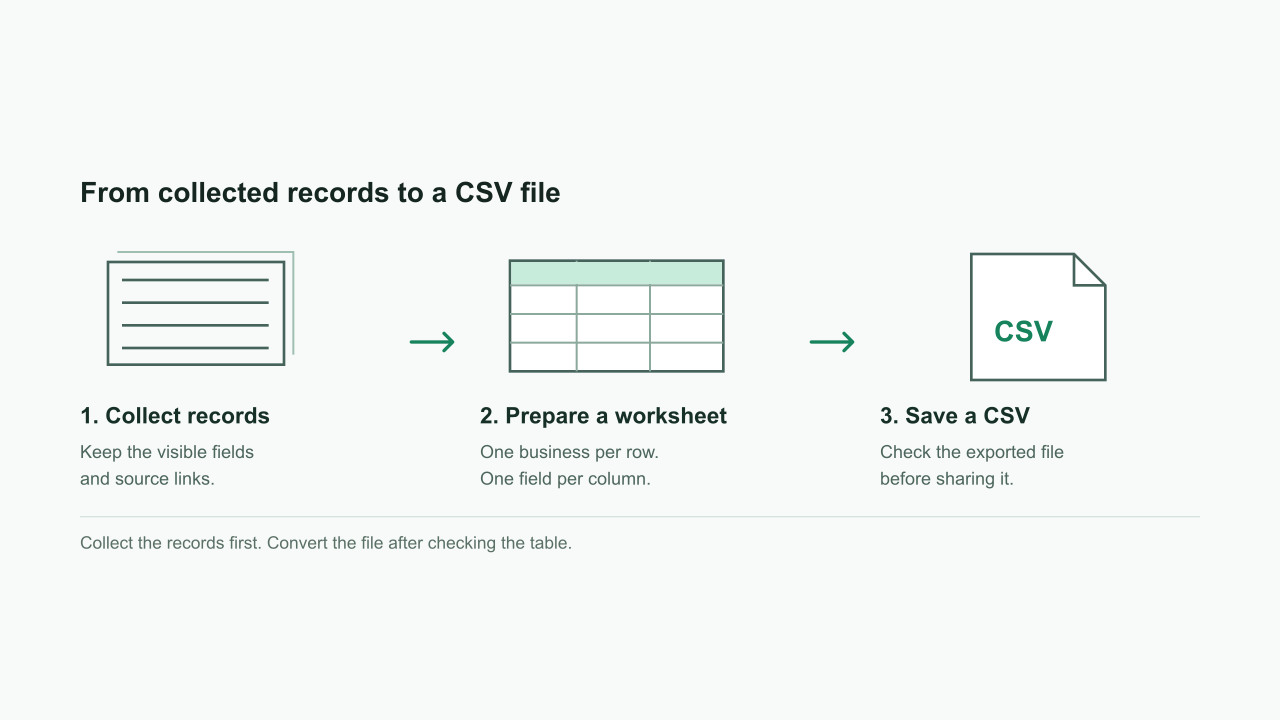
Use the path that matches the result you have:
- Already a CSV: import it into your spreadsheet and inspect the columns before sharing it.
- A spreadsheet file: open it, select the sheet with one business per row, and save that sheet as CSV.
- A JSON result: import the business records into a table first, then save the table as CSV.
For a JSON file, Excel provides a no-code import route. In a desktop version with the JSON connector, choose Data > Get Data > From File > From JSON and select the file. Microsoft's JSON connector guide describes automatic table detection that can flatten JSON into a table.
Inspect the preview before loading it. The rows should be businesses, not task metadata. Automatic detection may already have created the table. If the preview still contains nested lists or records:
- Locate the list containing the businesses, such as
results, rather than task status or other metadata. - If that list sits in a table cell, use the column's expand control and choose Expand to New Rows. If you have opened the list itself, convert it to a table first.
- When the rows show Record, use the column's expand control to choose the business fields. Each chosen field becomes a column.
- Confirm that one business occupies each row, then choose Close & Load to load the table into a worksheet.
The preview and available controls depend on the file structure and Excel version. Microsoft's structured-column guide explains how lists become rows and record fields become columns. Do not use Extract Values to squash all businesses into a single text cell.
Once the worksheet has a header row and one business per row:
- Keep an Excel workbook copy for filters, notes, and later changes.
- Select the worksheet you want to export.
- Choose File > Save As and select a CSV format. Use UTF-8 when available and appropriate for the receiving system.
- Save the file, then import it again to check the delimiter, character encoding, and column alignment.
Microsoft's CSV export instructions note that the text export saves only the current worksheet. A CSV also does not preserve the workbook's formatting or multiple tabs.
The file is ready for review when its columns contain individual values, not a whole collection of businesses packed into one cell.
For example, you could keep this six-column subset of the listing schema. This is a suggested header, not an example business result:
name,category,address,rating,reviews,place_url
Use spreadsheet export to write the data rows rather than joining the values yourself. An address containing a comma still belongs in one address cell, not in two columns.
Check the CSV Before Anyone Uses It
Treat the first export as a sample to inspect, not a list to send straight into outreach.
Check | Look for | Action |
Row count | Business rows mixed with headers or metadata | Count only the business records and compare with the source result |
Source links | Missing or unrelated Maps URLs | Reopen a sample and flag rows that cannot be traced |
Geographic fit | Nearby areas or addresses outside the territory | Review addresses against the intended area |
Missing values |
| Keep them missing; do not replace them with guessed data |
Duplicate locations | The same business appearing in several queries | Compare listing URLs, names, and addresses before removing rows |
File integrity | Split addresses, garbled names, or lost leading zeros | Check import settings and preserve contact fields as text when needed |
A chain's branches may share a name and website while being different locations. Do not remove every repeated name or domain. First decide whether your project counts locations or parent companies.
Keep an untouched copy of the collected records and a separate working sheet for cleanup. If you change column names, record the mapping so the next export can follow the same convention.
When a Listing-Card Export Is Not Enough
A spreadsheet of business names, categories, and addresses can support market research. It may not support the next sales action.
If you need public phone numbers and website links, use a path that opens the business details, such as the Google Maps Local Lead Finder. An unavailable field should stay missing; the result does not establish that a number reaches a decision-maker.
Email research is a different step again. A website link is a starting point for checking public contact pages, not an email address. The Google Maps email collection guide covers that route separately.
For the broader process, the Google Maps lead generation guide explains how collection, contact research, and qualification fit together. Keeping those tasks separate makes it easier to see what your CSV proves and what still needs review.
Frequently Asked Questions
Can I export Google Maps search results directly to CSV?
Google Maps does not offer a bulk CSV download for its business search results panel. To create the file, collect the listings manually or through a suitable tool, organize one business per row, and save the table as CSV. Check which fields the collection method actually returns.
Does Google Takeout export every business from a Maps search?
No. Google's saved-list export route applies to places you saved. It does not collect all businesses matching a new category-and-city search. Use Takeout for your saved material and a separate collection method for business search results.
Which columns should a Google Maps business CSV include?
For a basic research file, keep the business name, category, address, and Maps listing URL. Rating and review count can add context when visible. Add contact fields only if your collection path retrieves them, and keep your search query and collection date as separate research notes.
Will a listing export include phone numbers, websites, or emails?
Not necessarily. The fields depend on how the records are collected. BrowserAct's Business Listings Scraper reads result cards and does not include those contact columns in its schema. Public phone and website information require a detail-page path; emails may require checking the linked business website.
How do I avoid duplicate businesses when combining exports?
Use consistent columns across files and compare Maps listing URLs first, followed by business name and address. Review possible matches before deleting them. Separate branches of the same company may share a name or website without being duplicate locations.
Conclusion
To export Google Maps to CSV, match the route to the dataset, collect the fields your next decision needs, and check the resulting rows. Keep a source link for every business and preserve missing values rather than filling them with assumptions.
For public listing-card research, start with BrowserAct's Business Listings Scraper. It collects structured records without a custom scraper; you can then prepare the result in the format your spreadsheet or review process needs.
Enter a keyword, choose a country, and get one structured row per business with a reusable BrowserAct Bot.


