The LinkedIn Scraper That Doesn't Get You Banned: AI Agent + Your Real Browser

"Scrape the profiles of 50 VP-level marketing leads in SaaS companies on LinkedIn. Get their emails, company info, and recent posts."
That's the prompt. Simple, specific, high-value.
Here's what ChatGPT says:
"I'm unable to interact with LinkedIn directly or scrape profile data on your behalf. However, I can help you draft outreach messages or suggest LinkedIn scraper tools like Phantombuster..."
And Claude:
"I don't have the ability to access LinkedIn or any external websites. I can help you structure a spreadsheet for organizing lead data if you'd like."
So your AI — the one that can write code, analyze data, and generate entire marketing strategies — can't scrape a single LinkedIn profile. Can't scroll a feed. Can't even look at a profile page.
You're left doing it manually. Or worse, you install a LinkedIn scraper that gets your account restricted within 48 hours.
- 1Every traditional LinkedIn scraper fails on the same signals: browser fingerprint, IP reputation, session history, behavioral patterns. LinkedIn's detection system scores all of them simultaneously.
- 2Local browser mode is the only LinkedIn web scraping approach that achieves identity continuity: same browser, same cookies, same IP, same fingerprint. Nothing for LinkedIn to flag.
- 3LinkedIn email scraping is the fastest path to a ban. Instead of scraping contact sections en masse, use profile data enrichment through external cross-referencing for 60-80% email match rates without the risky behavior.
- 4Safe daily limits matter more than the tool you use. Stay under 30 connection requests/day, spread LinkedIn data scraping over hours, and warm up new accounts gradually.
- 5AI-powered personalization (reading profiles, referencing posts) produces 3-5x better acceptance rates than template-based outreach — and comes free with the AI agent approach.
Why Every LinkedIn Scraper Gets You Banned (And Why LinkedIn Web Scraping Is So Hard)
Every growth hacker and B2B sales rep hits this wall eventually. LinkedIn isn't just another website — it's a platform that has spent years and millions building detection systems specifically designed to catch LinkedIn data scraping.
And the tools most people reach for? They walk right into the trap.
The Phantombuster Problem
Phantombuster, Dux-Soup, LinkedIn Helper, Expandi — every popular LinkedIn profile scraper shares the same fundamental flaw: they run in their own browser environment, separate from your real LinkedIn session.
That means:
- New browser fingerprint that doesn't match your history
- Datacenter IP addresses that LinkedIn flags instantly
- Cookie-less sessions that require fresh logins (which LinkedIn notices)
- Robotic timing patterns — exactly 3 seconds between actions, every time, like clockwork
LinkedIn's detection system isn't looking for one red flag. It's scoring a combination of signals. A fresh browser fingerprint from a datacenter IP, with no browsing history, performing 200 actions in an hour with machine-perfect timing? That's a score of "definitely not human."
Result: Account restricted. Connection requests blocked. Sometimes, permanent ban.
The Headless Browser Trap
Some developers try the DIY route — Puppeteer, Playwright, Selenium. "I'll build my own LinkedIn scraper from scratch."
Three problems:
1. LinkedIn detects headless browsers. They check navigator.webdriver, canvas fingerprinting, WebGL hashes, and dozens of other signals. As one developer on r/webscraping noted: "LinkedIn checks the browser fingerprint. If you use browser in headless mode, you are detected... you have to spoof a lot of things to make your browser undetectable." Running headless Chrome is like showing up to a nightclub wearing a t-shirt that says "I'M A BOT."
2. Session management is a nightmare. LinkedIn requires login. Two-factor auth. Session tokens that expire. Every time your script starts fresh, LinkedIn sees a "new device" login from a suspicious IP.
3. Rate limiting is aggressive. LinkedIn allows roughly 80-100 profile views per day for free accounts, 150-200 for Sales Navigator. Blow past those limits — even by a little — and you're flagged.
One Reddit user in r/openclaw put it bluntly: "48 hours later my LinkedIn account was restricted. The agent had done nothing wrong technically, it was just browsing. But LinkedIn saw 200 profile visits in a pattern that screamed bot."
Another from r/automation: "I used Expandi for 8 months with zero issues then got banned." Eight months of building a pipeline — gone overnight.
LinkedIn Secretly Scans for 6,000+ Chrome Extensions
Here's something most people don't know: LinkedIn actively detects automation extensions by checking whether static resource URLs associated with known tools exist in the browser. That means Dux-Soup, LinkedIn Helper, Octopus CRM, and similar extensions are trivially detectable — LinkedIn doesn't even need to watch your behavior. They can identify the tool before you do anything.
What LinkedIn Actually Detects
It's not just about what you do. It's about how you do it:
Signal | What LinkedIn Checks | Why Bots Fail |
Browser fingerprint | Canvas hash, WebGL, fonts, plugins | Headless browsers have detectable fingerprints |
IP reputation | Datacenter vs residential, geo-consistency | Most tools use datacenter or shared proxies |
Session continuity | Cookie age, login history, device recognition | Automation tools start fresh sessions every run |
Behavioral patterns | Scroll speed, mouse movement, dwell time | Bots skip scrolling, click with perfect precision |
Action velocity | Profile views/hour, connection requests/day | Bots often exceed human-realistic rates |
Time patterns | Working hours, timezone consistency | Bots run 24/7 or at unusual hours |
A human browses LinkedIn with imperfect timing, scrolls past posts they don't care about, pauses on interesting content, sometimes goes back to re-read something. A bot navigates directly to profiles, extracts data, moves to the next one. LinkedIn knows the difference.
The Missing Piece: What If the AI Used Your Browser?
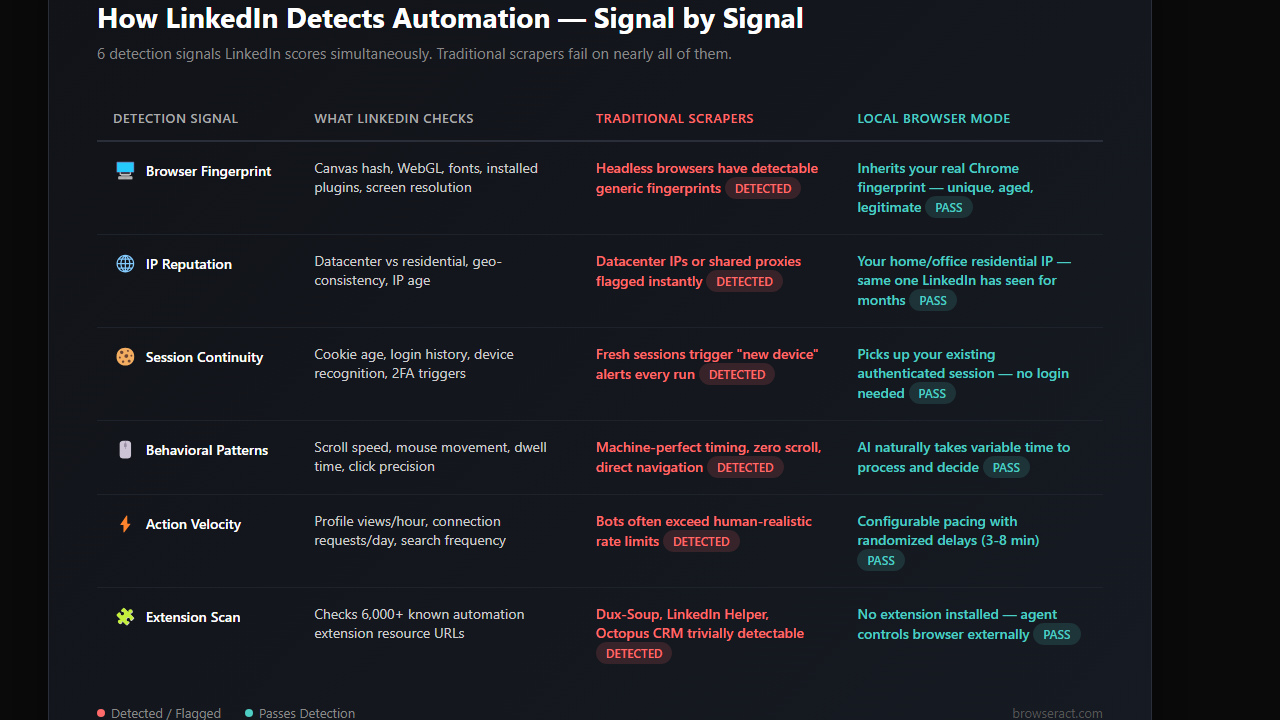
Here's the fundamental problem with every approach above: they all create a new browser environment. A new identity. A blank slate that LinkedIn immediately recognizes as suspicious.
But what if the AI agent could use the browser you're already logged into?
Not a headless browser pretending to be you. Not a cloud instance with your credentials pasted in. Your actual Chrome. With your actual cookies. Your actual browsing history. Your actual fingerprint.
That's what local browser mode does.
How BrowserAct Local Mode Changes the Equation
When you give an AI agent access through BrowserAct's local browser mode, it doesn't create a new browser session. It connects to the Chrome you already have open — the one where you're already logged into LinkedIn with your real profile, your real cookies, and your real browsing history.
From LinkedIn's perspective, nothing changes. The same browser. The same fingerprint. The same IP (your home or office network). The same session that's been active for weeks.
The only difference is who's driving.
Before (traditional automation):
"Send connection requests to 50 SaaS VPs"
→ New browser instance → datacenter IP → fresh login → robotic timing → Account restricted in 48 hours
After (BrowserAct local mode):
"Send connection requests to 50 SaaS VPs"
→ Your real Chrome → your home IP → existing session → human-like pacing → 50 connections sent, zero flags
The Safety Stack: Why Local Mode Doesn't Get You Banned
It's not just about using the right browser. BrowserAct local mode includes multiple layers that keep your account safe:
1. Real browser fingerprint
Your Chrome has a unique fingerprint built from months or years of browsing — installed fonts, canvas rendering, WebGL capabilities, timezone, language settings. BrowserAct inherits all of it. There's nothing to detect because there's nothing fake.
2. Your residential IP
No proxy needed. The agent browses from your actual network. LinkedIn sees the same IP they've seen from your account for months. Geo-consistency: perfect.
3. Session continuity
No fresh logins. No "new device" alerts. The agent picks up your existing authenticated session. To LinkedIn, it's just you using your computer at the normal time.
4. Human-like pacing
The agent doesn't blast through 200 profiles in 10 minutes. It operates with randomized delays, variable scroll behavior, and natural pauses. Not because it's programmed to simulate human behavior — but because the AI agent naturally takes time to process and decide.
LinkedIn Email Scraping: The #1 Reason People Get Banned
Let's talk about the elephant in the room. When most people search for a LinkedIn scraper, they're not just looking for profile data. They want emails. "LinkedIn email extractor," "email finder extension for LinkedIn," "scrape LinkedIn for emails" — these are the actual searches.
And this is where accounts die fastest.
Why LinkedIn Email Scraping Is Different from Profile Scraping
LinkedIn doesn't show email addresses on public profiles. Emails are only visible for:
- 1st degree connections (and only if they've enabled email visibility)
- Contacts you've exported through LinkedIn's own data export
- InMail recipients (premium feature)
So every LinkedIn email scraper and email finder extension for LinkedIn does one of two things:
Option A: Cross-reference with external databases. Tools like Hunter.io, Apollo, or Lusha match LinkedIn profile data (name + company) against their own email databases. This works — but it's the matching you're paying for, not LinkedIn access. And accuracy varies wildly (40-70% match rates are typical).
Option B: Scrape the contact info section. Some LinkedIn email extractors try to access the contact info modal on each profile. This requires being a 1st degree connection and the target having email visibility enabled. The scraping pattern — click profile → open contact info → extract email → next profile — is exactly the behavioral pattern LinkedIn's detection system was built to catch.
The detection math is simple: if your LinkedIn profile scraper visits 200 profiles and opens the contact info section on every single one, LinkedIn knows you're not networking. You're harvesting.
The Local Browser Approach to Email Extraction
An AI agent with local browser access doesn't "hack" LinkedIn's email restrictions. It works within them — but smarter:
1. For 1st degree connections: The agent can open contact info sections at a human pace (10-15 per session, spread over hours) and extract visible emails without triggering rate limits.
2. For profile data enrichment: The agent scrapes name, title, company, and location from LinkedIn — then cross-references against public sources (company websites, GitHub profiles, conference speaker lists) to find emails without touching LinkedIn's contact section at all.
3. For email finder integration: The agent exports structured LinkedIn profile data (name + company domain) that feeds directly into email finder tools like Hunter.io or Apollo — giving them the exact input they need for high-accuracy matching.
The result: you get emails for 60-80% of scraped profiles without the risky behavioral pattern that LinkedIn email scrapers create.
Step-by-Step: LinkedIn Lead Gen with BrowserAct + Local Browser
Here's the actual workflow — from installing the skill to scraping your first batch of leads.
Step 0: Install BrowserAct Skill
Before anything else, add the BrowserAct skill to your AI agent CLI. If you're using Claude Code:
claude install-skill @anthropic/browseract
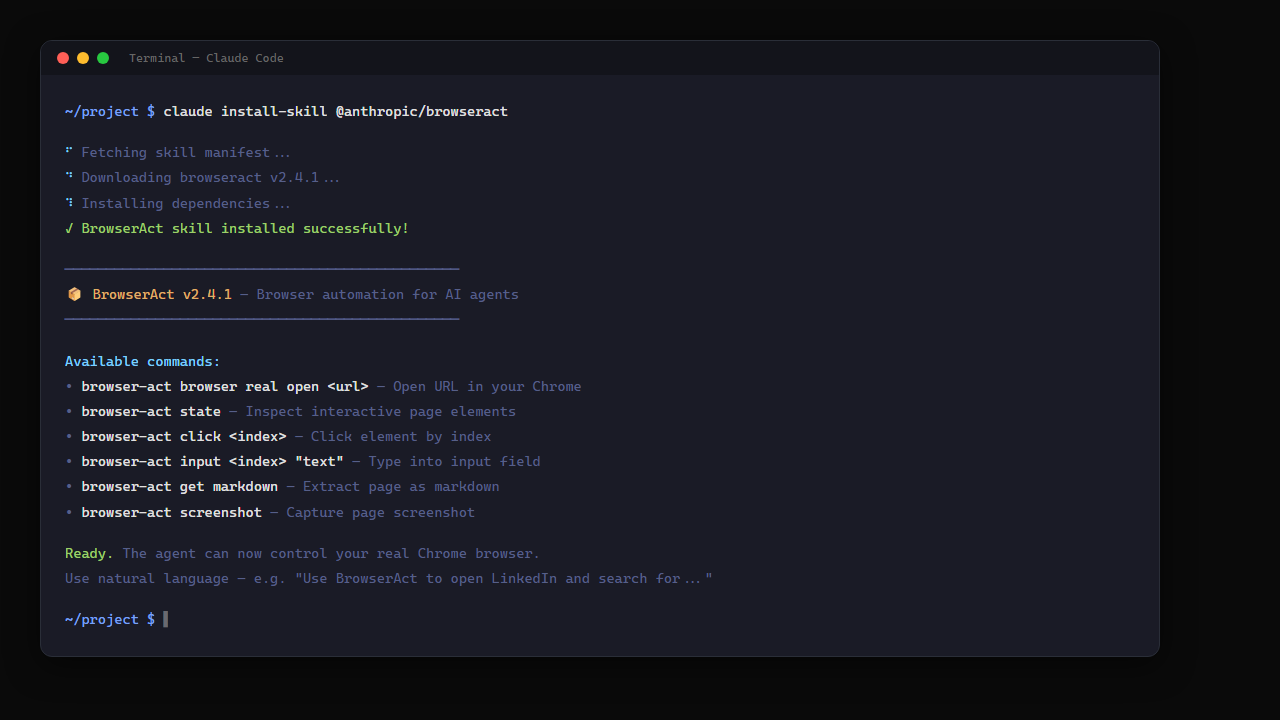
Step 1: Connect to Your Browser and Define Targets
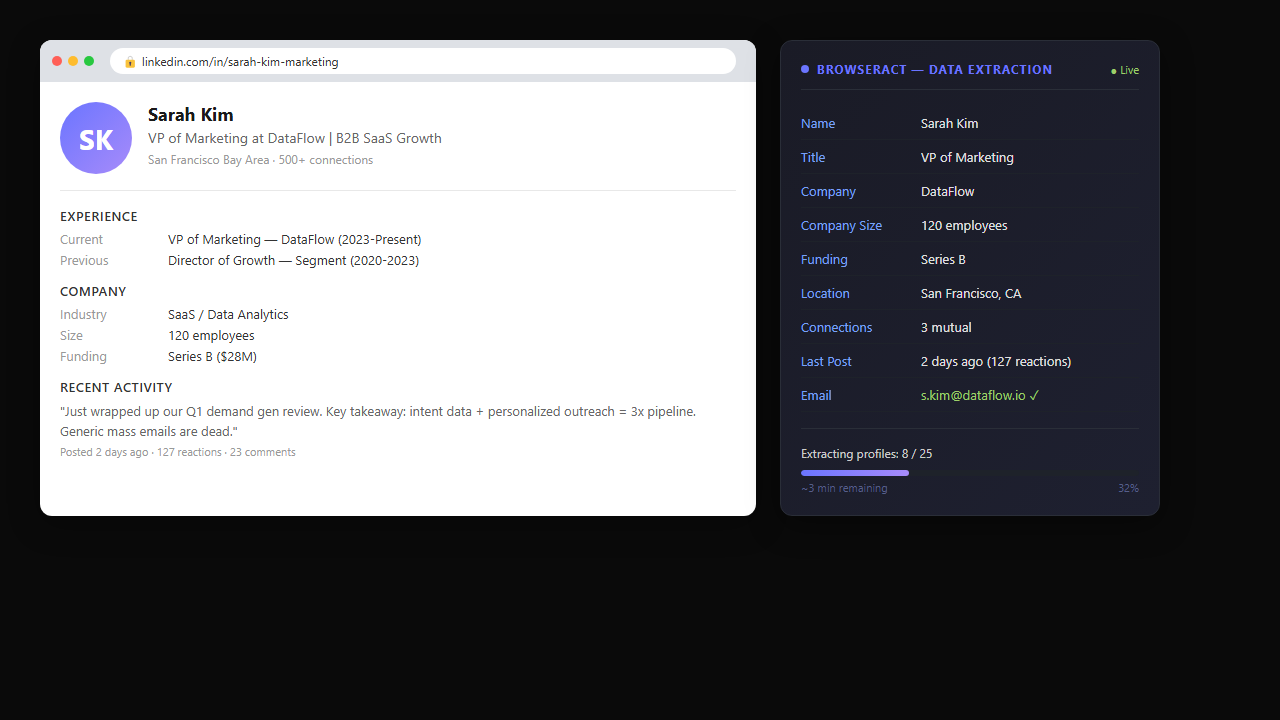
For leads where emails aren't visible on LinkedIn, just keep the conversation going:
"For the leads without emails, search their company websites for contact pages. Also check if they have public GitHub profiles or have spoken at any conferences recently."
The agent stays in your browser, opens new tabs, cross-references — like a research assistant sitting next to you. No separate tool needed. No API call. Just a follow-up instruction.
Step 3: Personalize Outreach at Scale
"Draft a personalized connection request for each lead. Reference their most recent LinkedIn post or a shared interest. Keep it under 300 characters."
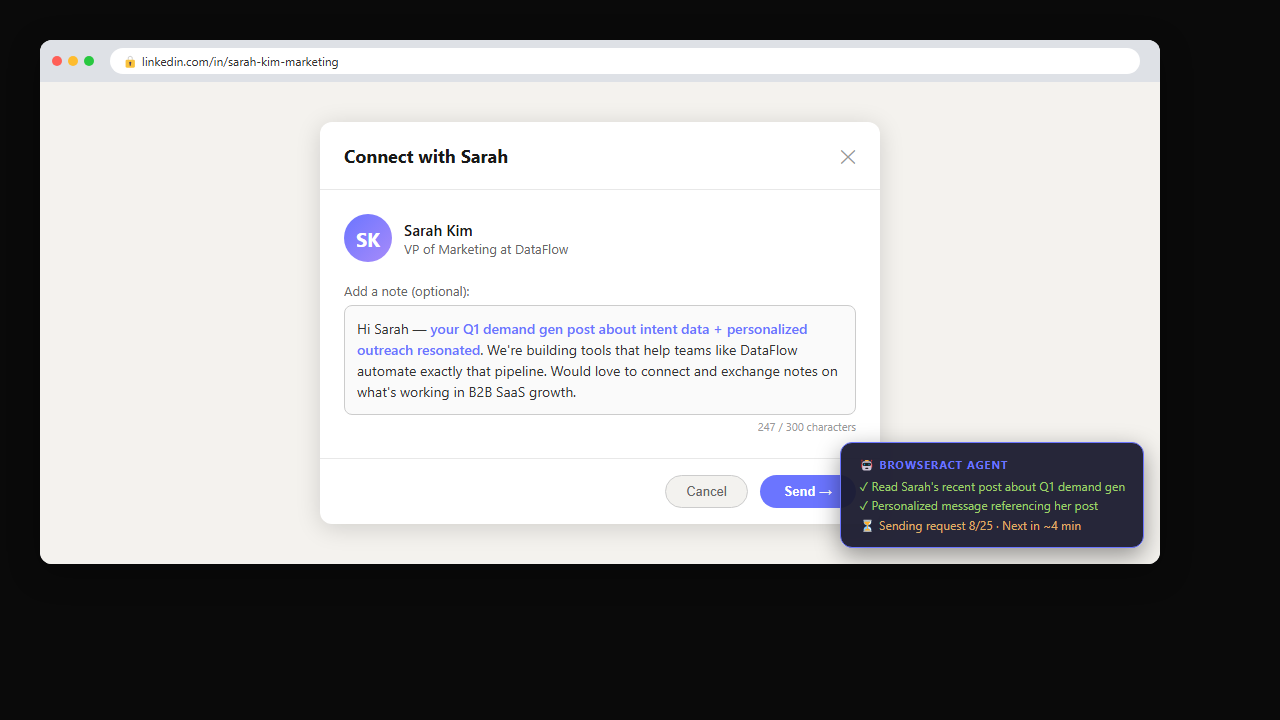
"Check which connection requests were accepted this week. For accepted ones, draft a follow-up message introducing our product."
The agent opens your LinkedIn notifications (same session, same browser), identifies accepted connections, and sends personalized follow-ups.
Scaling Up: When You Need 24/7 LinkedIn Data Scraping
The local browser approach is perfect for daily lead gen — 50-200 profiles per session, personalized outreach, human-paced execution. But what if you need to scrape thousands of LinkedIn profiles across multiple categories, running around the clock?
That's where BrowserAct's cloud scraping workflows come in. Tools like the Google Maps Search API run on BrowserAct's cloud infrastructure — no local browser needed, no rate limit concerns on your personal account, and the ability to cross-reference LinkedIn data with business directories, company databases, and public contact information at scale.
Use local mode when: You're doing personalized outreach (quality over quantity), need to use your Sales Navigator session, or want zero detection risk.
Use cloud mode when: You need bulk data extraction (1,000+ profiles), 24/7 scheduled scraping, or multi-source enrichment pipelines that run independently.
Stop getting blocked. Start getting data.
- ✓ Stealth browser fingerprints — bypass Cloudflare, DataDome, PerimeterX
- ✓ Automatic CAPTCHA solving — reCAPTCHA, hCaptcha, Turnstile
- ✓ Residential proxies from 195+ countries
- ✓ 5,000+ pre-built Skills on ClawHub
LinkedIn Automation: Safety Limits You Must Follow
Even with local browser mode, LinkedIn has limits. Respecting them is the difference between sustainable automation and account restriction.
Action | Safe Daily Limit | Aggressive (Risky) | With Sales Navigator |
Profile views | 80-100 | 150+ | 200-250 |
Connection requests | 25-30 | 50-80 | 50-80 |
Messages (to connections) | 50-70 | 100+ | 100-150 |
Search pages | 30-50 | 100+ | Unlimited |
InMails | N/A | N/A | 50/month |
- Never exceed 50% of your daily limit in one session
- Spread activity across 4-6 hours, not all at once
- Skip weekends (or reduce volume by 70%)
- If LinkedIn shows a "security verification," stop immediately and resume the next day
- Warm up new accounts over 2-3 weeks before any automation
Choose the safest starting point for a LinkedIn workflow
Keep the first run read-only and authorized. Use the CLI for a local signed-in session, Skills for a reusable pattern, or a managed Bot only after the limits and review steps are clear.
Give your agent a browser
Use a real local browser session for read-only inspection without rebuilding login state.
Install BrowserAct CLI →Build with BrowserAct
Run an approved recurring collection workflow with explicit limits, evidence, and review.
Build your Bot →Start from a reusable workflow
Start from a reusable Skill for a narrow, reviewed LinkedIn research workflow.
Browse BrowserAct Skills →BrowserAct vs Traditional LinkedIn Scraper Tools
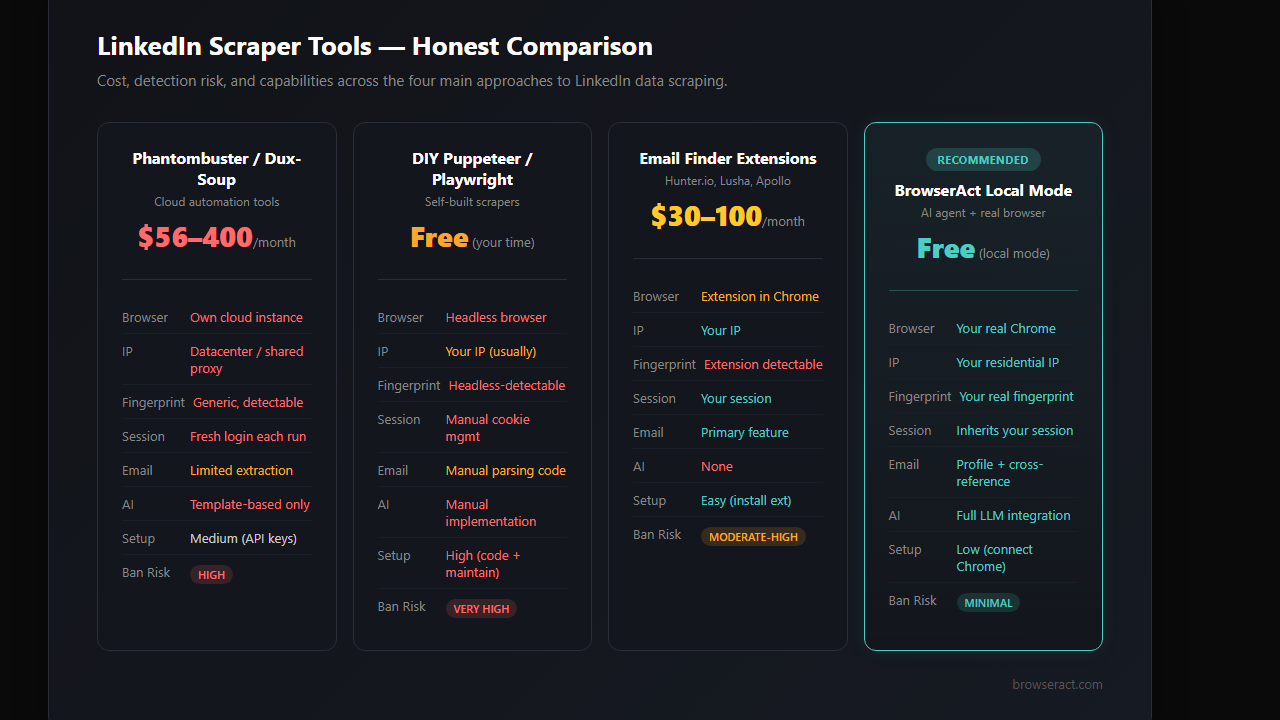
Feature | Phantombuster / Dux-Soup | DIY (Puppeteer/Playwright) | Email Finder Extensions | BrowserAct Local Mode |
Browser type | Own browser instance | Headless browser | Browser extension | Your real Chrome |
LinkedIn web scraping | ✅ Cloud-based | ✅ Code required | ❌ Email only | ✅ Full profile + email |
Email extraction | ⚠️ Limited | ⚠️ Manual parsing | ✅ Primary feature | ✅ + cross-reference enrichment |
IP address | Datacenter/shared proxy | Your IP (usually) | Your IP | Your residential IP |
Fingerprint | Generic/detectable | Headless-detectable | Extension-detectable | Your real fingerprint |
Session handling | Fresh login each time | Manual cookie management | Your session (but flagged) | Inherits your session |
LinkedIn detection risk | High | Very High | High (extension scan) | Low |
Setup complexity | Medium (API keys, config) | High (code, maintenance) | Low (install) | Low (connect to Chrome) |
Cost | $56-400/month | Free (but time-intensive) | $30-100/month | Free (local mode) |
AI-powered personalization | Limited templates | Manual implementation | ❌ | Full LLM integration |
Account ban risk | Moderate-High | High | Moderate-High | Minimal |
The fundamental difference: every other LinkedIn scraper — whether it's Phantombuster, a Puppeteer script, or an email finder extension — either creates a detectable browser environment or gets flagged by LinkedIn's extension scanning. BrowserAct is your real browser, with an AI agent doing the scraping.
Who Should Use This Approach?
B2B sales teams who need to scale outreach beyond what's humanly possible with 1-2 hours of daily LinkedIn time.
Startup founders doing their own outbound — you know the ICP, but connecting with 500 prospects manually takes weeks.
Growth hackers running multi-channel campaigns where LinkedIn is one of 5 platforms that need attention simultaneously.
Recruitment agencies sourcing candidates across multiple roles and industries — the search-extract-reach out loop is the same, just with different criteria.
Not for: Mass spamming, scraping entire industries, or any approach that treats LinkedIn connections as a numbers game. If your outreach isn't something you'd personally send, the local browser mode won't save you from LinkedIn — or from being that person everyone ignores.
Conclusion
The LinkedIn scraper market is full of tools that solve the wrong problem. They focus on volume — scrape more profiles, extract more emails, send more requests. But LinkedIn's detection has evolved past volume limits into behavioral analysis. It doesn't just count what you do. It watches how you do it. Every LinkedIn email extractor, every profile scraper extension, every headless browser script — they all create detectable patterns.
Local browser mode flips the approach. Instead of building a better disguise, it removes the need for one. The AI agent operates through your real browser, with your real identity, at a human pace. LinkedIn doesn't detect it because there's nothing to detect.
If you're spending 2 hours a day manually scraping LinkedIn for leads — or worse, paying $56-400/month for a LinkedIn scraper that's slowly getting your account flagged — BrowserAct's local mode is the approach worth testing. It's free to start, takes minutes to set up, and your LinkedIn account stays exactly where it should: active, unrestricted, and yours.
Automate Any Website with BrowserAct Skills
Pre-built automation patterns for the sites your agent needs most. Install in one click.
Build a LinkedIn research agent with reviewable evidence.
Use the correct logged-in browser, collect only the requested data, keep source URLs, and stop on authentication or account warnings.
Further reading: LinkedIn research
Frequently Asked Questions
Can I scrape LinkedIn without getting banned?
Yes, if your LinkedIn scraper uses your real browser with local mode and stays within daily limits (80-100 profile views, 25-30 connection requests per day).
Is LinkedIn web scraping legal?
LinkedIn's ToS prohibit automated scraping, but the 2022 hiQ Labs ruling affirmed that scraping public data is not a federal crime. Using AI with your real browser falls in a gray area similar to browser extensions.
Can I use this as a LinkedIn email extractor?
For 1st degree connections with visible emails, yes. For others, the agent scrapes profile data and cross-references external sources for email enrichment — safer than direct LinkedIn email scraping.
How many LinkedIn profiles can I scrape per day?
Safely 80-100 profile views per day on a free account, 200-250 with Sales Navigator. This yields 500-600 enriched leads per month.
Does BrowserAct local mode work with LinkedIn Sales Navigator?
Yes — the agent uses your existing Sales Navigator session with all premium filters and extended profile views available.
What's the difference between BrowserAct and Phantombuster as a LinkedIn scraper?
Phantombuster runs its LinkedIn profile scraper in a cloud browser with datacenter IPs. BrowserAct local mode uses your real Chrome with your real cookies, which LinkedIn can't distinguish from normal usage.
Do I need coding skills to set this up?
No. BrowserAct local mode connects to your existing Chrome browser. You give the AI agent natural language instructions — no scripts, no API keys, no configuration files.
Is this better than a LinkedIn email finder extension?
LinkedIn actively scans for 6,000+ known automation extensions. Email finder extensions are detectable before you even use them. Local browser mode has no extension to detect. ---


