

SourceForge Project Search Scraper is a BrowserAct Bot template for collecting structured open source project records from public SourceForge directory search results. Configure a keyword and result count, then run the Bot to return ranked project metadata for software discovery, competitive research, ecosystem monitoring, developer tooling, or automation workflows.
What Does BrowserAct SourceForge Project Search Scraper Do?
This template opens SourceForge directory search for your keyword, filters real open source project cards from sponsored or ad cards, follows pagination when needed, and returns one structured record per project.
Key Features
- Extract public SourceForge directory results without requiring a login.
- Capture rank, project name, project URL, summary, description, last updated date, weekly download count, optional visible metadata, and search keyword.
- Configure base URL, keyword, and count.
- Exclude sponsored or ad cards from the project results.
- Continue through SourceForge result pages until the requested count is reached.
What Data Can I Extract from SourceForge?
| Field | Description |
|---|---|
rank |
Search result position assigned by the Bot across collected project cards. |
project_name |
Open source project name. |
project_url |
Public SourceForge project URL. |
summary |
Short project subtitle shown on the result card. |
description |
Longer description shown on the result card. |
categories |
Categories or tags when visible. |
operating_systems |
Operating system information when visible. |
license |
License information when visible. |
last_updated |
Last updated date shown by SourceForge. |
download_count |
Download count shown on the result card. |
rating |
Rating when visible. |
review_count |
Review count when visible. |
search_keyword |
Keyword used for the run. |
How to Use SourceForge Project Search Scraper
- Click Run task.
- Enter the SourceForge base URL.
- Enter a software category, project type, technology, or use-case keyword.
- Set how many project records to collect.
- Run the Bot and review the structured SourceForge project results.
- Reuse the Bot with another keyword or connect the output to your workflow.
Input Parameters
| Parameter | Required | Default | Description |
|---|---|---|---|
base_url |
Yes | https://sourceforge.net |
SourceForge base URL without a trailing slash. |
keyword |
Yes | backup |
Search keyword sent as the q parameter. |
count |
Yes | 20 |
Maximum number of project records to return. |
Example Output
The table below uses records preserved from the validated Bot run. Up to the first 5 records are shown, and long values are shortened in this documentation preview.
| rank | project_name | project_url | summary | description | categories | operating_systems | license | last_updated | download_count | rating | review_count | search_keyword |
|---|---|---|---|---|---|---|---|---|---|---|---|---|
| 1 | Backup Tables | https://sourceforge.net/projects/backup-tables.mirror/ | Backup single or multiple database tables with ease | Backup single or multiple database tables with ease. | null | null | null | 2026-06-18 | 0 This Week | null | null | backup |
How Does it Work?
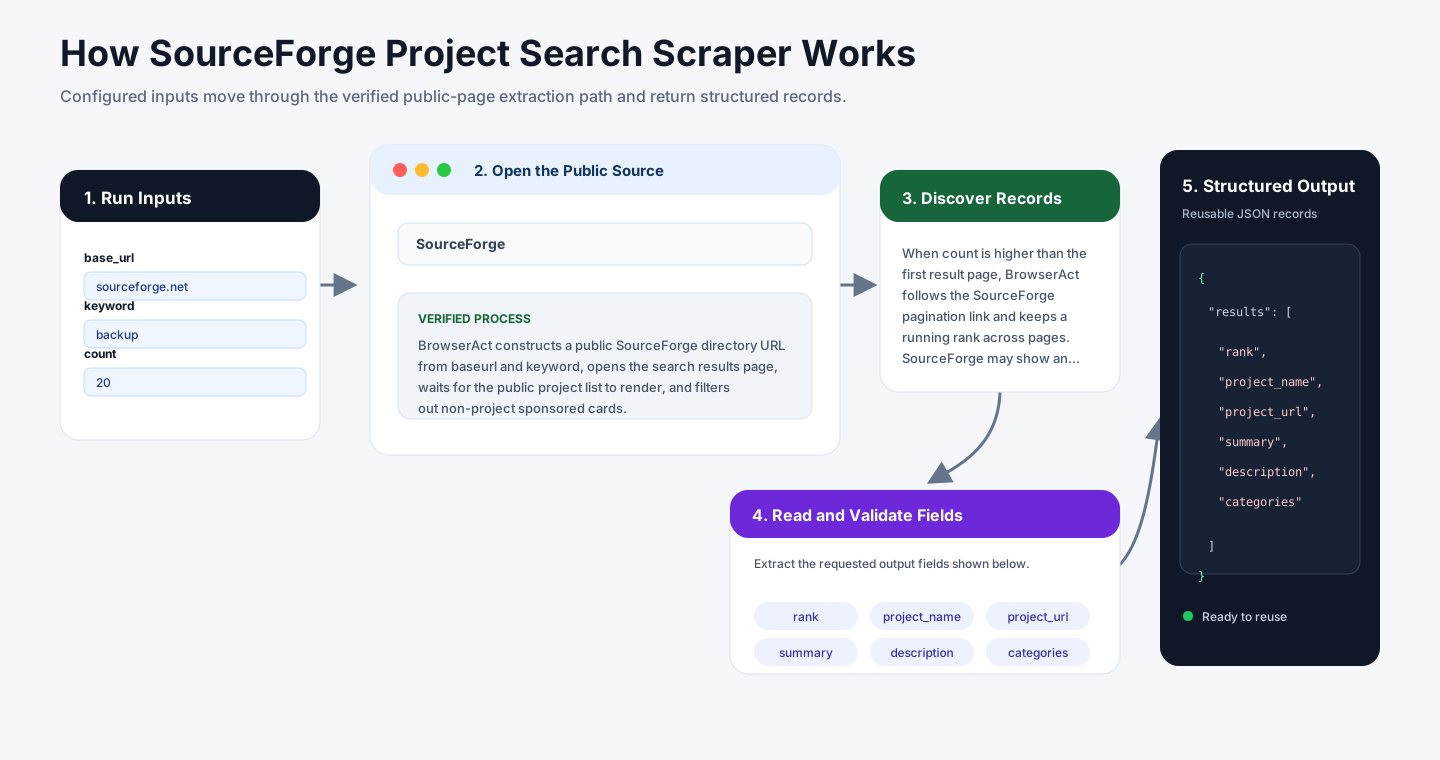
BrowserAct constructs a public SourceForge directory URL from base_url and keyword, opens the search results page, waits for the public project list to render, and filters out non-project sponsored cards. The Bot maps each real project card into a ranked record with project name, URL, summary, description, last updated date, weekly download count, optional visible fields, and keyword.
When count is higher than the first result page, BrowserAct follows the SourceForge pagination link and keeps a running rank across pages. SourceForge may show an automatic verification interstitial on page loads, so larger multi-page runs can take longer than the default one-page run.
How to Build a New Scraper Bot with Agent Built
Step 1: Describe the Data You Need
Open BrowserAct and start Agent Built from the Home prompt box or from Create -> Build with Agent. Paste a clear request that includes the website, the records to collect, the filters or search conditions, the fields to return, the result limit, and the inputs you want to reuse later.
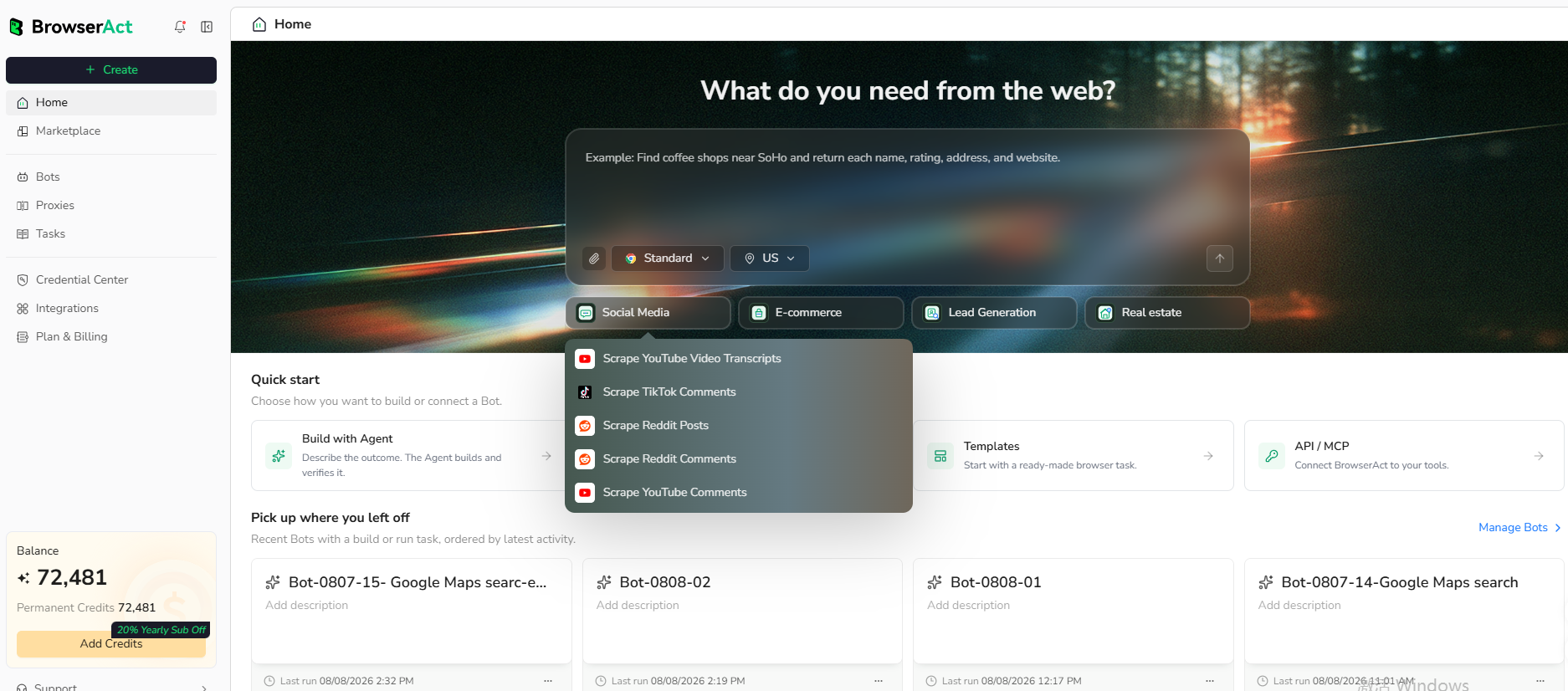
Step 2: Let BrowserAct Build and Test the Bot
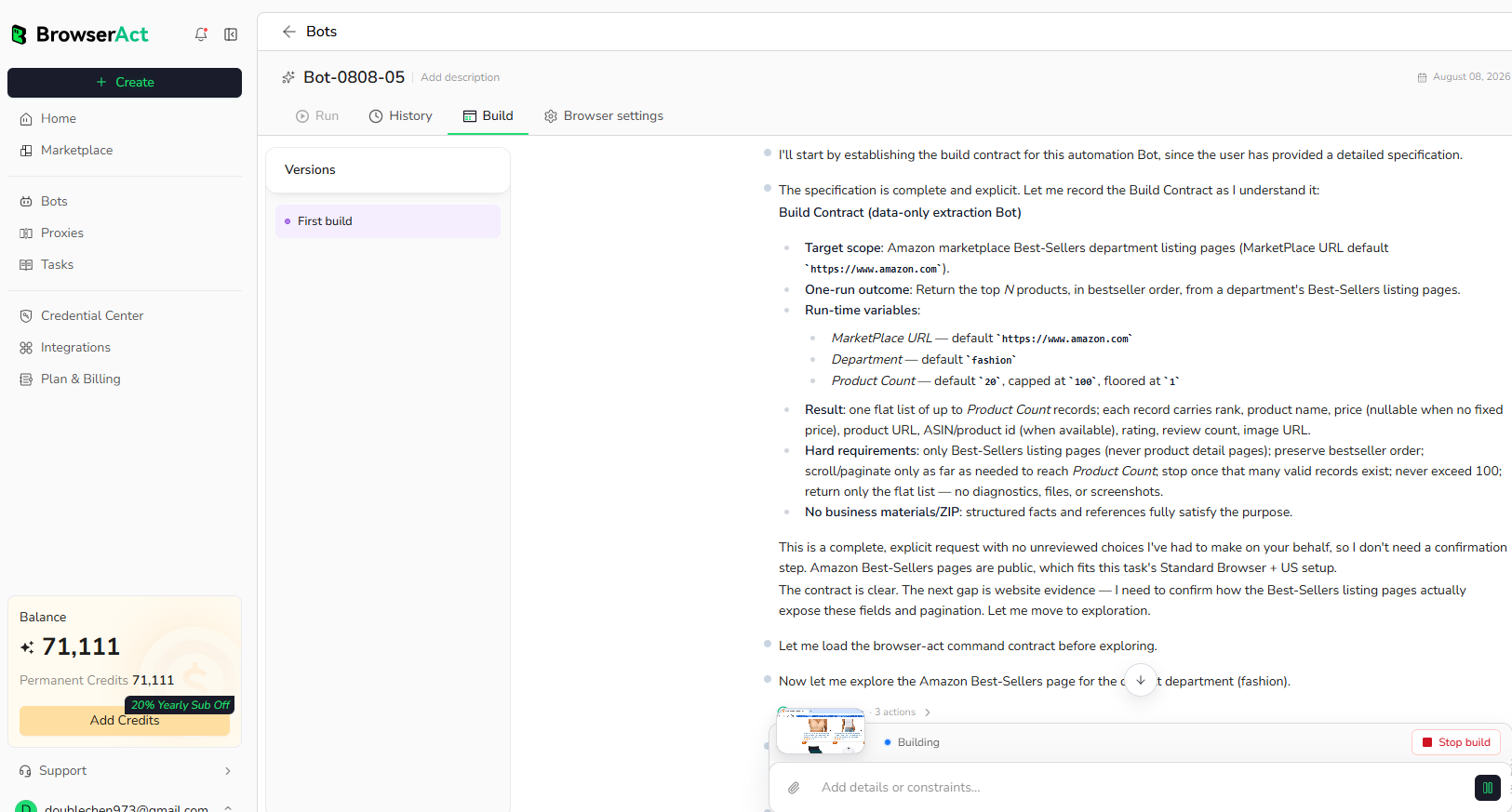
BrowserAct explores the live website, works out the navigation and extraction path, and validates the result. If BrowserAct asks for clarification, reply in the same build conversation with the missing URL, condition, field, example, or expected output.
Step 3: Run the Bot and Review the Result
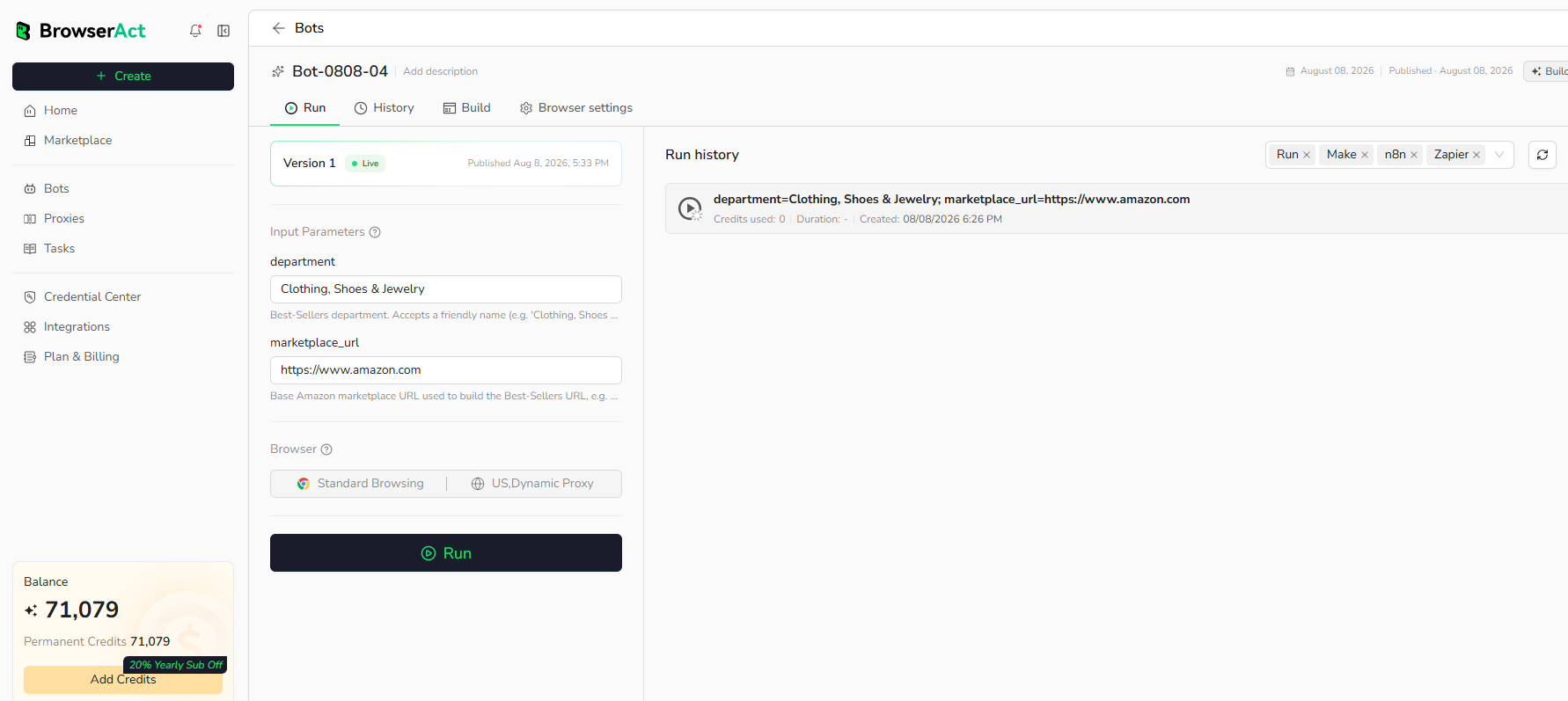
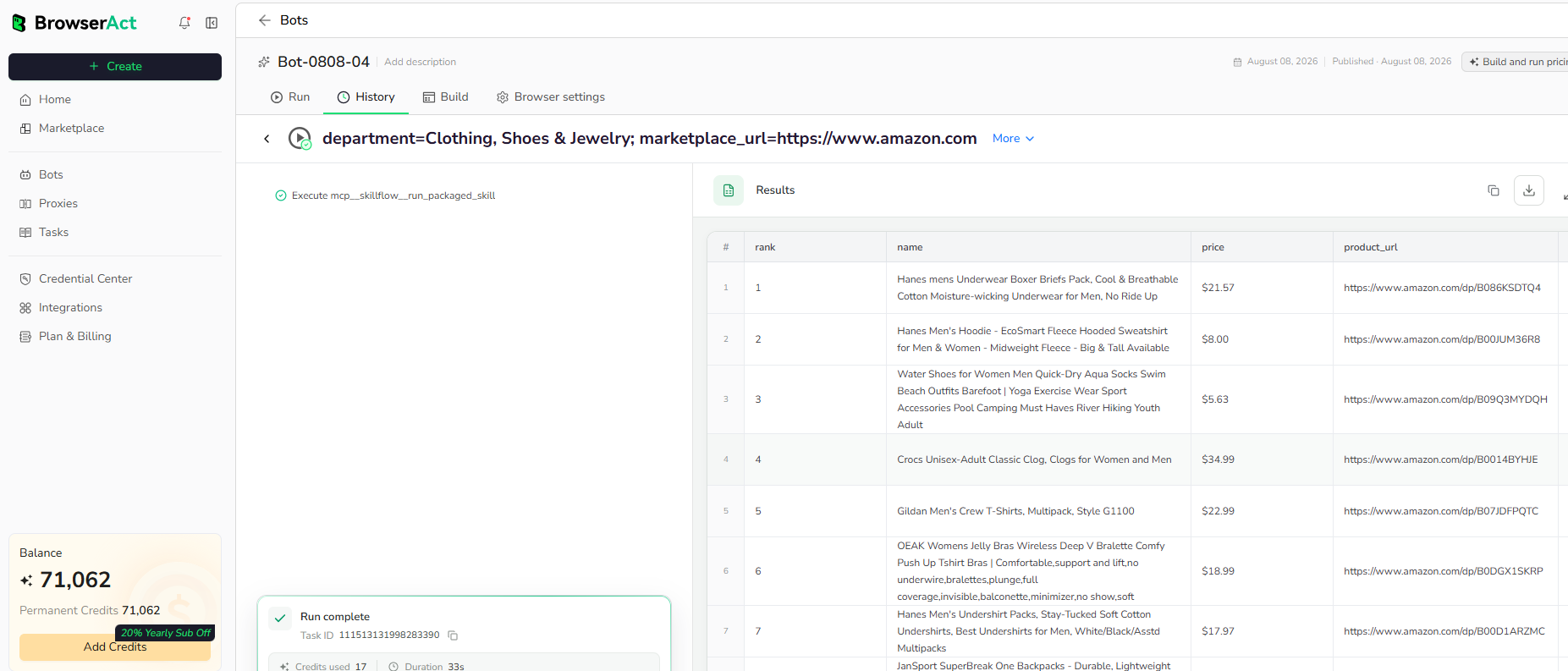
When the build is complete, run the Bot with the default inputs first. Review the structured records, source URLs, missing fields, and row count before reusing the Bot with new inputs or connecting it to another workflow.
Why Scrape SourceForge Project Search Results?
SourceForge search data helps teams discover open source software, compare project activity, monitor software categories, review project candidates, and route project metadata into research reports, software catalogs, dashboards, or agent workflows.
Who Can Use This Template?
- Developers researching open source tools and alternatives.
- Product and market researchers comparing software categories.
- Developer relations teams monitoring open source ecosystem visibility.
- Platform teams building internal software catalogs.
- Automation builders routing project data into spreadsheets, databases, alerts, or agents.
How Many Results Can You Scrape?
Use count to control the number of SourceForge project records returned. SourceForge typically shows 25 project cards per page. Larger runs may take longer because SourceForge can show an automatic verification page on navigation.
Automation and Export
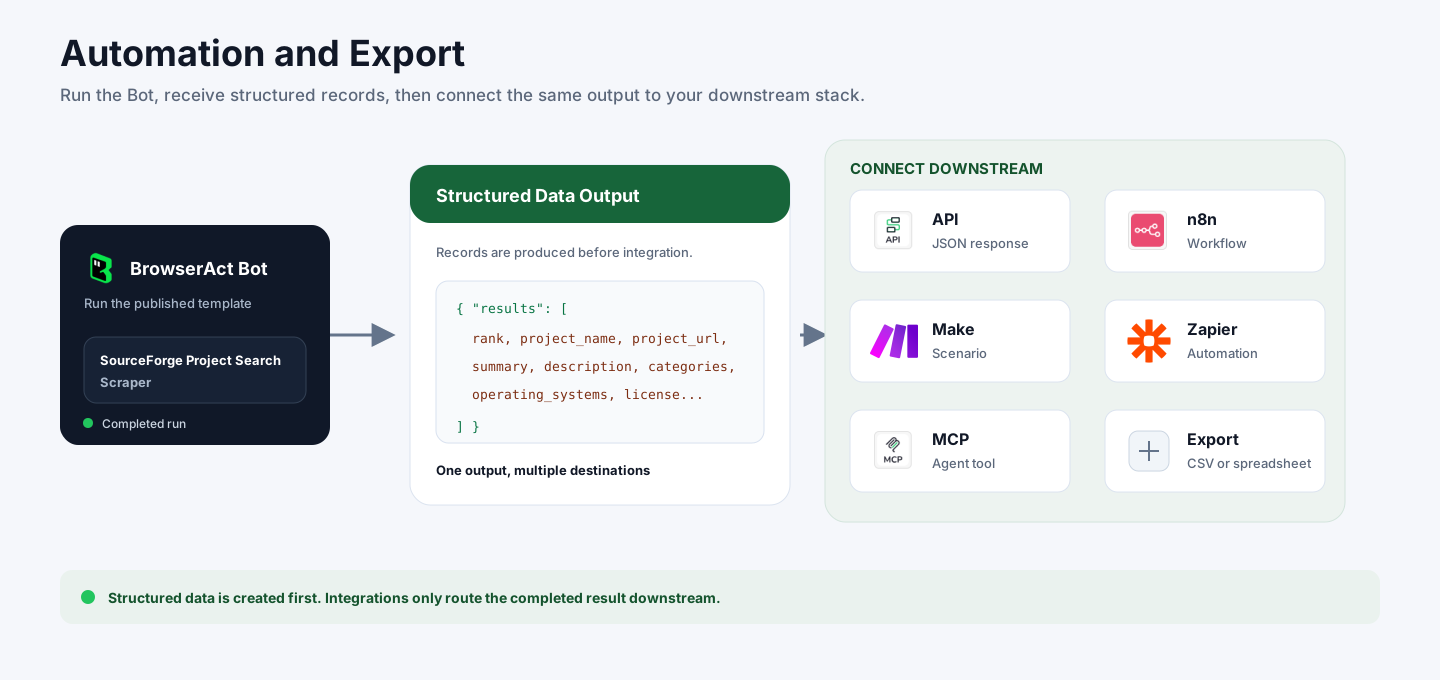
BrowserAct returns structured SourceForge project records first. You can then use the output through API JSON responses, n8n workflows, Make scenarios, Zapier automations, MCP-based agent workflows configured from the Bot's Integrations tab, or manual CSV review.
Need Help?
Contact us at
Discord: Discord Community
E-mail: service@browseract.com
