

What Does BrowserAct LinkedIn Scraper Do?
Collect professional profiles, companies, current employees and jobs in one reusable Bot. Choose one of seven functions for each run, using your own LinkedIn login configured in the Run dialog. The results keep each person, company or job in a separate row for recruiting research, account mapping and job tracking.
Set Up Your LinkedIn Login Before Running
This template requires your own LinkedIn login. Open the Run page, click Run, set your parameters, and continue to Account login. Select a proxy, then configure Account credentials or import cookies for your LinkedIn account before clicking Save & Run.
Key Features of LinkedIn Scraper
- Extract profile details from a list of known personal-profile URLs, including visible experience and education.
- Find people by name, role or skill keywords, with optional location and current-company conditions.
- Discover companies by name, industry or business keywords, then collect details from known company URLs.
- Find current employees at a company and narrow them by role and location.
- Search job listings and collect descriptions, qualification text and visible compensation.
- Extract job details from known links, including the employer's LinkedIn page and application entry.
- Keep experience, education and contact details with their owner, while each distinct business entity occupies its own row.
How to Fill keywords for Each Function
Use only operation, keywords and target_count on Run. Put the search term, company or detail URLs in keywords. Plain search terms and plain company names work without labels. The examples below show how to add optional conditions in the same field.
For labeled searches, query is the search text, location is the location condition, company is the current employer or hiring company, and contact_title is a company-contact title condition. Separate labeled conditions with semicolons. Leave out any condition you do not need; it is not reused from an earlier run.
For people_search, company can match any current role. If a person has multiple current roles, current_position and current_company show the first one listed on the profile. Use company_contacts to collect the current role at a specific company.
Detail functions accept one URL or a batch of URLs in keywords, separated by English commas, English semicolons, spaces or line breaks. Each person, company or job is still returned as a separate record.
operation | keywords Example |
|---|---|
profile_details | https://www.linkedin.com/in/ernabalayan/ |
people_search | query: Engineer; company: Microsoft; location: Redmond |
company_search | software |
company_details | https://www.linkedin.com/company/microsoft/ |
company_contacts | company: Microsoft; contact_title: Engineer; location: Redmond |
job_search | query: Microsoft; location: United States; company: Microsoft |
job_details | https://www.linkedin.com/jobs/view/4482650057/ |
What Data Can I Extract from LinkedIn?
The selected function determines which fields are populated. Person, company and job records share the same field list; fields that do not apply to that entity are null. Experience, education and multiple contact details remain within the corresponding person's row.
Record Type | Typical Data |
|---|---|
People | Names, headlines, current roles, visible experience, education and contact details. |
Companies | Company names, websites, industries, sizes and headquarters. |
Jobs | Job titles, employers, locations, descriptions, qualifications and application links. |
How to Use LinkedIn Scraper
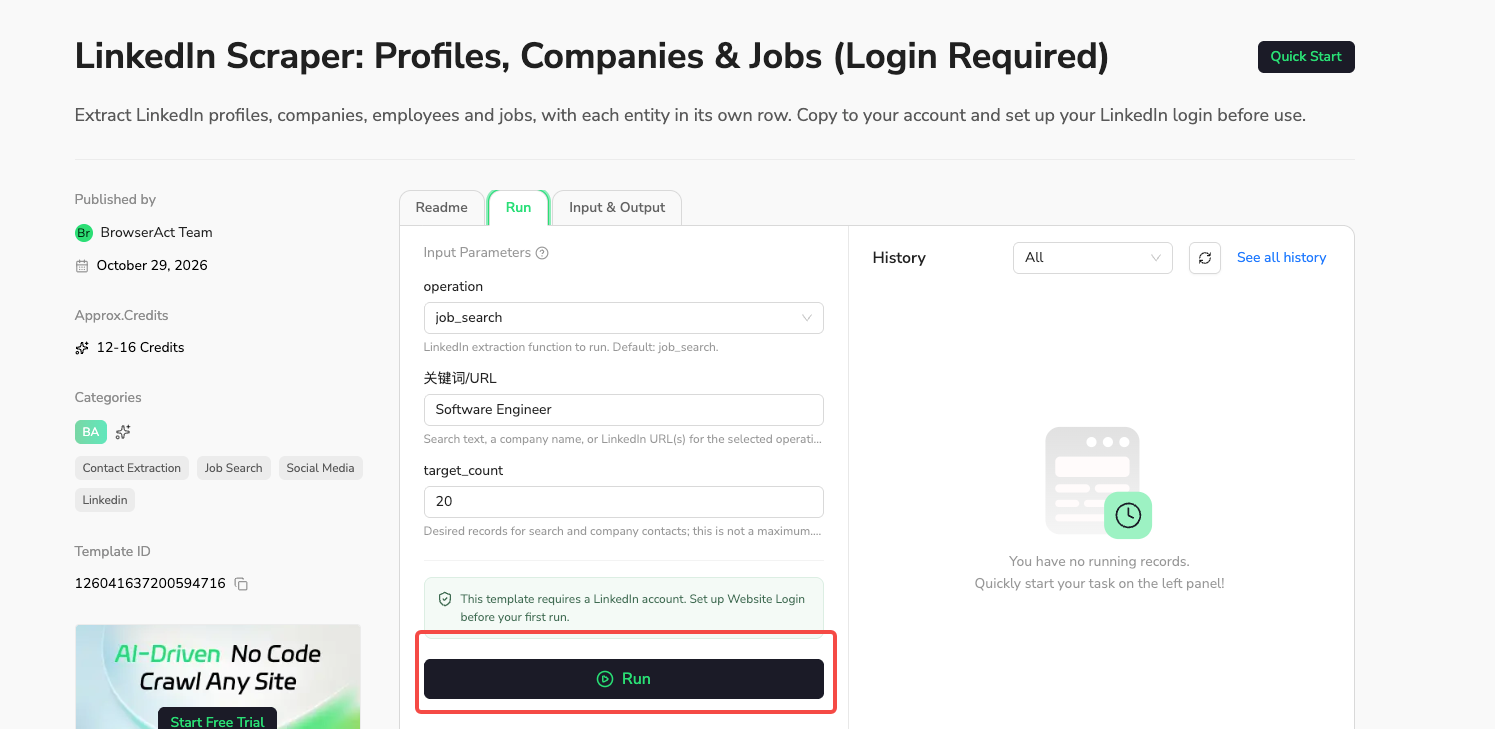
1. Open Run
Open the template’s Run page and click Run.
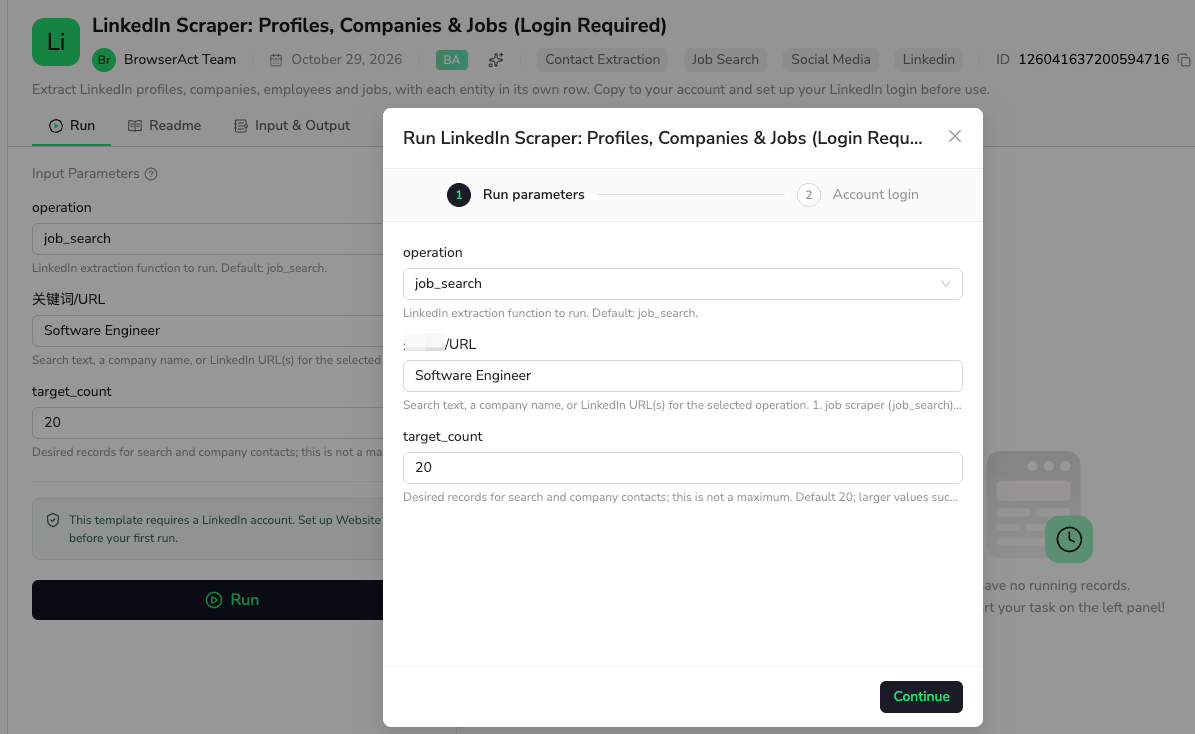
2. Set Run Parameters
Choose operation, enter the search terms or LinkedIn URLs in keywords, and set target_count as needed. Click Continue.
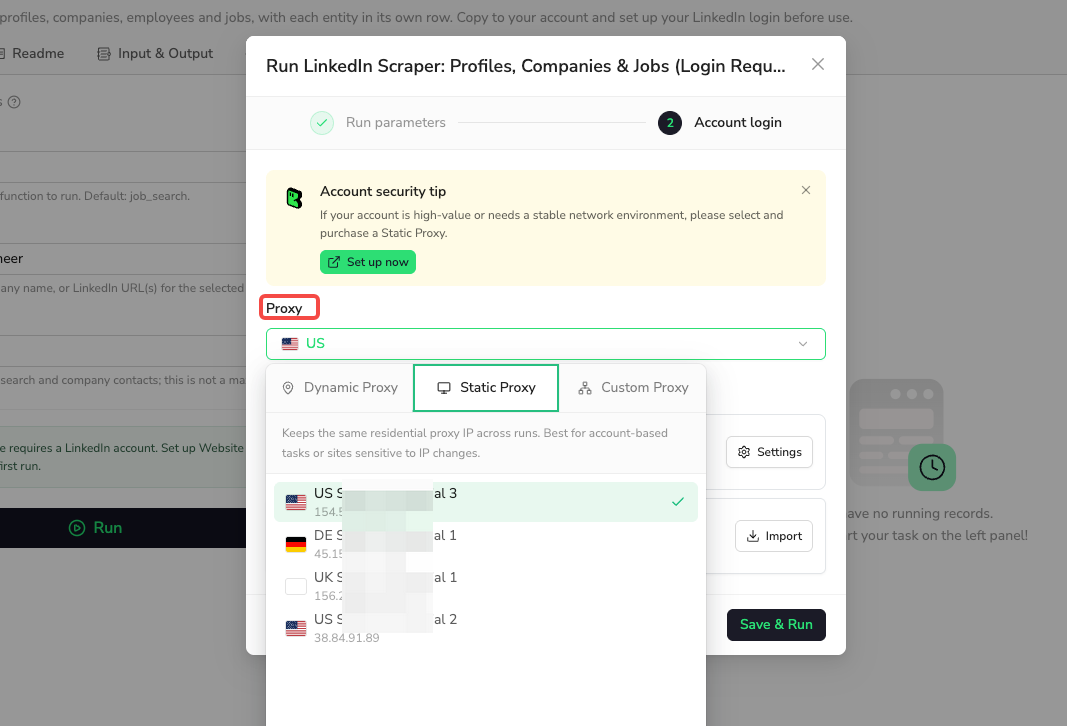
3. Choose a Proxy
Under Account login, select a Proxy. We recommend a Static Proxy to keep the same IP address across runs and help maintain a consistent network environment for your LinkedIn account.
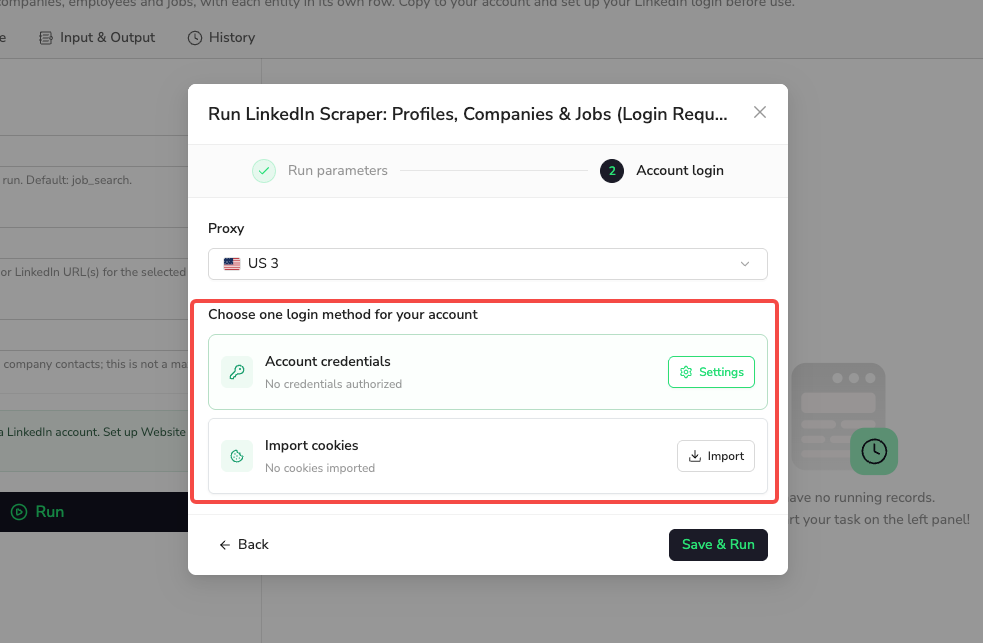
4. Set Up LinkedIn Login
Choose one login method: Account credentials via Settings, or Import cookies via Import. Complete the selected setup, then click Save & Run.
Input Parameters
Parameter | Configuration |
|---|---|
operation | Dropdown. Default: job_search. Select one of the seven LinkedIn functions; one run performs that function. |
keywords | Text. Default: Software Engineer. Enter search terms, a company name or the LinkedIn URLs for the selected function. Optional labeled conditions can be included in this same input; see the examples below. |
target_count | Integer, minimum 1. Default: 20. Desired record count for searches and company contacts, not a fixed maximum. Values such as 50 are supported. Detail functions process all supplied URLs instead. |
Example Input: Job Details
For this example, select job_details in operation and put the LinkedIn job URL in keywords. Detail functions process the supplied URLs; target_count is used for searches and company contacts.
Parameter | Example Value |
|---|---|
operation | job_details |
keywords | https://www.linkedin.com/jobs/view/4482650057/ |
Example Output: Job Details
Below is one job record, showing the fields relevant to this example. Long text is shortened for readability. Each job has its own result row; the complete output structure is listed in Input & Output.
Field | Result |
|---|---|
linkedin_url | https://www.linkedin.com/jobs/view/4482650057/ |
job_title | Controls Software & Standards Lead |
hiring_company | Henshaw, Inc |
company_url | https://www.linkedin.com/company/henshaw |
job_location | Armada, MI |
work_mode | On-site |
job_type | Full-time |
posted_date | 2026-10-24 |
salary | null |
job_description | Controls Software & Standards LeadHenshaw | Armada, MI | Full-TimeHenshaw is seeking a Controls Software & Standards Lead Programmer to lead controls software development, strengthen programming standards, and improve the engineering tools used to deliver automation projects. Thi ... |
requirements | Required Qualifications |
apply_url | mailto:jpoppe@henshawusa.com |
status | complete |
How Does It Work?
- Use the LinkedIn access configured on your personal Bot.
- Read the supplied detail URLs or search LinkedIn using the selected function and conditions.
- Collect the fields visible to your account and keep related information with the correct person, company or job.
- Return separate entity records and preserve usable rows if part of a batch cannot be completed.
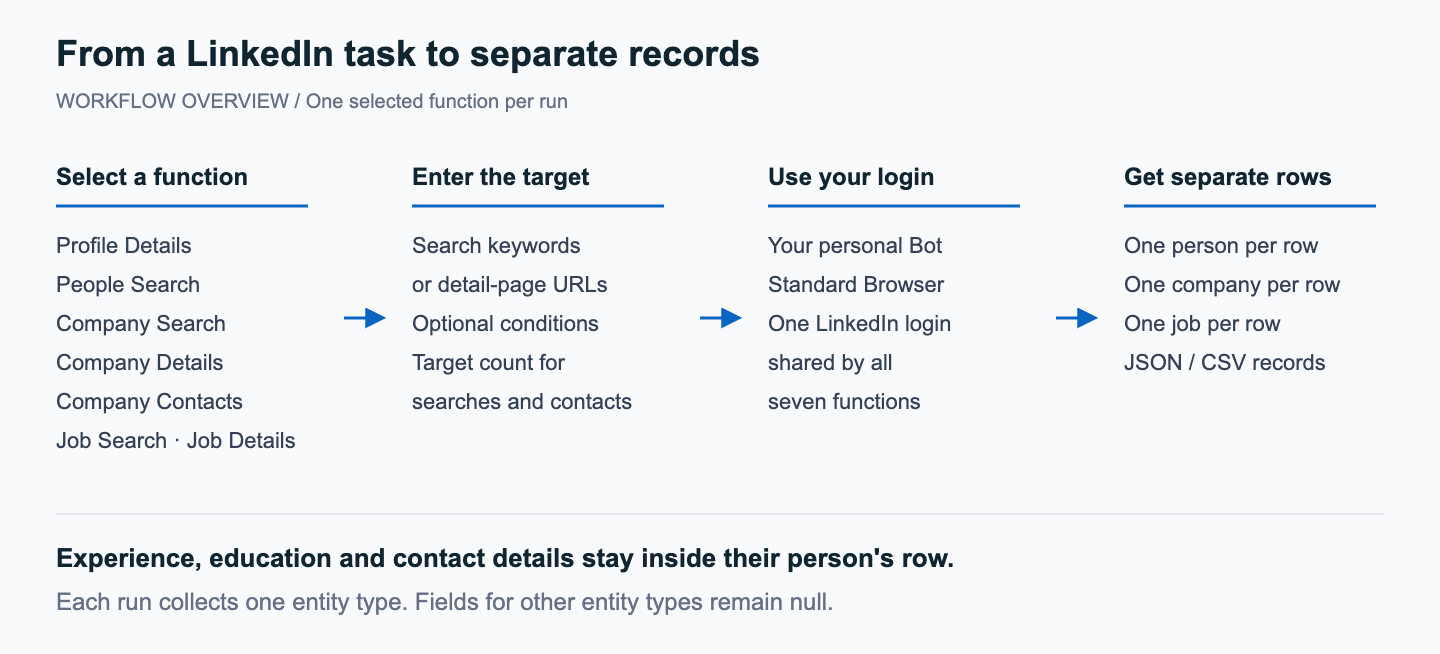
Choose one function per run; each person, company or job remains a separate record.
How to Build a New Scraper Bot with Agent Built
- Describe the LinkedIn records and fields you need in BrowserAct, including the account access required for the task.
- Let BrowserAct build and test the Bot; complete your own login when requested.
- Run the completed Bot and review its structured results before connecting it to your tools.
Why Use LinkedIn Scraper?
Keep profile, company and job research in one Bot instead of maintaining separate login setups for every function. Collect records for your own comparisons and follow-up work; evaluation and outreach decisions remain with your team.
Who Can Use LinkedIn Scraper?
- Recruiting teams organizing candidate profiles and tracking relevant jobs.
- Sales and partnership teams mapping companies and current employees.
- Researchers compiling company information or comparing public job requirements.
- Agent builders using their own authenticated Bot as a reusable data tool.
How Many Results Can You Scrape?
For search and company-contact functions, target_count defaults to 20 and represents the quantity you want, not a fixed maximum. You can request 50 or another positive integer. The final quantity depends on matching records and the access available to your account. The Bot explains a shortfall rather than adding unrelated or invented records.
Detail functions process the supplied profile, company or job URLs. Repeated canonical URLs are deduplicated. Each resulting entity remains a separate record; an individual's experience or education does not become a separate person row.
Automation and Export
Download JSON or CSV to use the records in your own research tools. For applications, use the API options available on your published personal Bot; BrowserAct's integration guides cover connections to n8n, Make and Zapier. Your personal Bot must have its own working LinkedIn login.
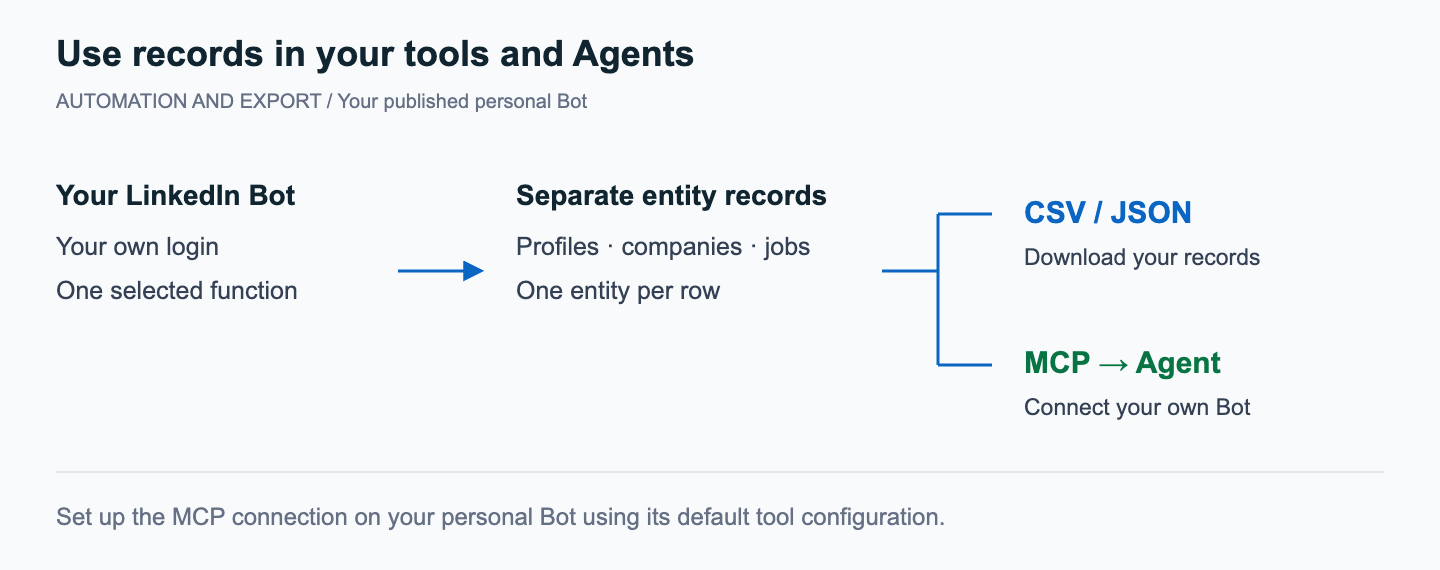
Download your records or connect your published personal Bot to an Agent through MCP.
Connect Your Personal Bot to an Agent with MCP
After signing in and publishing your personal Bot, open Integrations > MCP Server, expose your Bot, and use Connect to Clients to connect your Agent. Keep the default generated tool configuration; use the server URL and matching key from your own MCP Server.
Need Help?
Contact BrowserAct support if you need help setting up your personal Bot or choosing the right function. Describe the data you need and the issue you see, without sharing passwords, verification codes or API keys.
