

Copy to Your Account and Log In Before Use
Create an editable personal copy, connect your own Instagram account and run it. Use Standard Browser with your own Static Proxy. Website login supports account credentials, cookie import and manual login. Follow the step-by-step setup guide below. The shared template contains no publisher login session or credential authorization.
Start with Create Editable Duplicate, not Quick Start or Run on this shared page. The shared-page runner uses a Rotating Browser and does not provide Website login setup. It cannot use the Instagram session saved in your personal Bot. Complete the setup below, then select Run inside your personal copy. If you already have a configured copy, open it from Bots instead of running this shared template again.

What Does BrowserAct Instagram Followers Export Tool Do?
Export follower lists that Instagram makes visible to your signed-in account as a flat CSV and structured JSON, for up to five target profiles. Collect follower usernames, profile links, display names, profile images and observed verification or privacy flags for audience research and account-list organization. Run your personal copy with your own login and fixed IP; API and automation connections are configured on that personal Bot after login.
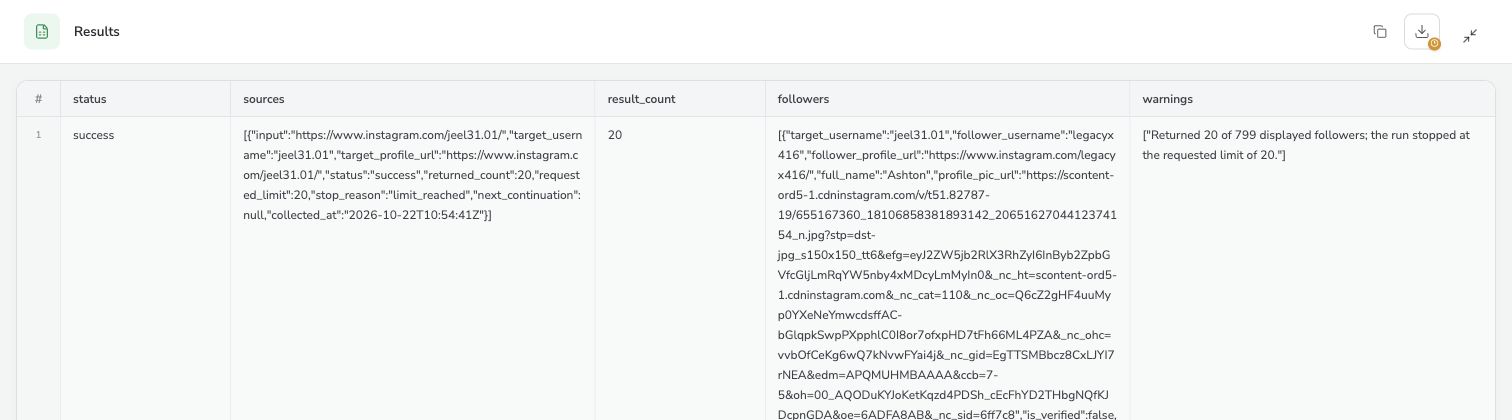
Real Export Example: 20 Followers from jeel31.01
On October 22, 2026, we ran this template against @jeel31.01 with a requested limit of 20. The run returned 20 unique follower records across 9 fields. The CSV and JSON records matched field by field. This is actual test output, not demonstration data.
- Result: 20 requested, 20 exported; no duplicate follower records.
- Observed run: 49 seconds and 12 BrowserAct credits. Runtime and cost vary by request and website conditions.
- Sample record: @legacyx416 — display name Ashton, with its profile link, observed flags, account ID and collection timestamp in the file.
Download the Real Example Excel (.xlsx · 20 Followers)
Open the English-language workbook to inspect all 20 rows and nine fields. The preview below shows seven rows from that same file, with English column headings for follower usernames and display names. Observed account names are retained as collected.
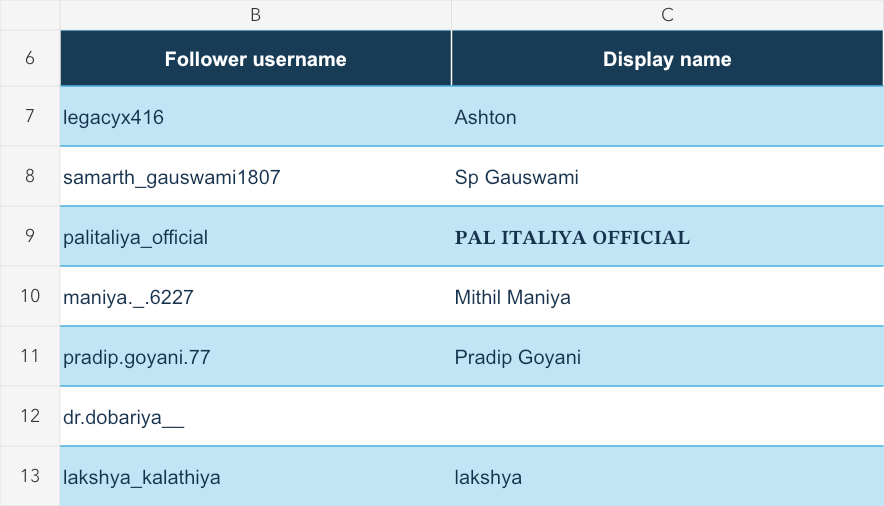
About this download: the Bot produces followers.csv and result.json. We prepared this Excel workbook from those files for easier review; Excel is the downloadable case study, while CSV and JSON are the runtime export formats. The target displayed 799 followers during the test, and this run intentionally requested 20. The sample does not represent its complete follower list.
Key Features of Instagram Followers Export Tool
- Accept usernames, @usernames or profile links, and remove duplicate targets.
- Set a separate result limit for each target and paginate through the visible follower list.
- Keep the target username on every row and remove duplicate followers within each target.
- Keep usable target results when another target is invalid or restricted.
- Download a flat CSV and a JSON record of outcomes and warnings.
What Data Can I Extract from Instagram?
| Field | Meaning |
|---|---|
| target_username | Target account whose visible follower list was read. |
| follower_username | Observed follower username. |
| follower_profile_url | Instagram profile link derived from the observed username. |
| full_name | Display name, or null when unavailable. |
| profile_pic_url | Observed profile-image URL; links may expire. |
| is_verified | Observed verification flag, or null when unavailable. |
| is_private | Observed follower privacy flag; this does not permit private-content access. |
| follower_id | Observed Instagram account ID, or null when unavailable. |
| collected_at | UTC collection timestamp. |
Only fields exposed in the native follower list are exported. A target being private does not grant access; Instagram must actually make its follower rows available to your session. A follow request or visible follower count is not proof of access. The Bot does not request to follow accounts or open private posts, and it does not collect email addresses, phone numbers, biographies or messages.
How to Use Instagram Followers Export Tool
Create an editable copy, save Standard Browser and your own Static Proxy, connect Instagram using one of the three Website login methods, then run the personal Bot with your target and limit. See How Does it Work? for the complete walkthrough with screenshots, success checkpoints and first-run troubleshooting.
Input Parameters
| Parameter | Type | Default | Meaning |
|---|---|---|---|
| usernames | Text | natgeo | One to five usernames, @usernames or Instagram profile links. The follower list must be visible to your signed-in account. Separate with a newline, comma, Chinese comma or semicolon. Duplicates are removed. |
| results_limit | Integer | 20 | Requested maximum unique followers per target, 1–1,000. The default 20 is a configurable request size, not an Instagram access rule. Instagram may expose fewer; this is not a full-list guarantee. |
Example Output
This example shows one follower record. Long values are shortened for readability; downloadable files retain their original values.
| Field | Result |
|---|---|
| target_username | jeel31.01 |
| follower_username | legacyx416 |
| follower_profile_url | https://www.instagram.com/legacyx416/ |
| full_name | Ashton |
| profile_pic_url | https://scontent-ord5-1.cdninstagram.com/v/t51.82787-19/655167360_18106858381893142_2065162704412374154_n.jpg?stp=dst-jpg_s150x150_tt6&efg=eyJ2ZW5j… |
| is_verified | false |
| is_private | false |
| follower_id | 26663685141 |
| collected_at | 2026-10-22T12:08:10Z |
Files and per-target outcomes
The downloadable ZIP contains followers.csv and result.json. CSV has one follower per row. JSON also contains overall status, source outcomes, requested and returned counts, stop reasons and warnings. Failed targets do not produce placeholder follower rows.
Statuses distinguish success, partial, no_results, auth_required, access_restricted, rate_limited, invalid_input and failed. A login problem or inaccessible follower list is never reported as an empty successful export. The runtime may stop with a login-required notice before producing files.
How Does it Work?
Follow this walkthrough in your personal Bot. After copying the template, connect your browser and Instagram account, then run the existing Bot. You can complete setup without rebuilding its extraction logic.
Before you start
Sign in to BrowserAct and make sure your account has enough credits and an active Static Proxy available. If you need to purchase one, follow the Static Proxy guide and the options shown in your dashboard. Have access to the Instagram account you plan to use, including any verification it requires.
Step 1. Copy this template into your account
Do this before starting a task: select Create Editable Duplicate on the template page. Quick Start and the shared page’s Run tab do not open your personal Bot or its saved login. A shared-page task without authorized Instagram access stops with a login-required error; copying and configuring your personal Bot is the setup path for this template.
- Open this template page while signed in to BrowserAct. At the top, select Create Editable Duplicate. If the page only offers Login or Start Free Trial, sign in and return to this template page.
- Open the newly created Agent Built Bot. You can find it again under Bots in the dashboard. Give it a name you will recognize, such as My Instagram Followers Export.
- Confirm that your copy has Run, History, Build and Browser settings tabs. The copy is independent: its browser, login setup and future edits belong to your account. Publisher cookies, credential authorizations and the publisher’s Static Proxy are not included.
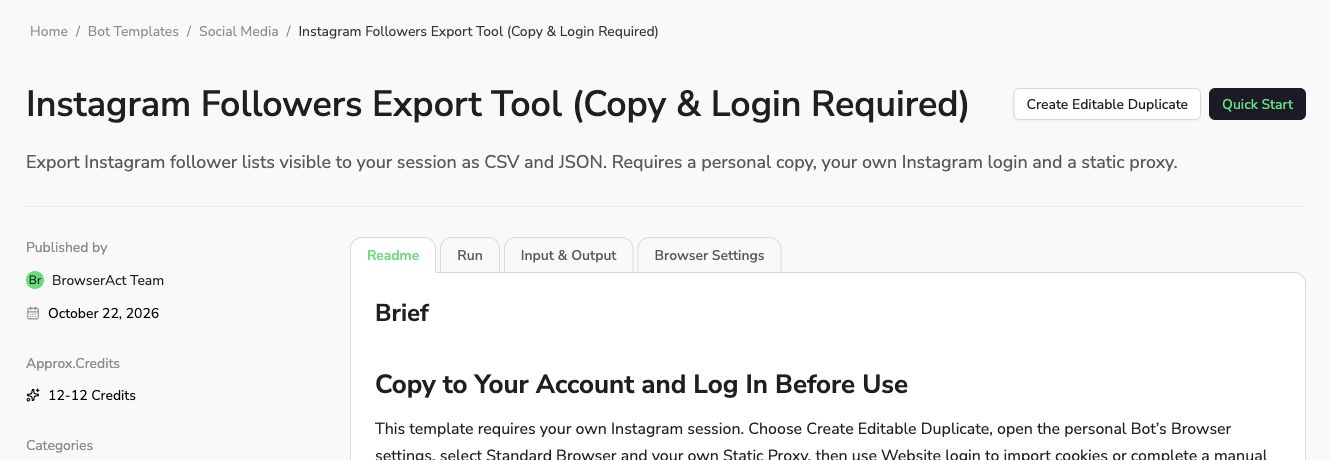
Checkpoint: you are inside a Bot in your own Bots list. You do not need to create another Bot to use the template. See Create an Editable Duplicate for the general copy workflow. Later template updates are not automatically applied to existing copies.
Step 2. Save Standard Browser and your fixed IP
- In the personal Bot, open Browser settings. Find Browser profile, select Standard Browser and select the Save button in that section if it is enabled.
- Find Browser Proxy. Select BrowserAct Proxy, then Static Proxy. Choose one of your active proxies from the selector and select Save in the proxy section.
- If no active proxy is available, open Proxies from the sidebar, complete the proxy setup, then return to this same Bot and assign it. Purchasing a proxy and assigning it to a Bot are separate steps.
- Keep this same Static Proxy selected for future runs. After saving, check that the Bot uses Standard Browser and your selected Static Proxy. Then continue to Website login.
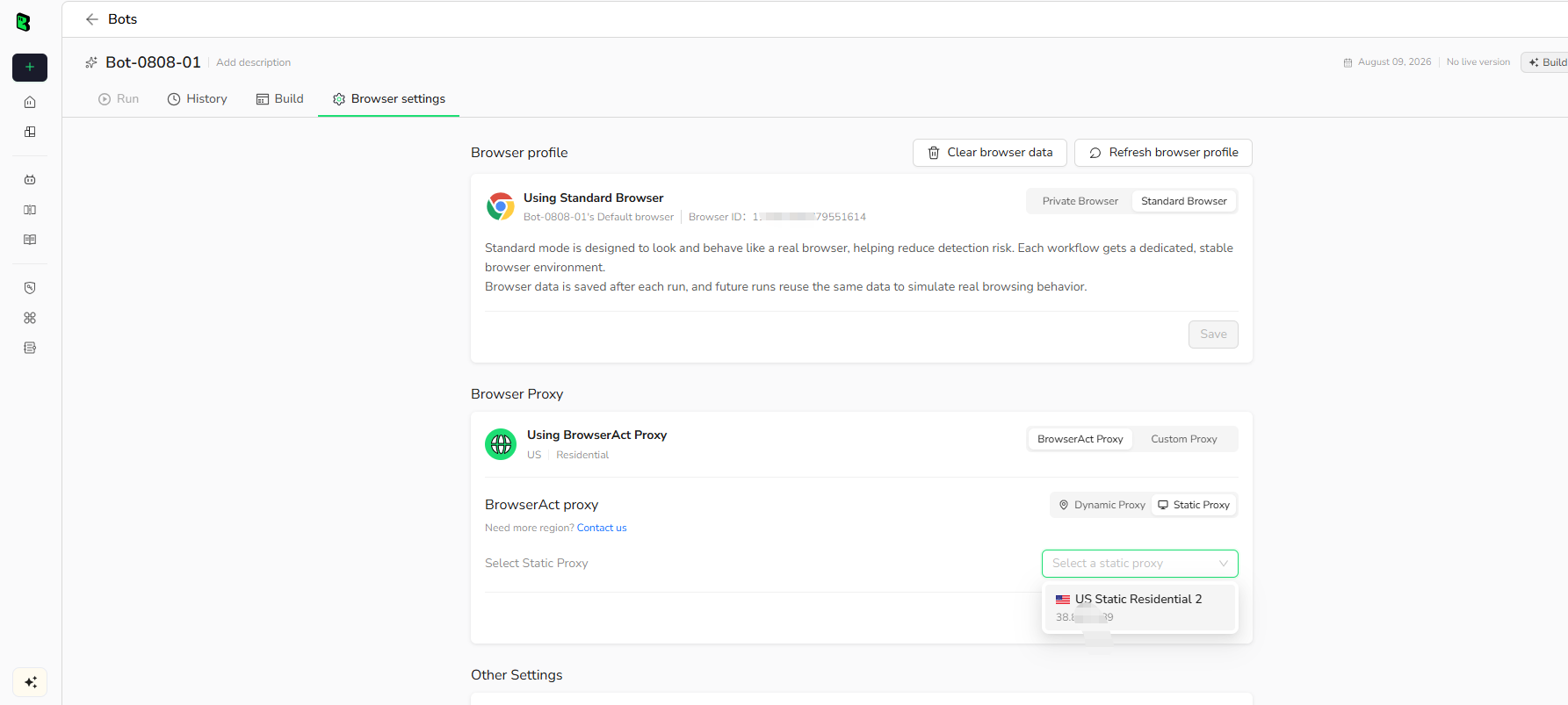
Checkpoint: Standard Browser preserves the Bot’s session, and the assigned Static Proxy keeps a fixed IP. If Cookie import or manual login is unavailable, check the browser mode first. Rotating Browser does not support those two setup methods. Wait for any tasks in this browser to finish before changing login settings.
Step 3. Connect Instagram using one login method
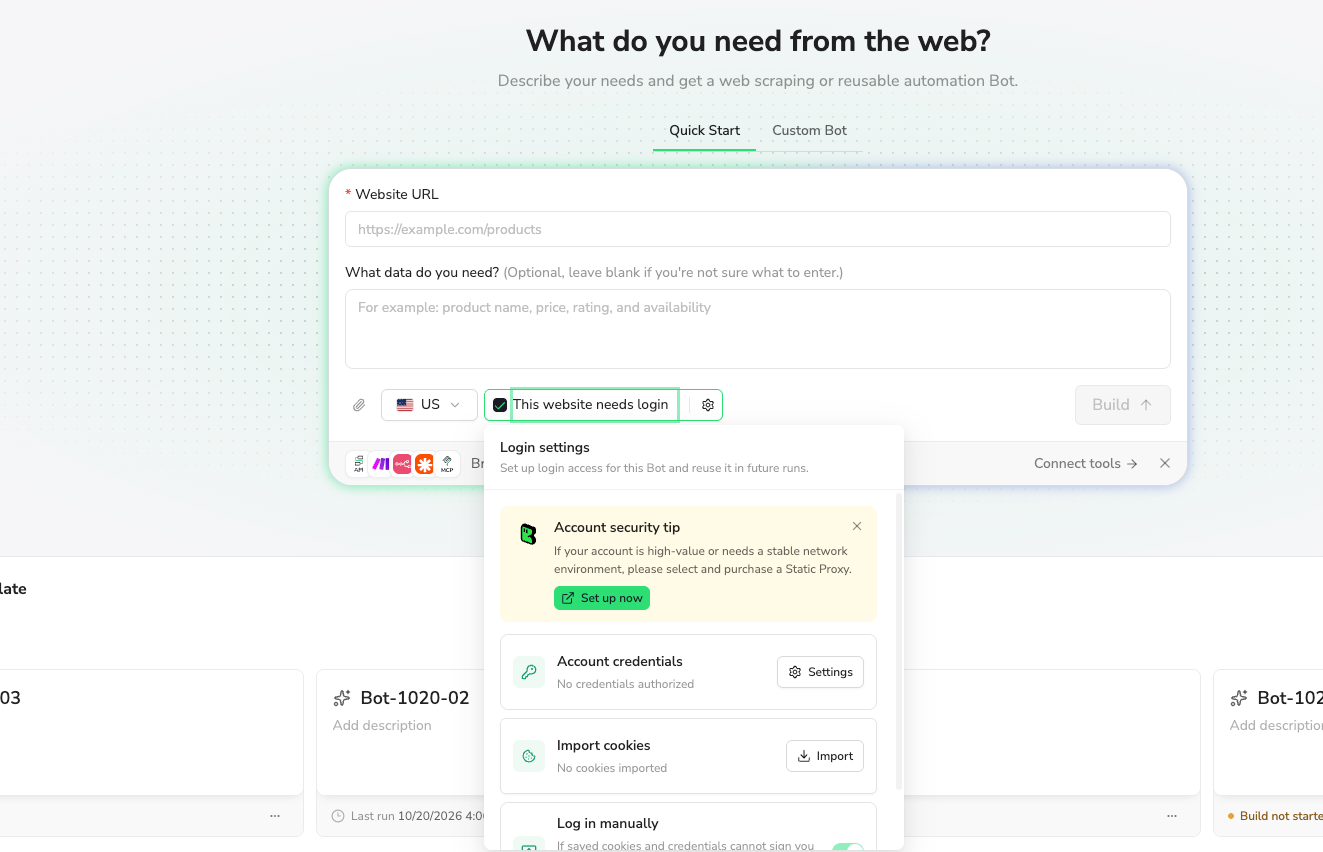
In Browser settings → Website login, choose the method that fits your account. You only need one working method to start. Authorizing a credential or importing cookies saves your setup; Instagram can still ask you to verify the account during sign-in. The Website Login overview explains how the three methods work together.
| Method | Choose it when | Where to start |
|---|---|---|
| Account credentials | You want the Bot to sign in with saved account details. Supported authenticator-app TOTP can also be configured. | Account credentials → Settings |
| Import cookies | You already have a working Instagram session in your local browser and want to reuse it. | Import cookies → Import |
| Log in manually | You want to sign in yourself or need to complete email, SMS or other interactive verification. | Log in manually → Open browser |
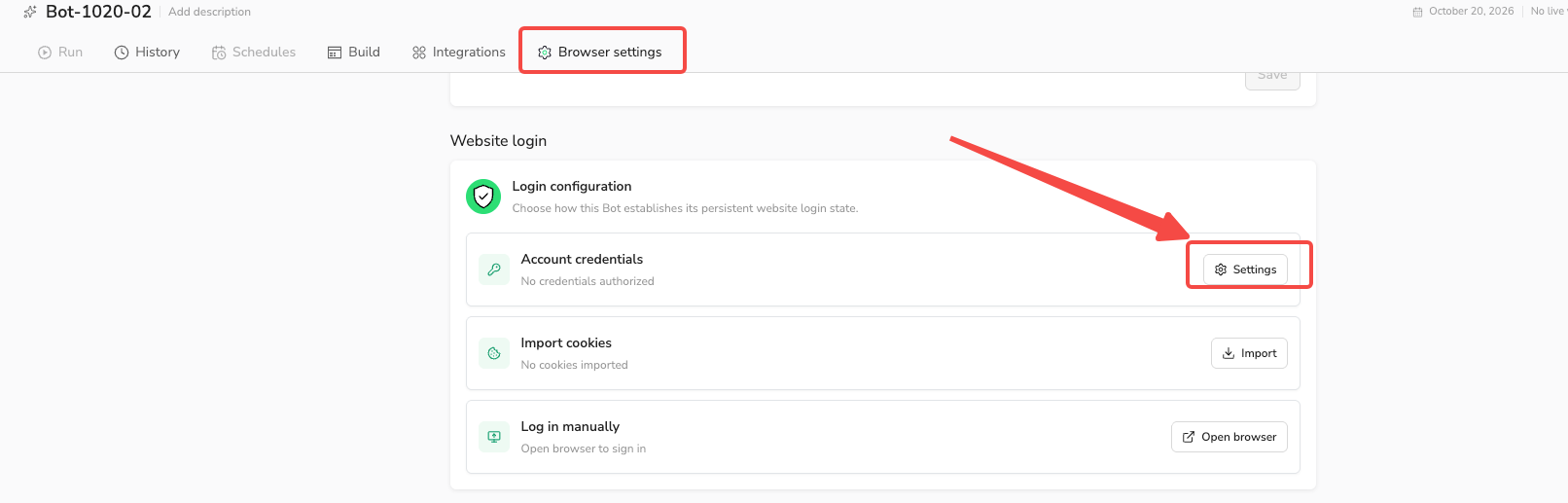
Step 3A. Authorize account credentials
- Select Settings on the Account credentials card. This opens Credential Authorization for the current Bot.
- For an existing credential, open Not Authorized, select the Instagram credential and select Authorization at the bottom. Check that it appears under Authorized. Saving a credential in the account-level library alone does not authorize this Bot.
- For a new credential, select Add New Credential. Enter a recognizable Credentials Name. Under Identifier(s), use a field label such as Username in Key and your Instagram username, email or supported phone identifier in Value. Enter the account’s password in Password.
- If the account uses a supported authenticator app, add its Authenticator App Key using the Key or QR Code option. For email or SMS codes, use manual login or import an already verified session instead.
- Set a Usage Rule for Instagram sign-in by this Bot, then select Confirm & Authorize in the current Bot’s form. Credentials created through this entry are automatically authorized for the current Bot. Confirm the entry under Authorized.
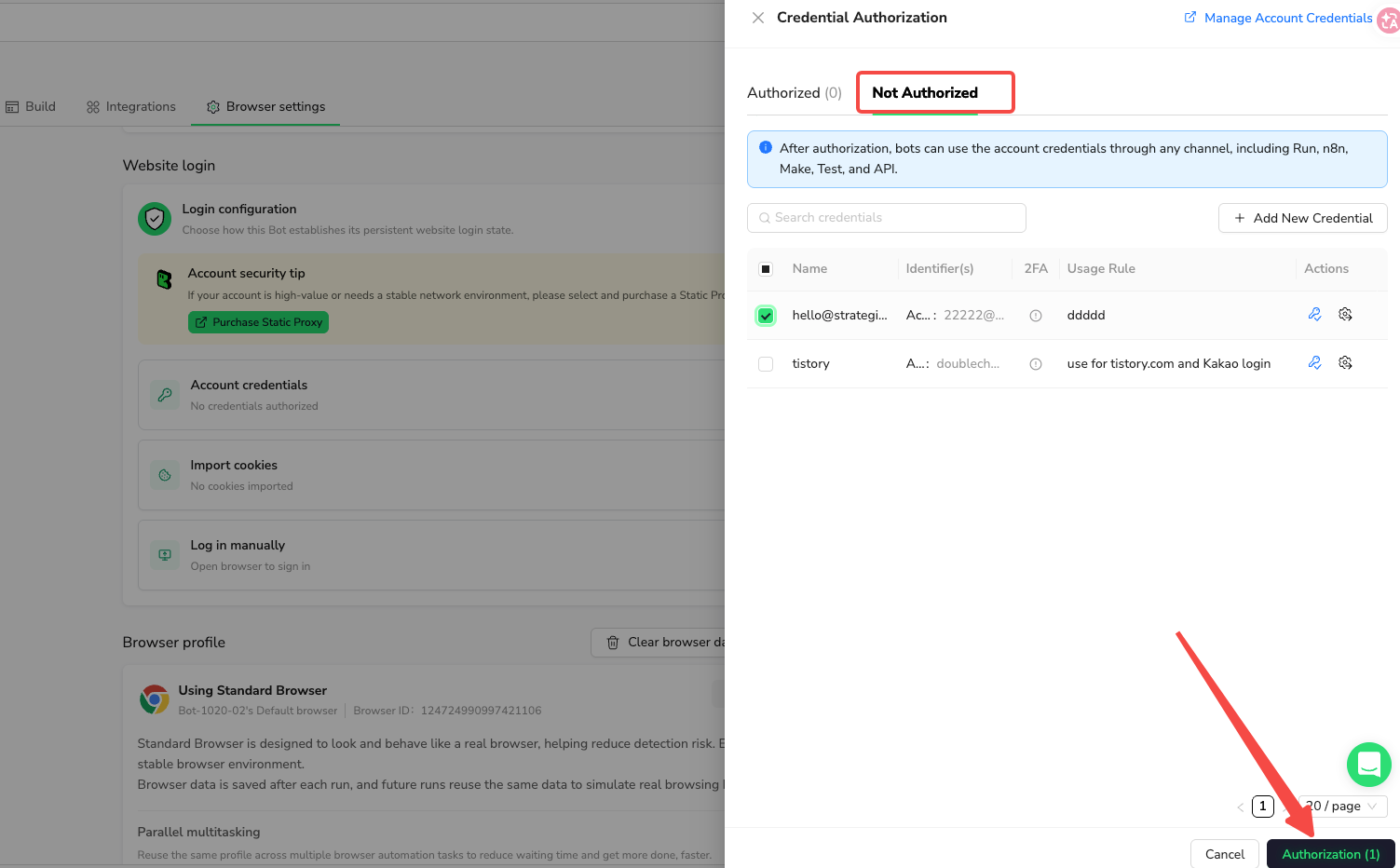
Checkpoint: the Instagram credential appears under Authorized for this Bot. A later run can use it when sign-in is needed. If you add the credential through the sidebar’s Account Credentials page, save it there and then explicitly authorize this Bot. Keep passwords and authenticator keys in these fields rather than Build prompts. See the account credentials and authorization guide.
Step 3B. Import a signed-in Instagram session
- In your own local browser, open instagram.com, sign in to the account you want the Bot to use and complete any verification. Check that this account can open the target’s actual Followers list.
- Export that site’s cookies as a JSON Cookie Array or Netscape Cookie File. The official Cookie import guide shows how to export with Cookie Editor.
- Return to the personal Bot’s Browser settings → Website login and select Import on the Import cookies card.
- Paste the exported data into Cookie data, or select Upload cookie file and choose a .json, .txt or .cookies file. Correct any validation message, then select Import cookies. A plain
name=value; name2=value2Cookie Header string is not a supported import format. - After import succeeds, check that the card displays the cookie count and Instagram domain. A successful import saves the update for new runs. If Instagram later rejects the session, import fresh signed-in cookies or use manual login.
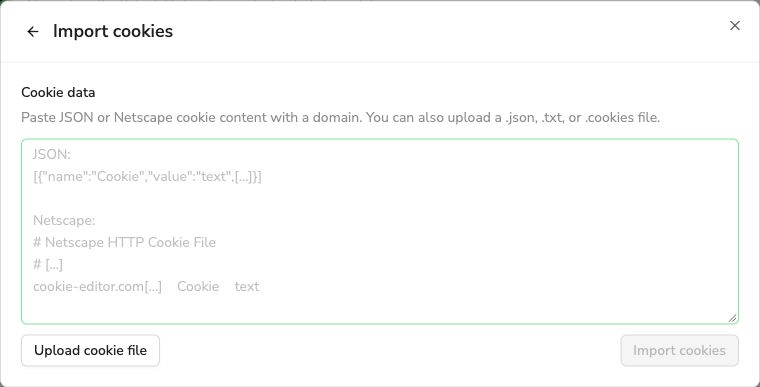
Checkpoint: the card shows imported cookies for instagram.com or .instagram.com. The Bot’s next run checks whether Instagram accepts that saved session. Importing cookies does not resume a task that has already failed.
Step 3C. Log in yourself in the Bot’s browser
- Open the personal Bot’s Browser settings → Website login. On the Log in manually card, select Open browser.
- Enter https://www.instagram.com/ in that browser’s address bar. Sign in and complete any email, SMS, authenticator or other verification yourself.
- Check that you are signed in and can open the intended target’s native Followers list. Select Complete login to save the session and return to Browser settings. Finish within the time shown in the browser session; the settings flow currently allows 15 minutes.
- Return to the personal Bot’s Run tab and start a new task. Closing or canceling the login window without completing the save does not update the Bot’s session.
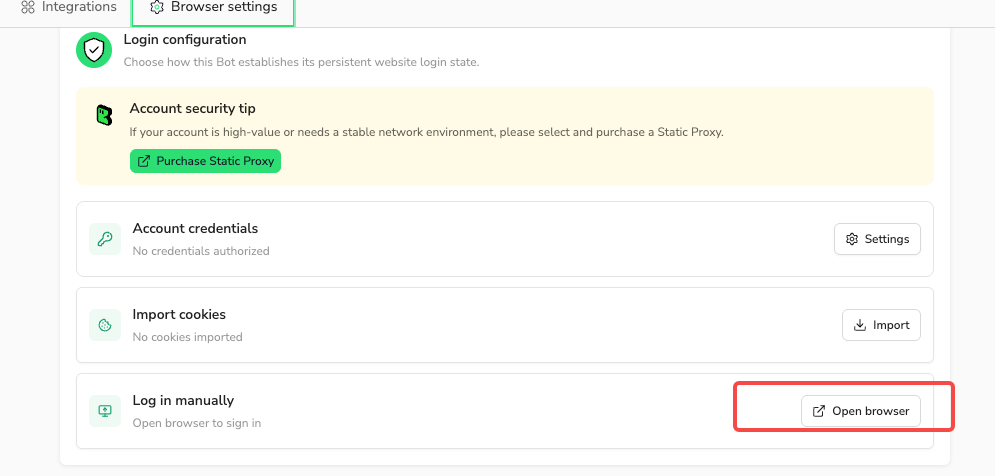
Checkpoint: you selected Complete login and returned to the Bot after signing in. See Log in manually for the full flow. If Build specifically asks for assistance, use its Take over browser and Return to Agent flow instead; that continues the waiting Build.
Step 4. Run your personal Bot with a small first request
- Open the personal Bot’s Run tab. For a first test, set usernames to
https://www.instagram.com/jeel31.01/and results_limit to 20, or use another target whose follower list your session can view. - Check Default Browser on the Run page. It should show your Standard Browser and assigned Static Proxy. If the summary shows different settings, return to Browser settings, save the intended setup and then reopen Run.
- Select Run once. Open the new task in History to follow its status and view the result. You can reuse the same Bot for different input values without rebuilding it.
- If the task stops with Website login required or error 310101, use Login settings or Browser settings to update the session. Once no tasks are running, finish login and start a new run. The failed task remains failed.
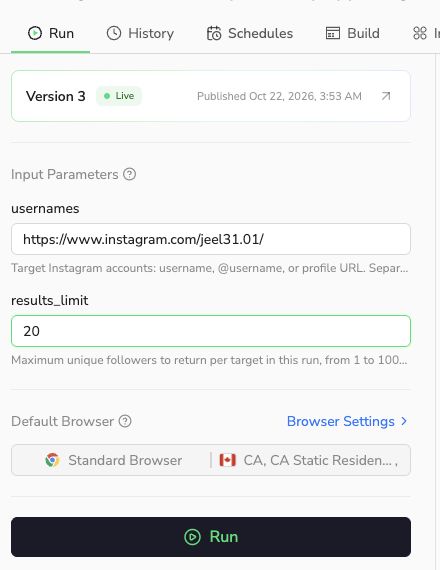
Checkpoint: the new History entry corresponds to your target and requested limit. A successful first test should contain actual follower records. The requested limit is a maximum; Instagram may expose fewer rows, so inspect the outcome and warnings before treating any export as complete.
Step 5. Review and download the actual data
- Open the completed task from History or the task detail view. Review the source target, returned count, status and any warnings, together with the structured records.
- In the Results header, select the downward-arrow control labeled Download ZIP package. You can also use Download ZIP package in that completed task’s History row. This Bot’s ZIP contains followers.csv and result.json. Unzip it and open the CSV in Excel, Google Sheets or your data tool.
- Check that each CSV row contains the target username and a real follower username or profile URL. JSON includes the per-target outcome and stop reason. Keep large Instagram IDs as text when importing CSV into a spreadsheet.
- For a ready-to-open workbook, download the real 20-row Excel case near the top of this README. It was prepared from the tested CSV/JSON output and uses English headings. Your Bot’s runtime downloads remain CSV and JSON.
Step 6. Reuse the Bot on your next visit
Open Bots, select your personal copy and use Run with the next target and limit. Standard Browser reuses the saved session and browser setup. Keep the same Static Proxy assigned. Update login only when the session expires or Instagram asks for fresh verification, then start a new task. You can configure supported automation from this personal Bot’s Integrations tab after a successful manual run.
Optional. Build a separate Bot for a different workflow
The copied template is already a Bot. If you want different fields or navigation, open its Build tab and describe the change using Improve Bot. To start a separate workflow, follow these steps:
- Open Home or Build Bot and start building with Agent. Describe the Instagram page, records, required fields, input parameters and result limit.
- Select This website needs login below the prompt. Open the gear icon to configure Login settings. Use Standard Browser, assign an active Static Proxy and configure a login method for the new Bot. Each Bot needs its own credential authorization or session setup.
- Let Agent build and test the workflow. If it requests your help, complete the requested login step and return control to Agent. Once the Bot has a usable live version, open its Run page, test a small request and inspect the actual output before scheduling larger jobs.
Example request for a new Bot:
Build a reusable Instagram followers export Bot. Inputs: usernames and results_limit (default 20). Use my authorized Instagram session and the native Followers list visible to that account. Return target_username, follower_username, follower_profile_url, full_name, profile_pic_url, is_verified, is_private, follower_id and collected_at. Deduplicate actual records, export CSV and JSON, and report login issues or partial results clearly. Test a small request before publishing.
For a complete build walkthrough, see Build Your First Bot. Creating a separate Bot does not copy this template’s or another Bot’s login automatically.
If your first run gets stuck
| What you see | What to do next |
|---|---|
| No Create Editable Duplicate button | Sign in to BrowserAct, return to this template page and create a personal copy. |
| Import cookies or manual login is unavailable | Choose Standard Browser in Browser settings, save it and wait for active tasks to finish. |
| No Static Proxy to select | Open Proxies, make sure you have an active proxy, then assign it to this Bot and save. |
| Saved credential is missing from Authorized | Open Account credentials → Settings → Not Authorized, select the intended credential and select Authorization. |
| Login required / error 310101 | Refresh the Bot’s login using one of the three methods, finish saving and start a new run. |
| Import reports a format error | Use JSON Cookie Array or Netscape format with domain and path information, then follow the validation message. |
| Fewer rows than the profile follower count | Read the requested limit, per-target outcome, stop reason and warnings. Accessible rows can be a subset of the displayed total. |
What happens when the Bot runs
The Bot checks the saved Instagram session, verifies the target identity, opens the native Followers list and reads the rows visible to that session. It paginates and deduplicates records until it reaches the requested limit, a visible end or a bounded stop condition, then returns CSV and JSON with per-target outcomes. This is why the exported row count and warnings should be reviewed together.
How to Build a New Scraper Bot with Agent Built
- Describe the public website, target records, required fields and result limits in Agent Built.
- Let BrowserAct explore the pages, build the Bot and test its output. Configure your own login when the website requires it.
- Run the completed Bot, check its structured results and connect it to your workflow.
Why Use Instagram Followers Export Tool?
Turn a visible follower list into rows you can sort, compare and retain with source-account links. Use the output for audience overlap checks and account-list review without manually copying each username. These rows are account records, not verified sales leads or contact details.
Who Can Use Instagram Followers Export Tool?
Social-media analysts, creator-research teams, agencies and account owners who need a structured record of follower lists visible to their own signed-in account.
How Many Results Can You Scrape?
Request 1–1,000 unique followers per target and up to five targets per run. The default 20 is the initial request size and can be changed. Instagram can expose only a subset of a large account’s followers, and the visible set can change between runs. A partial result is not a complete export. Each run starts from the beginning; resumable continuation is not provided. The maximum requested limit does not guarantee availability or uninterrupted access.
Automation and Export
BrowserAct first produces structured records and files. After setting up your personal Bot’s login and browser, use its Integrations page for supported API, n8n, Make, Zapier or MCP connections. Keep every scheduled run on that personal Bot’s own browser and session. The shared copy-required template must never execute using publisher credentials.
Need Help?
Ask the Discord Community or email service@browseract.com.
