
Google Maps Business Listings Scraper
Google Maps Business Listings Scraper is a reusable BrowserAct template for collecting structured public business records from Google Maps.
Published by
Br
BrowserAct Team
September 18, 2026
Approx.Credits
18-25 Credits
Categories
BA
APIGoogle Maps
Template ID
113856720358343079

Brief
Google Maps Business Listings Scraper is a reusable BrowserAct template for collecting structured records from public Google Maps pages. Configure the run inputs, start the Bot, and receive consistent output for research, monitoring, enrichment, or downstream automation without writing selectors or scraper code.
What Does BrowserAct Google Maps Business Listings Scraper Do?
The Bot constructs a public Google Maps search from your keyword and country, scrolls the results feed until it has enough business cards, and extracts the fields visible in those cards. It returns a consistent 12-field record for every business and uses N/A when Google Maps does not display a value in the list. The Bot does not open individual business detail pages.
Key Features of Google Maps Business Listings Scraper
- Configurable public-page inputs without rebuilding the Bot.
- Structured records returned in a consistent
resultsarray. - Public, non-login extraction path.
- Reusable runs for new keywords, URLs, locations, or limits.
- Output ready for review, export, API use, or automation.
What Data Can I Extract from Google Maps?
Field | Description |
|---|---|
| Publicly visible name value for the record, when available. |
| Publicly visible rating value for the record, when available. |
| Publicly visible reviews value for the record, when available. |
| Publicly visible category value for the record, when available. |
| Publicly displayed address. |
| Publicly visible description value for the record, when available. |
| Publicly visible status value for the record, when available. |
| Publicly visible hours value for the record, when available. |
| Publicly visible price value for the record, when available. |
| Publicly visible accessibility value for the record, when available. |
| Publicly visible service option value for the record, when available. |
| Publicly visible place url value for the record, when available. |
How to Use Google Maps Business Listings Scraper
Quick Start Guide
- Click Run task.
- Enter a business keyword, choose a country from the dropdown, and set the maximum business count.
- Click
Run. - Review the structured records after the run completes.
- Download the result or connect it to another workflow.
Input Parameters
Parameter | Required | Default | Description |
|---|---|---|---|
| Yes |
| Controls the keyword used for this run. |
| Yes |
| Dropdown with 250 Google-supported country and region names used to localize the Maps search. |
| Yes |
| Controls the max business count used for this run. |
Example Output
The table below uses records preserved from the validated Bot run. Up to the first 5 records are shown, and long values are shortened in this documentation preview.
name | rating | reviews | category | address | description | status | hours | price | accessibility | service_option | place_url |
|---|---|---|---|---|---|---|---|---|---|---|---|
Screen Door Pearl District | 4.6 | 1833 | Southern restaurant | 1131 NW Couch St, Portland, OR | Classic meals in a trendy restaurant | Closed | Opens 8:30 AM | $20-30 | Wheelchair accessible entrance | Reserve a table |
How Does it Work?
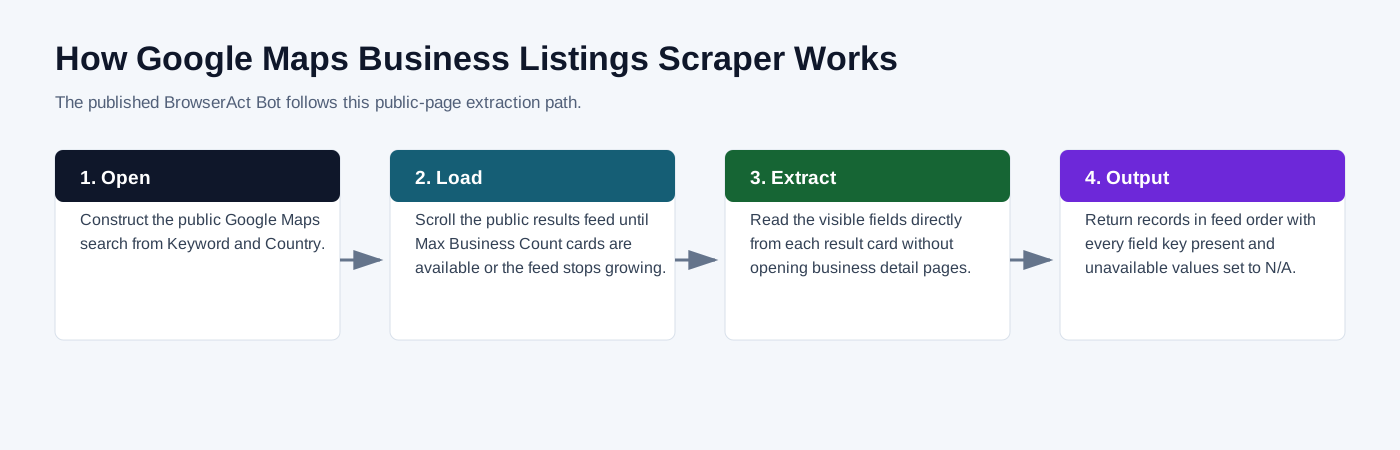
- Construct the public Google Maps search from Keyword and Country.
- Scroll the public results feed until Max Business Count cards are available or the feed stops growing.
- Read the visible fields directly from each result card without opening business detail pages.
- Return records in feed order with every field key present and unavailable values set to N/A.
How to Build a New Scraper Bot with Agent Built
Step 1: Describe the data you need
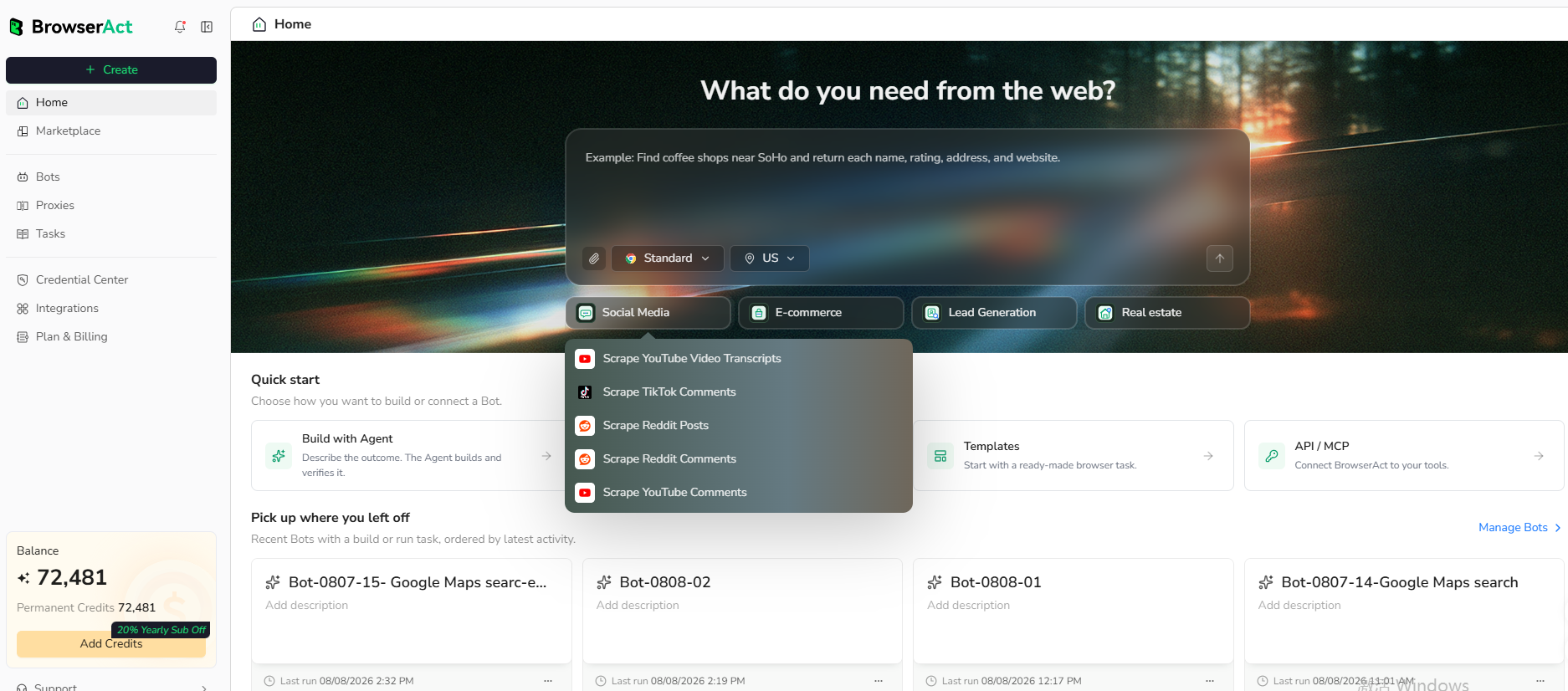
Open BrowserAct and start Agent Built from the Home prompt box or from Create -> Build with Agent. Describe the public website, records, inputs, fields, and result limit.
Step 2: Let BrowserAct build and test the Bot
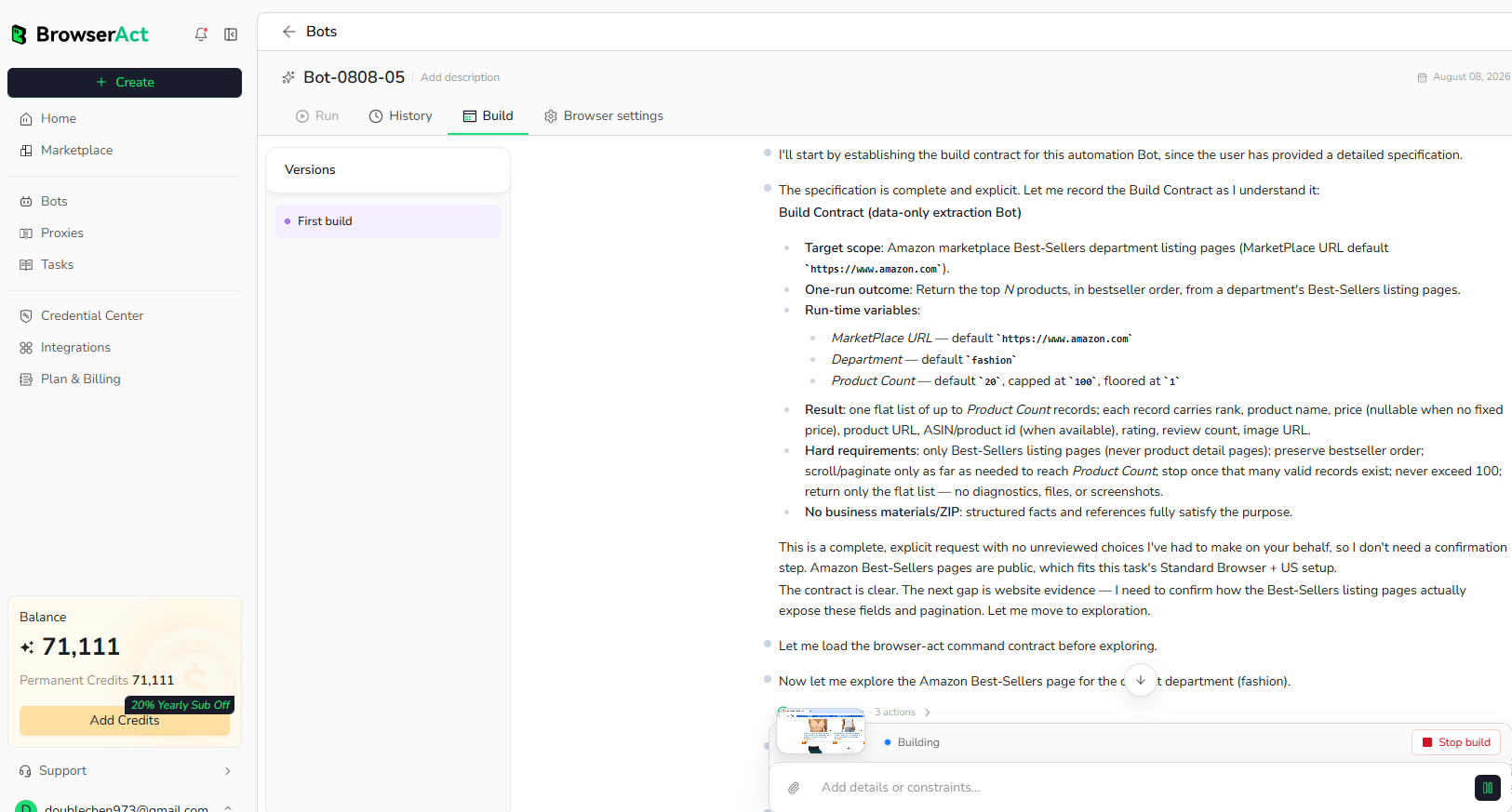
BrowserAct explores the live website, determines the navigation and extraction path, and validates the result. Reply in the same build conversation if the Agent requests a missing public URL, field, or expected output.
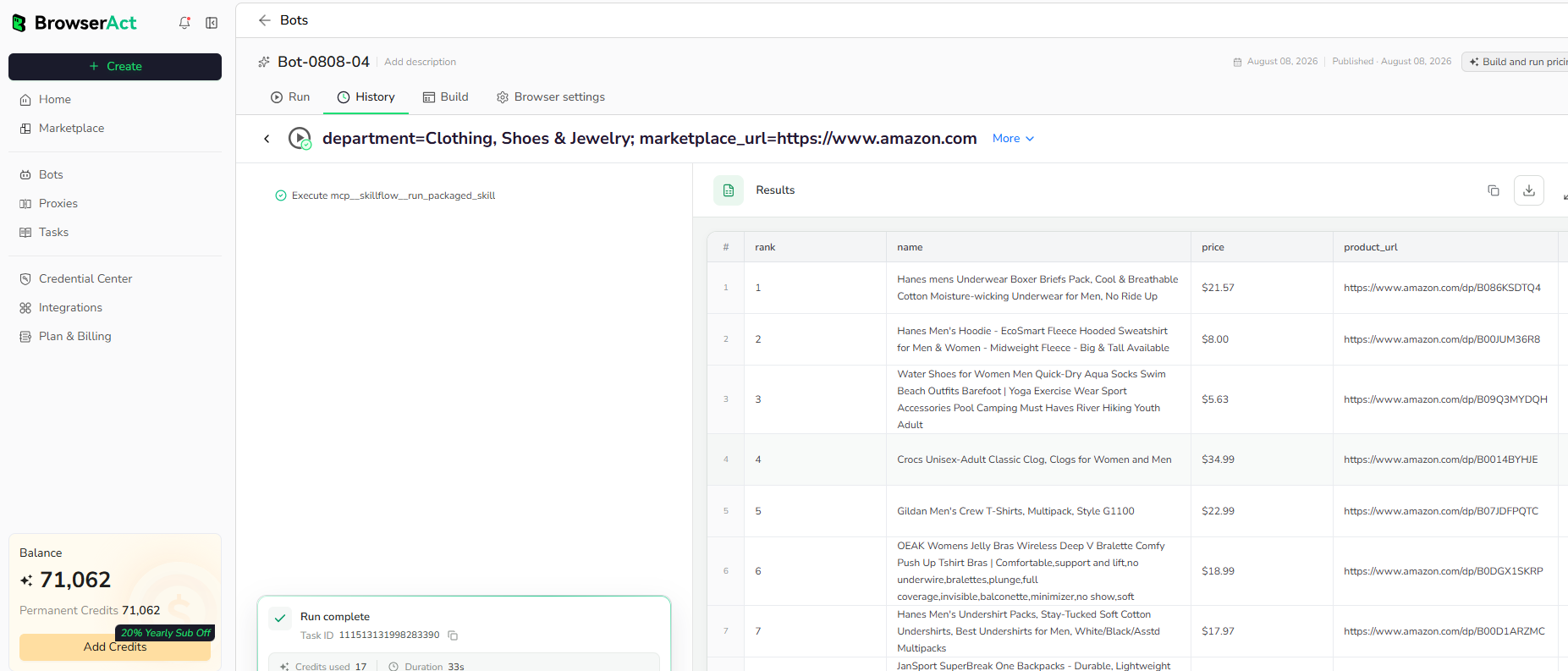
Step 3: Run the Bot and review the result
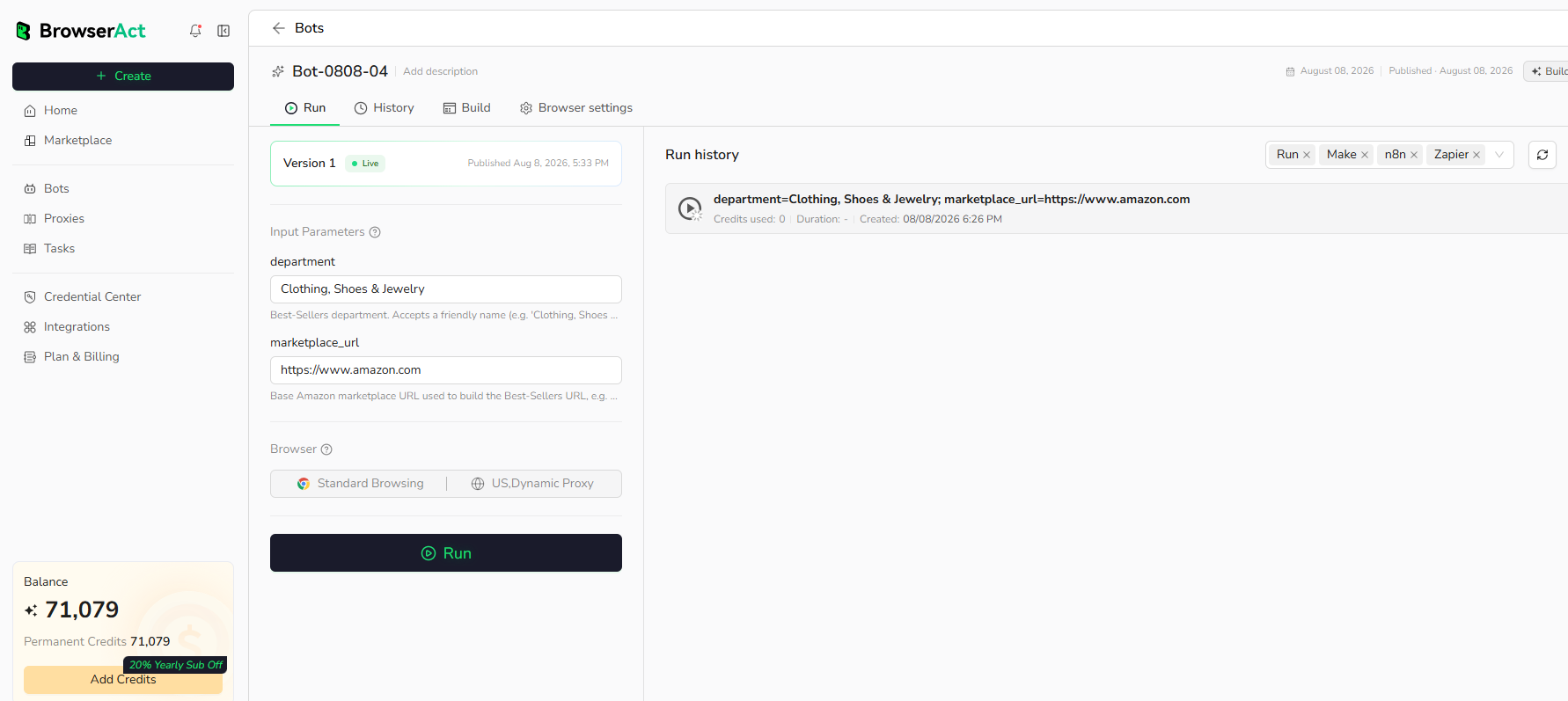
Run the completed Bot with default inputs. Check record count, source URLs, and required fields before reusing it with new inputs.
How Many Results Can You Scrape?
The default run returns up to 10 businesses. Increase Max Business Count to request more records; the Bot continues scrolling until it reaches the requested count or the public Google Maps feed stops growing. Actual availability depends on the query, the public result boundary, and the fields Google Maps exposes in each card.
Why Use Google Maps Business Listings Scraper?
- Replace repetitive copying from public Google Maps pages.
- Keep the same output structure across repeated runs.
- Send public records into research, reporting, enrichment, or monitoring workflows.
Who Can Use Google Maps Business Listings Scraper?
- Researchers and analysts collecting public web data.
- Marketing, sales, and operations teams preparing structured datasets.
- Automation builders connecting BrowserAct output to other tools.
- Developers who need reusable browser-collected JSON records.
Automation and Export
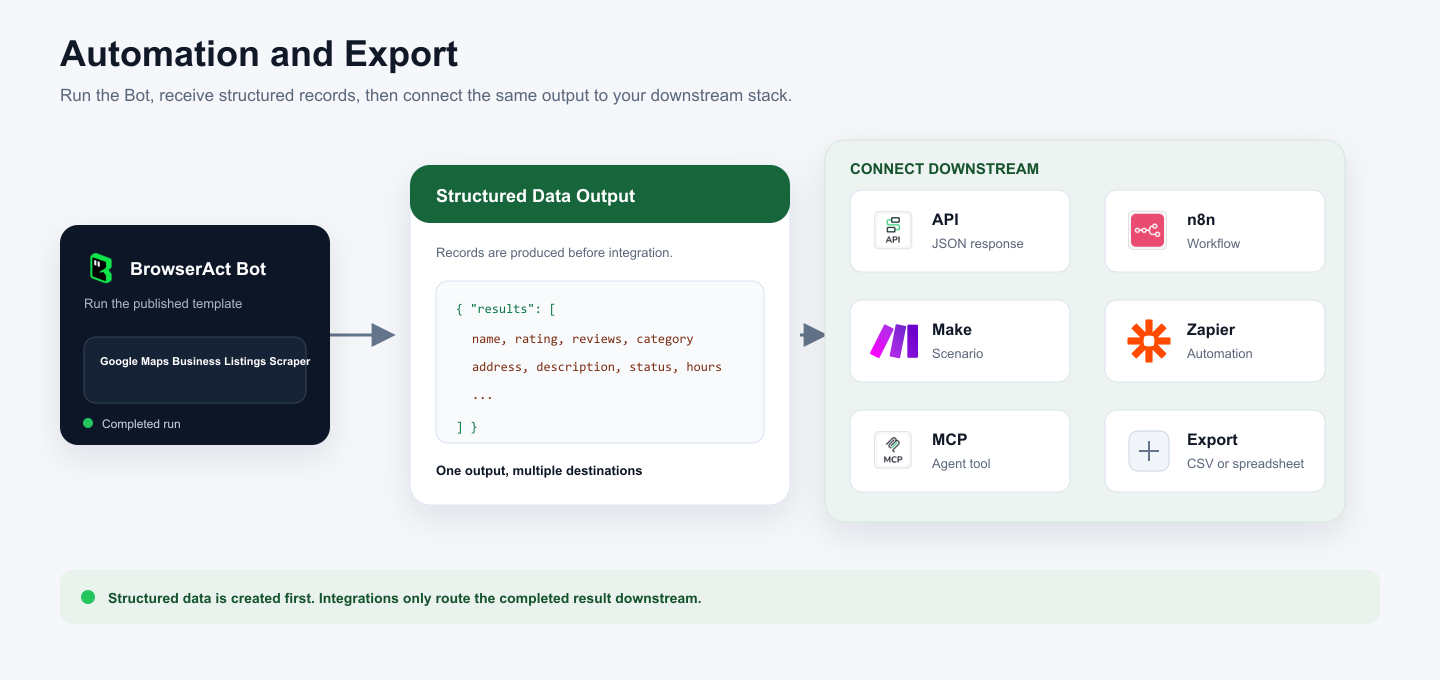
BrowserAct returns structured records first. You can then use that output through API JSON responses, n8n workflows, Make scenarios, Zapier automations, MCP-based agent workflows configured from the Bot's Integrations tab, or manual spreadsheet export.
Need Help?
Contact us at
Discord: Discord Community
E-mail: service@browseract.com
 What can we do for you