

Google Images Scraper is a BrowserAct Bot template for collecting structured image search results from public Google Images pages. Configure a keyword, country, language, and result count, then run the Bot to return image records for visual research, content discovery, SEO analysis, source tracking, or downstream automation.
What Does BrowserAct Google Images Scraper Do?
This template opens Google Images for your query, reads public image result cards, joins visible grid fields with page data for preview URLs and dimensions, scrolls when needed, and returns one structured record per image result.
Key Features
- Extract public Google Images results without requiring a Google login.
- Capture title, preview URL, source page URL, source domain, thumbnail URL, width, height, and rank.
- Configure keyword, country, language, and result count.
- Scroll the image grid and deduplicate results by image record identity.
- Return nullable preview and dimension fields when Google does not expose them for deep-scroll items.
What Data Can I Extract from Google Images?
| Field | Description |
|---|---|
title |
Image title or alt text from the result card. |
preview_url |
Original or preview image URL when available. |
source_page_url |
Web page where Google found the image. |
source_domain |
Domain parsed from the source page URL. |
thumbnail_url |
Google Images thumbnail URL. |
width |
Image width when available. |
height |
Image height when available. |
rank |
Image position in the result grid. |
How to Use Google Images Scraper
- Click Run task.
- Enter the image search keyword.
- Choose country and language settings.
- Set how many image results to collect.
- Run the Bot and review the structured image records.
Input Parameters
| Parameter | Required | Default | Description |
|---|---|---|---|
keyword |
Yes | browser automation |
Image search query to run on Google Images. |
country |
Yes | US |
Dropdown with 239 Google-supported gl country and region codes for localized image results. |
language |
Yes | en |
Dropdown with 74 Google-supported hl interface and result language codes. |
count |
Yes | 20 |
Maximum number of image records to return. |
Example Output
The table below uses records preserved from the validated Bot run. Up to the first 5 records are shown, and long values are shortened in this documentation preview.
| rank | title | preview_url | source_page_url | source_domain | thumbnail_url | width | height |
|---|---|---|---|---|---|---|---|
| 1 | What Is Browser Automation? Definition and Getting Started | https://www.example.com/images/browser-automation.jpg | https://www.example.com/blog/browser-automation/ | www.example.com | https://encrypted-tbn0.gstatic.com/images?q=example | 770 | 500 |
How Does it Work?
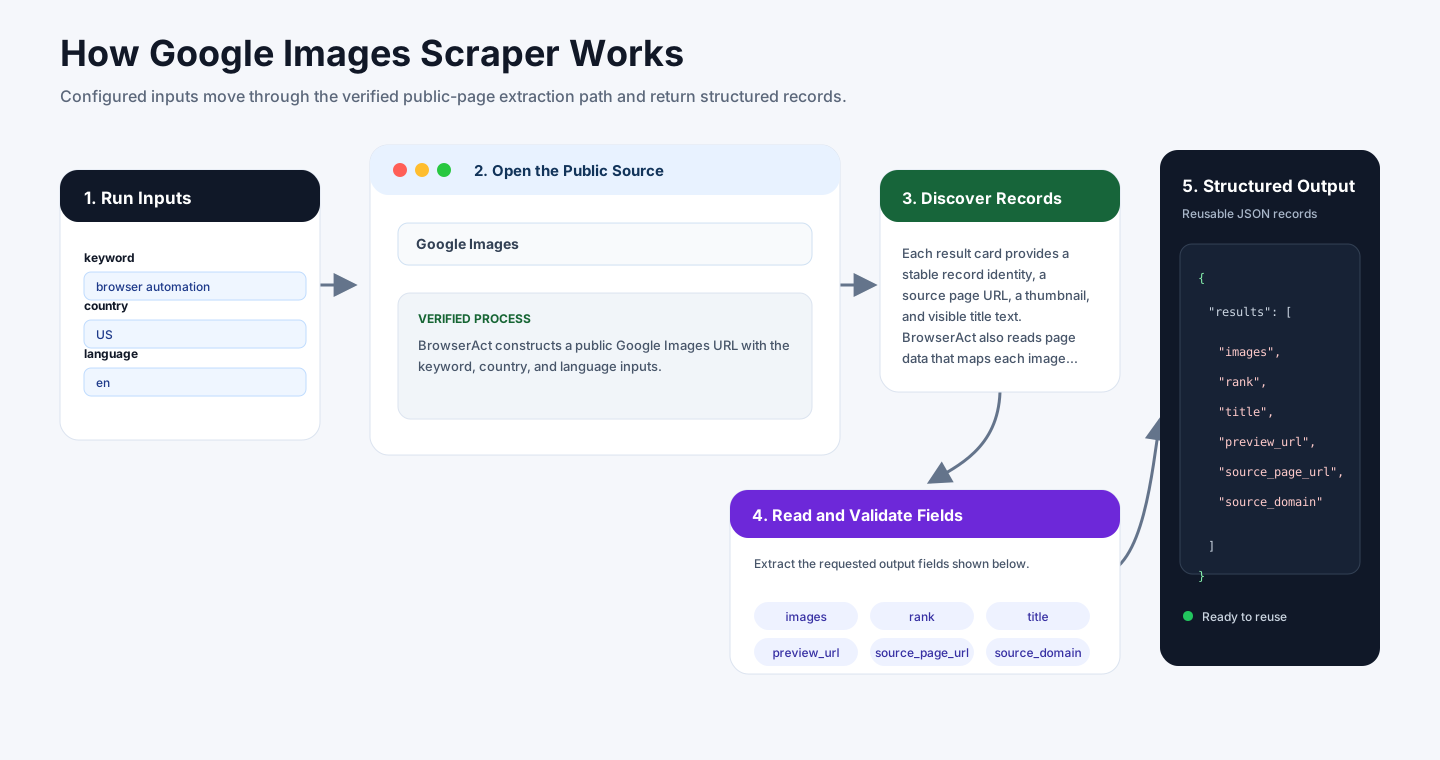
BrowserAct constructs a public Google Images URL with the keyword, country, and language inputs. Google may redirect the classic Images parameter to its current image search interface; the Bot follows that rendered page and reads image result cards from the grid.
Each result card provides a stable record identity, a source page URL, a thumbnail, and visible title text. BrowserAct also reads page data that maps each image result to a preview URL and dimensions when those values are loaded. The Bot scrolls the grid until the requested count is reached, deduplicates results, and returns records in rank order.
How to Build a New Scraper Bot with Agent Built
Step 1: Describe the Data You Need
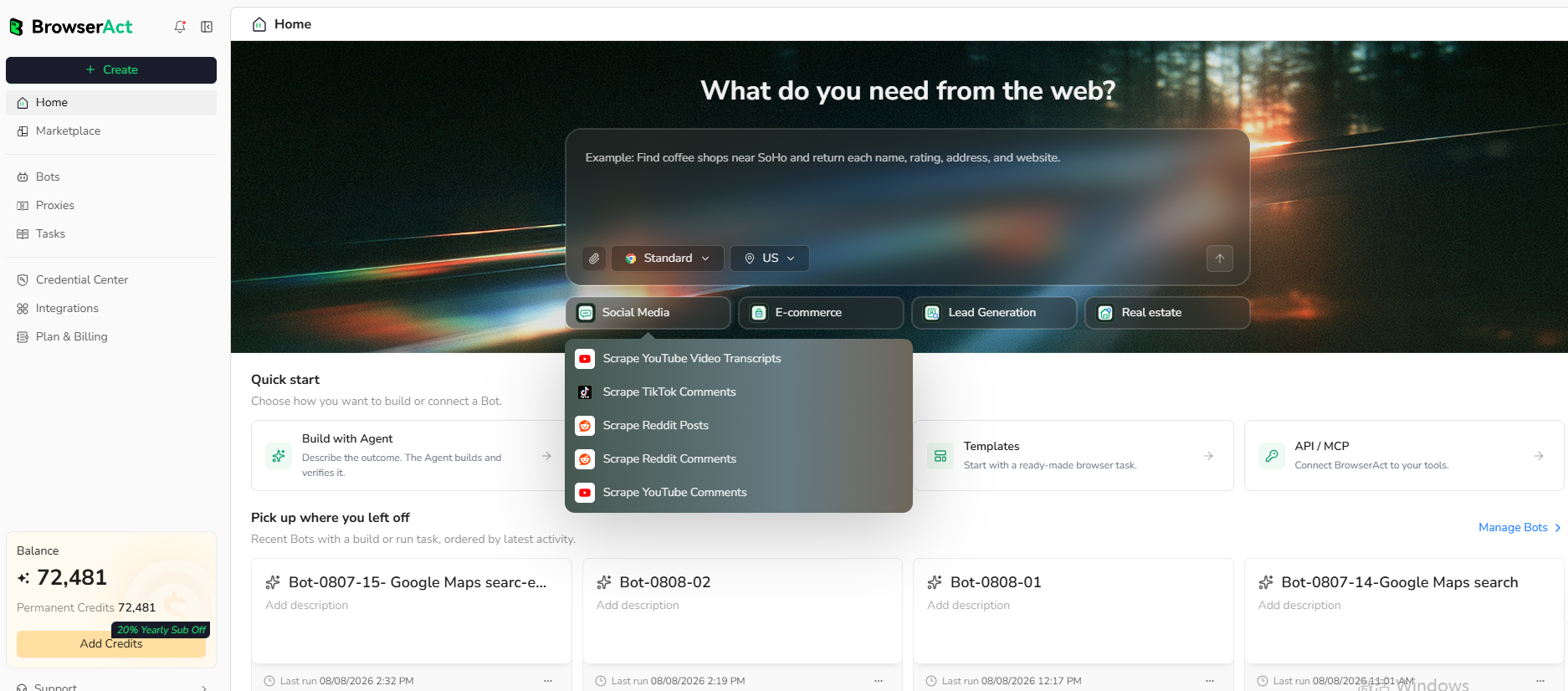
Open BrowserAct and start Agent Built from the Home prompt box or from Create -> Build with Agent. Paste a clear request that includes the website, the records to collect, the filters or search conditions, the fields to return, the result limit, and the inputs you want to reuse later.
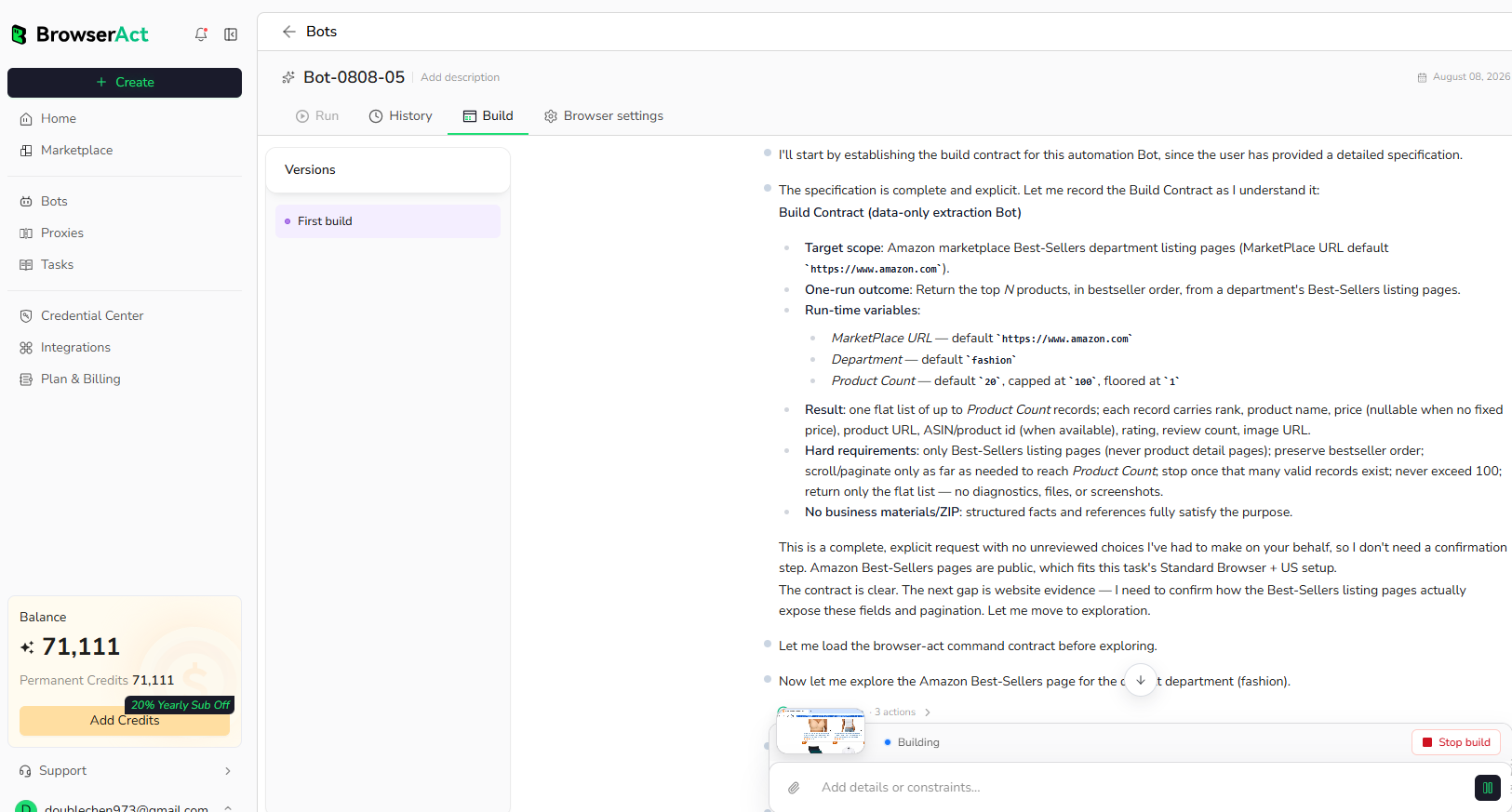
Step 2: Let BrowserAct Build and Test the Bot
BrowserAct explores the live website, works out the navigation and extraction path, and validates the result. If BrowserAct asks for clarification, reply in the same build conversation with the missing URL, condition, field, example, or expected output.
Step 3: Run the Bot and Review the Result
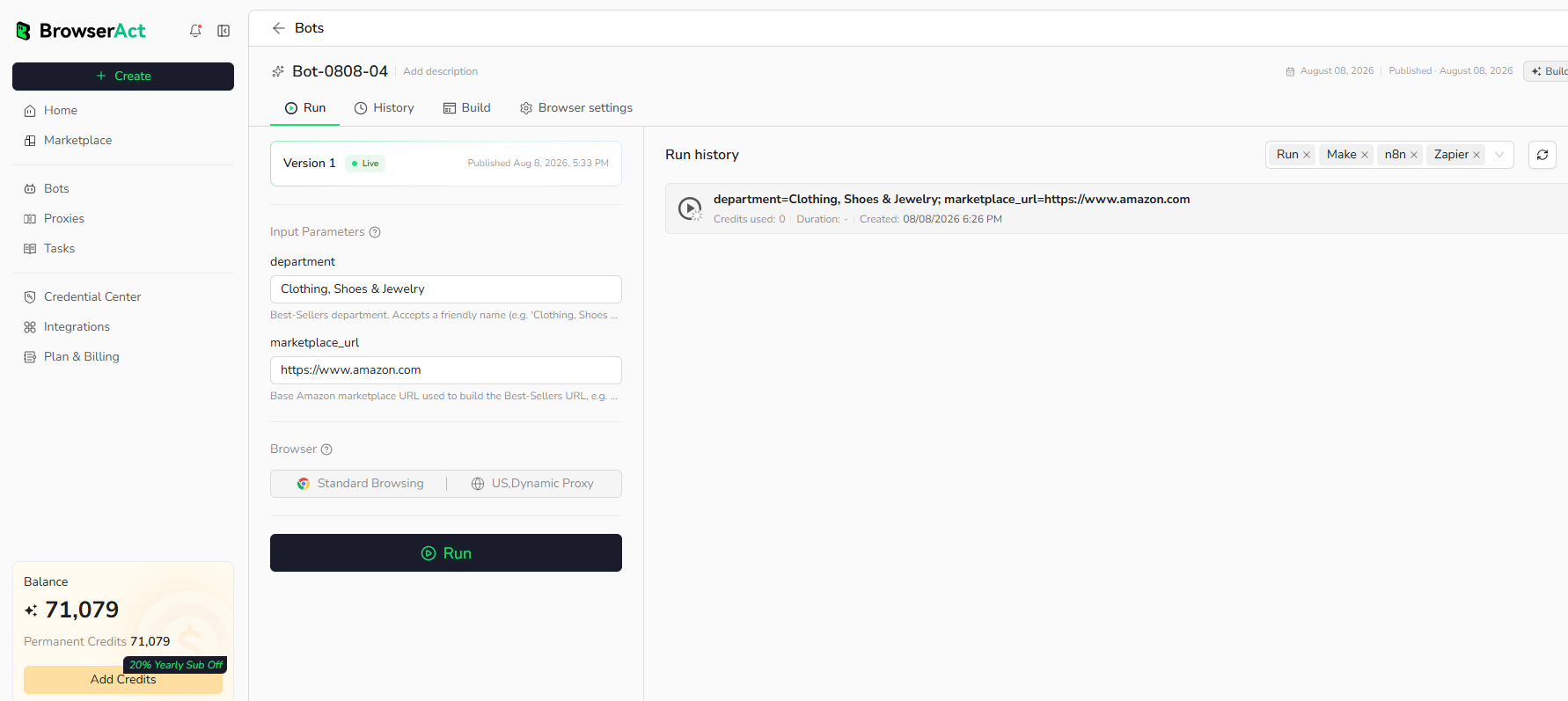
When the build is complete, run the Bot with the default inputs first. Review the structured records, source URLs, missing fields, and row count before reusing the Bot with new inputs or connecting it to another workflow.
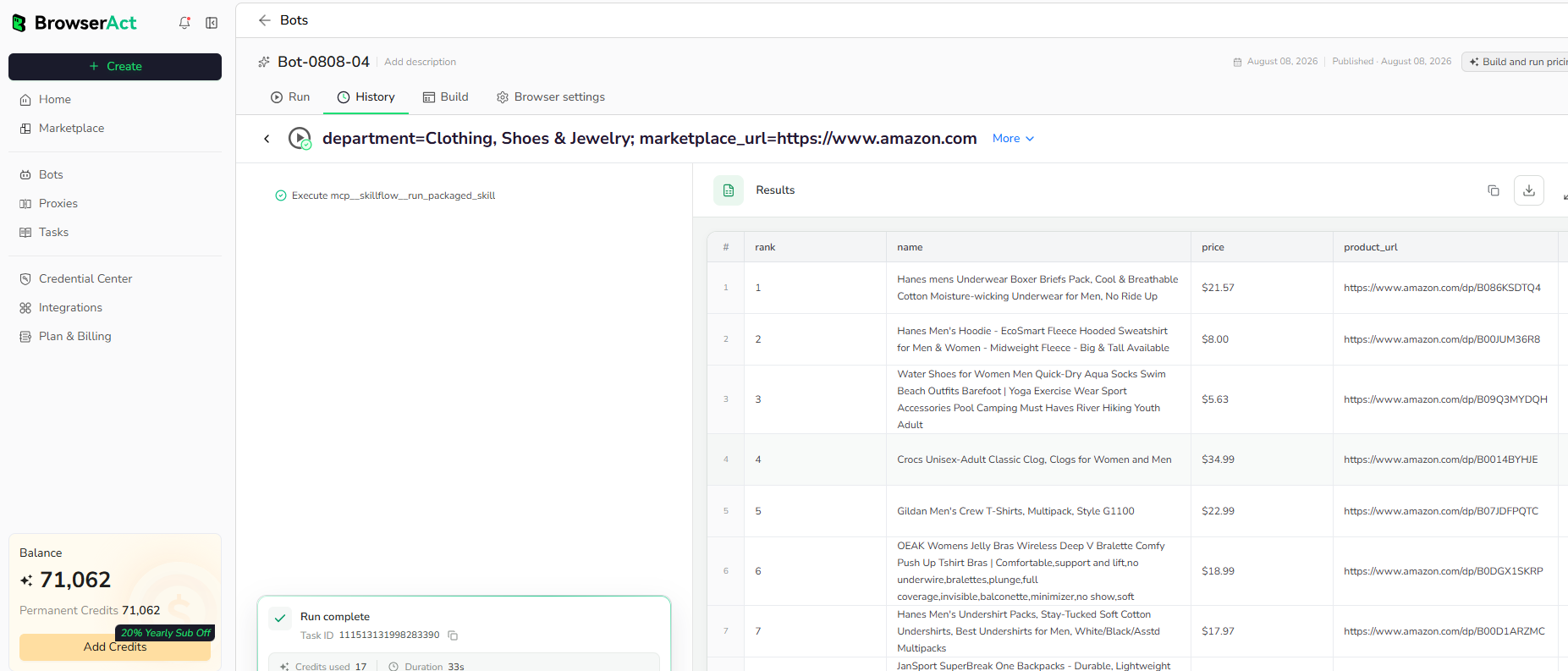
Why Scrape Google Images?
Google Images result data helps teams research visual search competitors, collect source pages, audit image SEO visibility, track creative references, and discover image sources for further review.
Who Can Use This Template?
- SEO teams researching image search visibility.
- Content teams collecting visual source pages.
- Brand teams tracking image result positions.
- Researchers comparing image result coverage across keywords.
- Automation builders sending image data into sheets, dashboards, databases, or agents.
How Many Results Can You Scrape?
Use count to control the number of image records returned. Higher counts require more scrolling. Preview URLs and dimensions are most reliable for earlier loaded results and may be empty for some deep-scroll items.
Automation and Export
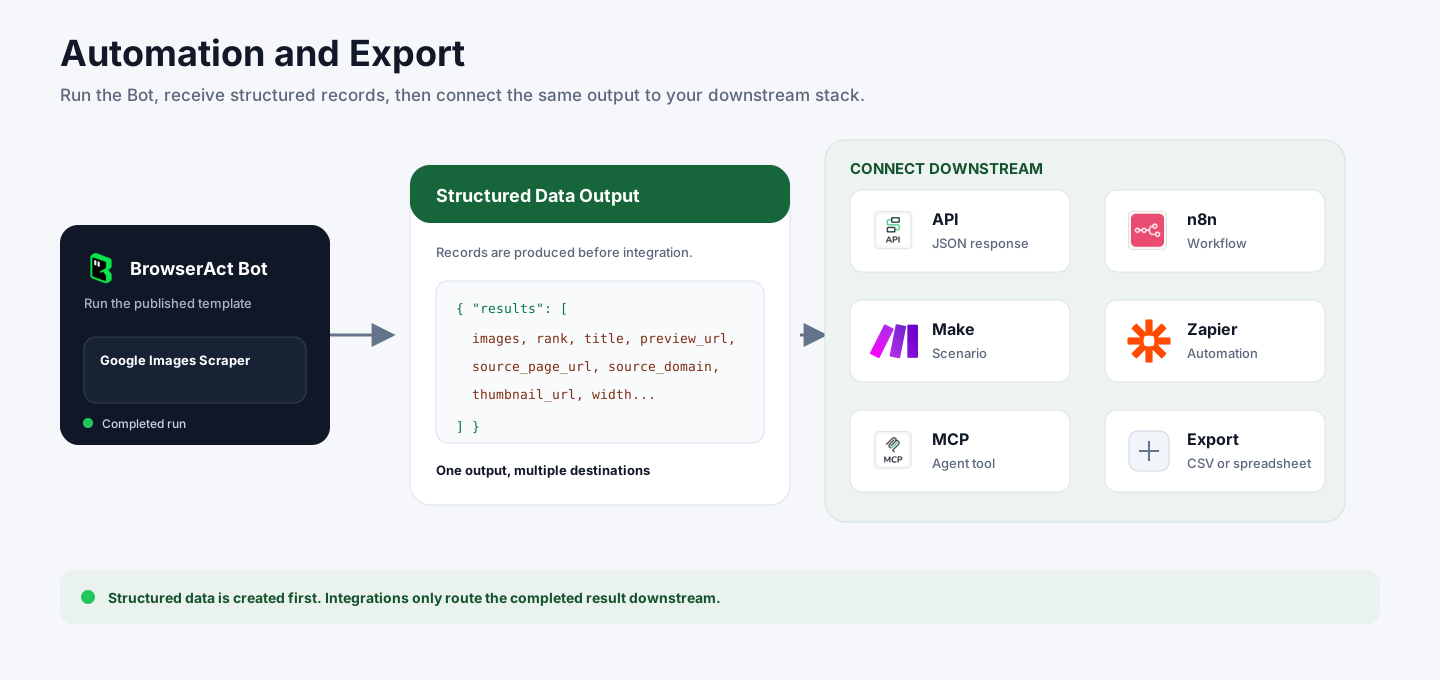
BrowserAct returns structured image records first. You can then use the output through API JSON responses, n8n workflows, Make scenarios, Zapier automations, MCP-based agent workflows configured from the Bot's Integrations tab, or manual CSV review.
Need Help?
Contact us at
Discord: Discord Community
E-mail: service@browseract.com
