
Security Vulnerability Monitor
Published by
je
jett
December 19, 2025
Approx.Credits
55-100 Credits
Categories
BA
Real-time MonitoringData ProcessingMarket IntelligenceCvedetails.com
Template ID
66755871067079381

Brief
🎯 Security Vulnerability Monitor – Workflow Detail Description
This workflow automatically monitors newly published security vulnerabilities, validates the results, and delivers structured alerts and records to both Slack and Google Sheets. It combines BrowserAct for live web navigation and data extraction with Make.com for validation, routing, notification, and long-term storage. The end result is a continuously updated vulnerability log that can be used by security teams, analysts, or developers to track risk over time.
🧩 Part 1: BrowserAct Workflow Description
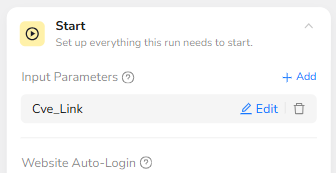
Dynamic CVE Source Input (Global Parameter)
The BrowserAct workflow begins with a global input parameter called Cve_Link. This parameter allows the automation platform or Make.com to dynamically pass in the URL of the vulnerability listing page. In the default configuration, Cve_Link is pre-filled with a CVE tracking site that lists recent vulnerabilities, but it can be easily changed to any compatible listing page. By using an input parameter instead of a hard-coded link, the workflow can be reused for different data sources, test environments, or customer-specific CVE dashboards.
Credential Handling and Browser Context
In the Start node, the workflow is configured to prompt for credentials when needed and to optionally use stored credentials. This means that if the target site requires authentication or rate-limiting based on logged-in sessions, the operator can supply credentials once and reuse them securely. The browser is set to run from a specific region (for example, US) and can leverage Incognito Mode or Standard Mode according to the security policy. This ensures consistent page rendering and stable element detection regardless of where the workflow is triggered from.
Initial Page Visit
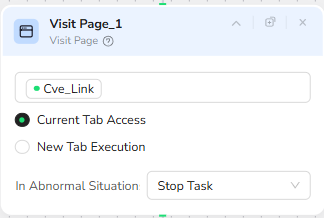
After initialization, the Visit Page_1 node opens the URL specified in Cve_Link. The node uses the current browser tab to navigate, which keeps the context clean and avoids unnecessary new windows. If anything abnormal occurs during navigation, such as a dead link or a timeout, the workflow is configured to stop the task, preventing the pipeline from working with incomplete or broken data.
Sorting the Vulnerability List by Publish Date
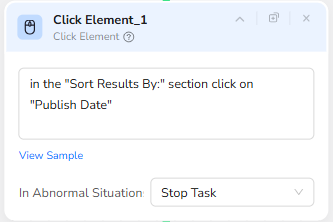
To ensure that the workflow focuses on the most recent issues, a Click Element node is used to interact with the page’s sorting controls. The instruction inside the node reads: “in the ‘Sort Results By:’ section click on ‘Publish Date’.” BrowserAct uses this text instruction together with its visual understanding engine to locate the sorting section and then click on the “Publish Date” option. This step guarantees that the top entries on the page are always the latest published vulnerabilities, which is critical for time-sensitive monitoring.
Controlled Pagination with a Loop
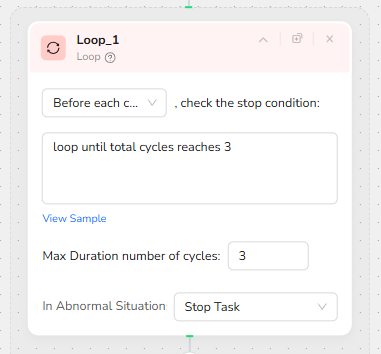
The Loop_1 node manages pagination and ensures the workflow covers enough data without running indefinitely. The stop condition is defined as “loop until total cycles reaches 3,” and the maximum number of cycles is set to 3. Before each cycle, BrowserAct checks whether the loop limit has been reached. Within each cycle, the workflow processes the current page and then, if available, moves to the next page. This pattern allows the system to scan the latest three pages of vulnerabilities, which usually covers a meaningful recent time window without overwhelming the downstream systems.
Structured Extraction of Vulnerability Details
Inside the loop, the Extract Data_1 node performs full-page extraction over the vulnerability list. Its Data Field instruction tells the Agent to identify each vulnerability entry and capture a structured set of fields: the CVE ID, Summary, Max CVSS score, EPSS score, Published date, and Updated date. The extraction is done in a way that each row on the page becomes a structured record in a JSON-like output that Make.com can consume.
A Filtering Criteria rule further refines the results: “Only extract data published within the last 15 days.” This means that even if older vulnerabilities still appear in the paginated list, only those with a recent published date are returned to the next system. By filtering at the BrowserAct level, the volume of data sent to Make.com is controlled, and the final dataset remains highly relevant for security teams. In abnormal situations during extraction, the task is configured to stop, avoiding partial or inconsistent results.
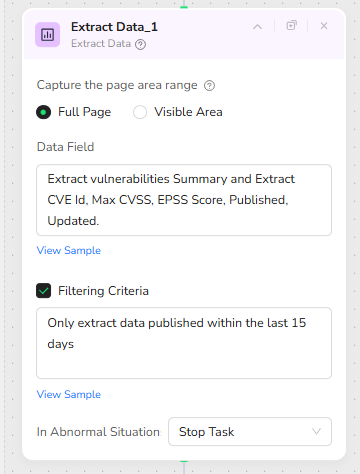
At the end of Part 1, BrowserAct returns a JSON string that contains zero or more vulnerability records, along with metadata such as the workflow run’s finished time. This JSON output becomes the primary input for the automation layer in Make.com.
🧩 Part 2: Automation Integration with Make.com
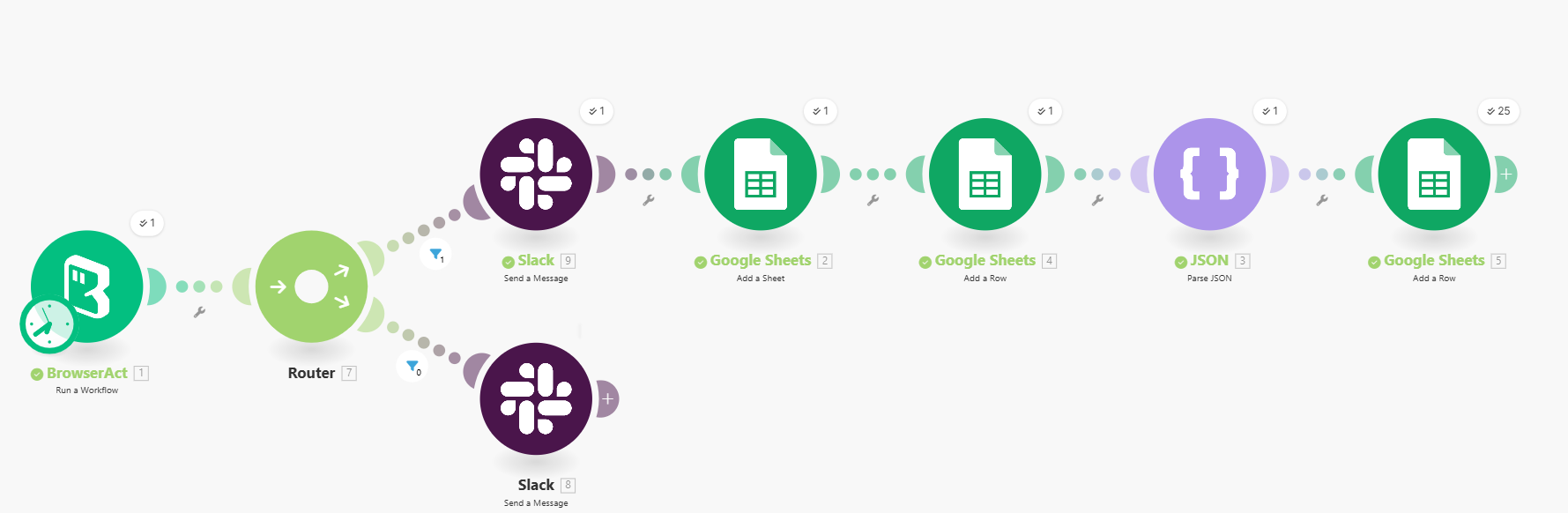
Trigger and BrowserAct Execution
On the Make.com side, the scenario starts with a BrowserAct module that runs the “Security Vulnerability Monitor” workflow. Make either passes a specific Cve_Link value or uses the default URL configured in BrowserAct. Once the BrowserAct run finishes, Make receives the JSON output, which contains the vulnerabilities extracted within the last 15 days, or an empty payload if nothing relevant was found.
Data Presence Validation and Routing
Immediately after receiving the BrowserAct output, a Router module checks whether any data was returned. The first route handles the case where the JSON string exists and contains at least one vulnerability. The second route handles the case where no vulnerabilities were found. This conditional routing ensures the system reacts differently depending on the result of the latest scan.
Positive Path: New Vulnerabilities Found
On the “data exists” route, the scenario performs three main functions: notifying the team, preparing the sheet, and loading structured records.
First, a Slack module sends a message to a dedicated security channel. The message might say, for example, “We found new security vulnerabilities, updating the Google Sheet now.” This real-time alert lets security engineers know that fresh data has been discovered and is being logged.
Second, a Google Sheets module creates a new sheet inside a designated spreadsheet. The sheet name is dynamically set to the BrowserAct workflow’s finished time (for example, 2025-11-25T09:30:00Z). This naming convention turns every run into its own snapshot of the vulnerability state, making it easy to audit historical changes or compare two runs over time.
Third, another Google Sheets module inserts the header row into the newly created sheet. The header includes the column titles: ID, summary, max_cvss, epss_score, published, and updated. Creating headers programmatically ensures that analysts always receive a consistent schema, even if the spreadsheet did not previously exist or was completely empty.
Next, a JSON parsing module takes the raw JSON string from BrowserAct and converts it into a collection of individual records. Each record represents a single vulnerability with fields matching the header row. Finally, a Google Sheets “Add a Row” module iterates through each parsed record and appends it as a data row beneath the header. This step writes the CVE ID, summary text, numeric scores, and date fields into the correct columns, building a clean, structured table for downstream analysis, filtering, and dashboarding.
Negative Path: No Vulnerabilities Found
If the Router determines that the BrowserAct output is empty or contains no qualifying vulnerabilities, the scenario follows the second route. Instead of touching Google Sheets, it simply sends a Slack notification to the same security channel indicating that no new vulnerabilities were detected during this run. This keeps the team informed without generating empty sheets or wasting storage space.
End-to-End Flow Behavior
From an operator’s perspective, the complete pipeline behaves as a “set it and forget it” security data collector. BrowserAct continuously visits the vulnerability listing site, sorts the information by publish date, loops over several pages, and filters entries to the last 15 days. Make.com then validates the result, informs the team via Slack, and either logs the data into a newly timestamped Google Sheet or confirms that there were no new issues to record.
✨ Applicable Scenarios (Use Cases)
For security teams, this workflow can serve as an automated early-warning system. They can keep a near-real-time log of newly published vulnerabilities related to their technology stack and then cross-reference that log with internal asset inventories or patch management tools.
For DevOps or SRE teams, the Google Sheets output provides a lightweight but structured vulnerability feed that can be linked into incident management processes, postmortem reviews, or internal dashboards. Because each sheet is timestamped, it is easy to answer questions such as “What were the known vulnerabilities on a specific date?”
For managed service providers or security consultants, the same blueprint can be replicated across multiple clients by simply changing the Cve_Link parameter or the target spreadsheet. This allows them to offer customized vulnerability monitoring reports without rebuilding the workflow from scratch.