
GOOGLE TRENDS SCRAPING PROJECT
Published by
je
jett
February 04, 2026
Approx.Credits
25-50 Credits
Categories
BA
Real-time MonitoringMarket IntelligenceGoogle Trends
Template ID
69236848702160875

Brief
🎯 Core Function: Automated Google Trends Intelligence Pipeline (Scrape, Enrich, Store)
This workflow is designed for marketers, SEO specialists, and data analysts who need to continuously monitor search interest for a list of keywords. It combines BrowserAct to automate Google Trends navigation and data extraction, and Make.com to orchestrate batch processing from a Google Sheet list, finally storing the cleaned trend data back into the same sheet and optionally sending alerts.
The automation has two main parts:
Part 1: BrowserAct Workflow (Data Extraction)
Part 2: Make.com Scenario (Batch Orchestration and Storage)
📌 Part 1: BrowserAct Workflow Description
This BrowserAct workflow is responsible for logging into Google, opening Google Trends with the correct keyword and region, and extracting the latest “Interest over time” value from the embedded data table. All the logic is driven by input parameters so Make.com can dynamically control what is scraped on each run.
Dynamic Input Parameters
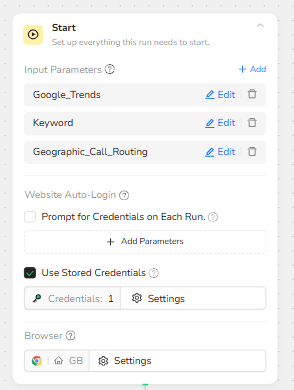
At the Start node, the workflow defines three key input parameters:
• Google_Trends – the Google Trends base URL (for example, https://trends.google.com/trends).
• Keyword – the search term whose trend you want to monitor (for example, “iPhone 17” or “tesla model 3 lease”).
• Geographic_Call_Routing – the geo code for the target region (for example, US, GB, DE).
These parameters allow Make.com to inject different keywords and regions for every execution while reusing the same BrowserAct workflow template.
Step 1 – Visit the Login Page
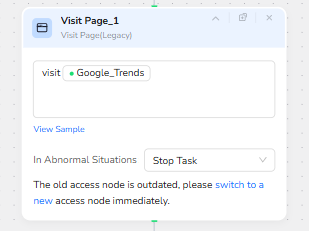
The first Visit Page node opens the Google Trends homepage in the current browser tab:
visit Google_Trends
This creates a clean entry point and ensures the session is inside the Trends domain before moving to the Explore page.
Step 2 – Open the Google Trends Explore Page
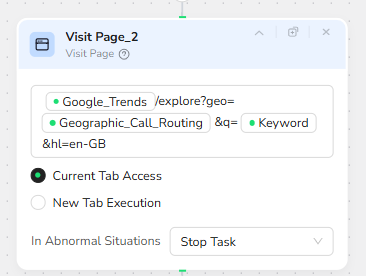
The second Visit Page node builds the full Trends URL dynamically by combining the Google_Trends base URL with query parameters:
visit Google_Trends + "/explore?geo=" + Geographic_Call_Routing + "&q=" + Keyword + "&hl=en-GB"
In practice, this means the workflow automatically constructs URLs such as:
https://trends.google.com/trends/explore?geo=US&q=iPhone17&hl=en-GB
The use of the Geographic_Call_Routing and Keyword parameters makes this step fully reusable: Make.com can send any keyword and region, and BrowserAct will open the correct Trends explore page for that combination.
Step 3 – Structured Trend Data Extraction
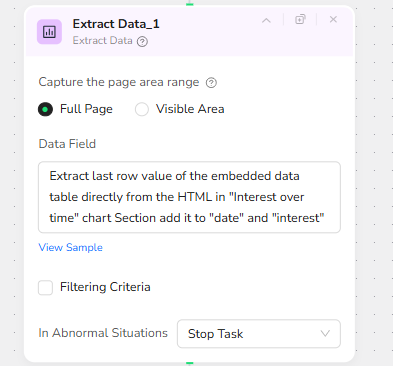
Once the Google Trends page is loaded, the Extract Data node is used to read the embedded data behind the “Interest over time” chart. The node is configured to scan the Full Page and contains an instruction like:
“Extract last row value of the embedded data table directly from the HTML in ‘Interest over time’ chart section and add it to ‘date’ and ‘interest’.”
This tells BrowserAct to locate the internal HTML table associated with the time-series chart, find the final row (representing the most recent date), and output two fields:
• date – the latest date in the time series.
• interest – the corresponding search interest value (0–100).
The result is a compact JSON structure, for example:
[
{
"date": "7 Dec 2025",
"interest": 38
}
]
This JSON is then passed back to Make.com for parsing and storage.
🤖 Part 2: Automation Integration with Make.com
The Make.com scenario orchestrates the full batch job: it reads a list of keywords from Google Sheets, invokes the BrowserAct workflow for each row, parses the JSON output, and updates the sheet with the latest trend information. Optional Slack notifications can alert the team when something goes wrong.
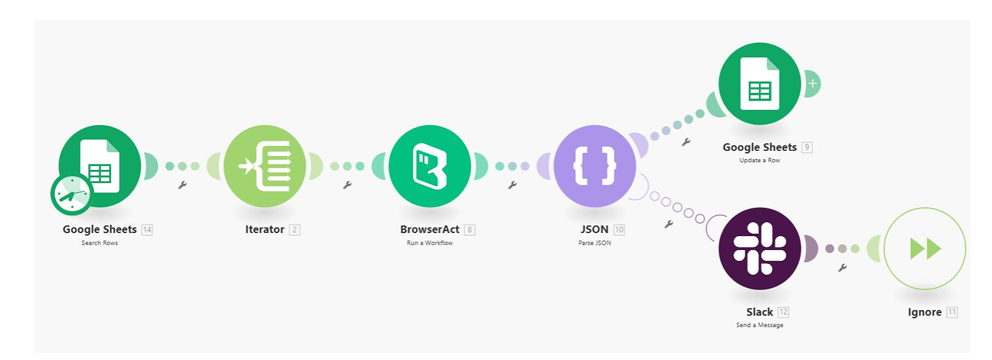
Trigger and Google Sheet Input
The scenario begins with a Google Sheets module that searches or retrieves rows from a designated sheet. Each row typically contains at least:
• Keyword – the search term to monitor.
• Category – an optional classification such as “Car Lease”, “Tech”, or “Crypto”.
Columns for Trend_Value_Latest and Date can be left blank initially; they will be populated automatically by the workflow.
Iterator – Row-by-Row Processing
An Iterator module takes the list of rows from Google Sheets and splits them into individual bundles. Each bundle represents one keyword entry:
1 bundle = 1 row = 1 keyword
This allows Make.com to call BrowserAct separately for each row, so that the trend data for each keyword is fetched independently.
BrowserAct – Run Workflow for Each Keyword
For every row, the BrowserAct module invokes the GOOGLE TRENDS SCRAPING PROJECT workflow and maps the sheet data into the BrowserAct input parameters:
• Login_Page – fixed value, such as https://accounts.google.com
• Google_Trends – fixed value, such as https://trends.google.com/trends
• Keyword – mapped from the current Google Sheet row’s Keyword column
• Geographic_Call_Routing – mapped either from a column or set as a default (for example US)
BrowserAct then executes the steps described in Part 1: log in if needed, open the correct Trends explore URL, and extract the latest “date” and “interest” values from the embedded table.
JSON Parsing – Make the Output Usable
The BrowserAct module returns a JSON array containing the fields date and interest. A JSON Parse module converts this JSON into structured fields that Make.com can reference directly. After parsing, Make has clean variables for:
• date – the latest data point date.
• interest – the latest search interest score.
Google Sheet Update – Writing Back the Trend Data
A Google Sheets “Update a Row” module then writes the parsed values back into the original sheet:
• Trend_Value_Latest – set to the interest value.
• Date – set to the date value.
• Keyword and Category – kept as they were, so the row remains consistent.
This turns the original keyword list into a living Google Trends dashboard, where each keyword row is enriched with the most recent popularity score and timestamp.
Slack Notifications and Error Handling
An optional Slack module can send a message whenever:
• BrowserAct encounters a loading error.
• Google Trends returns incomplete data.
• The JSON parsing step fails.
By sending alerts to a Slack channel, the team can quickly identify which keywords or regions are causing issues and re-run or adjust the workflow as needed.
Ignore / Termination Node
At the end of the scenario, an Ignore or terminator module is used to cleanly close the branch after all actions are completed. This keeps the scenario organized and ensures that each bundle (each keyword) runs to completion without creating unnecessary branches.
✨ Applicable Scenarios (Use Cases)
Trend Monitoring Dashboard for Product Keywords
Maintain a central Google Sheet of brand and product keywords (for example, “iPhone 17”, “range rover lease”, “crypto trading app”). The workflow refreshes the latest trend score and date for each term, turning the sheet into a live visibility dashboard for product interest in different regions.
Market and Competitor Intelligence
Track competitor brand names or campaign slogans across multiple markets by setting Geographic_Call_Routing to different country codes. The pipeline automatically retrieves the latest interest level, helping teams see where competitors are gaining or losing traction.
SEO Topic Validation and Prioritization
Before investing in content production, feed a list of candidate topics into the Google Sheet. The scenario runs through each keyword and returns the most recent trend score, allowing SEO and content teams to prioritize topics with growing or consistently high interest.
Campaign Performance Correlation
Combine this trend data with advertising or sales performance. If you launch a campaign around a keyword (for example, “Black Friday laptop deals”), you can track whether Google search interest is rising in parallel, indicating demand lift driven by campaigns.
Regional Demand Comparison
By changing Geographic_Call_Routing or duplicating the sheet per region, the same workflow can compare interest levels for the same keyword across different countries (US vs GB vs DE, etc.), providing a clearer view of where demand is strongest and where additional marketing is needed.