
Apollo Business Scraper & Personalized Email Outreach
Published by
je
jett
February 02, 2026
Approx.Credits
350-400 Credits
Categories
BA
Data ProcessingMarket IntelligenceBusiness AnalyticsApollo
Template ID
67996245177665500

Brief
📌 Workflow Description
🎯 Core Function: Automated Apollo Prospect Scraping, Enrichment, and Personalized Email Outreach
This end-to-end workflow combines BrowserAct and Make.com to automatically search Apollo for targeted prospects, extract structured lead data, enrich it with AI, send personalized outreach emails, and log everything into Google Sheets. BrowserAct is responsible for robust website navigation, Google/Apollo login handling, and structured list extraction, while Make.com orchestrates batching, AI email generation, de-duplication, and final storage.
😊 The design assumes the user only needs to provide high-level targeting inputs (search URL, business category, and location); the system does the heavy lifting of logging in, scraping, and contacting prospects at scale.
✨ Part 1: BrowserAct Workflow Description
The BrowserAct workflow is the core web-automation module that safely logs into Google, passes 2-step verification with human assistance, authenticates into Apollo via Google Login, navigates to a dynamic search URL, and iterates through the contact list to extract clean lead data.
Global Input Parameters and Auto-Login Setup
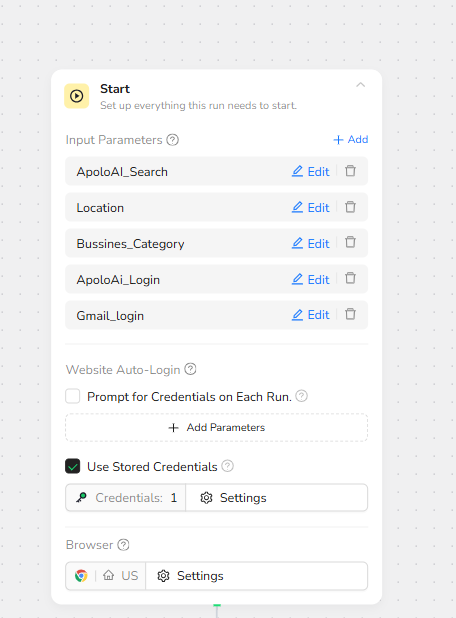
At the Start node, the workflow defines several input parameters so that the same automation can be reused for different targeting campaigns without editing the steps each time:
- ApoloAI_Search – the base Apollo people search URL, typically something like https://app.apollo.io/#/people with query parameters appended.
- Location – a text input representing the geographic filter (for example, “Brooklyn”).
- Bussines_Category – the job title or role category you want to target (for example, “plumber”).
- ApoloAi_Login – the Apollo login URL, used later to ensure the workflow always begins from a clean login path.
- Gmail_login – the Google Accounts login URL used for Gmail-based authentication.
Website Auto-Login is configured with Use Stored Credentials enabled, and a Google credential is attached. This credential contains the Gmail account, password, and optionally a 2FA secret so the bot can attempt automatic login to Google on each run. The browser region is set (for example, US) to match the target market and reduce geo-related login issues.
Google Login via Stored Credentials
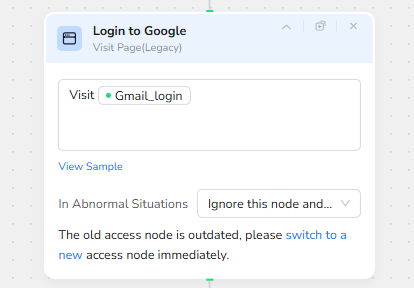
The first navigation node, “Login to Google,” visits the Gmail_login parameter value. This step simply loads the Google sign-in page. Because stored credentials are enabled at the Start node, BrowserAct immediately attempts to fill in the account and password fields using the selected credential, simulating a normal user login without exposing sensitive details in the workflow itself.
2-Step Verification Detection and Human Interaction
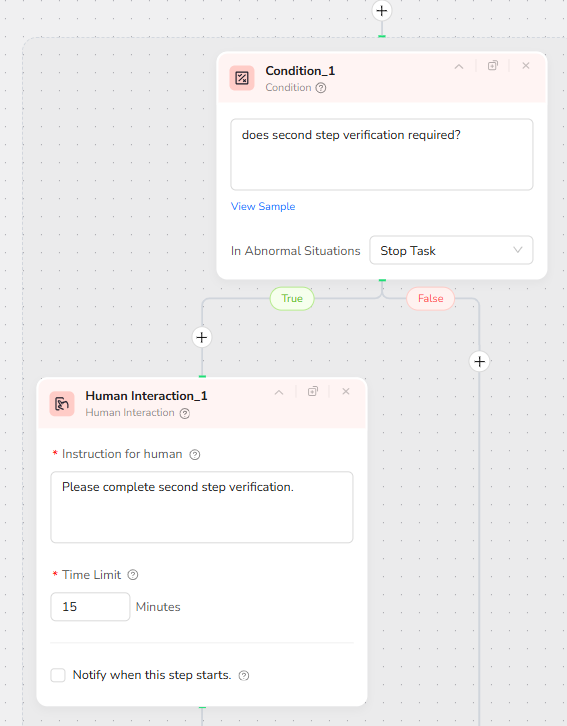
After the automatic login attempt, a Condition node “does second step verification required?” evaluates whether Google has challenged the login with an additional 2FA step. This is crucial because Google often requires extra verification when the sign-in happens from a new device or automation environment.
If the condition evaluates to TRUE, the flow goes into a Human Interaction node. The instruction clearly asks the human operator to complete the second-step verification, such as confirming the login on their phone, entering a code from an authenticator app, or approving a Google prompt. The time limit (for example, 15 minutes) ensures the task will eventually resume or fail, preventing workflows from hanging indefinitely.
Once the human has completed the verification, they click Resume in BrowserAct, and the workflow continues. If the condition is FALSE, meaning no 2FA is required, the flow skips the human step and proceeds directly.
Logging into Apollo with Google
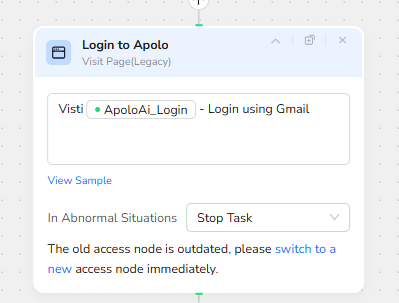
After the Google session is established, the next Visit node “Login to Apollo” uses the ApoloAi_Login parameter to navigate to the Apollo login page. On this page, the user can log in “using Gmail,” and because a valid Google session already exists, Apollo’s “Log in with Google” button can complete the authentication without re-entering credentials.
In a full implementation, this step is accompanied by a click action on the “Log in with Google” button so that the workflow reliably lands inside the authenticated Apollo environment every time. The abnormal-situation behavior is set to Stop Task to avoid silently continuing if the login flow fails or the page layout has changed.
Navigating to a Dynamic Apollo Search Page
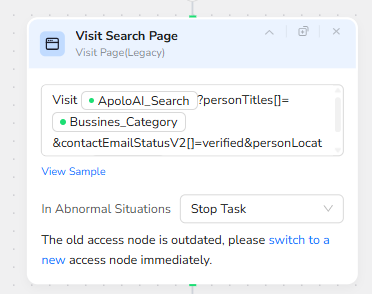
Once logged into Apollo, the “Visit Search Page” node builds the final search URL by combining the base ApoloAI_Search parameter with additional query parameters. These parameters incorporate the Bussines_Category and Location inputs (for example, job title filters, verified email requirement, and geographic constraints). The workflow navigates to this constructed URL so that the visible list is already filtered to the exact audience you want to contact.
This design lets Make.com (or the user) inject different categories and locations without changing the automation logic; only the parameter values need to be updated.
Looping over the Contact List
With the search page loaded, a Loop List node “Loop List_1” is used to iterate through each row in the Apollo people table. The loop description defines the behavior clearly:
– Iterate inside the service providers list.
– Skip header rows such as “Name”, “Job title”, “Company”, “Emails”, “Phone numbers”, and “Actions”.
– Optionally auto-click “Load More” when present to fetch additional rows.
The Max items to focus parameter can be adjusted (for example, up to 10 per run) to control how many leads are processed in a single execution. In abnormal situations, the task is stopped to avoid extracting partial or corrupted data.

Expanding Email Details if Needed
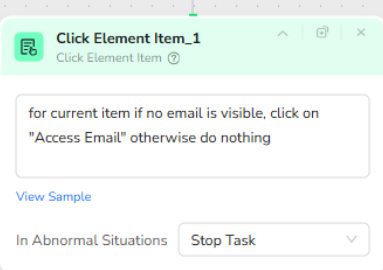
Inside the loop, a “Click Element Item_1” node handles variability in the UI. For each current row, it checks whether an email is visible. If no email is currently shown, it clicks an “Access Email” or similar action so that Apollo reveals the contact email address for that row. If the email is already visible, the node does nothing and the workflow proceeds.
This conditional click ensures the extractor always sees the final state (with email exposed) before scraping, which greatly improves data completeness.
Waiting for UI Updates and Extracting Structured Data
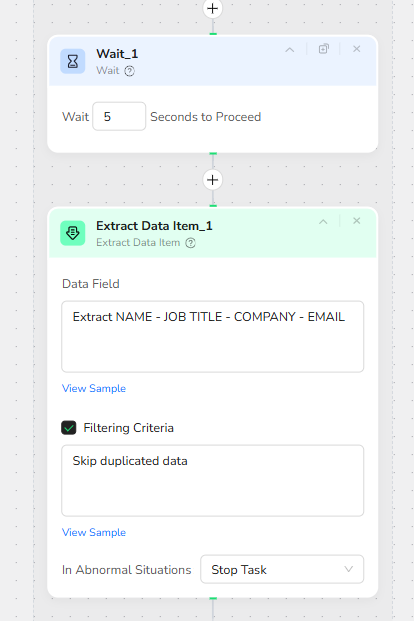
After potentially clicking to reveal emails, a Wait node introduces a short delay (for example, 5 seconds) to allow the page to fully update and avoid scraping half-rendered content.
Then the “Extract Data Item_1” node performs structured extraction. The Data Field configuration instructs BrowserAct to pull the following attributes from the current row:
– NAME
– JOB TITLE
– COMPANY
Filtering Criteria are enabled to skip duplicated data, so if the same person appears multiple times across pagination or retries, the extractor will avoid emitting redundant records.
The result of this step is a clean, machine-readable JSON object containing lead records with the four key fields above. This JSON is passed back to Make.com for further processing.
🧠 Part 2: Automation Integration with Make.com
The Make.com scenario consumes the structured JSON output from BrowserAct, enriches each lead with AI-generated email content, checks for duplicates, sends emails, and logs everything into Google Sheets.

Trigger and Static Input Variables
The scenario begins with a “Define Static Input Variables” module. Here, campaign-level settings are defined, such as:
– Target location (for example, “Brooklyn”).
– Business category (for example, “plumber”).
– Base Apollo search URL.
These values are used to build the BrowserAct input parameters, ensuring the same Make.com scenario can drive many different Apollo searches simply by changing the variables.
BrowserAct Module – Run Apollo Scraper
The BrowserAct module is called with the parameters defined above. It runs the full web automation workflow described in Part 1: logging into Google, handling 2FA with human assistance if necessary, authenticating into Apollo, visiting the search page, looping over the contact list, and returning structured JSON for all extracted leads.
The output of this module is a JSON array where each item corresponds to one Apollo contact, including name, job title, company, and email.
JSON Parsing and Iteration over Leads
A JSON Parser module converts the raw JSON string from BrowserAct into structured bundles that Make.com can iterate over.
An Iterator module then loops through each lead record. This allows subsequent modules (deduplication, AI email generation, sending, and logging) to run once per lead, giving granular control over how each contact is handled.
De-Duplication against Historical Outreach
Before any email is sent, a “Check For Sent” Google Sheets module searches an existing sheet that tracks previously contacted leads. It looks up by primary key (commonly the email address or combination of name and company) to determine whether this contact has already been emailed in a prior run.
If a matching row is found, the scenario can skip sending another email and move directly to the next lead, preventing spammy behavior and keeping outreach clean.
AI-Generated Personalized Email Body (Gemini or Similar)
For new leads that pass the de-duplication check, a “Create email body” module calls an AI model such as Google Gemini. The prompt can combine multiple fields from the Apollo data, for example:
– Recipient name
– Job title
– Company name
– Location
– Business category
The AI is instructed to generate a short, personalized outreach email that references the recipient’s role and context, making the contact feel targeted rather than generic. The generated text is returned as the email body for the next step.
Sending Emails via Gmail
A Gmail module then sends the outreach email to the lead’s email address using the authenticated sender account. The subject line and body come from the AI output, and optional CC/BCC fields can be added for tracking or internal notifications.
If desired, error handling can be configured so that bounced or invalid addresses are logged separately.
Logging Results into Google Sheets
Finally, a Google Sheets “Add a Row” module appends a new row for each successfully processed lead. Typical columns include:
– Name
– Job Title
– Company
– Location
– Business Category
– Email Sent (Yes/No)
– Timestamp
– Any AI notes or tags
This sheet becomes a living CRM-style log of all contacts scraped from Apollo and the outreach actions taken. It is easy to filter, pivot, or export for further sales operations.
📈 Applicable Scenarios (Use Cases)
- Local Service Lead Generation
A marketing agency can automatically pull contact lists of plumbers, electricians, or other local service providers in specific neighborhoods (for example, “Brooklyn plumbers”) from Apollo, then send personalized introduction emails at scale while logging all results to a central sheet. - B2B Prospecting for Niche Industries
Sales teams targeting niche roles (for example, “Head of Growth” in SaaS companies) can feed the role and location into the workflow, generate a high-quality lead list via Apollo, and immediately contact them with AI-tailored outreach. - Account-Based Marketing Campaigns
For ABM efforts, the scenario can be configured to search for decision-makers inside a curated list of target companies, ensuring that only high-value accounts are contacted, while the sheet records who has already been touched. - Continuous Prospect Enrichment
By scheduling the scenario to run regularly with updated Apollo filters, teams can maintain an always-fresh lead database, enrich new entries with AI metadata, and ensure no duplicate emails are ever sent.
Overall, this workflow turns Apollo into an automated prospecting engine, with BrowserAct handling complex login and scraping logic and Make.com orchestrating AI-driven outreach and data management.